Using the serial number as the device name gives you a unique, stable identifier in Microsoft Intune and in reporting. On Windows and iOS/iPadOS you can set this via Device Naming Templates in the enrollment profile; on macOS there is no built-in naming template in the enrollment profile, so you need another approach. By default, macOS sets the computer name from the first user’s full name and the Mac model (e.g. “Jane.Doe’s MacBook Air”). You can rename a Mac manually in the Intune portal (device ownership must be Corporate), but that does not scale. A better approach is to run a shell script via Intune that reads the serial number and sets the device name to that value. Microsoft provides a sample script in the shell-intune-samples repo; you can use it as-is (Model-Serial-Country) or edit one line so the name is only the serial number. This post walks through that edit and deploying the script in Intune.
Default macOS Name and Manual Rename
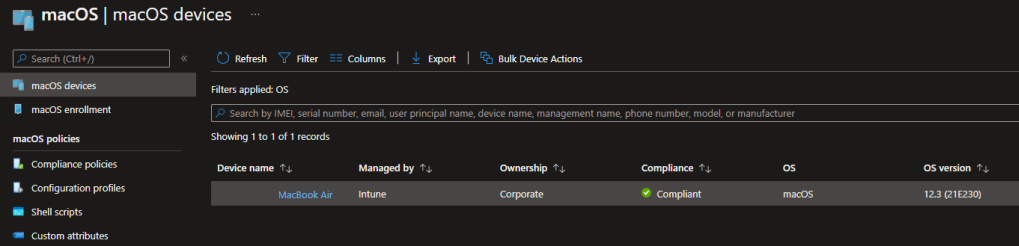
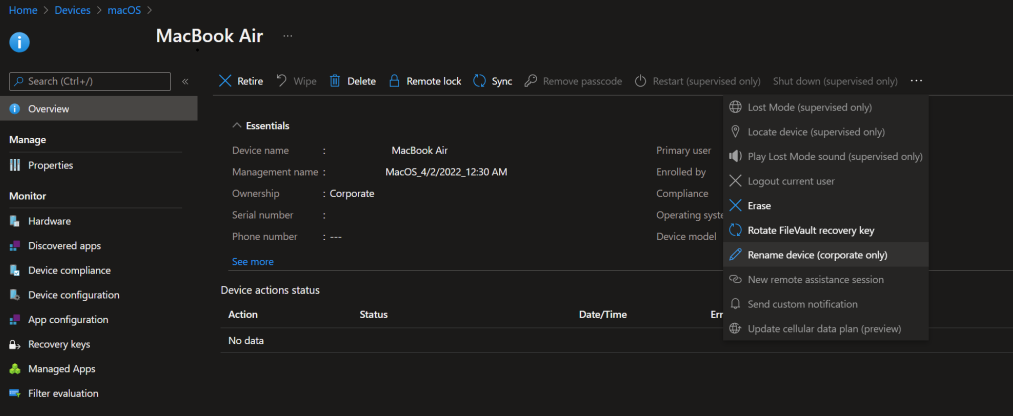
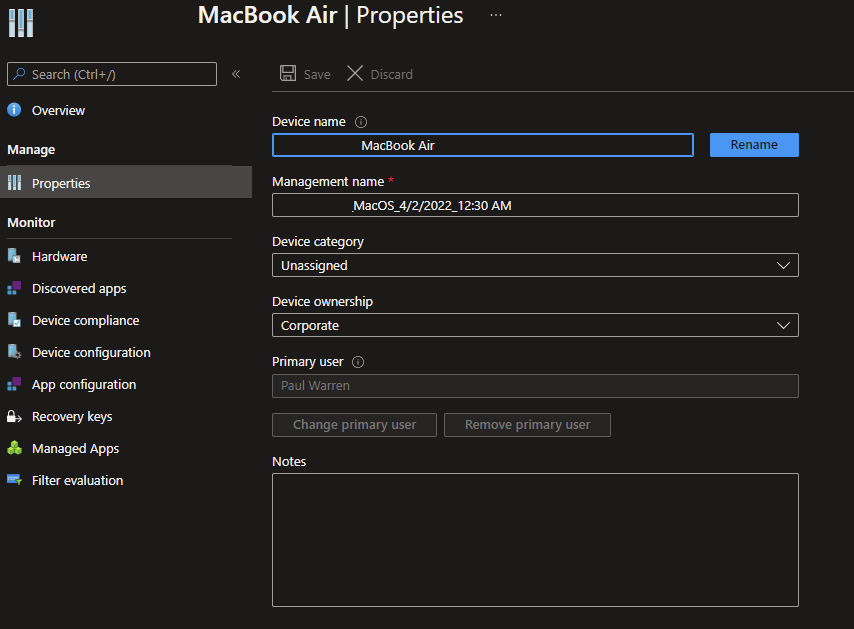
Out of the box, macOS uses the first account’s full name and the Mac model for the computer name, so devices show up in Intune with names like “John.Smith’s MacBook Pro.” That makes it harder to match devices to inventory or to keep names consistent. You can change the name manually in the Intune admin center (Devices → find the Mac → rename); the device must be marked Corporate for that option to be available. Relying on manual renames is error-prone and easy to forget, so automating the name with a script is preferable.
Below: default macOS device name example (user and model).
The screenshot shows manually changing the device name in the Intune portal.
Microsoft’s Script and Editing for Serial-Only Name
In the Microsoft Intune shell-intune-samples repo you will find a script that sets the Mac’s computer name. The script as published typically builds a name from the Mac model, serial number, and country (derived from the device’s public IP), e.g. MacBookAir-ABC123-US. If you want the device name to be only the serial number, change the line that sets the new name. For example, replace the line that builds NewName from model, serial, and country with:
NewName=$SerialNum
So the script sets NewName to the serial number only. Save the script and use it in Intune. You can still use the rest of the script logic (reading serial, applying the name via scutil or the appropriate commands) as provided by Microsoft.
Below: Microsoft Intune GitHub script resources.
The screenshot shows the script modification: NewName set to serial number only.
Below: script modification example.
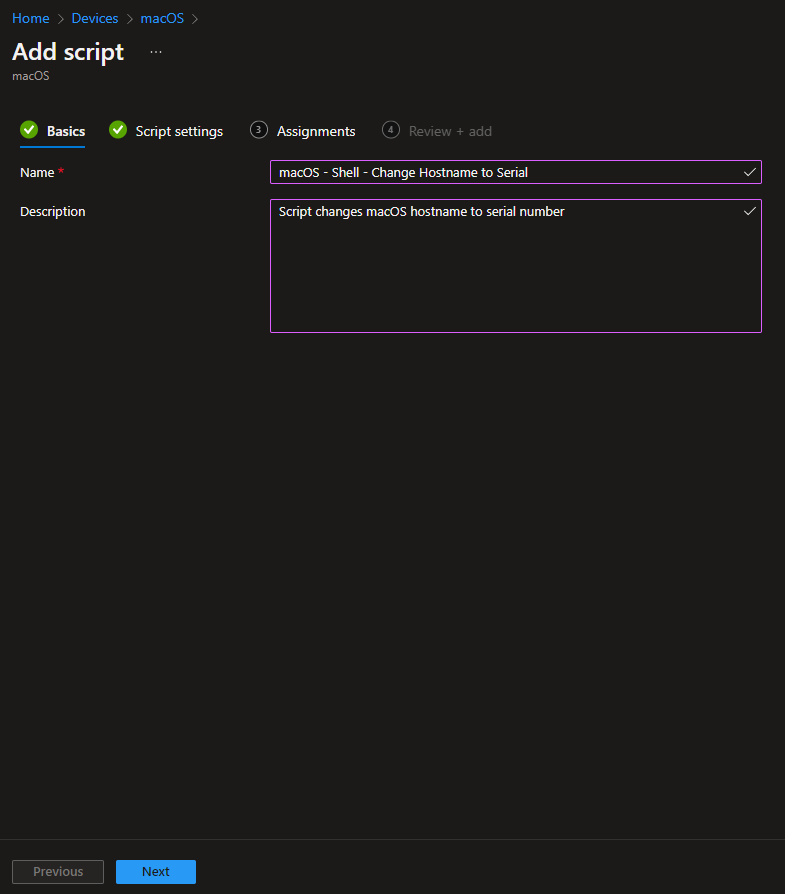
Deploy the Script in Intune
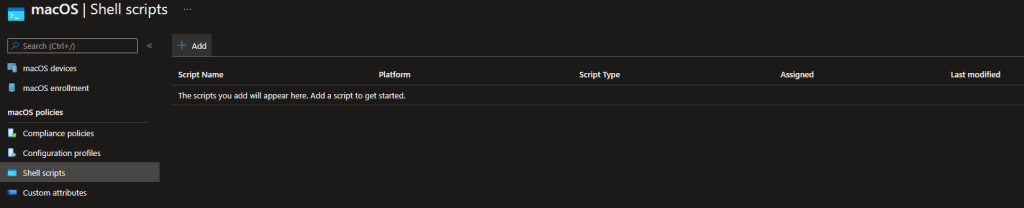
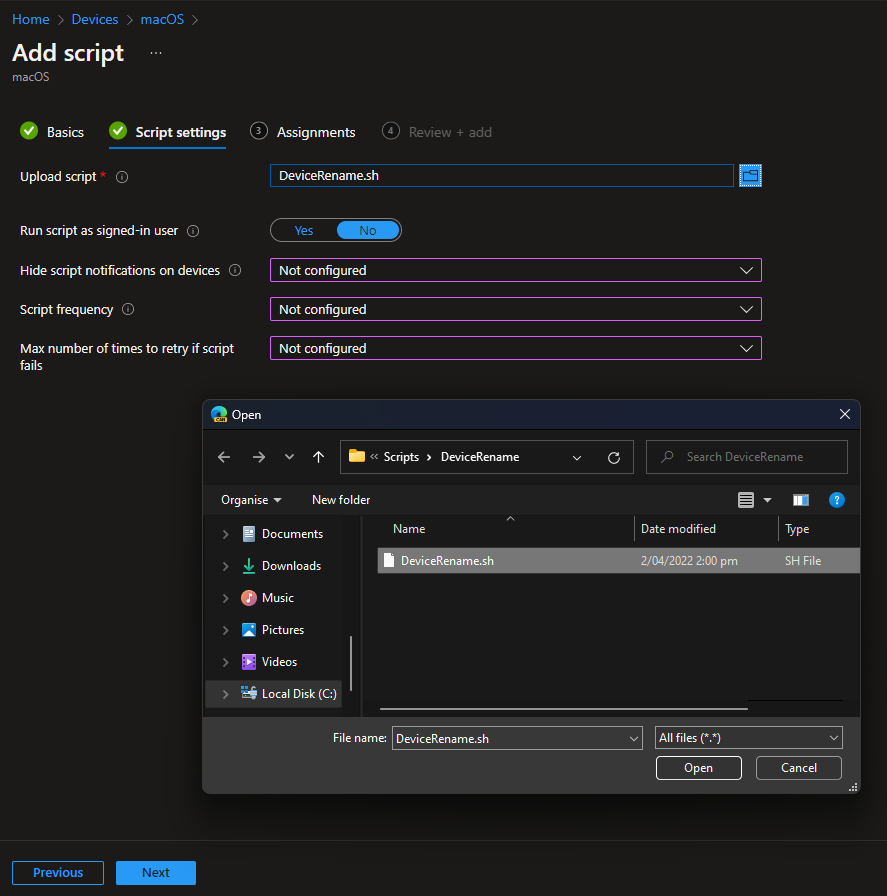
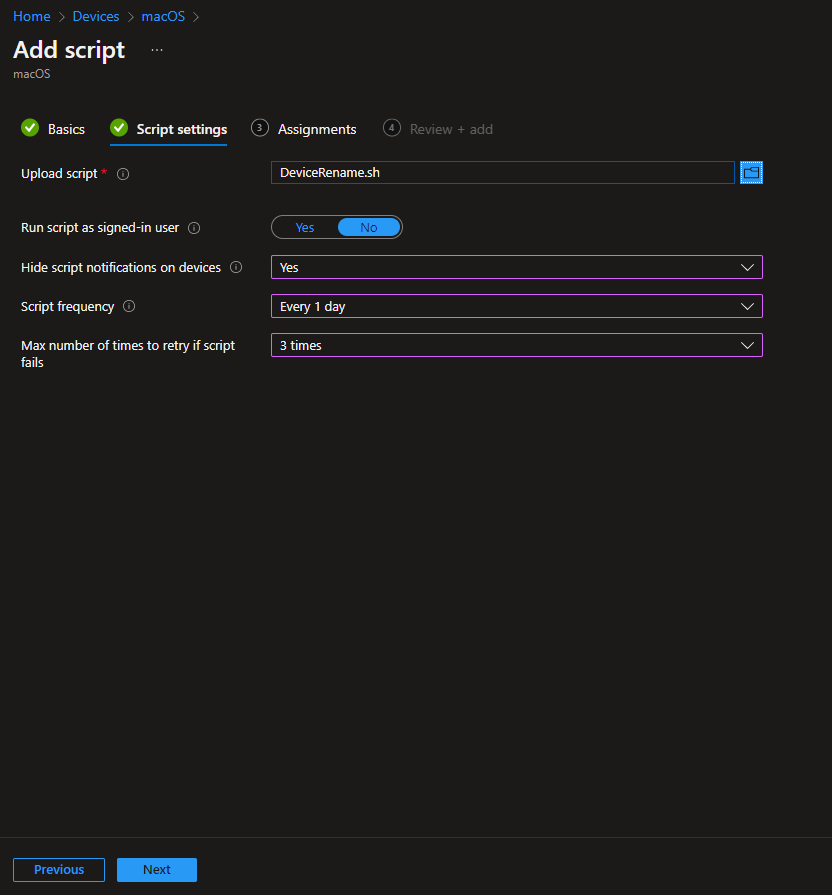
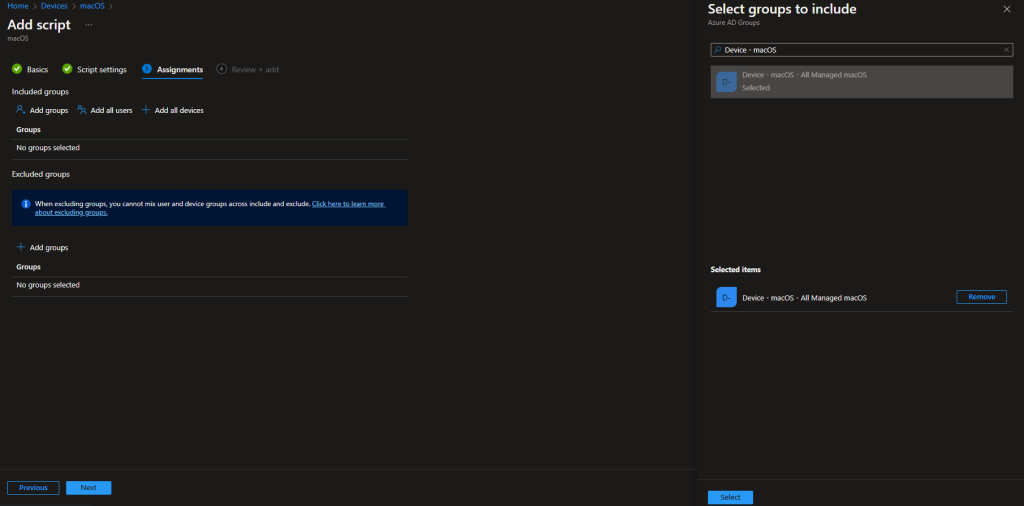
In the Microsoft Intune admin center, go to Devices → macOS → Scripts and choose Add. Give the script a name (e.g. “macOS – Set device name to serial number”) and an optional description. On the script file step, upload the edited shell script. Configure whether to show a notification when the script runs, how often to run it (e.g. daily so that if a user changes the name, it is reset to the serial within a day), and maximum retries on failure. Assign the script to a group that contains your managed macOS devices (e.g. an Entra ID dynamic group for all Intune-managed Macs). Review and add the script. After devices run it, the computer name will be the serial number and Intune will report that name after the next sync.
Below: Intune macOS Scripts – Add script.
The screenshot shows shell script name and description.
Below: uploading the shell script file.
The following screenshot shows script notification and frequency settings.
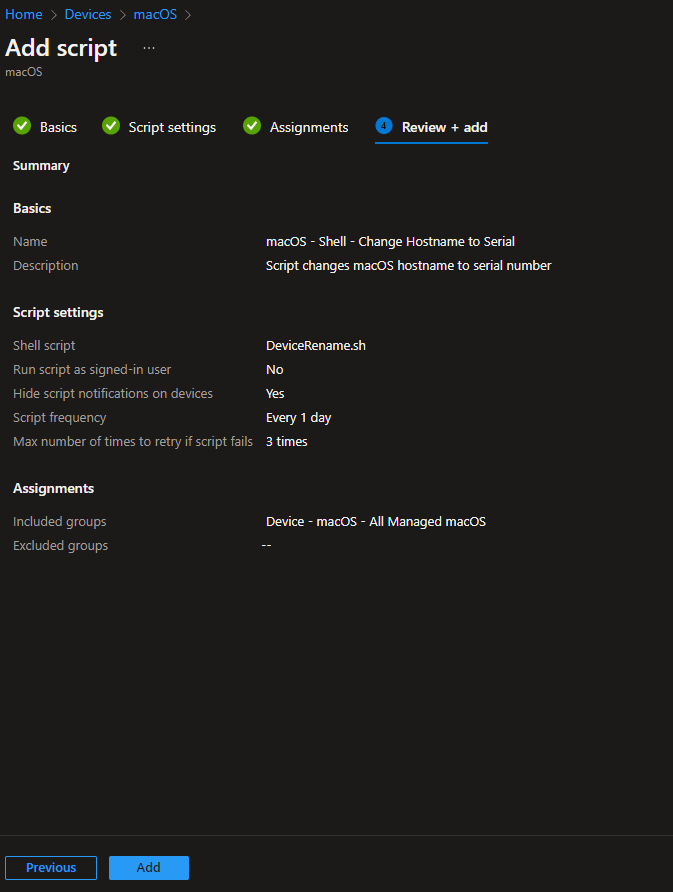
Below: selecting the deployment group for the script.
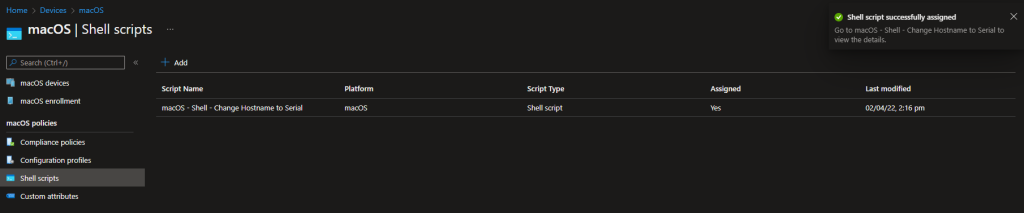
The screenshot shows review and add script.

Below: script added successfully; device name in Intune shows serial number.
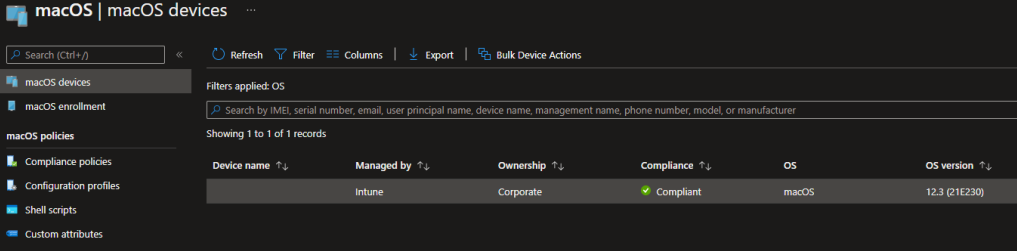
Verify and Script Status
In Intune, open the script and check Device status to see which devices have run it and whether it succeeded or failed. Script output (logs) are available there too, which helps with troubleshooting. After a successful run, the Mac’s computer name will be the serial number; Intune will pick up the new name on the next device sync, and the device will appear in the portal with the serial as its name. Running the script on a schedule (e.g. daily) keeps the name aligned with the serial even if users change it locally.
Summary
To set the device name to the serial number for macOS Intune managed devices: (1) Get the device-renaming script from the Microsoft shell-intune-samples repo. (2) Edit the script so the new name is only the serial number (e.g. set NewName=$SerialNum). (3) In Intune, add a macOS script (Devices → macOS → Scripts → Add), upload the script, set run frequency (e.g. daily), and assign to your macOS device group. (4) After the script runs, the Mac’s computer name will be the serial number; verify in script status and in the device list in Intune. Device ownership must be Corporate if you ever need to rename manually; the script approach works regardless and keeps names consistent and unique.