You can deploy a desktop wallpaper to Intune-managed macOS devices in two steps: a shell script that downloads the image to a fixed path, and a custom configuration profile (mobileconfig) that tells macOS to use that file as the desktop picture. If you already host a wallpaper for Windows (e.g. in Azure Blob Storage or another URL), you can reuse the same URL for macOS. Microsoft provides sample files in the shell-intune-samples repo: a script that downloads from a URL and saves as /Library/Desktop/Wallpaper.jpg, and a mobileconfig that points the desktop background to that file. This post walks through downloading and customizing those files, deploying the script and the profile in Intune, and optionally locking the wallpaper on supervised devices.
What You Need
From the Microsoft repo you need: (1) the shell script that sets a variable wallpaperurl, downloads the image, and places it at /Library/Desktop/Wallpaper.jpg; (2) the mobileconfig that configures the desktop wallpaper to use that path and filename. Download both to a folder on your machine. You can edit the script and the mobileconfig if you want a different path or name; the simplest approach is to change only wallpaperurl in the script so future wallpaper updates only require a new URL and a script update. Ensure the URL is reachable by devices (e.g. public or signed URL).
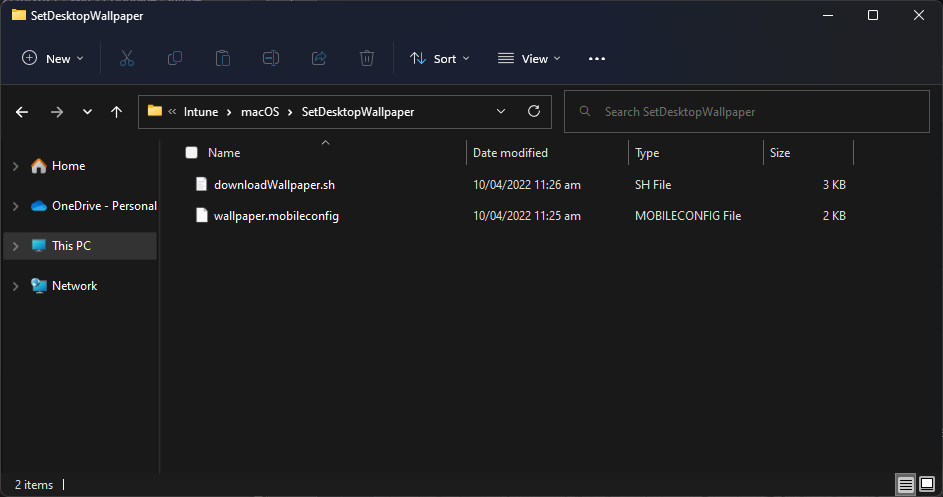
The screenshot below shows the downloaded script and mobileconfig files for macOS wallpaper.
Below: the shell script with the wallpaperurl variable.

The following screenshot shows the mobileconfig profile file for desktop wallpaper.
Deploy the Script in Intune
In the Microsoft Intune admin center, go to Devices → macOS → Scripts and choose Add. Give the script a name (e.g. “macOS – Set desktop wallpaper”) and an optional description. On the script file step, browse to and upload the shell script. Configure whether to show a notification when the script runs, how often to run it (e.g. daily so wallpaper URL changes are picked up within a day), and maximum retries on failure. Assign the script to a group that contains your managed macOS devices (e.g. an Entra ID dynamic group for all Intune-managed Macs). Review and add the script. After devices run it, /Library/Desktop/Wallpaper.jpg will be present; you can confirm in script status and by checking the device.
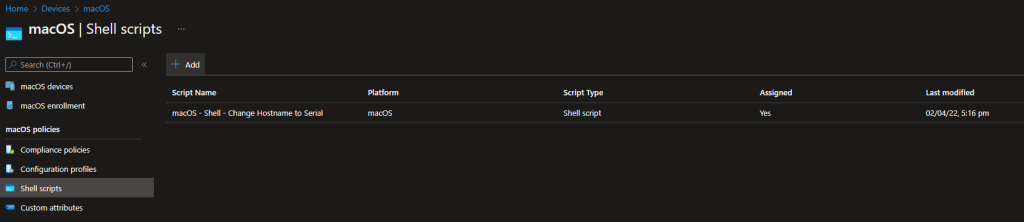
Below: the Intune macOS Scripts page and Add script.
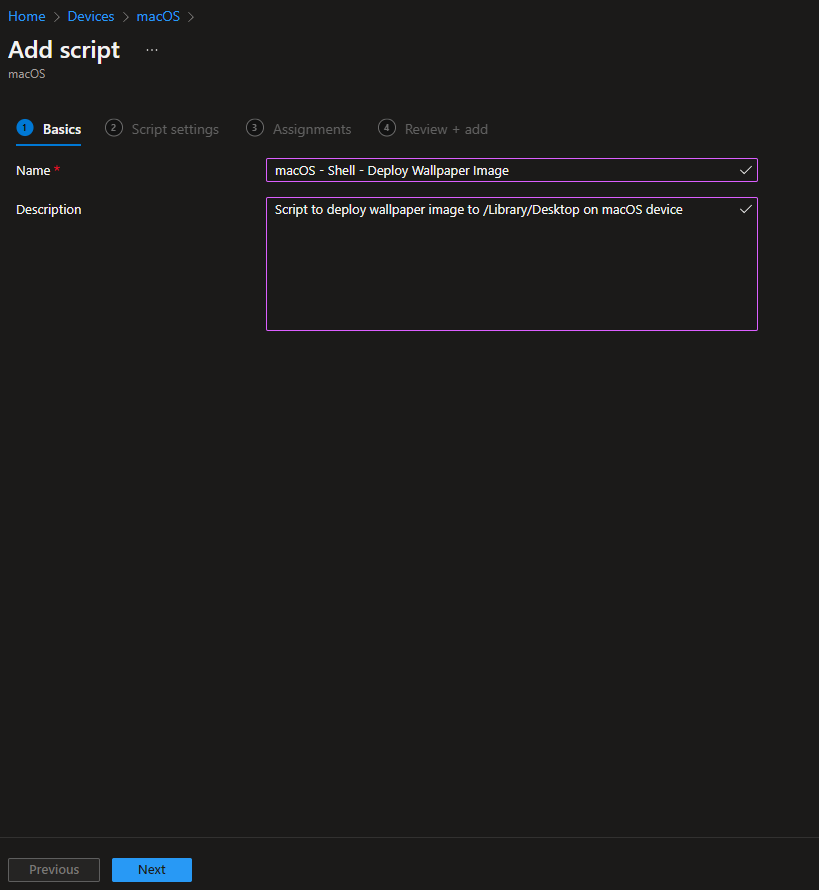
The screenshot shows script name and description.
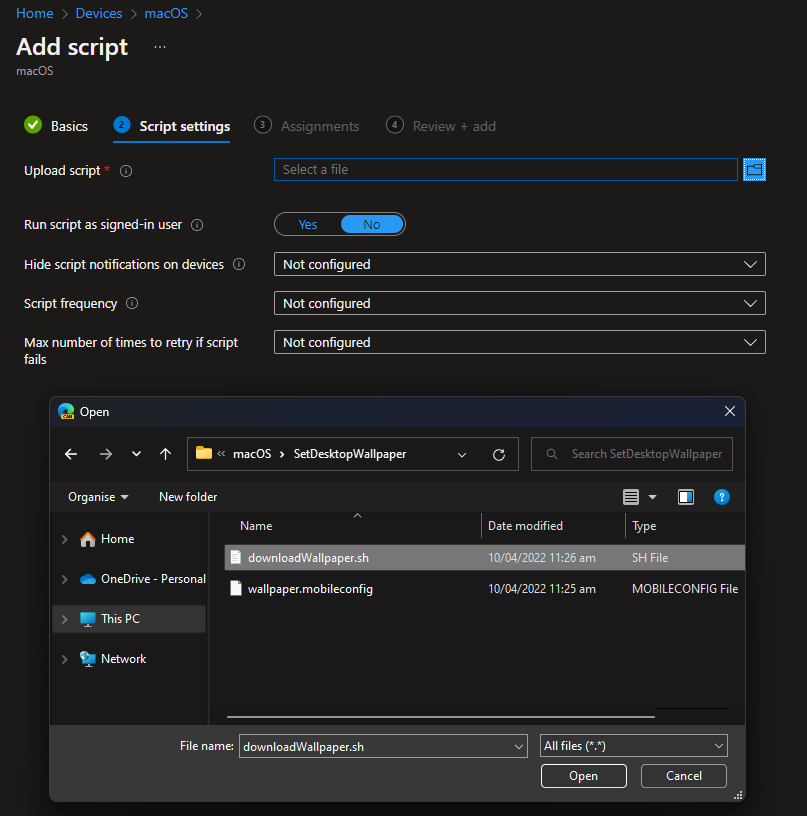
Below: uploading the shell script file.
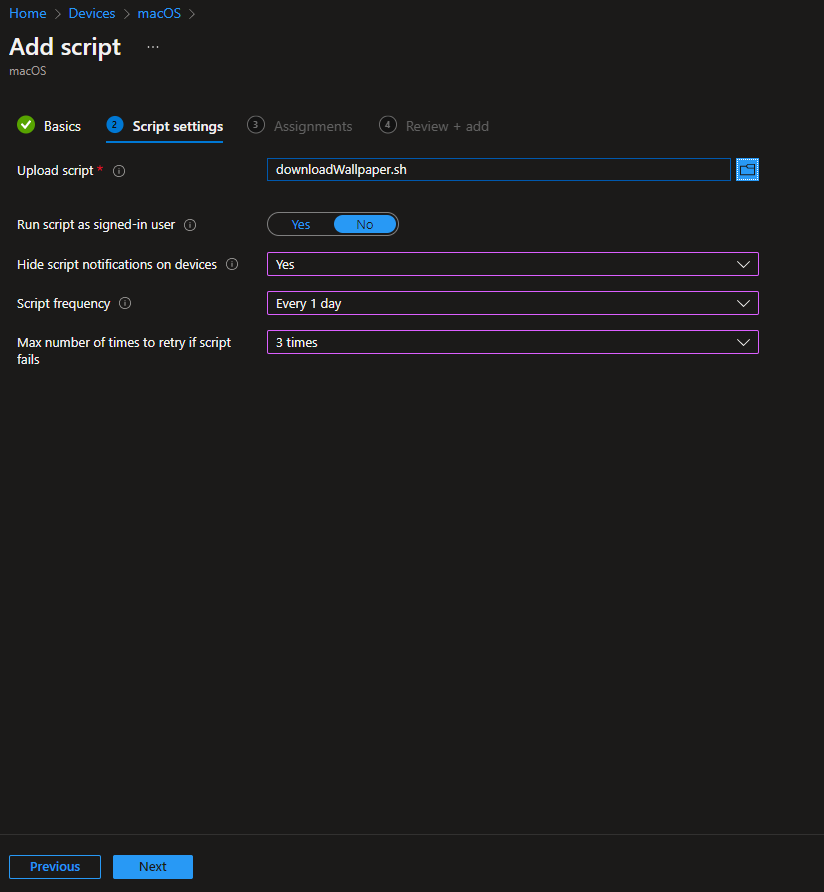
The following screenshot shows script notification and frequency settings.
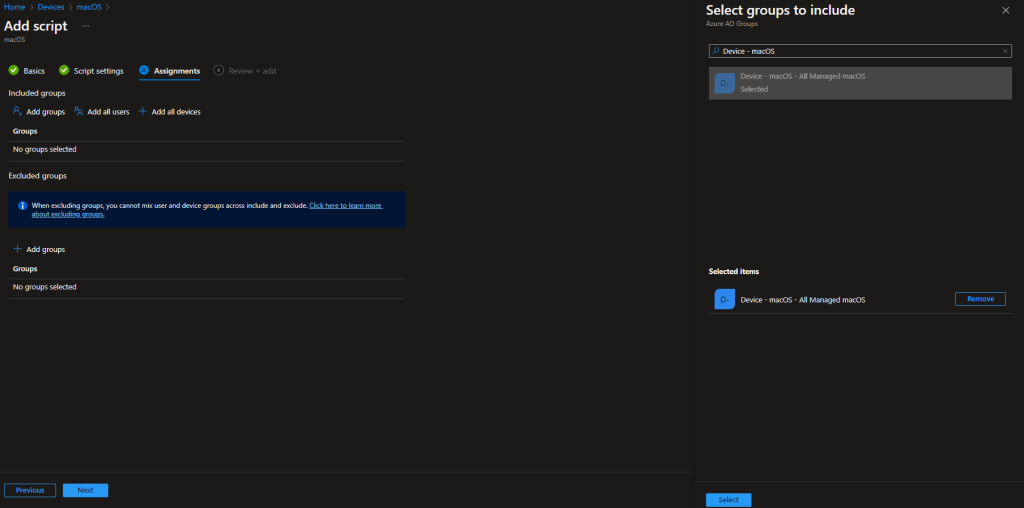
Below: selecting the deployment group for the script.
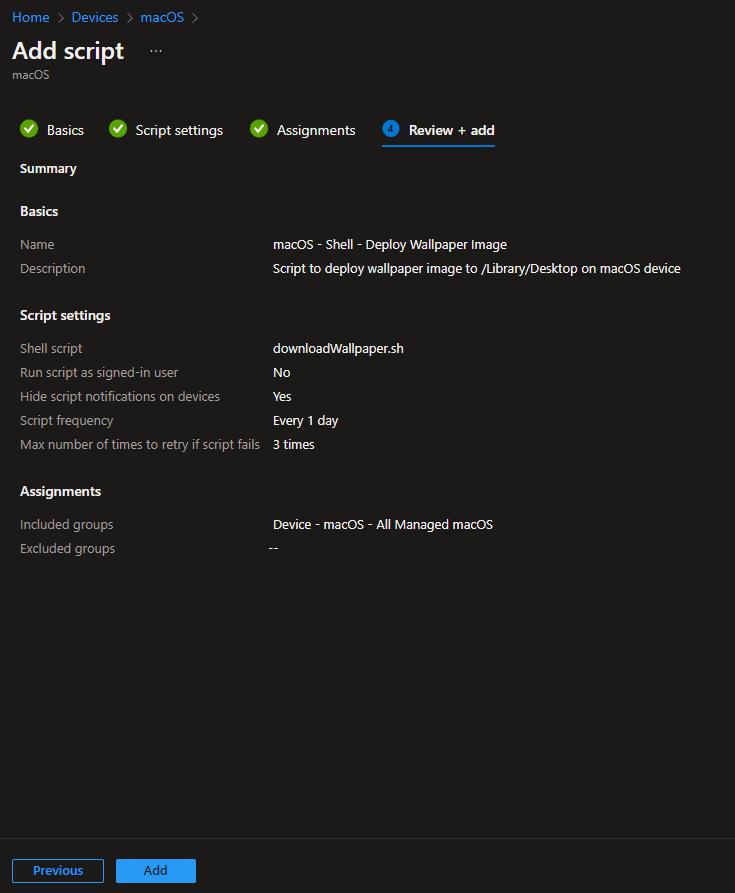
The screenshot shows review and add script.
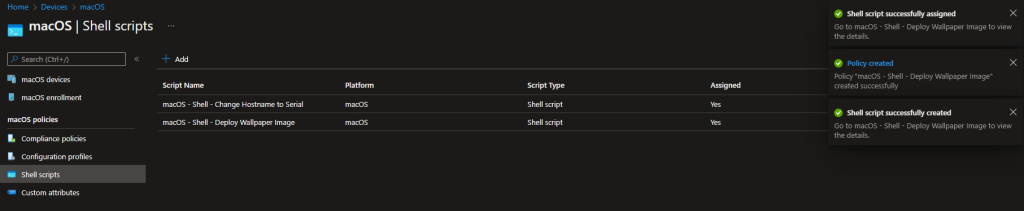
Below: script added successfully.
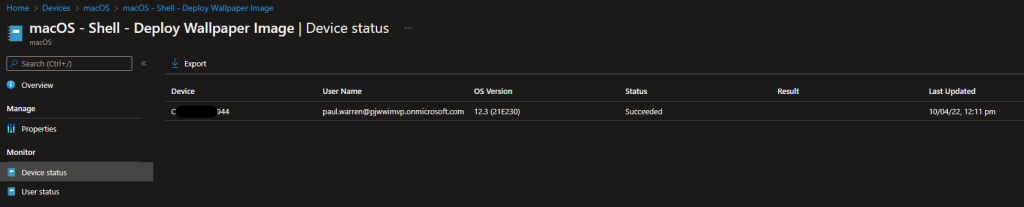
The following screenshot shows script status in Intune.
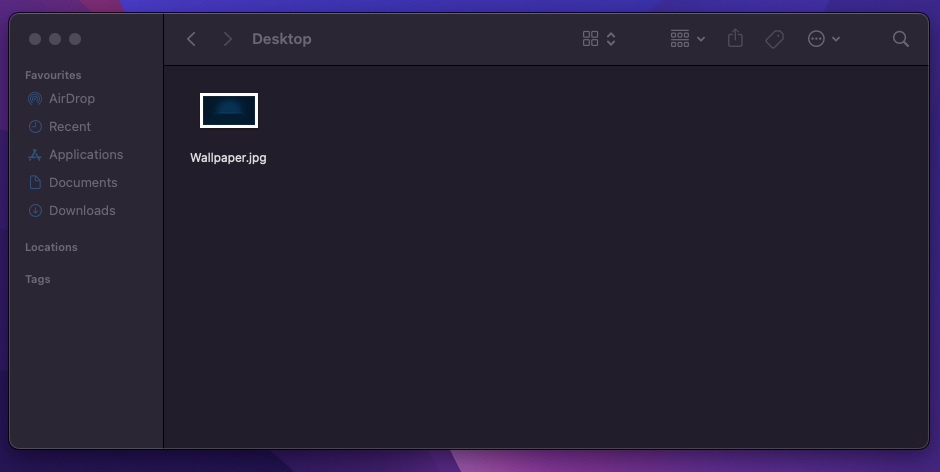
Below: the wallpaper file in /Library/Desktop on macOS.
Deploy the Configuration Profile (mobileconfig)
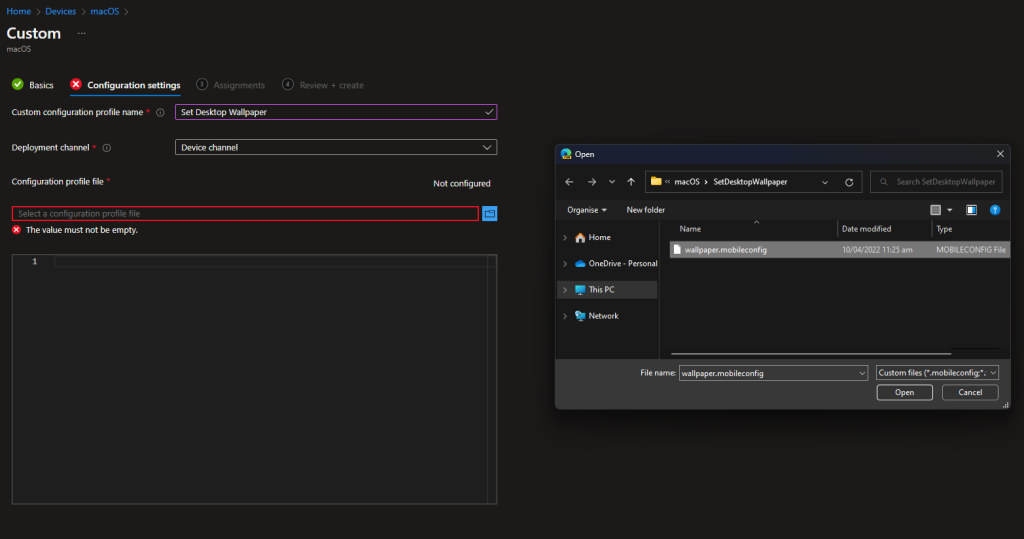
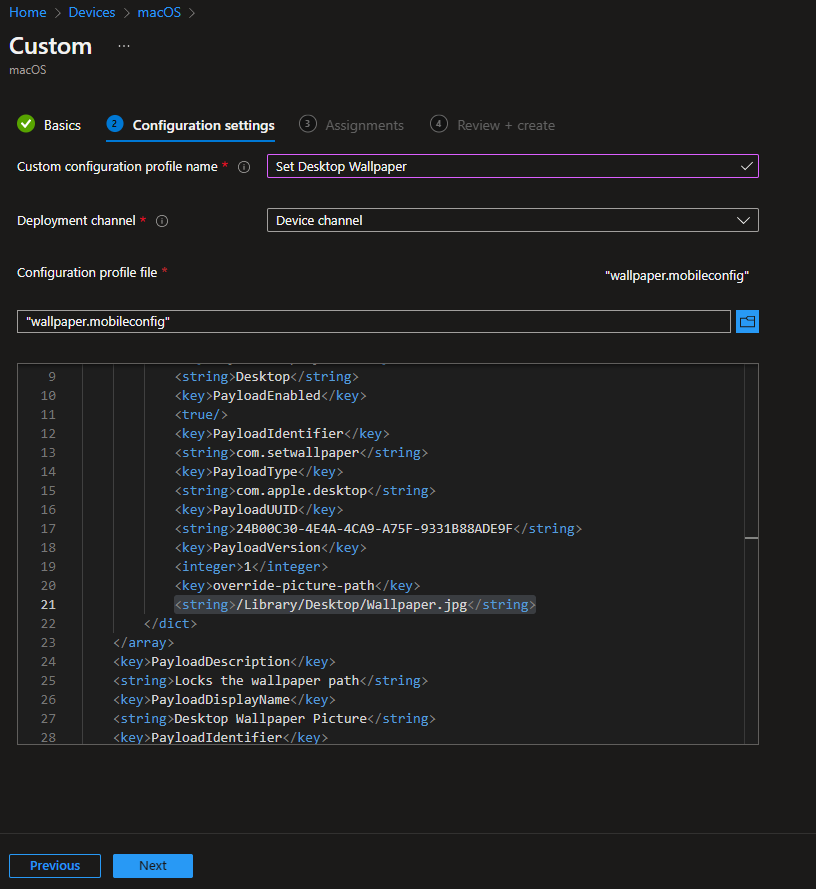
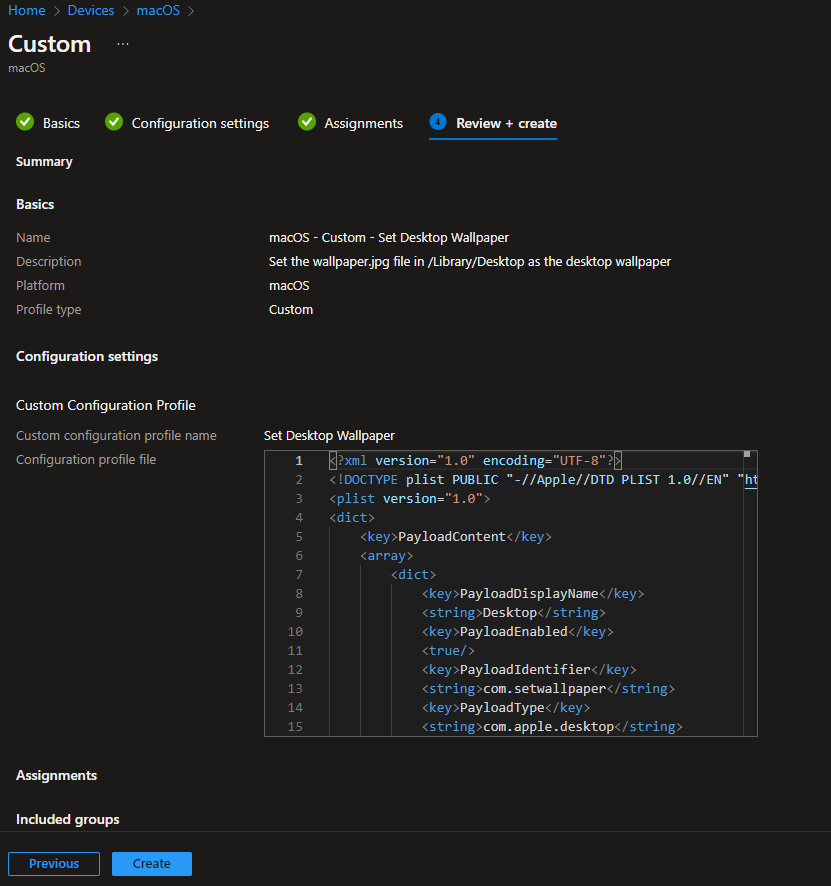
Next, deploy the custom configuration profile so macOS uses /Library/Desktop/Wallpaper.jpg as the desktop picture. Go to Devices → macOS → Configuration → Create → New policy. Choose macOS, Templates, Custom, then Create. On Basics, set a name (e.g. “Set desktop wallpaper”) and optional description. On Configuration settings, upload the mobileconfig file. Intune will show the XML; ensure the path and filename in the payload match where the script places the image (e.g. /Library/Desktop/Wallpaper.jpg). Assign the profile to the same group (or the same type of group) as the script. Review and create the profile. After the device syncs, the desktop wallpaper will change to the deployed image.
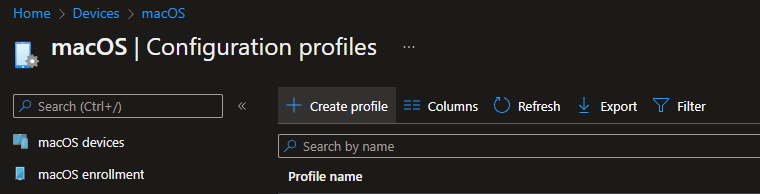
Below: Intune Configuration profiles – Create profile.
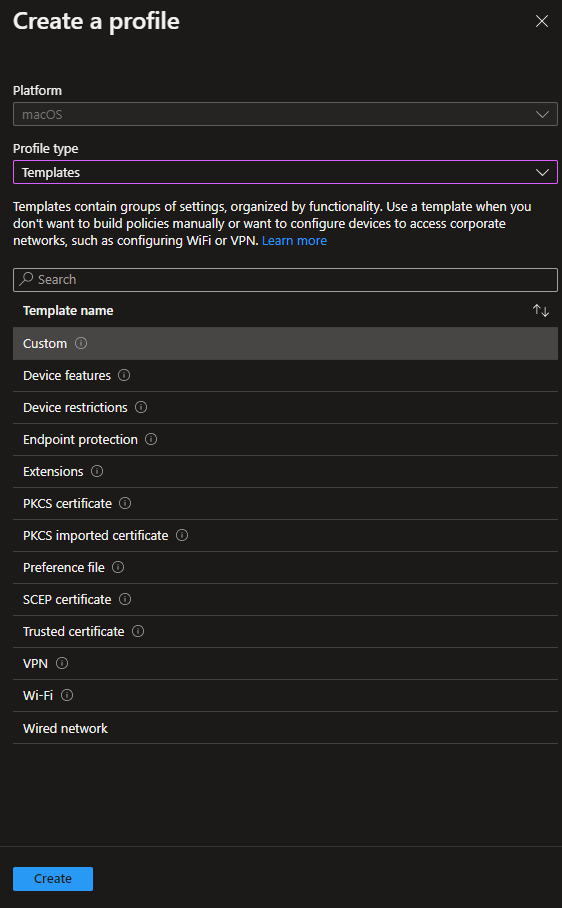
The screenshot shows selecting the Custom template for macOS.
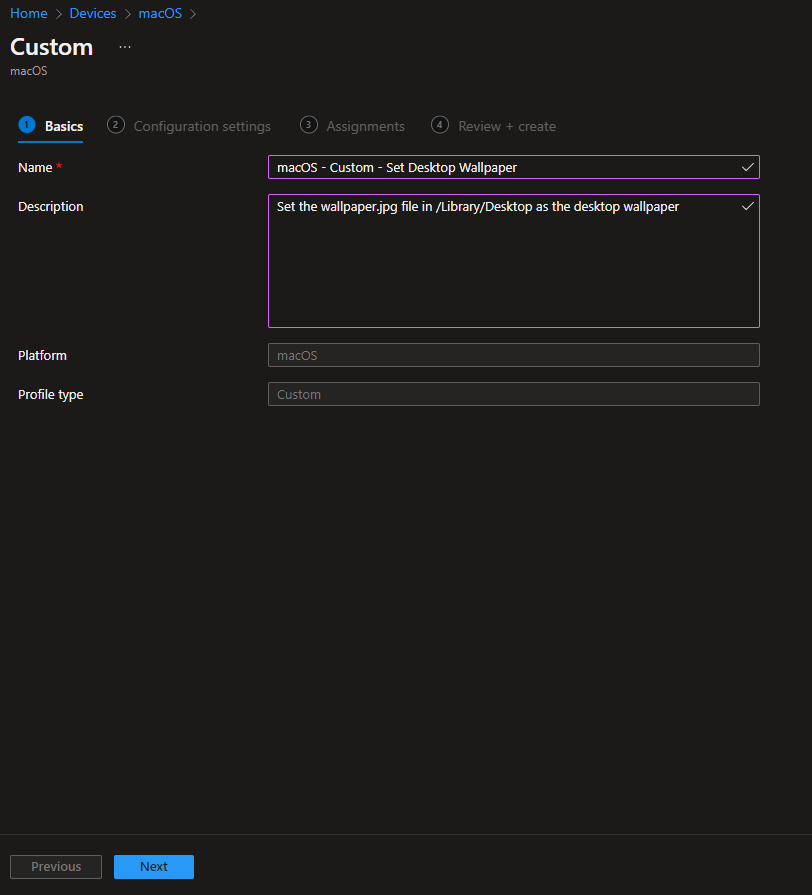
Below: configuration profile name and description.
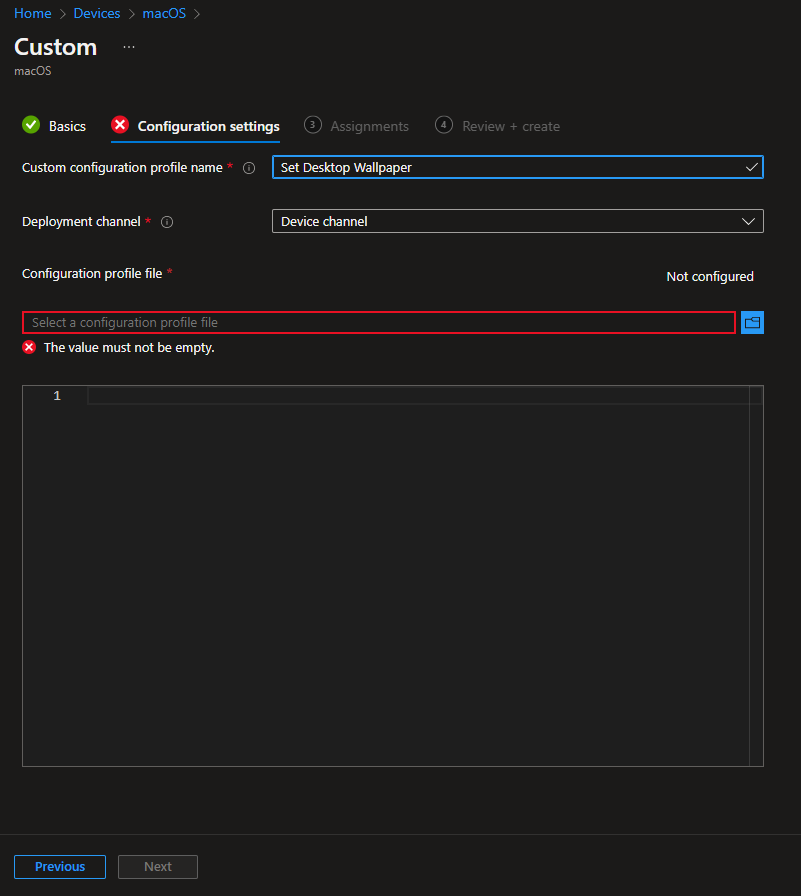
The following screenshot shows uploading the mobileconfig profile file.
Below: mobileconfig XML content and wallpaper path.
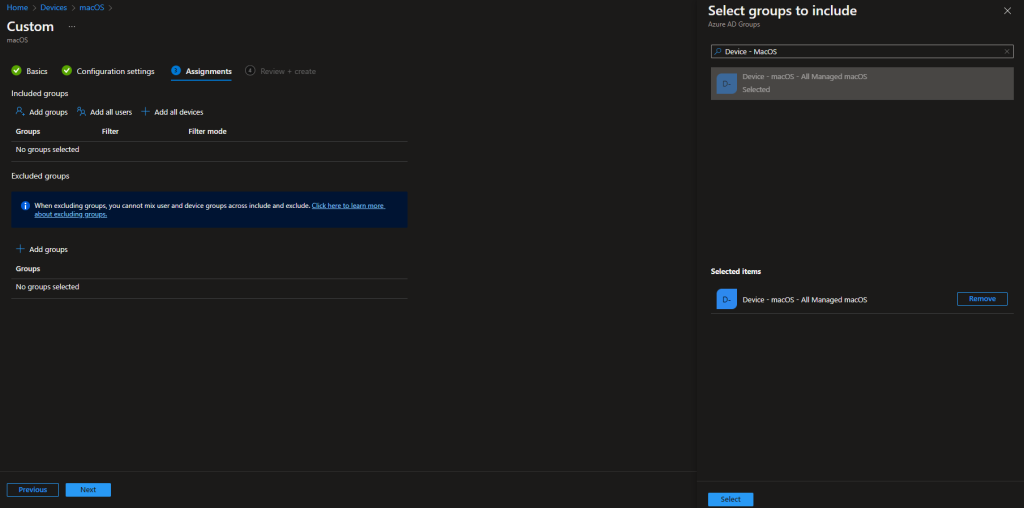
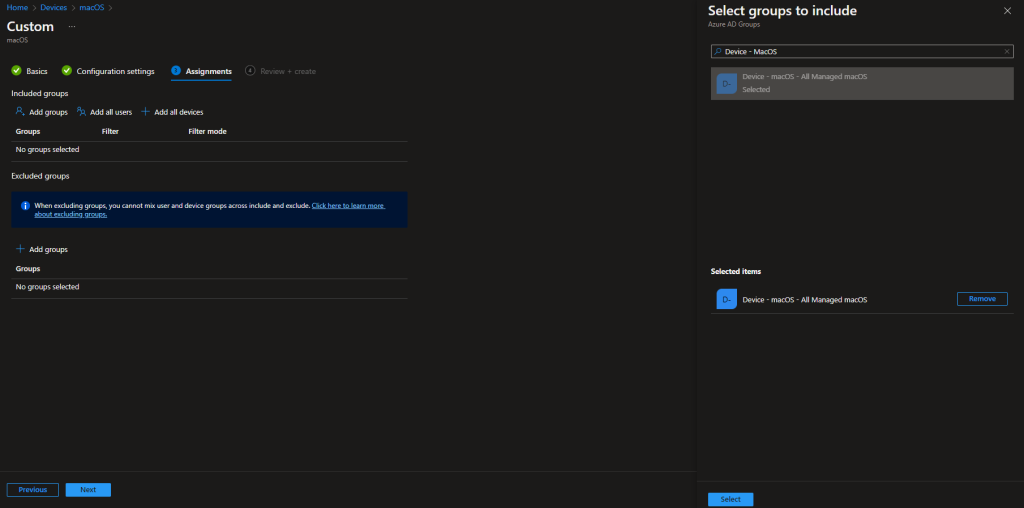
The screenshot shows selecting the deployment group for the configuration profile.
Below: review and create configuration profile.
Result and Optional Lock (Supervised Only)
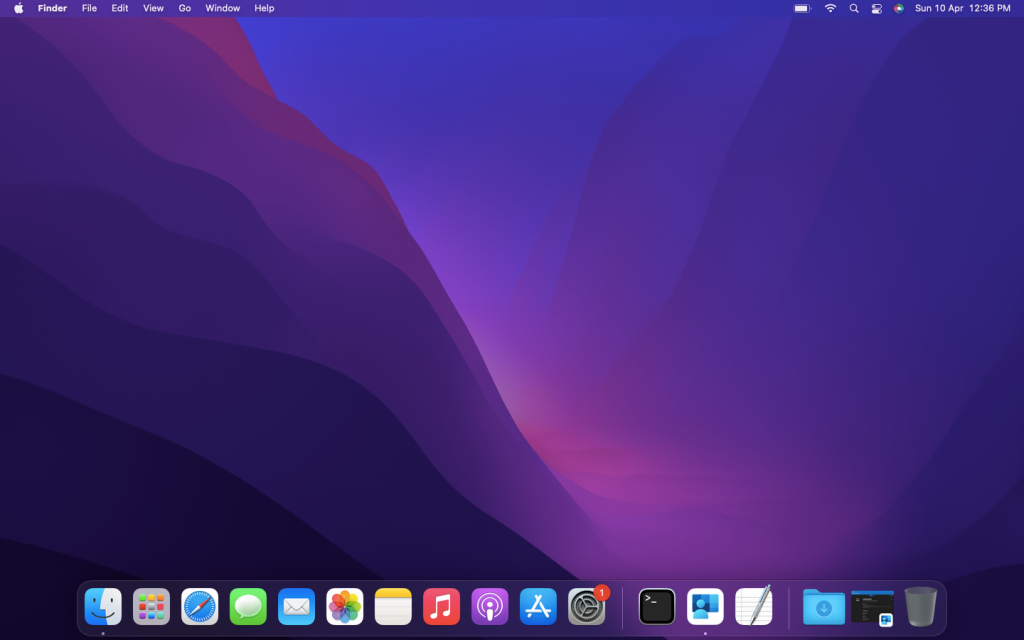
Once the script has run and the profile has applied, the Mac’s desktop background will show the deployed image. You can run the script on a schedule (e.g. daily) so that if you update the wallpaperurl and push a new script, devices get the new image within that interval. On supervised macOS devices (enrolled via Apple Business Manager or Apple School Manager), you can prevent users from changing the wallpaper: create a Device restrictions configuration profile for macOS and set Block modification of wallpaper to Yes. That setting does not apply to user-enrolled (non-supervised) devices.
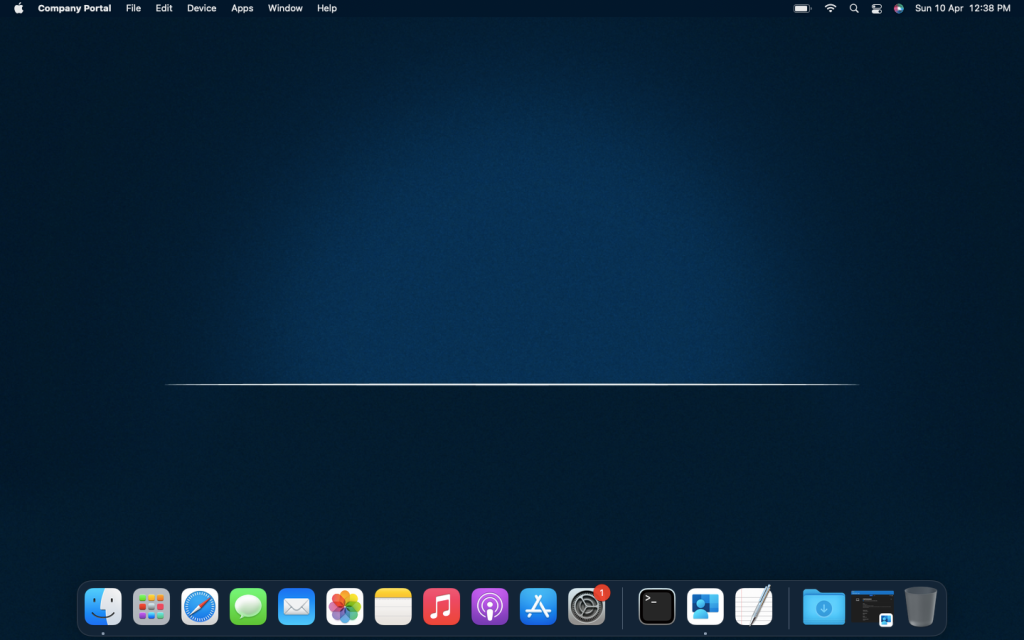
Below: desktop wallpaper before deployment.
The screenshot shows desktop wallpaper after deployment.
Below: Device restriction – Block modification of wallpaper (supervised).
Summary
To set desktop wallpaper for macOS Intune managed devices: (1) Get the shell script and mobileconfig from the Microsoft shell-intune-samples repo (macOS/Config/Wallpaper). Set wallpaperurl in the script to your image URL. (2) In Intune, add a macOS script (Devices → macOS → Scripts → Add), upload the script, set run frequency (e.g. daily), and assign to your macOS device group. The script downloads the image to /Library/Desktop/Wallpaper.jpg. (3) Create a Custom configuration profile (Devices → macOS → Configuration → Custom), upload the mobileconfig so the desktop uses that file, and assign to the same (or matching) group. After sync, the wallpaper is applied. (4) On supervised devices, use a Device restrictions profile with Block modification of wallpaper = Yes to keep users from changing it. To roll out a new image, update the script’s URL and redeploy (or rely on the next scheduled run).