Once your Macs are enrolled in Microsoft Intune, the next step is to lock down security and compliance. Intune lets you define compliance policies (passwords, OS version, encryption), enforce FileVault full-disk encryption, configure the firewall and Gatekeeper, and monitor which devices meet your rules. Non-compliant devices can be blocked from company resources via Conditional Access. This post walks through the main building blocks: compliance policies, FileVault, firewall and Gatekeeper, and monitoring.
Why Security and Compliance Matter for Macs
Unencrypted disks, weak passwords, outdated macOS, and unrestricted apps or network access increase the risk of data loss and compromise. Intune compliance policies and configuration profiles let you require encryption, password strength, minimum OS version, and security features so that only devices that meet your standards can access work data. Pairing compliance with Conditional Access ensures that non-compliant devices are blocked until they are fixed.
What You Can Enforce
Intune supports:
- Compliance policies . Require password rules, encryption (FileVault), minimum macOS version, firewall, Gatekeeper, and other checks. Devices that fail are marked non-compliant.
- FileVault (full-disk encryption) . Encrypt the Mac’s disk; recovery keys can be stored in Intune and shown in Company Portal.
- Firewall and Gatekeeper . Control incoming network access and which apps can run (e.g. only from the App Store or identified developers).
- Conditional Access . Use compliance status in Azure AD to block or allow access to Microsoft 365 and other cloud apps.
Compliance Policies for macOS
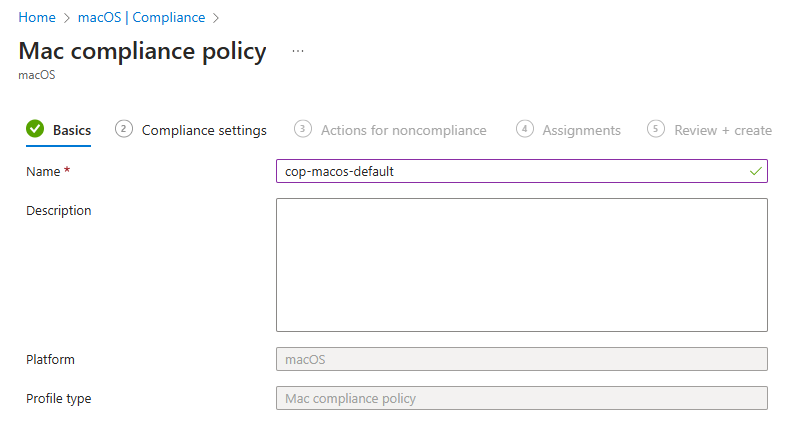
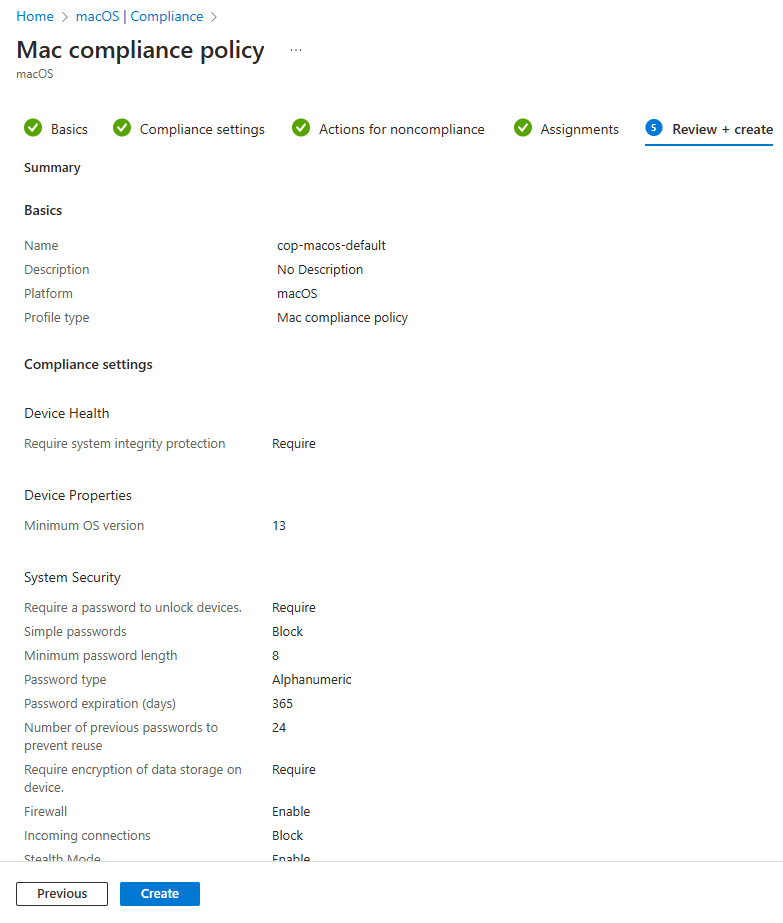
In the Microsoft Intune admin center, go to Devices → macOS → Compliance → Policies. Click Create → Policy and choose macOS. Give the policy a name (e.g. “macOS Corporate Compliance”) and click Next.
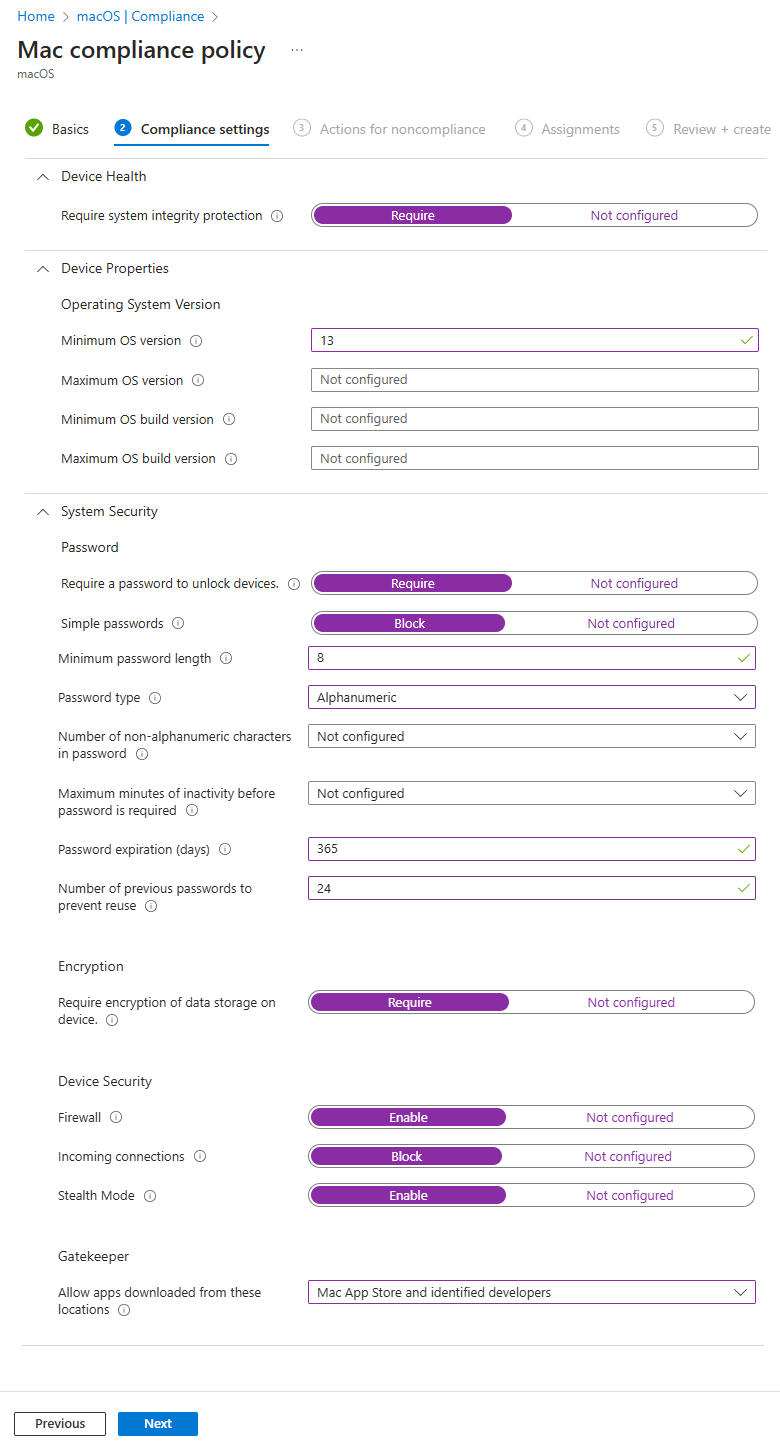
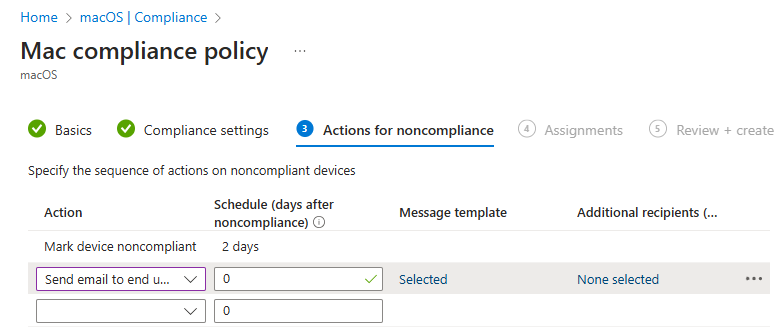
On Compliance settings, configure the rules you want: password requirements (length, complexity), require device encryption (FileVault), minimum OS version (e.g. latest two macOS versions), firewall enabled, Gatekeeper enabled, and any other supported checks. On Actions for noncompliance, define what happens when a device fails (e.g. mark non-compliant immediately, send notification, or eventually block). Click Next.
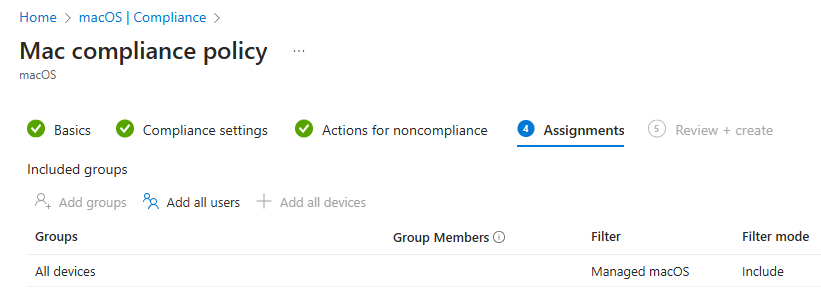
On Assignments, add the groups that should receive this compliance policy (e.g. All Macs or a dedicated macOS devices group). Click Next, then Create. The policy is now active; devices will be evaluated and marked compliant or non-compliant. Use Conditional Access to block access for non-compliant devices.
FileVault (Full-Disk Encryption)
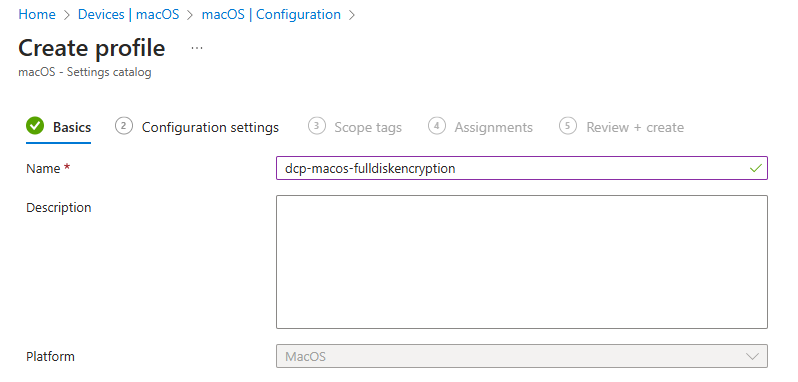
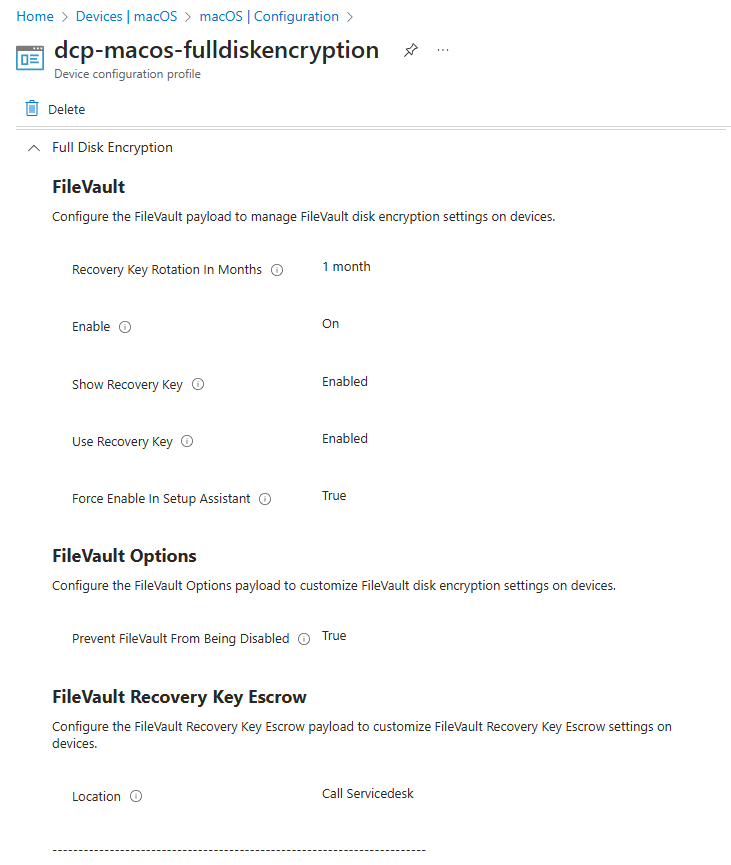
FileVault encrypts the Mac’s startup disk. You can enforce it and manage recovery keys via a Settings catalog configuration profile. Go to Devices → macOS → Configuration → Create → New policy. Choose macOS and Settings catalog. Name the profile (e.g. “FileVault Encryption”) and on Configuration settings click Add settings. Search for Full Disk Encryption and add the FileVault settings you need: enable FileVault, show recovery key to user, use recovery key (store in Intune), recovery key rotation interval (e.g. 1 month), force enable in Setup Assistant (for ADE), and prevent FileVault from being disabled. Assign the profile to your macOS device groups. Users can retrieve the recovery key from the Company Portal. Best used for laptops and devices with sensitive data.
Firewall and Gatekeeper
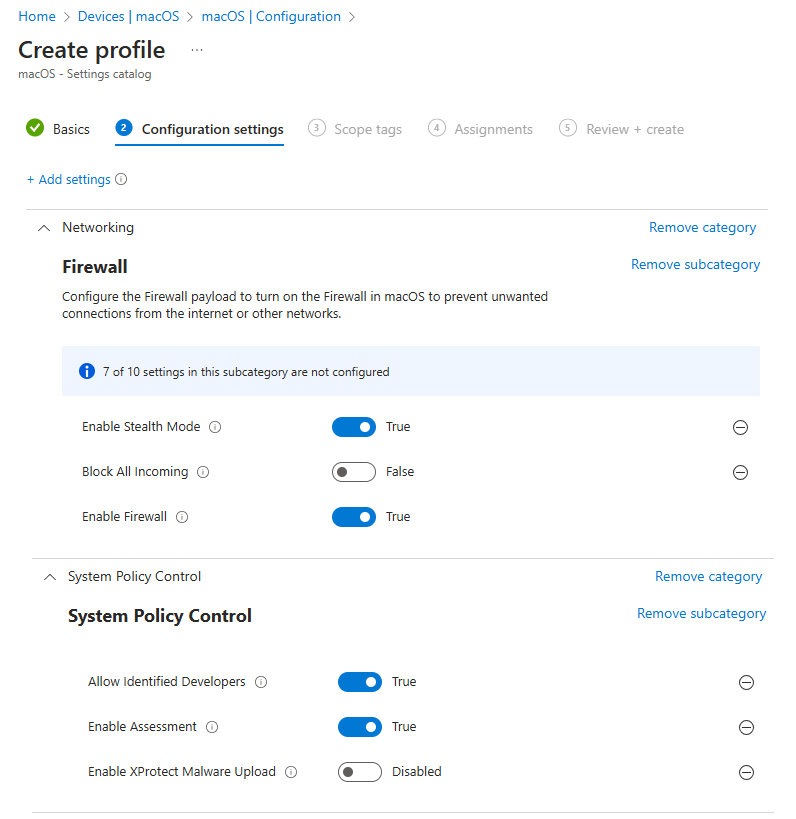
Use a separate Settings catalog profile for firewall and app security. Create a new macOS Settings catalog profile, then add settings under the relevant Networking or security categories. For the firewall: enable firewall, optionally block all incoming or use stealth mode. For Gatekeeper and related options: allow identified developers, enable assessment, and optionally configure XProtect malware upload. Assign the profile to your Mac groups. Enabling both firewall and Gatekeeper strengthens network and app security.
Monitoring Compliance and Security
In the Intune admin center, go to Reports → Device compliance (or Devices → Monitor → Device compliance). Filter for macOS devices and review compliant vs non-compliant counts. Drill into non-compliant devices to see which policy or rule failed (e.g. encryption not enabled, OS too old). Use this to fix devices or adjust policies. For deeper threat detection and response, you can integrate Microsoft Defender for Endpoint with Intune so Macs report security posture and threats; Conditional Access can then block or remediate based on Defender signals. See Microsoft Defender for Endpoint with Intune on Microsoft Learn for setup.
Summary
To manage macOS security and compliance in Intune: create compliance policies under Devices → macOS → Compliance to enforce passwords, encryption, OS version, firewall, and Gatekeeper; configure actions for noncompliance and assign policies to groups. Enforce FileVault with a Settings catalog profile (Full Disk Encryption) and optionally force it during Setup Assistant. Use another Settings catalog profile for firewall and Gatekeeper. Monitor status in Reports → Device compliance and consider Conditional Access and Microsoft Defender for Endpoint for access control and advanced protection.