Microsoft Intune has expanded its support for macOS so you can manage Macs with configuration profiles, scripts, and custom attributes in a way that feels closer to Windows management. Not every Windows feature exists on macOS yet, but the gap is shrinking. This guide gives you a starting set of macOS Intune policies: custom configuration profiles (mobileconfig), built-in configuration profiles (device restrictions, device features, OneDrive, timezone), macOS scripts, and custom attributes. You can pick and choose what fits your environment; the list is not exhaustive. Some of the examples below align with CIS (Center for Internet Security) and NIST recommendations for macOS. Useful if you are working toward those benchmarks.
Custom Configuration Profiles (mobileconfig)
Custom configuration profiles let you deploy .mobileconfig payloads to macOS devices. You create or obtain the mobileconfig (e.g. from Apple’s configuration profile reference or community repos), then upload it in Intune. You can edit .mobileconfig files in a text editor or in tools like VS Code. Typical uses:
- Disable external storage. Payloads for
com.apple.systemuiserver,com.apple.NetworkBrowser,com.apple.finderto block or limit removable media. - Disable media sharing. Aligns with CIS/NIST (e.g. “Ensure Media Sharing Is Disabled”). The Media Sharing preference may still show options, but the service stays off.
- Disable “Show Password Hints”. CIS/NIST recommendation to turn off password hints.
- Managed favorites for Microsoft Edge. Deploy bookmarks per user group or region instead of in a single baseline policy.
- OneDrive (standalone) Full Disk Access. Grant Full Disk Access for Known Folder Move (KFM).
- Notifications for Microsoft apps. Enable lock screen, badges, sounds, critical alert, notification center for bundle IDs such as Company Portal, Defender, Intune agent, Outlook, Teams, etc.
- Show Wi‑Fi status in menu bar. CIS: “Ensure Show Wi-Fi status in Menu Bar Is Enabled.”
- SoftwareUpdate. Control
com.apple.SoftwareUpdate(e.g. automatic check, download, install macOS updates, config data install, critical update install). - Terminal. Custom profiles for Terminal settings, often used with CIS/NIST hardening.
To create a custom profile in Intune: go to Devices → macOS → Configuration → Create → New policy. Choose macOS, Templates, Custom, then Create. On Basics, set a name and optional description. On Configuration settings, upload your .mobileconfig file. Assign to user or device groups and create the profile.
Below: custom configuration profiles overview for macOS in Intune.
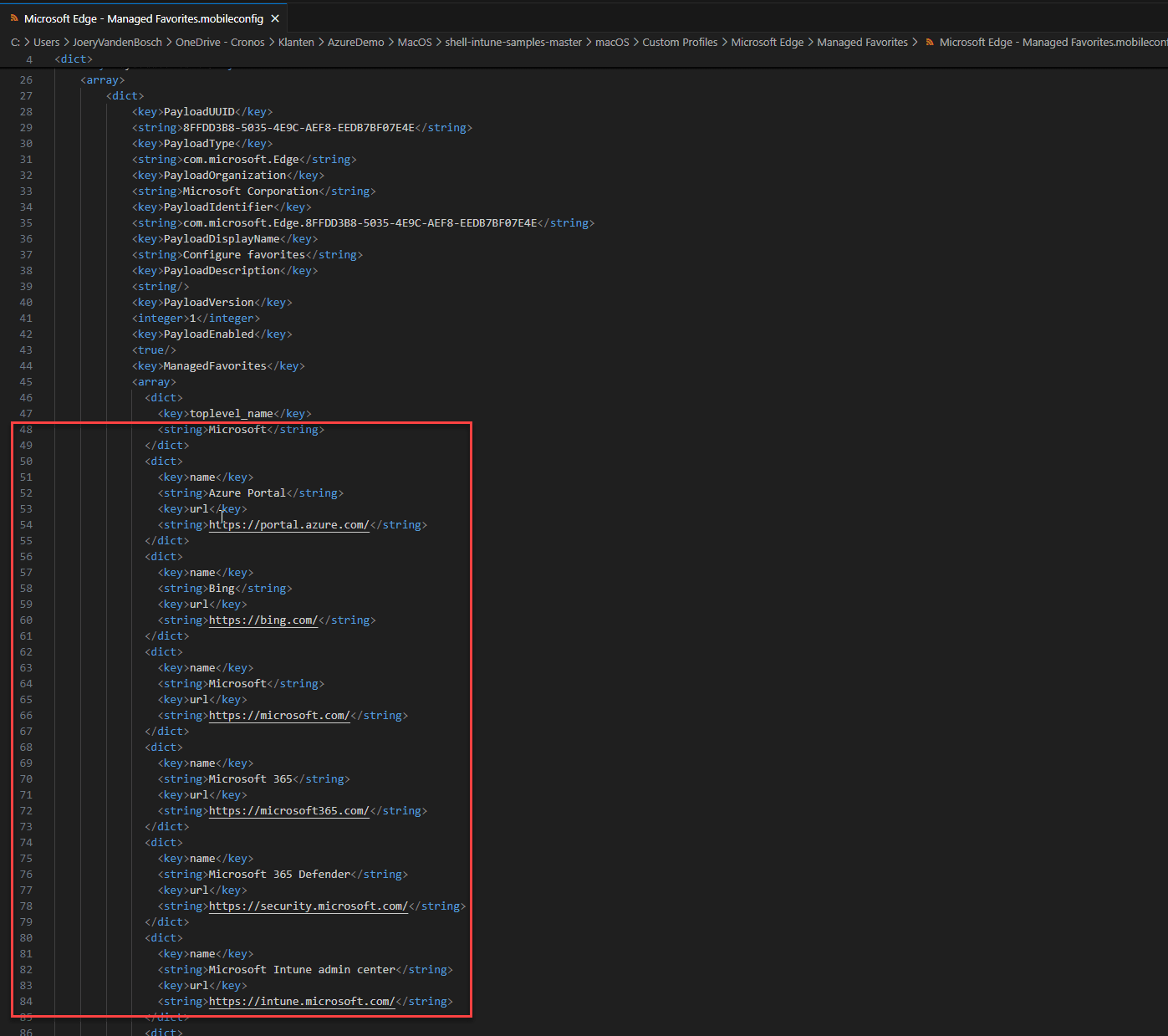
The screenshot shows creating a custom profile in Intune for macOS.
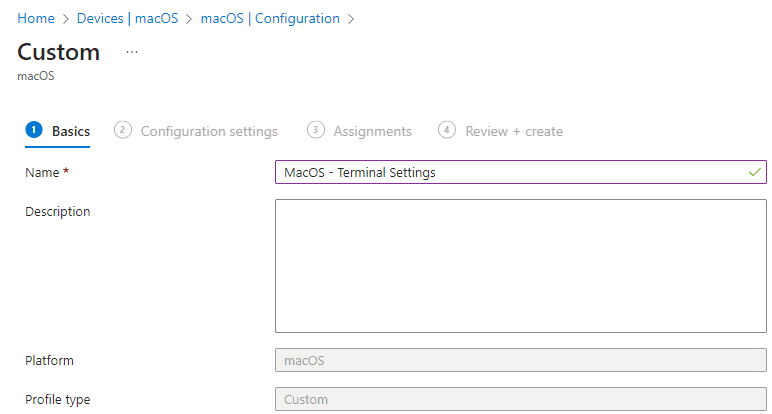
Below: configuring the custom profile and selecting the mobileconfig file.
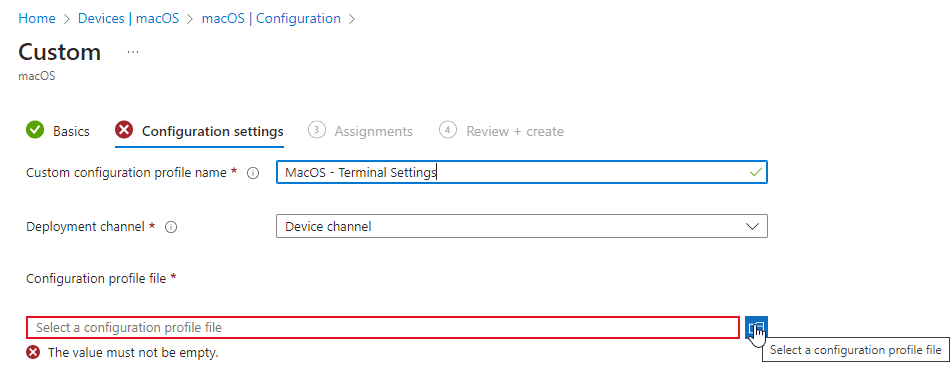
The following screenshot shows managed favorites for the Microsoft Edge custom profile.
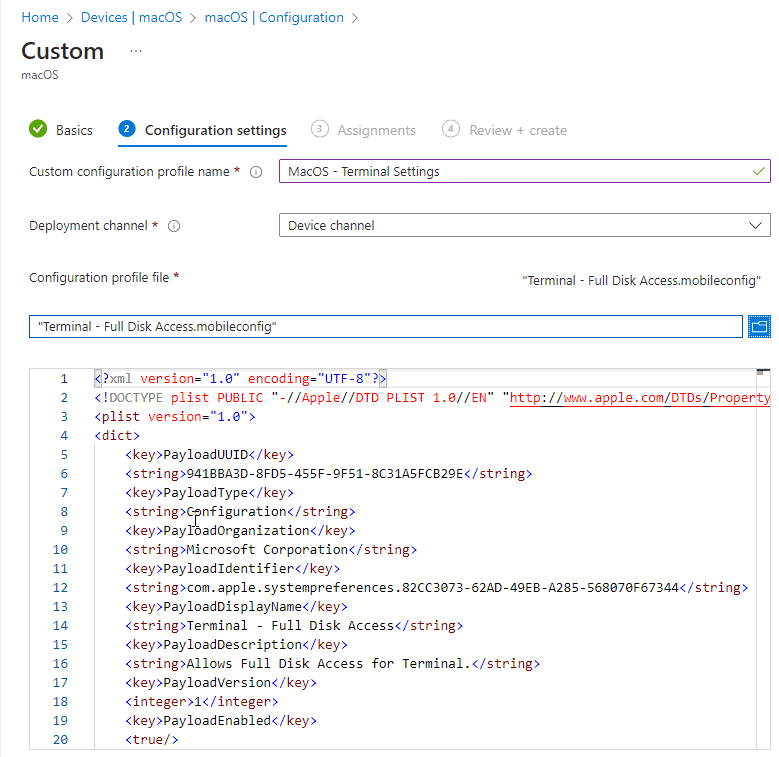
Below: Terminal profiles configuration for macOS.
Built-in Configuration Profiles
Intune’s built-in macOS configuration profiles cover common settings without a mobileconfig file. Examples:
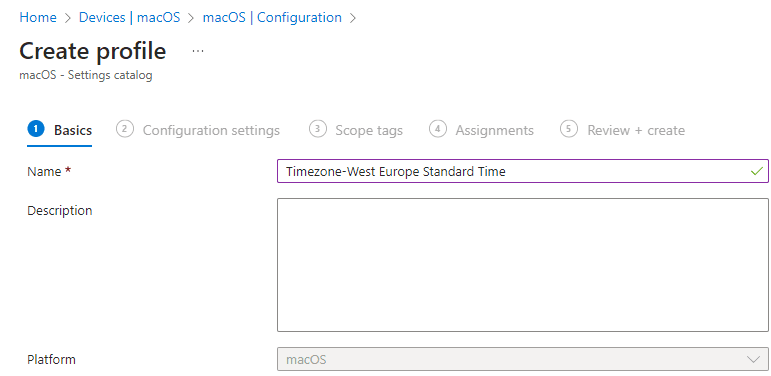
- Timezone. Set the time zone (e.g. Europe/Brussels or your region) so devices use the correct local time.
- Microsoft OneDrive. Enable Folder Backup (Known Folder Move) for Desktop and Documents, block external sync, disable personal accounts and tutorial, enable Files On-Demand and simultaneous edits in Office, open OneDrive at login, and optionally show a notification when folders are redirected.
- Device restrictions. A single policy type where you configure many restrictions: passcode, iCloud, apps, features, etc. Use it as your main “restrictions” profile and tune as needed.
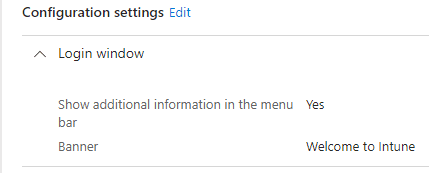
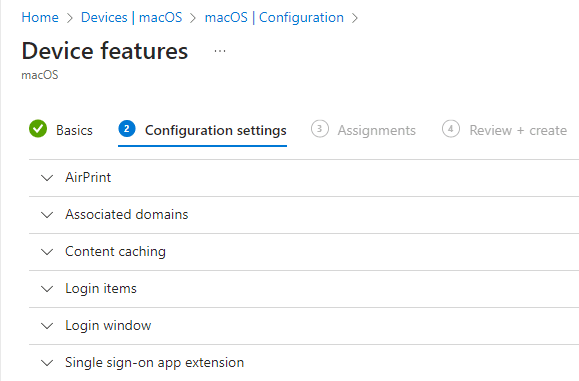
- Device features. Configure features such as single sign-on, login window, and other macOS options exposed by Intune.
Create these from Devices → macOS → Configuration → Create → New policy, then choose the appropriate profile type (e.g. Device restrictions, Templates for OneDrive or timezone). Configure the settings, assign, and create.
Below: timezone configuration for macOS in Intune.
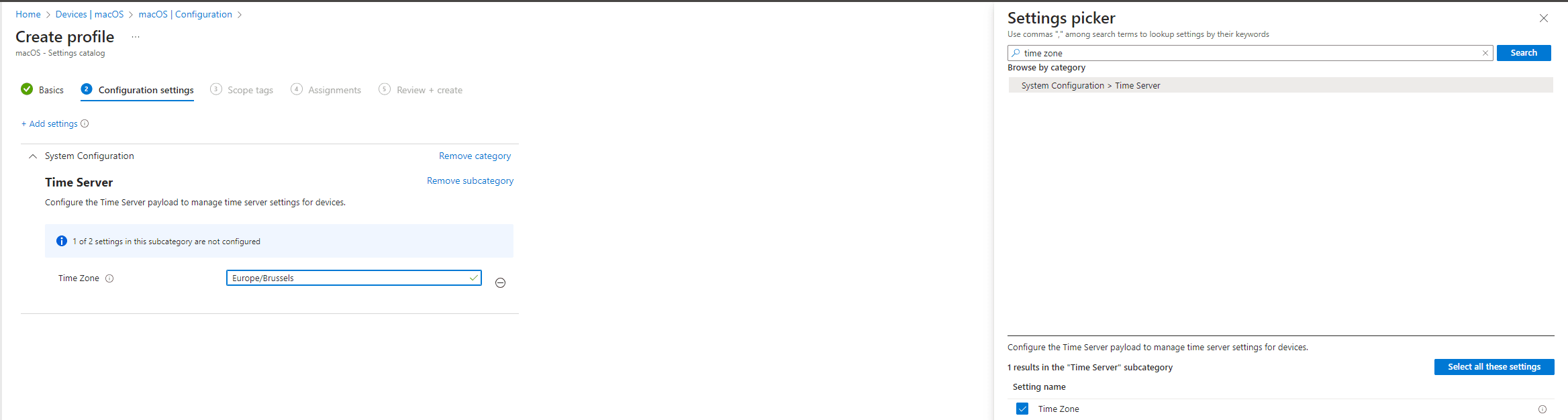
The screenshot shows Microsoft OneDrive configuration for macOS.
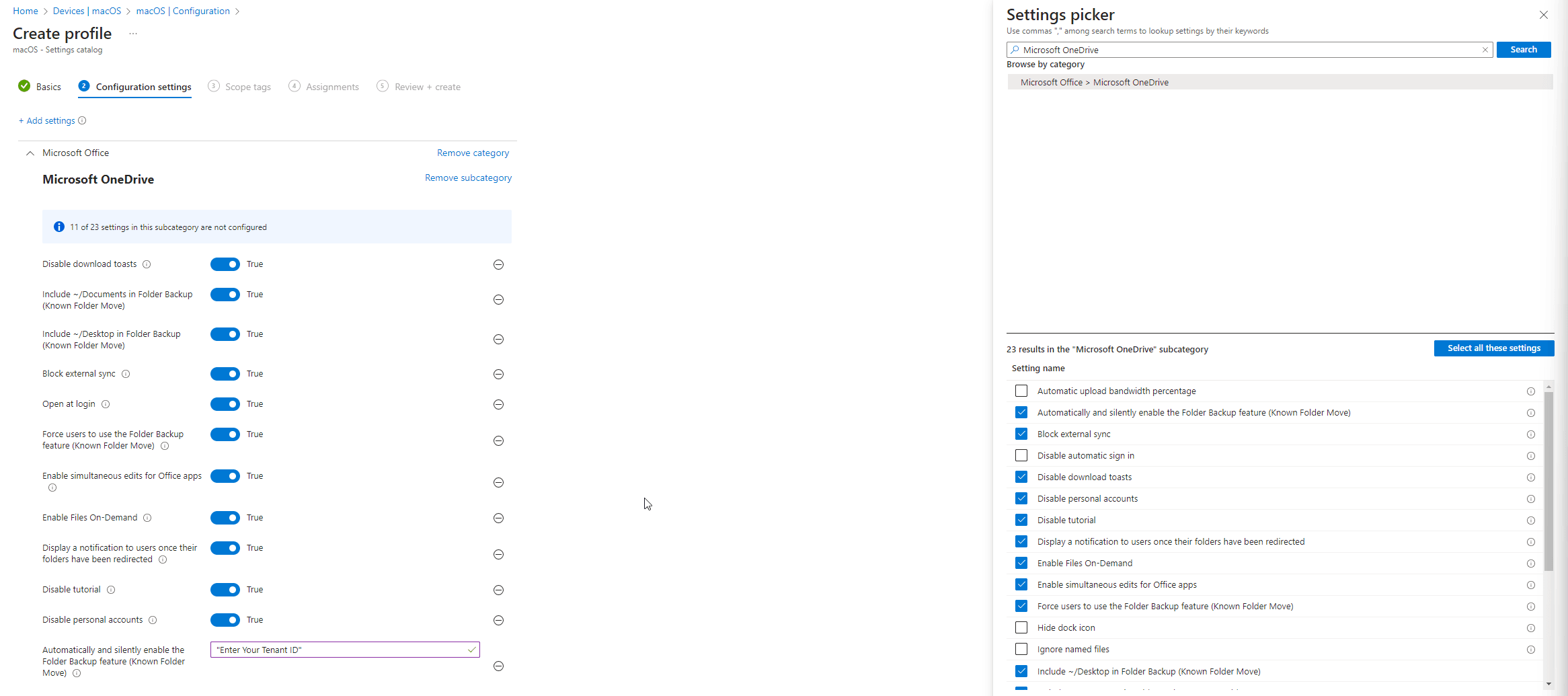
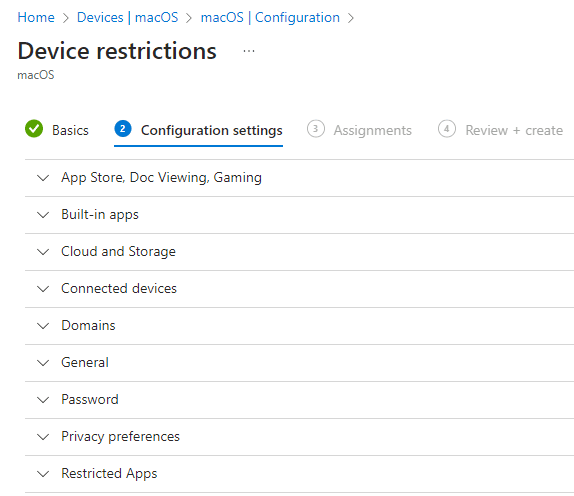
Below: device restrictions policy for macOS.
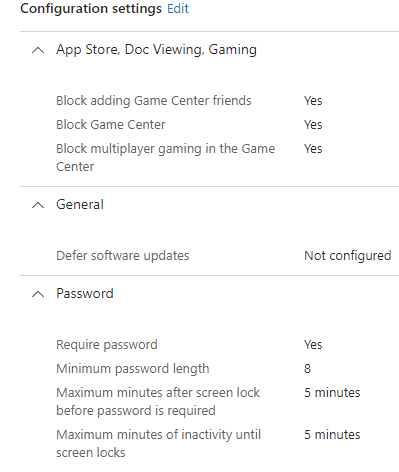
The following screenshot shows device restrictions settings and device features policy.
macOS Scripts
Intune can run shell scripts on macOS devices to change settings or enforce state that is not fully covered by configuration profiles. Scripts run in the context you choose (user or device) and can be used for CIS/NIST-style hardening or operational tasks. Examples of what you might implement with scripts:
- Control access to audit records; delete guest home folder; rename Macs to a standard.
- Disable Bluetooth sharing, DVD/CD sharing, file sharing, guest access to shared folders, HTTP server, internet sharing, NFS server, printer sharing, remote Apple events, remote login, remote management.
- Disable Power Nap (Intel Macs); enable Apple Mobile File Integrity (AMFI); enable “Show all filename extensions” in Finder.
- Ensure an administrator cannot log in to another user’s active and locked session; require administrator password for system-wide preferences; control access to secure user home folders.
- Set desktop wallpaper; other one-off or recurring tasks.
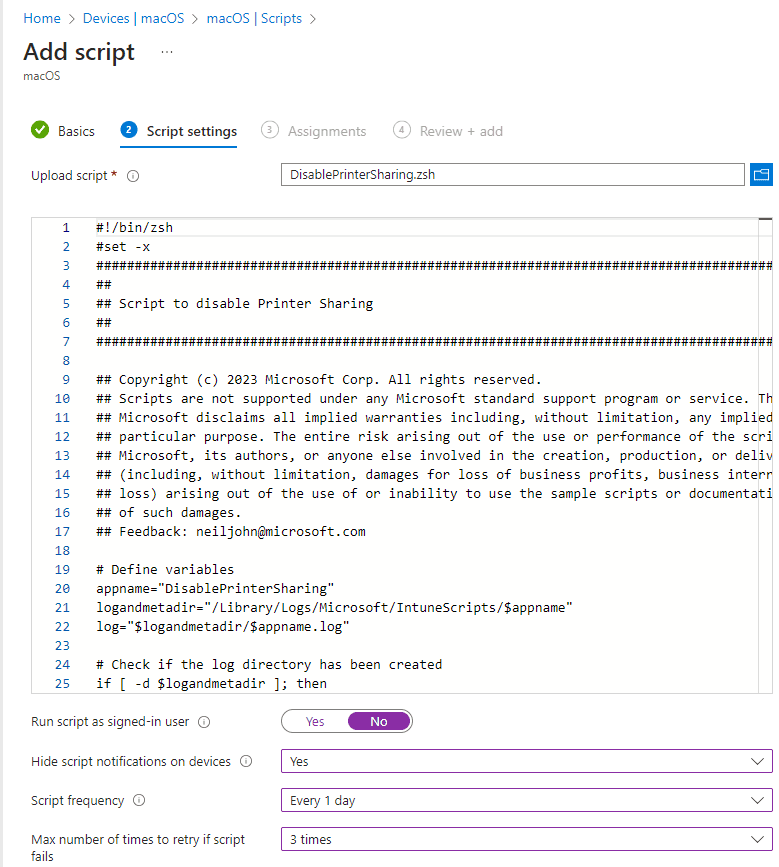
To add a macOS script: go to Devices → macOS → Scripts → Add. Name the script (e.g. “macOS – Disable Printer Sharing”), add an optional description, upload the script file, and configure run context (user/device), frequency, and assignments. Each script should be idempotent where possible so re-runs do not cause issues.
Below: adding a macOS script in Intune.
The screenshot shows macOS script configuration settings.
Custom Attributes
Intune already collects hardware and OS inventory and discovered apps for macOS. Custom attributes let you run a shell script on each device and store the script’s output as a named attribute. That output appears in device details and can be used for reporting, grouping, or conditional logic. The script must produce output (e.g. echo a value); that value is what Intune stores. Use cases: hardware or OS details not in default inventory, user preferences for app config, security or compliance status, or any value you want to query and report on.
Examples of custom attributes you might define: Battery condition, Microsoft Defender running status, Gatekeeper status, CPU architecture, Microsoft Defender version, Microsoft Edge version, Physical RAM. You can build scripts that return a single line or a short string; avoid large or binary output.
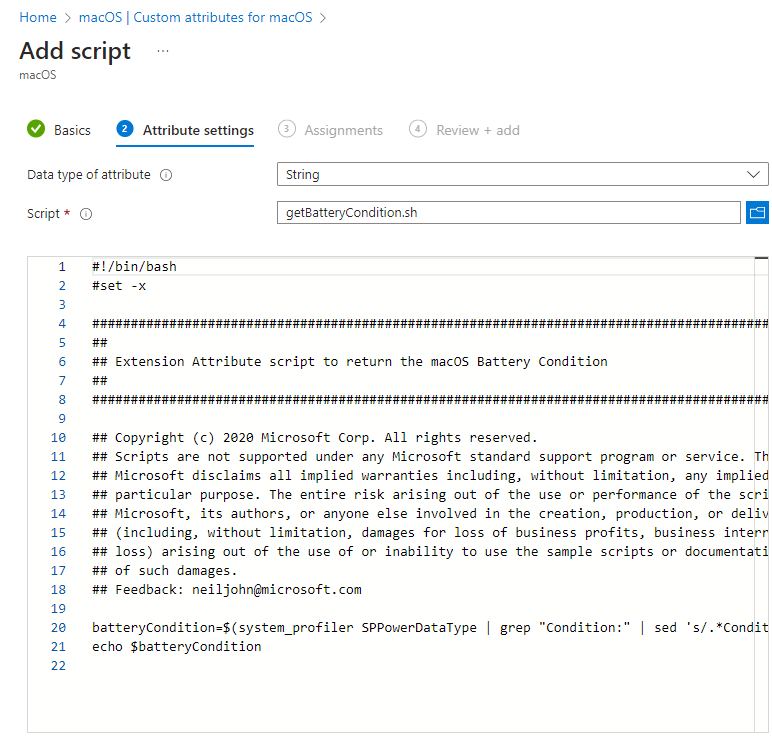
To add a custom attribute: go to Devices → macOS → Custom attributes for macOS → Add. Name the attribute (e.g. “Battery Condition”), add an optional description, choose the data type for the script output, and upload or paste the script. Assign to user or device groups. After devices run the script, results appear under the custom attribute’s device status; you can open a device and see the attribute value there.
Below: adding a custom attribute for macOS in Intune.
The screenshot shows custom attribute configuration and script.
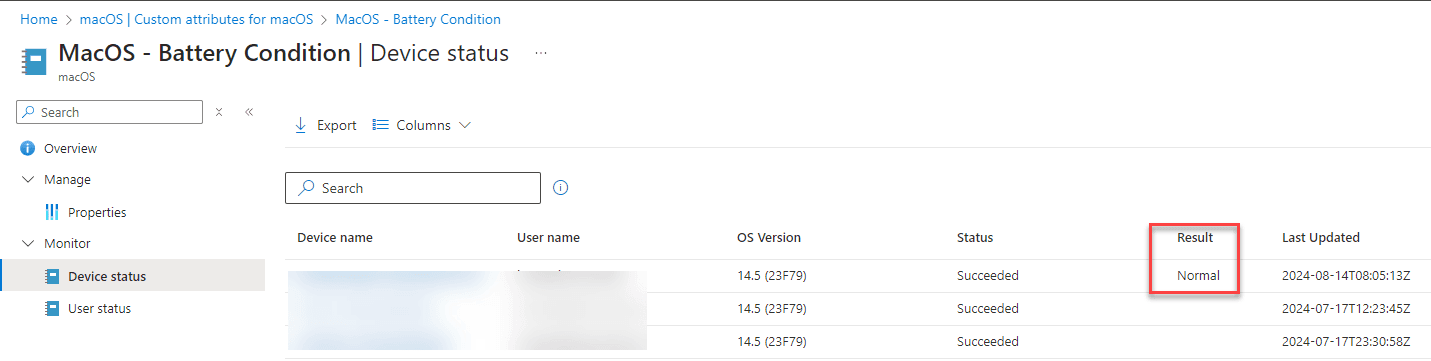
Below: custom attribute results – Battery Condition.
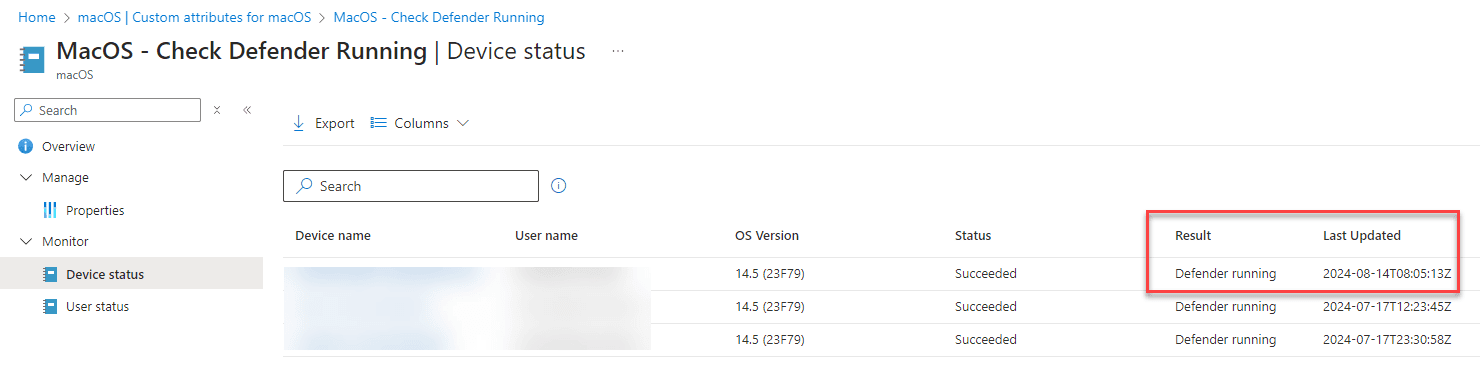
The following screenshot shows custom attribute results: Defender running and Gatekeeper status.
Below: custom attribute results – CPU architecture, Defender version, Edge version, RAM.
Summary
To get started with macOS Intune policies: (1) Use custom configuration profiles to deploy .mobileconfig payloads for things like disabling external storage and media sharing, password hints, Edge favorites, OneDrive Full Disk Access, notifications, Wi‑Fi in menu bar, SoftwareUpdate, and Terminal. Create a Custom profile under Devices → macOS → Configuration and upload the mobileconfig. (2) Use built-in configuration profiles for timezone, OneDrive (Known Folder Move and related options), device restrictions, and device features. (3) Use macOS scripts under Devices → macOS → Scripts for hardening (e.g. disable sharing services, AMFI, Finder extensions) and operational tasks (rename, wallpaper, etc.). (4) Use custom attributes under Devices → macOS → Custom attributes to run scripts and store their output for reporting and visibility (e.g. battery condition, Defender/Gatekeeper status, versions, RAM). Pick what fits your environment and compliance needs; you can extend with more profiles, scripts, and attributes over time.