When you need to hand a Windows PC to another user or repurpose it quickly, a full wipe and re-enrollment is often more than you need. Local Autopilot Reset lets you reset the device to a business-ready state directly from the device while keeping Azure AD join, MDM enrollment, and Wi‑Fi settings intact. This post explains what it is, when to use it, and how to turn it on and run it via Microsoft Intune.
What Is Local Autopilot Reset?
Local Autopilot Reset is a Windows Autopilot capability that resets the device to a clean, standardized state on the device itself. No cloud wipe or re-provisioning required. During the reset:
- Azure AD join and MDM enrollment are preserved, so the device stays in your tenant and managed by Intune.
- Wi‑Fi configuration is retained, so the device can reach the network and complete provisioning after the reset.
- User data and apps are removed; the device is ready for a new user or the same user with a fresh profile.
That makes it a good fit for reassigning devices, refreshing a machine without sending it back to IT, or standardizing config in remote or large fleets.
When to Use It
Local Autopilot Reset shortens the path from “current user done” to “next user ready.” It reduces the need for full wipes and re-enrollment, keeps configurations consistent, and supports compliance by bringing devices back to a known state. It’s especially useful in remote or at-scale environments where you want minimal touch and no dependency on shipping devices back for reimaging.
Enable Local Autopilot Reset in Intune
You must allow the feature via a Device restrictions configuration profile before users or IT can run a local reset.
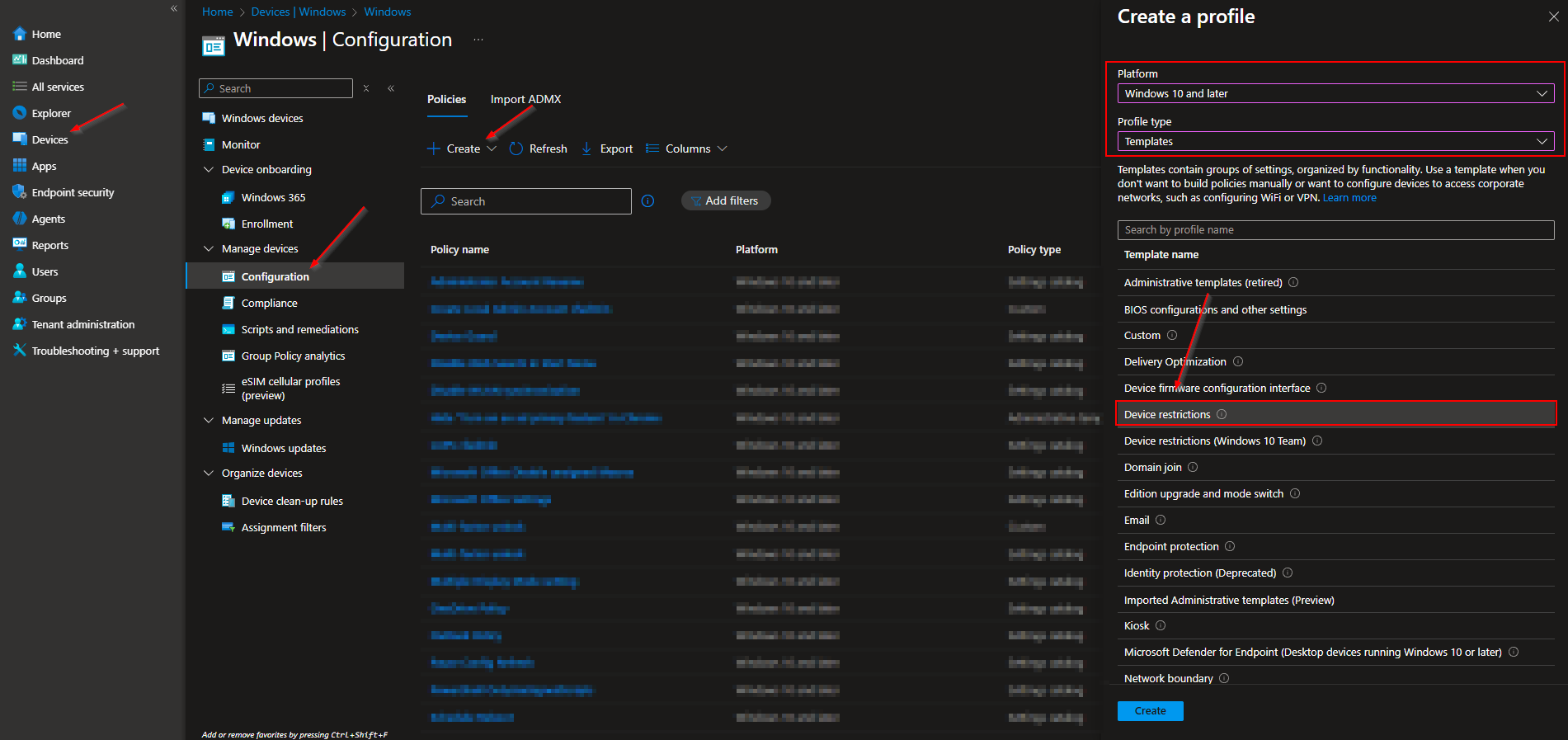
- In the Microsoft Intune admin center, go to Devices → Windows → Configuration.
- Click Create → New policy. Choose Windows 10 and later as the platform and Templates as the profile type.
- Select Device restrictions, then Create.
- On Basics, enter a Name (e.g. “Allow Local Autopilot Reset”) and optionally a Description. Click Next.
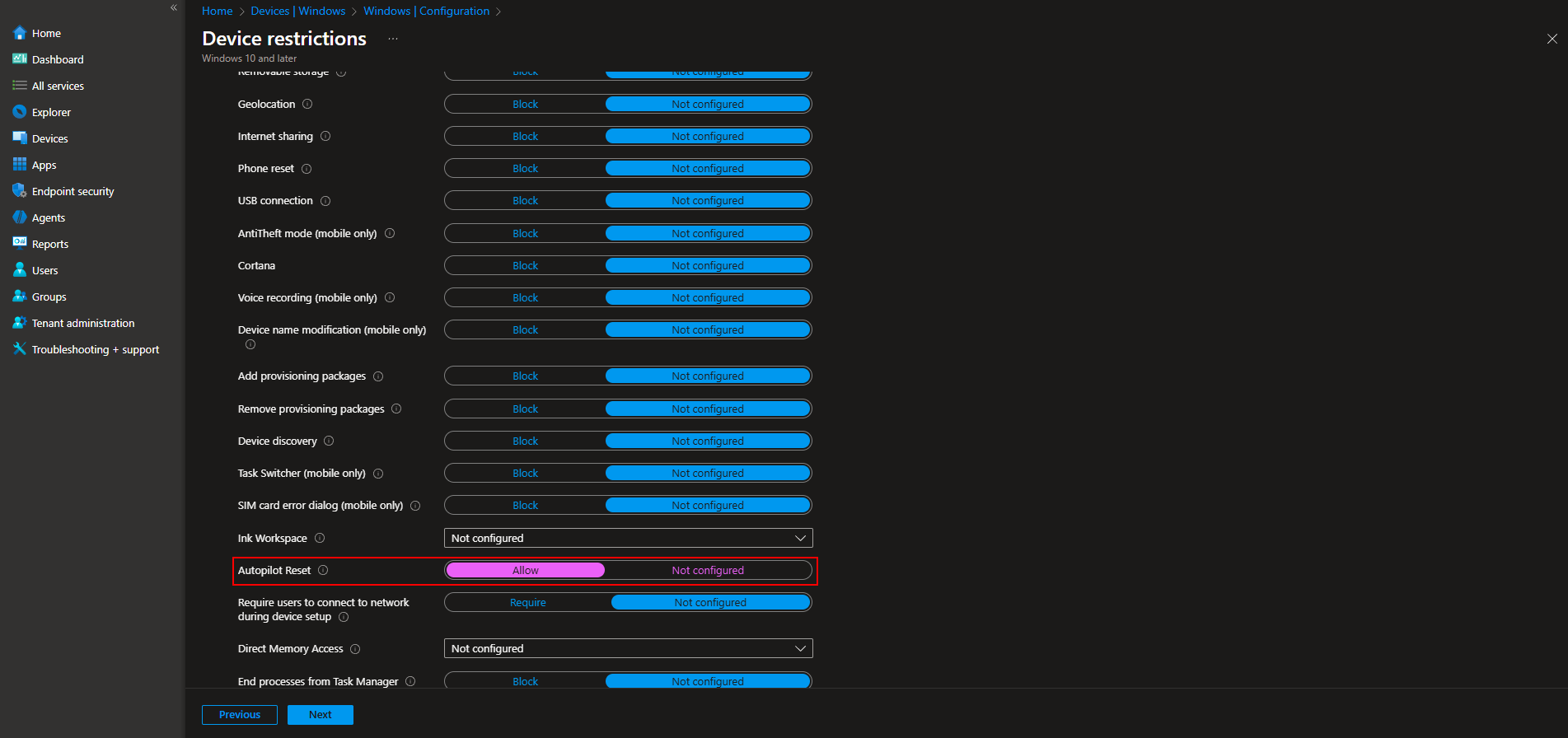
- On Configuration settings, expand General, find Autopilot Reset, and set it to Allow.
Continue to Assignments and add the groups that should have access to Local Autopilot Reset (e.g. devices or users that will be repurposed). Use Applicability rules if your tenant uses them, then Review + create and Create.
Run a Local Autopilot Reset on a Device
Resetting is a two-step flow: trigger the reset, then sign in to authorize it.
- Confirm the device receives the Autopilot Reset policy (it must be in a group that you assigned the Device restrictions profile to).
- From the Windows lock screen, press Ctrl + Win + R.
- When prompted, sign in with an account that has local administrator rights on the device.
- After authentication, the local reset starts. When it finishes, the device is in a business-ready state and can be used by the next user or the same user with a new profile.
Summary
Local Autopilot Reset with Microsoft Intune lets you reset Windows devices to a clean, managed state on-site while keeping Azure AD join, MDM enrollment, and Wi‑Fi. Enable it with a Device restrictions profile (Autopilot Reset = Allow), assign that profile to the right groups, then trigger the reset from the lock screen with Ctrl + Win + R and sign in with a local admin account. For more details, see Windows Autopilot Reset on Microsoft Learn.





