Bluetooth on Windows devices can be a security risk if left unrestricted: file transfer, untrusted peripherals, and discoverable mode can expose data or allow unwanted access. Microsoft Intune can enforce Bluetooth limits using the Windows Policy CSP for Bluetooth, configured through a Settings Catalog profile. You can allow only specific Bluetooth services (e.g. headsets, keyboards, audio) and block others (e.g. file transfer), and control advertising and discoverable mode. This post walks through creating a Settings Catalog profile, configuring the Bluetooth settings, and assigning it so only approved Bluetooth use is allowed on managed Windows 10 and later devices (Pro, Enterprise, Education, and IoT).
Controlling Bluetooth via Services Allowed List
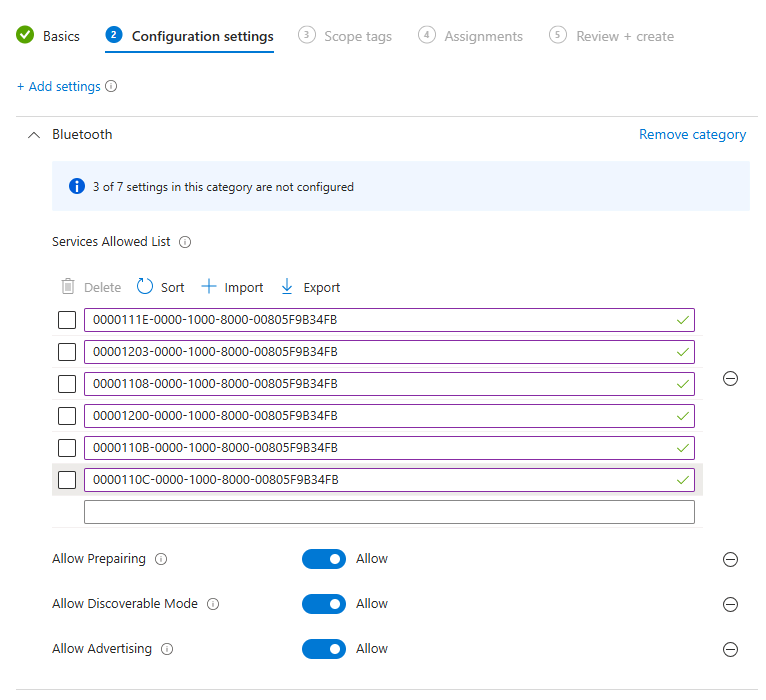
The ServicesAllowedList setting lets you specify which Bluetooth service UUIDs are permitted. Devices can pair and communicate only with peripherals that use those profiles; all other Bluetooth services (e.g. file transfer, unapproved device types) are blocked. UUIDs are in canonical form and separated by semicolons. Examples of commonly allowed UUIDs:
- 0000111E-0000-1000-8000-00805F9B34FB . Hands-Free Profile (HFP): headsets, car kits.
- 00001203-0000-1000-8000-00805F9B34FB . Generic Audio Service: general Bluetooth audio.
- 00001108-0000-1000-8000-00805F9B34FB . Headset Profile: classic Bluetooth headset.
- 00001200-0000-1000-8000-00805F9B34FB . PnP Information: device discovery/identification.
- 0000110B-0000-1000-8000-00805F9B34FB . A2DP Source: streaming to Bluetooth speakers.
- 0000110C-0000-1000-8000-00805F9B34FB . AVRCP Target: audio/video remote control target.
- 0000110E-0000-1000-8000-00805F9B34FB . AVRCP: remote control of audio/video devices.
You can add or remove UUIDs depending on which peripherals (e.g. headsets, keyboards, speakers) you want to allow; omit file-transfer and other risky services to block them.
Create a Settings Catalog Profile
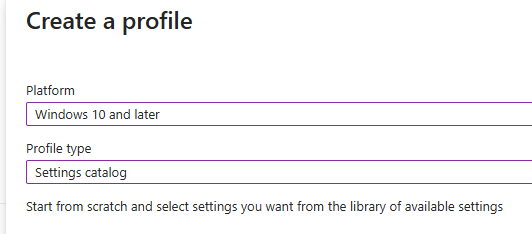
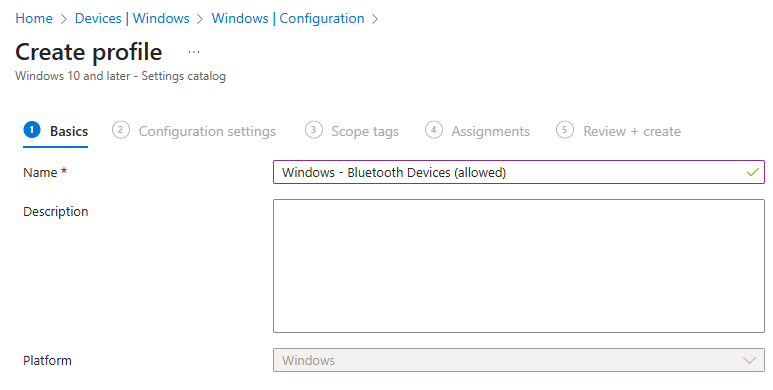
In the Microsoft Intune admin center, go to Devices → Windows → Configuration (or Configuration profiles) and choose Create → New policy. Set Platform to Windows 10 and later and Profile type to Settings catalog, then click Create. On Basics, give the profile a name (e.g. “Bluetooth – Services allowed list”) and an optional description, then click Next.
Below: creating a new configuration profile with Platform Windows 10 and later and Profile type Settings catalog.
The screenshot shows the Basics step where you enter the profile name and optional description.
Add and Configure Bluetooth Settings
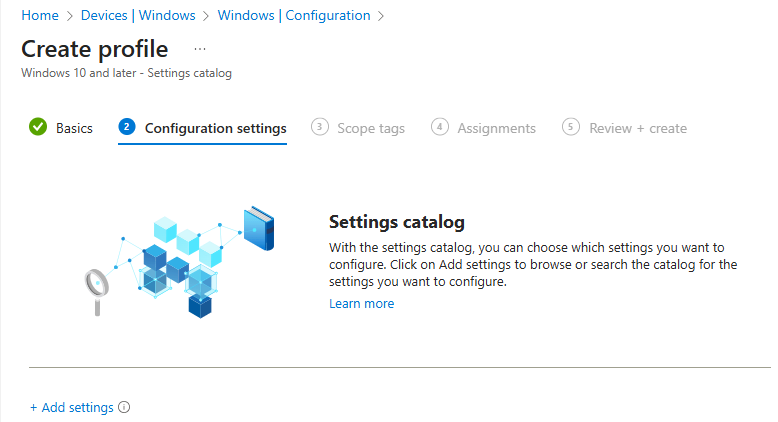
On Configuration settings, click Add settings. Search for Bluetooth and add the Bluetooth-related settings you need. Typically you configure:
- Allow Advertising . Enable or disable Bluetooth advertising.
- Allow Discoverable Mode . Control whether the device can be discovered by other Bluetooth devices.
- Allow Prepairing . Control prepairing behaviour.
- Services Allowed List . Enter the semicolon-separated list of allowed Bluetooth service UUIDs (e.g. the UUIDs above). Only services in this list can be used; all others are blocked.
Set each setting to Enabled or Disabled and enter the UUID list for Services Allowed List as required. Save the configuration.
Below: adding settings by searching for Bluetooth in the Settings Picker.
The screenshot shows the Bluetooth settings configured: Allow Advertising, Allow Discoverable Mode, Allow Prepairing, and Services Allowed List (UUID list).
Assign the Profile
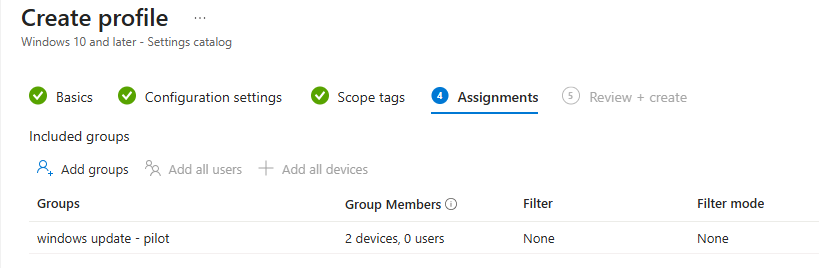
Go to Assignments and assign the profile to the device or user groups that should get the Bluetooth restrictions (e.g. all Windows devices or a pilot group). Complete the wizard and Create the profile. Test the policy in a controlled group before a broad rollout. Verify that approved peripherals (e.g. headsets, keyboards) still work and that disallowed services (e.g. file transfer) are blocked.
Below: assigning the Bluetooth configuration profile to targeted device groups.
Summary
To restrict Bluetooth with Microsoft Intune using the Settings Catalog: create a Settings Catalog profile (Devices → Windows → Configuration → Create → Settings catalog). On Configuration settings, add the Bluetooth settings: Allow Advertising, Allow Discoverable Mode, Allow Prepairing, and Services Allowed List. In Services Allowed List, enter the canonical Bluetooth service UUIDs you want to allow, separated by semicolons (e.g. HFP, A2DP, AVRCP for headsets and speakers; omit file-transfer UUIDs to block them). Assign the profile to your Windows device groups. This gives you granular control over Bluetooth on managed devices. Only approved services and peripherals work, reducing the risk of data leakage and unauthorized access. Test in a pilot before production rollout.