Your attack surface is the set of ways an attacker can compromise devices or networks. Attack surface reduction (ASR) rules in Microsoft Defender for Endpoint limit risky software behaviors. E.g. scripts or executables that download and run files, obfuscated scripts, or actions that apps rarely do in normal use. Those behaviors can appear in legitimate software but are often abused by malware, so constraining them reduces risk. You manage ASR rules via Microsoft Intune (or Group Policy) and deploy them to Windows 10, Windows 11, and Windows Server. This post focuses on using ASR rules on Windows Server with Intune: audit mode to evaluate impact, warn mode (where supported), and an important gotcha. If a single rule in a policy is not supported on an OS (e.g. Windows Server 2016), all ASR rules in that policy can stop working on that OS. The fix is to scope policies by OS (e.g. dynamic groups in Entra ID) and use a separate ASR policy per OS or support matrix.
Audit Mode
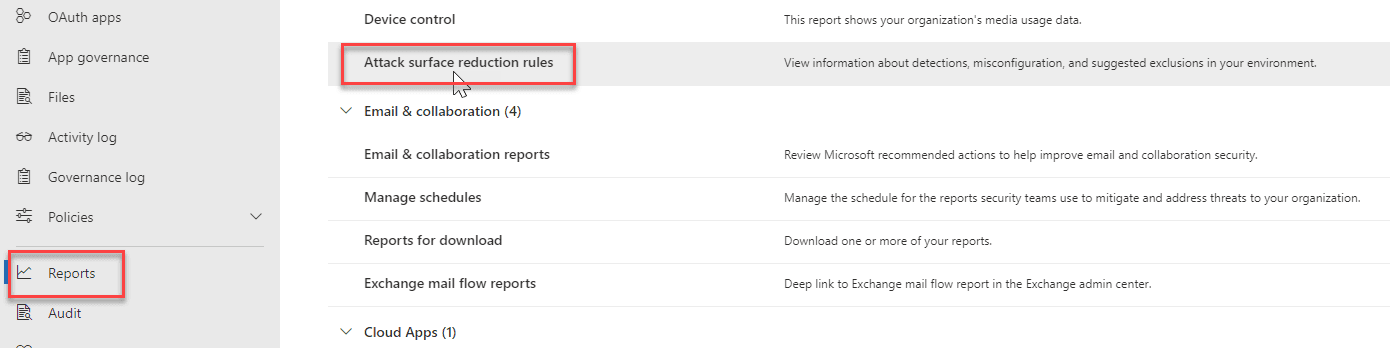
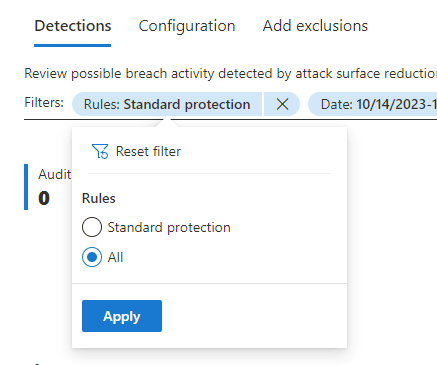
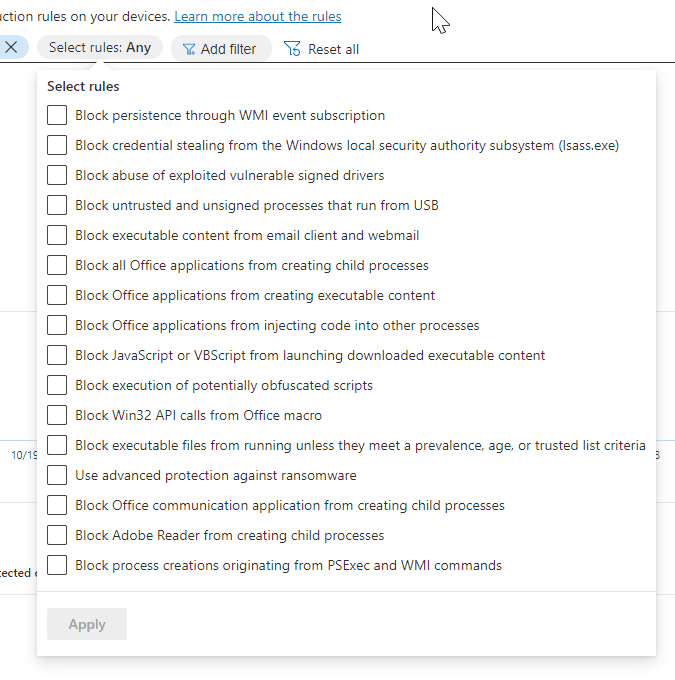
Before blocking, run rules in audit mode. In audit mode, Defender logs when a rule would have blocked an action but does not block it. That lets you see how line-of-business apps and scripts are affected without breaking them. Many LOB apps behave in ways that look like risky activity; audit logs show which rules fire and where. In the Microsoft 365 Defender portal, go to Reports → Attack surface reduction rules to view events. Change the first filter from “Standard Protection” to All so you see every rule. Use the Select Rules filter to pick specific ASR rules. Click a rule to see audit events. The date range is limited (e.g. up to about one month). Use this data to decide which rules to enable in block or warn mode and for which OS versions.
The screenshot below shows the Attack Surface Reduction rules report in Microsoft 365 Defender.
Below: changing the filter to All and selecting ASR rules.
The following screenshot shows selecting ASR rules and viewing audit logs.
Warn Mode
Warn mode is a middle ground: when an ASR rule would block an action, the user sees a dialog explaining that the content was blocked and is offered an option to unblock. If they unblock, the content is allowed and remains unblocked for 24 hours, after which blocking applies again. That keeps protection on while letting users complete one-off or approved tasks without opening a permanent exception. Warn mode is supported on Windows 10 version 1809 or later, Windows 11, and Windows Server version 1809 or later. Microsoft Defender Antivirus must be running with real-time protection in Active mode, and antimalware updates must be installed. Minimum platform release: 4.18.2008.9; minimum engine: 1.1.17400.5. On older Windows versions, rules set to warn mode effectively run in block mode.
When you configure ASR rules in Microsoft Intune, warn mode is not supported for three rules. They only support audit or block in Intune. Those rules are: Block JavaScript or VBScript from launching downloaded executable content, Block persistence through WMI event subscription, and Use advanced protection against ransomware. If you use Group Policy instead of Intune, warn mode is supported for these rules. So for Intune-managed servers and clients, set those three to audit or block only; use warn for the rest where your OS and Defender versions allow.
Supported ASR Rules per OS
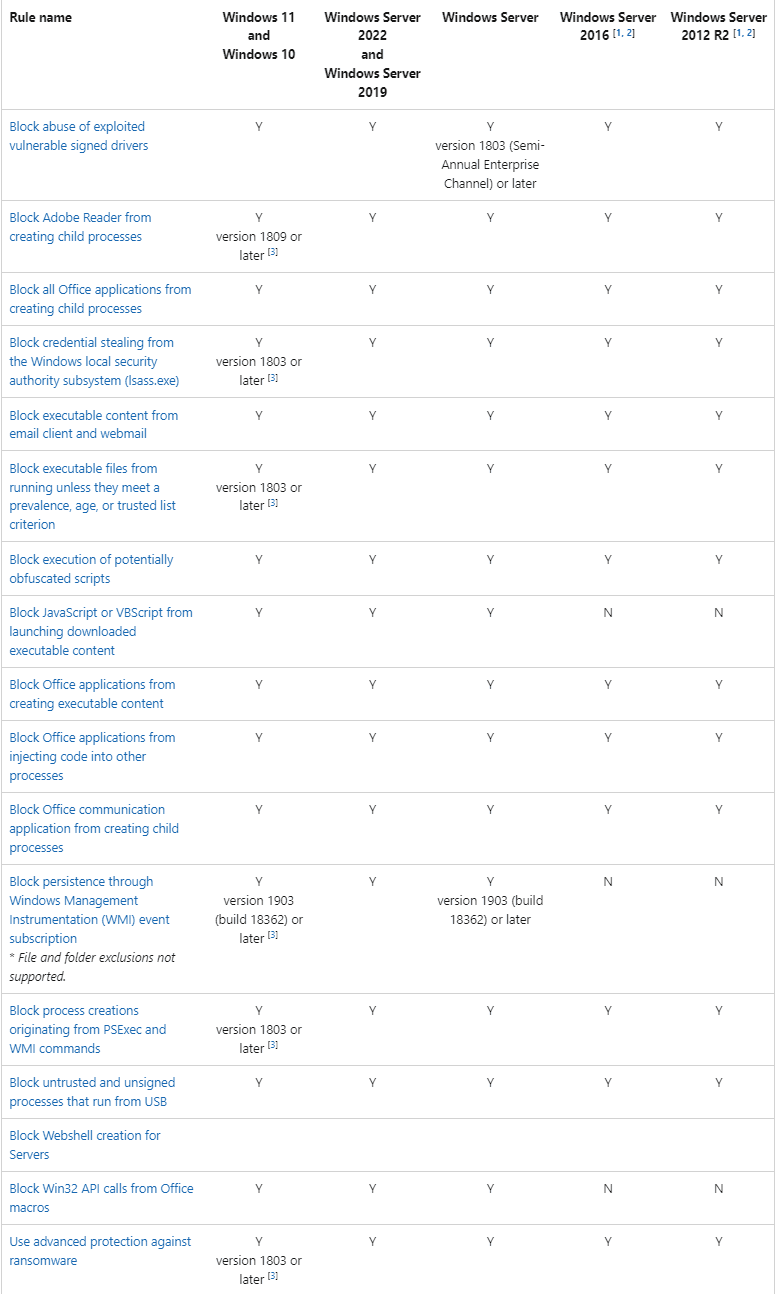
Microsoft documents which ASR rules are supported on which Windows and Windows Server versions. Not every rule is available on every OS. For example, older Windows Server releases support a smaller set. Check the official Attack surface reduction rules reference (or the “Supported ASR rules per OS” table in the docs) before enabling rules on Server 2016, 2019, 2022, or mixed fleets.
Below: supported ASR rules per Windows and Windows Server OS.
Critical Gotcha: One Unsupported Rule Can Disable All ASR Rules
If a single ASR rule in an Intune policy is not supported on an OS (e.g. you assign a policy that includes a rule only supported on Windows 11 to a device running Windows Server 2016), all ASR rules in that policy can fail to apply on that device. So one mis-scoped rule can effectively turn off ASR for that OS. To avoid that: scope ASR policies by OS. Use Entra ID dynamic groups (or similar) that target devices by operating system (e.g. “Windows Server 2016”, “Windows Server 2019/2022”, “Windows 10”, “Windows 11”). Create a separate ASR policy per OS (or per support matrix) and assign each policy only to the group whose devices support every rule in that policy. That way, older servers get only rules they support, and all rules continue to work.
Summary
To use Intune attack surface reduction rules on Windows Server (and clients): (1) Start with audit mode for the rules you care about; use the Microsoft 365 Defender report “Attack surface reduction rules” (filter “All” and by rule) to see impact before blocking. (2) Move to block or warn where supported. Warn mode requires Windows 10 1809+, Windows 11, or Windows Server 1809+, real-time protection active, and minimum Defender platform/engine; in Intune, three rules (script-launched executable, WMI persistence, advanced ransomware) do not support warn mode. Use audit or block only. (3) Check supported ASR rules per OS so you do not assign unsupported rules to older servers. (4) Avoid assigning one policy that mixes rules for different OS levels to all devices. Use dynamic groups by OS and one ASR policy per OS (or per support set) so a single unsupported rule does not disable all ASR rules on that device.