Windows PCs often have several network paths at once. Ethernet, Wi‑Fi, cellular, VPN. By default, Windows keeps multiple connections active at the same time. That can mean traffic goes over Wi‑Fi or cellular even when the device is on a wired corporate LAN, which complicates monitoring and can send data over less trusted paths.
Microsoft Intune can control this with a policy called Minimize the number of simultaneous connections to the Internet or a Windows Domain. It’s a Windows Connection Manager setting you deploy via Intune’s Settings Catalog. When you enable it and pick a behavior, you can reduce the chance of unintended dual connectivity and keep traffic on the path you prefer. This post walks through creating that policy, choosing an option, and checking that it’s applied.
Why Limiting Simultaneous Connections Helps
When a device has more than one active connection:
- Traffic can route over Wi‑Fi or cellular instead of Ethernet, so you lose visibility and control.
- Devices may auto-connect to Wi‑Fi while already on Ethernet, exposing traffic to wireless and guest networks.
- Network-based controls (firewall, inspection, policy) may not apply consistently across all paths.
By minimizing simultaneous connections (or forcing Wi‑Fi off when Ethernet is on), you keep traffic on a single, predictable path and make it easier to enforce and monitor network security.
What the Policy Options Do
The policy supports four values:
- 0 – Allow simultaneous connections . Default behavior; multiple connections can stay active.
- 1 – Minimize simultaneous connections . Windows tries to avoid keeping multiple connections; it may drop one when another becomes active.
- 2 – Stay connected to cellular . Cellular stays up even when Wi‑Fi or Ethernet is available (useful for always-on mobile scenarios).
- 3 – Prevent Wi‑Fi when on Ethernet . When Ethernet is connected, Wi‑Fi is turned off. When Ethernet is unplugged, Wi‑Fi can come back. Often the best fit for office desktops and laptops on a cable.
For most corporate devices, 3 – Prevent Wi‑Fi when on Ethernet gives a good balance: wired use stays on Ethernet; when the user unplugs, Wi‑Fi can take over.
What You Need
You need Intune rights to create and assign configuration profiles. Target devices must be Windows 10 or Windows 11 and enrolled in Intune. Know how your users connect (desk vs mobile) so you can pick the right option and groups.
Create a Settings Catalog Profile
In the Microsoft Intune admin center, go to Devices → Configuration → Policies and click Create (or + Create profile).
Creating a new configuration profile in Intune.
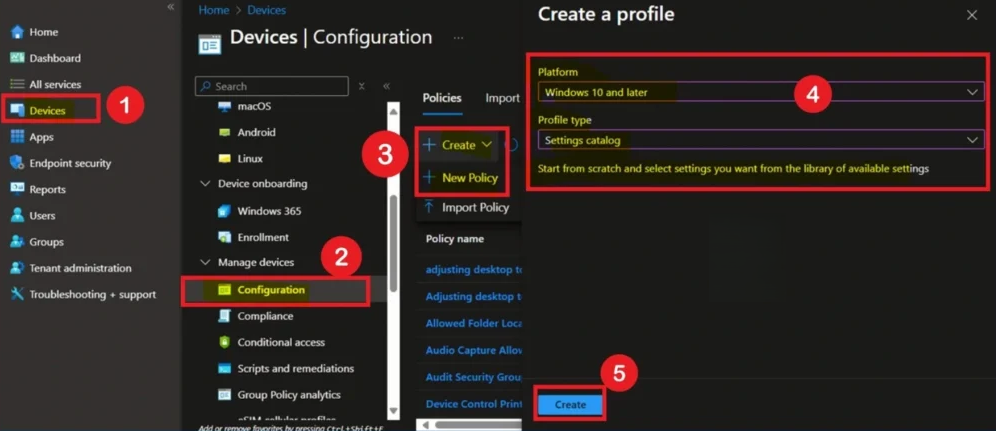
Choose Windows 10 and later and Settings catalog. Click Create.
Selecting platform and Settings catalog.
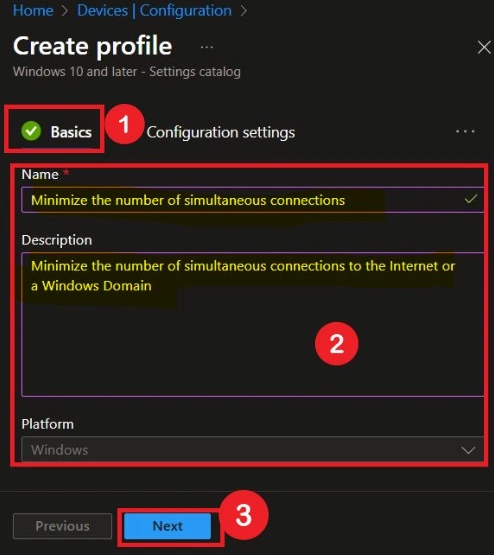
Basics and Name
On Basics, give the profile a name (e.g. “Minimize simultaneous network connections” or “Network connection management”) and an optional description. Click Next.
Configuring basic information for the configuration profile.
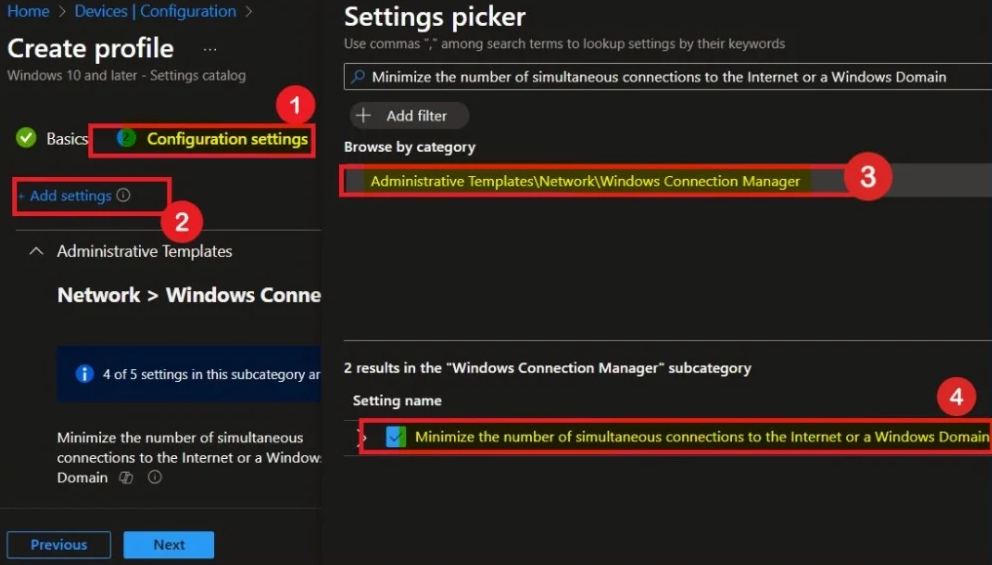
Add the Minimize Simultaneous Connections Setting
On Configuration settings, click Add settings. Search for “Minimize” or “simultaneous connections”. Under Administrative Templates → Network → Windows Connection Manager, find Minimize the number of simultaneous connections to the Internet or a Windows Domain. Select it and add it to the profile.
Adding the Minimize Simultaneous Connections policy setting.
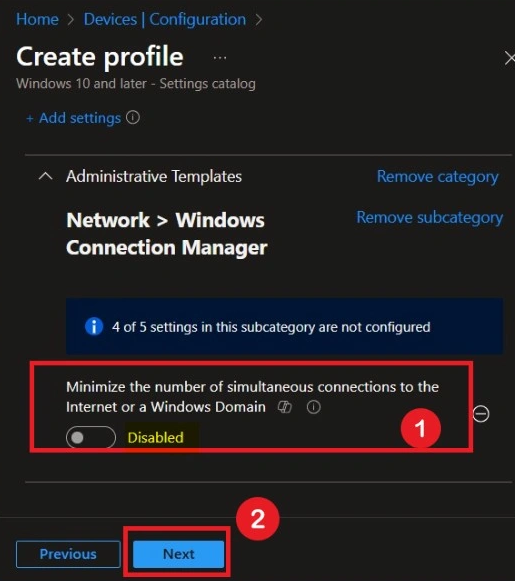
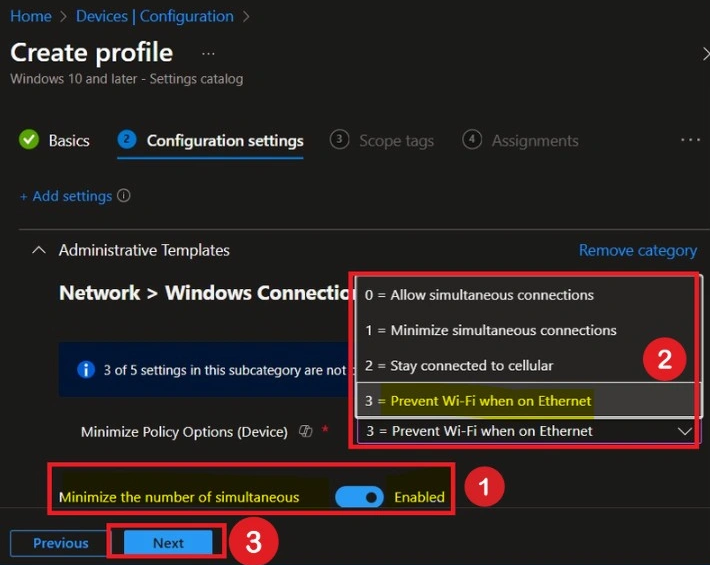
By default the setting is Disabled (Windows allows multiple connections). Set it to Enabled so the dropdown for the behavior appears.
Default disabled state of the policy.
Choose the Connection Behavior
When Enabled, pick the value that matches your goal:
- 0 . Allow simultaneous connections (same as disabled).
- 1 . Minimize simultaneous connections.
- 2 . Stay connected to cellular.
- 3 . Prevent Wi‑Fi when on Ethernet (recommended for most corporate devices).
Select the option you want and click Next.
Enabling the policy and selecting the connection behavior.
Scope Tags and Assignments
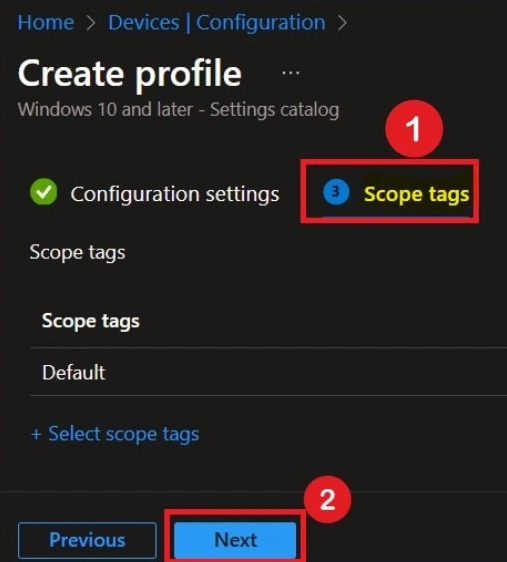
On Scope tags, add any tags you use, or skip and click Next.
Configuring scope tags for the configuration profile.
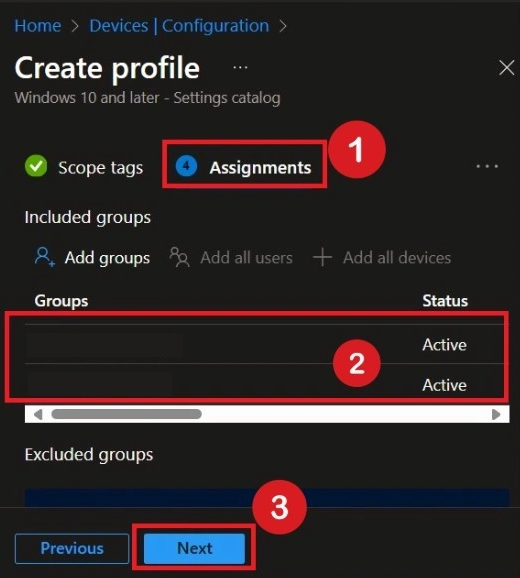
On Assignments, add the groups that should get this policy. E.g. all corporate devices, office-only devices, or a pilot group first. Click Next.
Assigning the profile to device or user groups.
Review and Create
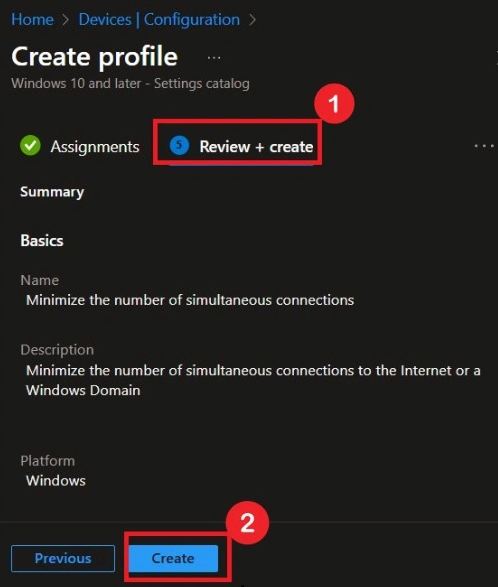
On Review + create, confirm the policy is Enabled with the correct option. Click Create. The profile will deploy to assigned devices on their next sync.
Reviewing configuration before creating the profile.
Check Policy Status
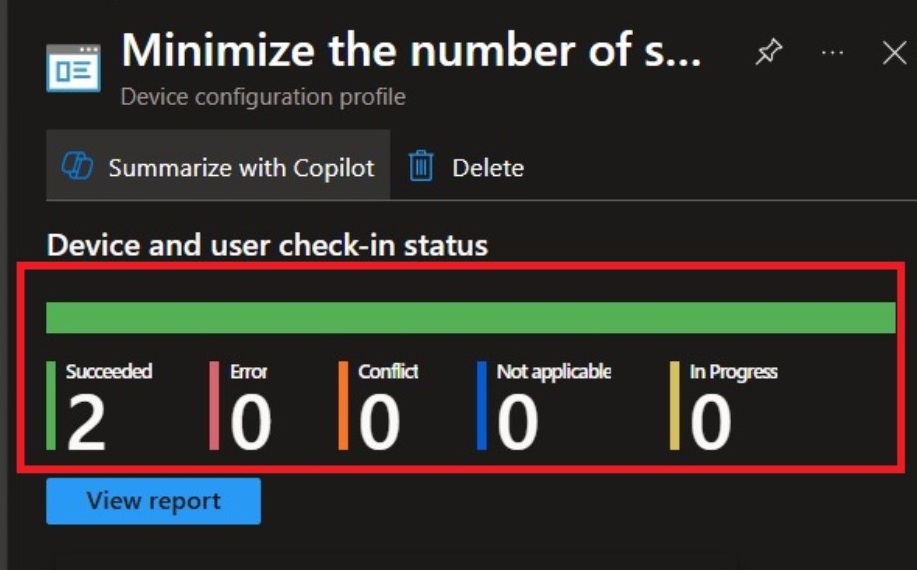
Under Devices → Configuration → Policies, open your Minimize Simultaneous Connections profile to see succeeded, error, conflict, and in-progress counts. Allow up to several hours for propagation, or trigger a device sync from Company Portal to test sooner.
Monitoring policy deployment status in Intune.
Verify on a Device
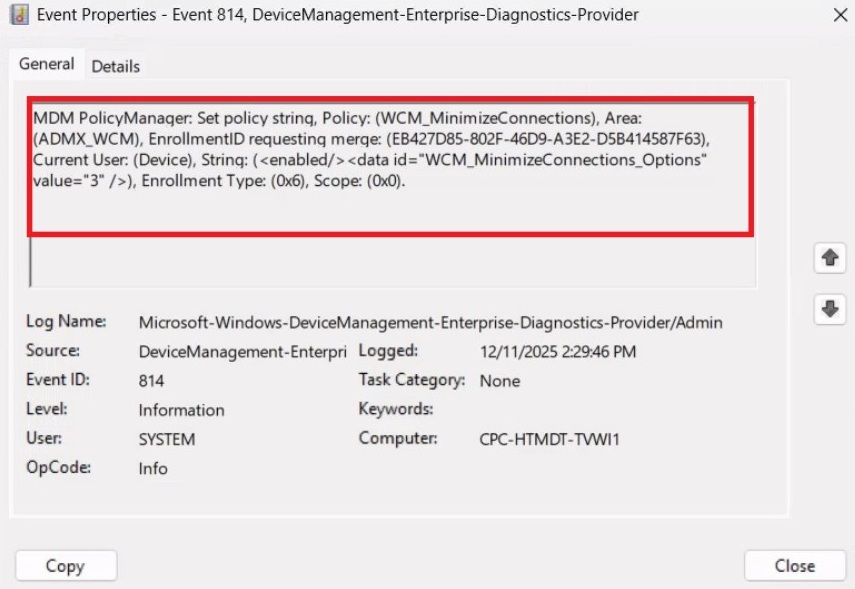
On a test device: enable Wi‑Fi, plug in Ethernet. If you used option 3, Wi‑Fi should turn off when Ethernet is connected and come back when you unplug. You can also check Event Viewer → Applications and Services Logs → Microsoft → Windows → DeviceManagement-Enterprise-Diagnostics-Provider → Admin and filter for Intune/MDM events (e.g. event ID 814) and look for WCM_MinimizeConnections to confirm the policy was applied.
Changing or Removing the Policy
To change the option: edit the profile, update Configuration settings, and save. To stop applying the policy to a group: edit Assignments and remove that group. To remove the policy entirely: open the context menu (…) next to the profile and choose Delete. After removal, devices revert to default Windows behavior (multiple connections allowed).
Tips
- Use option 3 (Prevent Wi‑Fi when on Ethernet) for most office devices; consider option 2 for highly mobile users who need cellular to stay up.
- Roll out to a pilot group first, then assign to broader groups.
- Tell users that Wi‑Fi may turn off when they plug in Ethernet so they don’t think it’s a fault.
- Use this policy together with other network and firewall policies for full coverage.
Wrap-Up
You can improve network protection and predictability by configuring the Minimize the number of simultaneous connections to the Internet or a Windows Domain policy in Microsoft Intune. Create a Settings Catalog profile, add the Windows Connection Manager setting under Network, set it to Enabled, choose the behavior (0–3), assign to your groups, and create. Monitor status under Configuration → Policies and verify on a device (e.g. plug/unplug Ethernet with option 3). With the right option for your environment, you reduce unintended dual connectivity and keep traffic on the path you want.





