Enrolling personal Windows devices in Microsoft Intune (or any MDM) is often a bad fit: privacy, support, and control issues make it risky. The better question is: how do you give users access to corporate data on those devices without enrolling them? You have three main paths: limit access in the browser (session protection), require a managed app (app-level protection), or provide a virtual desktop (full desktop in the cloud). All of them start with Conditional Access in Microsoft Entra ID. The place where you decide what is allowed from unmanaged Windows devices. This post walks through each option, when to use it, and how they compare. Relying only on MFA for personal devices is not enough: it protects the door, not the data after sign-in.
Start with Conditional Access
Conditional Access is the front door. You define which apps and data are reachable from which devices and under which conditions. For personal or unmanaged Windows devices, you typically do not allow full access; instead you allow access only when one of the secure options below is in place (e.g. app enforced restrictions, app control, managed app, or virtual desktop). Build your policies in the Microsoft Entra admin center under Protection → Conditional Access, target the right users and cloud apps, and use conditions (e.g. device state, app) so that unmanaged Windows gets limited or controlled access only.
Option 1: Limited Access in the Browser (Session Protection)
Here the user works in the browser on their personal PC. You do not manage the device; you control what the session allows. E.g. view and edit in the browser but no download, copy, or print. Two ways to do this:
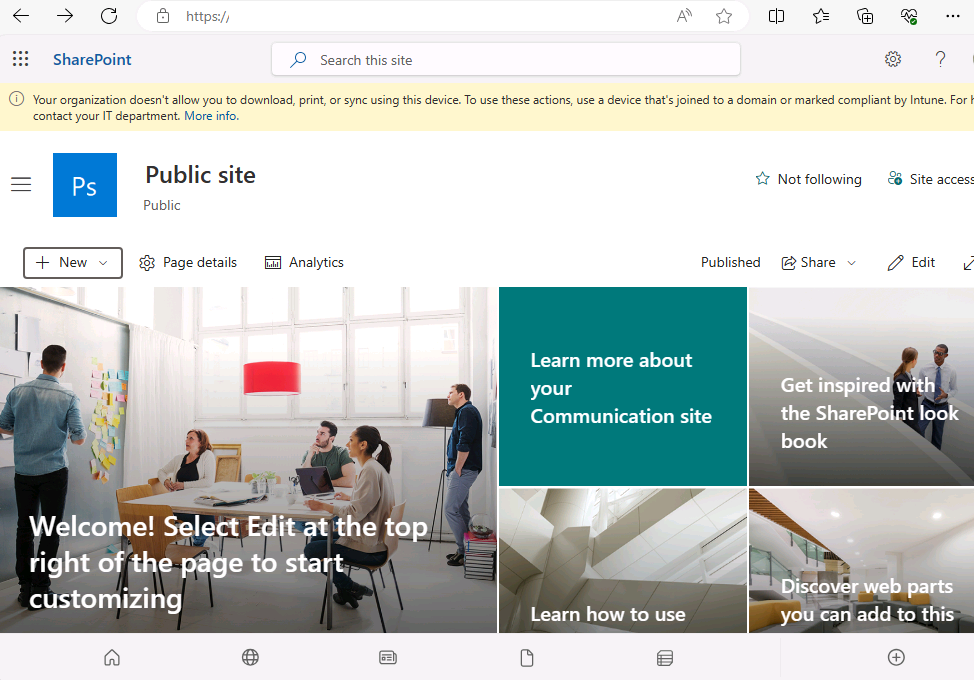
App enforced restrictions are built into Exchange Online and SharePoint Online (and OneDrive). You configure a limited experience when the user hits those apps from an unmanaged device: they can use the web app but cannot take data out of the session (or you restrict how). This is often available with Microsoft 365 E3 (or equivalent) and works with Edge, Chrome, and Firefox. You can combine it with sensitivity labels so different SharePoint sites or libraries get different behavior. Setup is relatively simple and does not require Defender for Cloud Apps.
The screenshot below shows app enforced restrictions for unmanaged devices in Microsoft Edge.
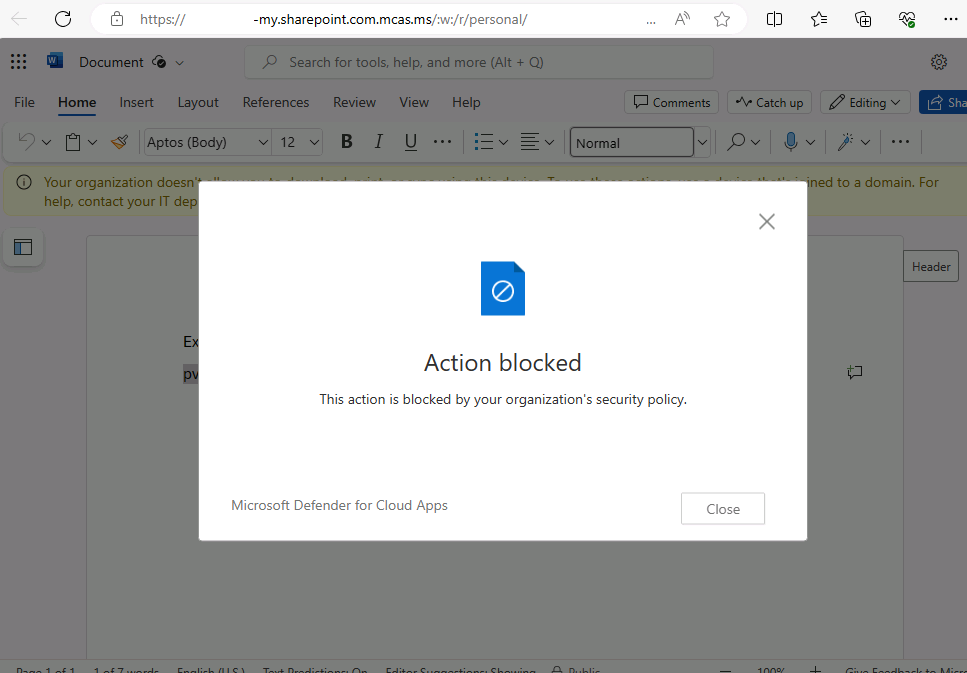
App control (Microsoft Defender for Cloud Apps) gives you more flexibility. You use Defender for Cloud Apps as a cloud access security broker: it sits between the user and the app and enforces policies based on app, user, and. Importantly. Data sensitivity. You can allow or block actions (e.g. copy, paste, download, print) depending on the sensitivity of the content. This applies to a broad set of cloud apps, not only Exchange and SharePoint. Licensing typically requires Microsoft 365 E5 (or a plan that includes Defender for Cloud Apps). Configuration is more involved but gives finer control.
Below: app control with Defender for Cloud Apps (session policies and blocked actions).
Option 2: Managed App on the Device (App-Level Protection)
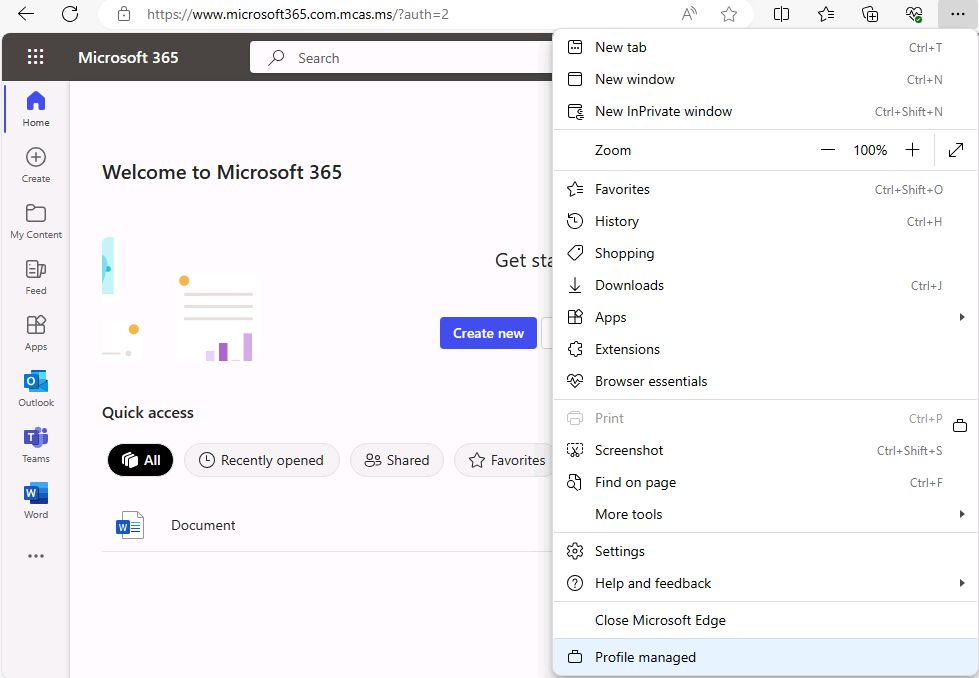
Instead of only controlling the session, you require users to use a managed app on their personal Windows device. Windows MAM (mobile application management) lets you deploy and manage apps without enrolling the device. Today, Microsoft Edge can be delivered as a managed app: you assign the managed Edge app via Intune (app protection), and when users sign in to Edge with their work account, corporate data is protected inside that app. Copy, paste, and save can be restricted, and you can wipe only the app’s data (e.g. cached content) without touching the rest of the device. So: no device enrollment, but app-level protection and the ability to always remove corporate data from the app. The user only needs to sign in to the managed browser.
Option 3: Virtual Desktop
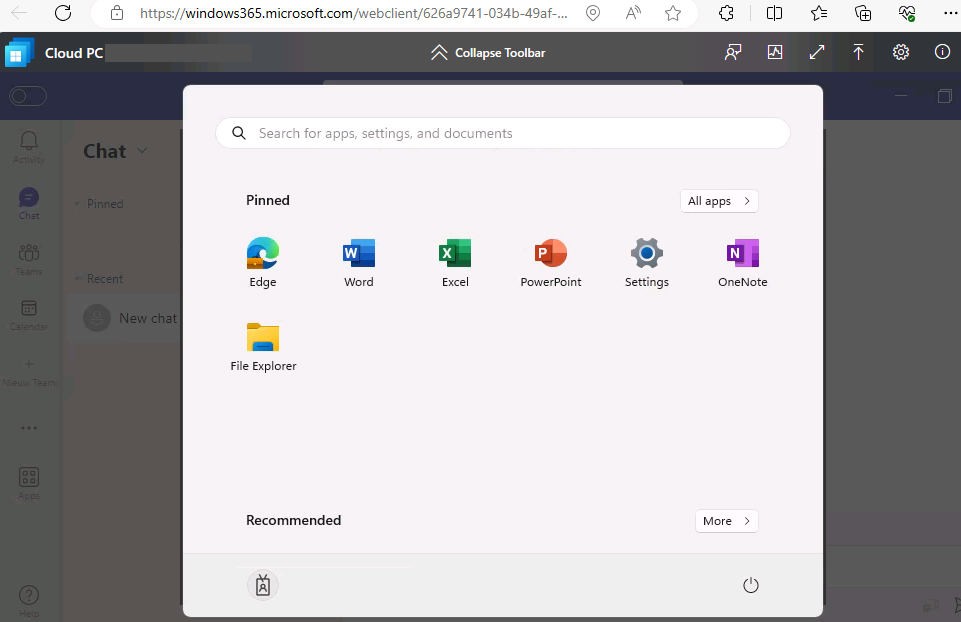
When users need full access to corporate apps and data. Desktop apps, line-of-business tools, full Office, etc.. The most secure approach on a personal PC is to give them a virtual desktop and allow corporate access only through it. The corporate workload runs in the cloud; the personal device is just a client. You can use Windows 365 (Cloud PC, fixed monthly cost per user) or Azure Virtual Desktop (usage-based). Both integrate with Conditional Access and Entra ID: you can require managed device or compliant network for the virtual desktop itself, while the physical device stays unmanaged. Cost is higher than session or app protection, but you get full desktop isolation and no corporate data on the user’s hardware.
Below: Windows 365 Cloud PC in Microsoft 365.
How They Compare
Session protection (app enforced restrictions or Defender for Cloud Apps) keeps data in the session and restricts what the user can do there; no device or app enrollment. Managed app (Windows MAM with Edge) adds app-level protection and remote wipe of app data; it requires app “enrollment” and is currently limited to Edge. Virtual desktop gives a full Windows environment in the cloud; no corporate data on the personal device, but higher cost and more to operate. You can combine session and app protection: e.g. use Defender for Cloud Apps for granular session policies and Windows MAM for Edge so you always have a way to wipe cached data from the managed browser.
Choosing and Implementing
Match the option to your licensing (E3 vs E5), to what users need (email and SharePoint only vs full desktop), and to how much you want to manage. Pilot with a small group, then roll out. Use Conditional Access so that unmanaged Windows is only allowed when the chosen control is in place (e.g. “use approved client app” or “access only from Cloud PC”). Train users on the managed app or virtual desktop so they know how to sign in and what to expect. Document which option (or combination) applies to which users and refresh that as licensing and requirements change.
Summary
To work with personal Windows devices in a secure way without enrolling them in Intune: use Conditional Access as the gate, then choose one or more of: (1) Limited browser access. App enforced restrictions (Exchange, SharePoint, OneDrive) or Defender for Cloud Apps app control for session-level protection; (2) Managed app. Windows MAM with Microsoft Edge for app-level protection and app-data wipe; (3) Virtual desktop. Windows 365 or Azure Virtual Desktop for full desktop access without putting data on the device. Do not rely on MFA alone; combine session and app protection where it fits. Choose based on requirements, licensing, and cost.





