Endpoint Privilege Management (EPM) in Microsoft Intune lets users work as standard users (without local admin) while still running specific apps or tasks with elevated rights. EPM handles elevation requests so you can approve known executables (e.g. installers, drivers, diagnostics) and deny or prompt for everything else. This guide walks through licensing, deploying an elevation settings policy, and adding elevation rules for the files you want to manage.
What You’ll Do
- Confirm EPM licensing (EPM requires an add-on beyond Intune Plan 1. Standalone EPM or the Intune Suite).
- Deploy a Windows elevation settings policy that turns EPM on and sets default behavior for unmanaged elevation requests (deny, prompt, reporting).
- Deploy one or more Windows elevation rules policies that define which files can be elevated (by name, path, certificate, or hash) and whether elevation is automatic or requires user confirmation (and optionally justification or Windows authentication).
Devices must receive an elevation settings policy that enables EPM before elevation rules take effect. Check Microsoft documentation for current licensing and limits.
Step 1: Check Licensing
Endpoint Privilege Management is not included in the base Microsoft Intune Plan 1 license. You need either a standalone EPM add-on or the Microsoft Intune Suite, which includes EPM and other add-on capabilities. For details and options, see Microsoft’s documentation on Intune Suite add-on capabilities.
Step 2: Deploy an Elevation Settings Policy
An elevation settings policy turns EPM on for a device and defines how unmanaged elevation requests are handled. Create this policy first so devices use EPM; then add elevation rules for specific files.
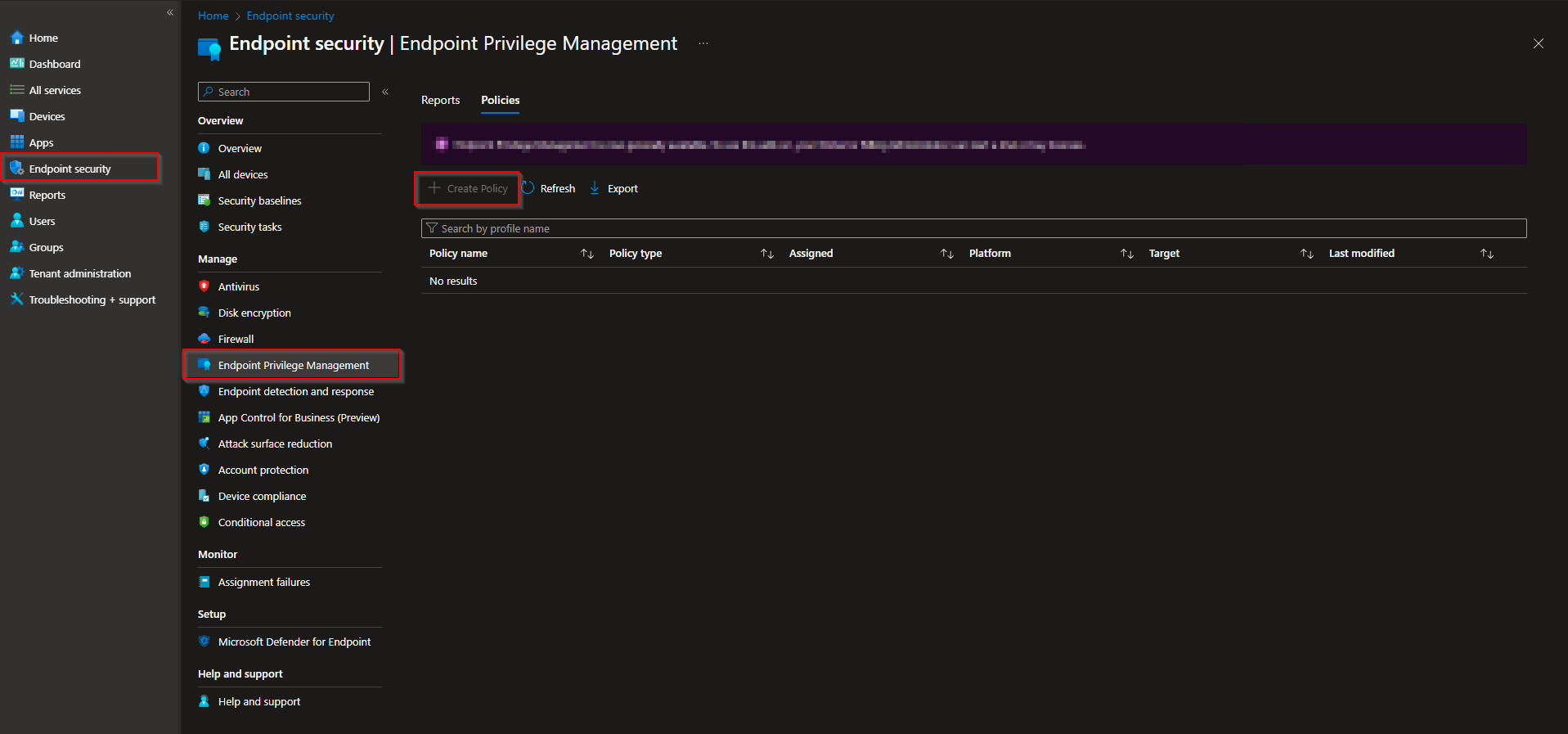
In the Microsoft Intune admin center, go to Endpoint security → Endpoint privilege management → Policies. Click Create policy.
On Basics, enter a Name (e.g. “EPM – Elevation settings”) and optionally a Description. Click Next.
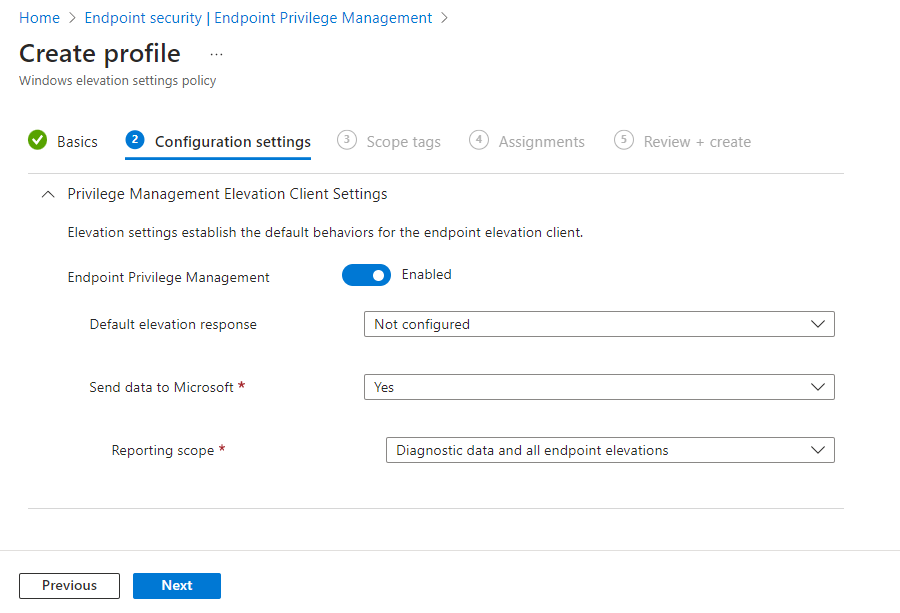
On Configuration settings, set:
- Endpoint Privilege Management . Enabled so the device uses EPM. If set to Disabled, EPM is turned off; after a period (e.g. seven days) EPM components are deprovisioned.
- Default elevation response . How to handle elevation requests for files that are not covered by an elevation rule: Not configured (same as deny), Deny all requests (user sees a denial message; does not block “Run as administrator” for users who already have admin), or Require user confirmation (user gets a prompt; you can add Validation such as business justification or Windows authentication).
- Send elevation data for reporting . Yes (default) so the device can report elevation data; then set Reporting scope: report diagnostic data and all endpoint elevations, only managed elevations, or diagnostic data only.
Click Next. Set Scope tags and Assignments, then Review + create → Create.
Step 3: Deploy Elevation Rule Policies
Elevation rules define which files EPM will elevate and how. Each rule identifies a file (by name, path, certificate, and/or hash) and sets the elevation type (automatic or user confirmed, with optional validation). Devices must also have an elevation settings policy that enables EPM.
In the Intune admin center, go to Endpoint security → Endpoint privilege management → Policies. Click Create policy. Set Platform to Windows 10 and later and Profile to Windows elevation rules policy. Click Create.
On Basics, enter a Name (e.g. “EPM – Approved installers”) and optionally a Description. Click Next.
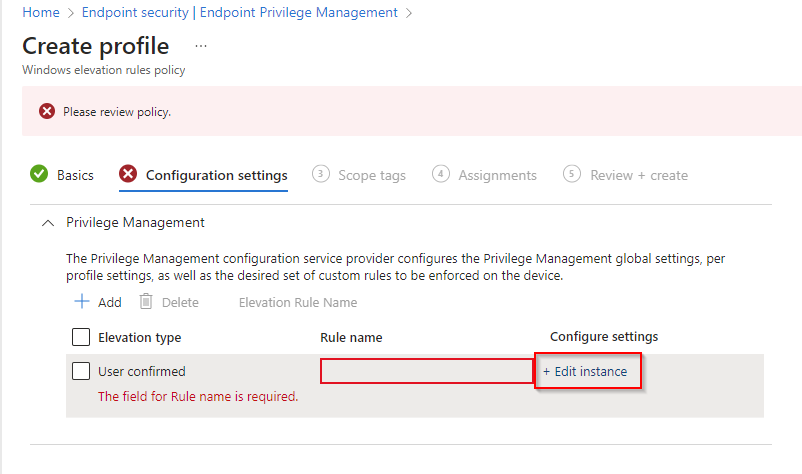
On Configuration settings, add one or more rules. For each rule:
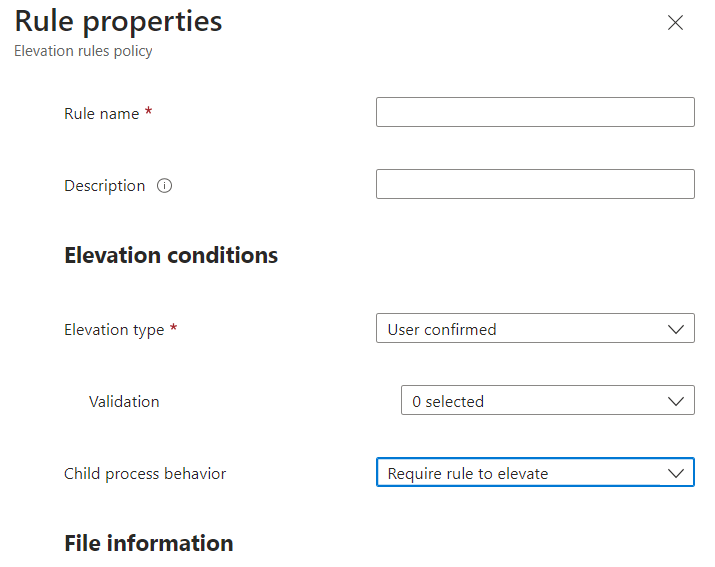
- Rule name . A name you can use to find the rule later.
- Elevation type . User confirmed (recommended for most files): user gets a prompt; you can require business justification or Windows authentication via Validation. Automatic: file runs elevated without user interaction (use only for trusted files).
- Child process behavior . E.g. require child processes to match a rule, allow all child processes (use with caution), or deny all.
- File name . The executable name and extension (e.g.
setup.exe). - File path . Optional; leave blank if the file can run from any location, or use a path/variable.
- Signature source . Use a certificate from a reusable settings group, upload a certificate file, or Not configured (then you must provide a File hash). Set Certificate type (Publisher or Certificate authority) when using a certificate.
- File hash . Required when signature source is Not configured; optional when using a certificate.
- Optional: Minimum version (x.x.x.x), File description, Product name, Internal name.
Save the rule, add more rules if needed, then click Next. Set Scope tags and Assignments, then Review + create → Create.
Wrap-up
You can set up Endpoint Privilege Management with Intune by (1) ensuring EPM licensing (standalone or Intune Suite), (2) deploying a Windows elevation settings policy that enables EPM and configures default elevation response and reporting, and (3) deploying Windows elevation rules policies that define which files are elevated and whether elevation is automatic or user confirmed. Assign both the settings policy and the rules policies to the same users or devices so EPM is enabled and your approved files can elevate. For more options (reusable certificate groups, validation options, reporting), see the official Microsoft Intune EPM documentation.





