Many organisations want Google as the default search engine in Microsoft Edge and Google Chrome on managed Windows devices. With the Settings Catalog in Microsoft Intune, you can set the default search provider for both browsers without importing ADMX files or building custom policies. You pick the right settings and the correct search URL in one profile. This post walks through creating a Settings Catalog profile, configuring Edge and Chrome to use Google as the default search provider, and checking the result in each browser.
Create a Settings Catalog Profile
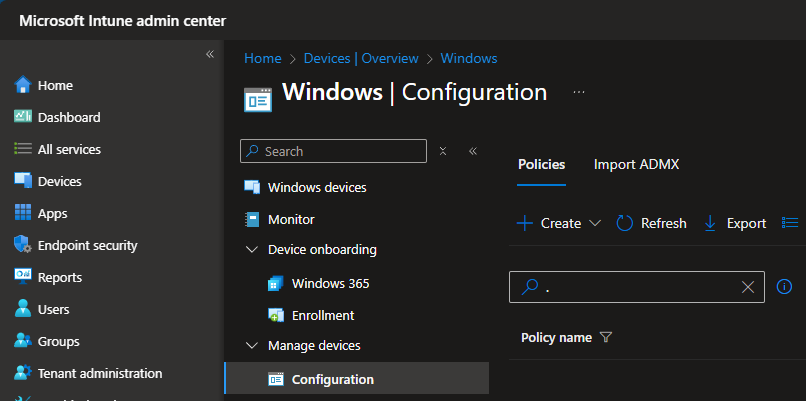
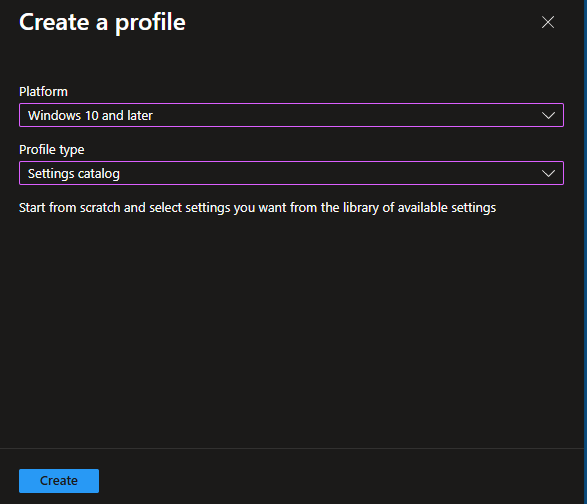
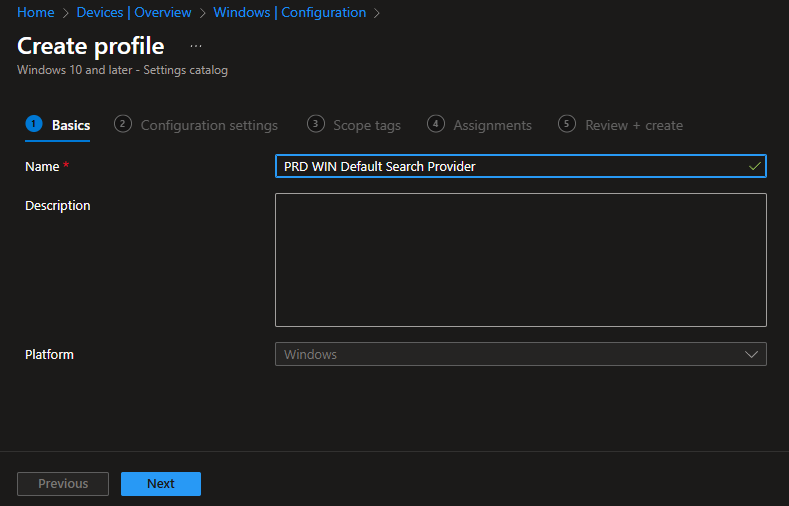
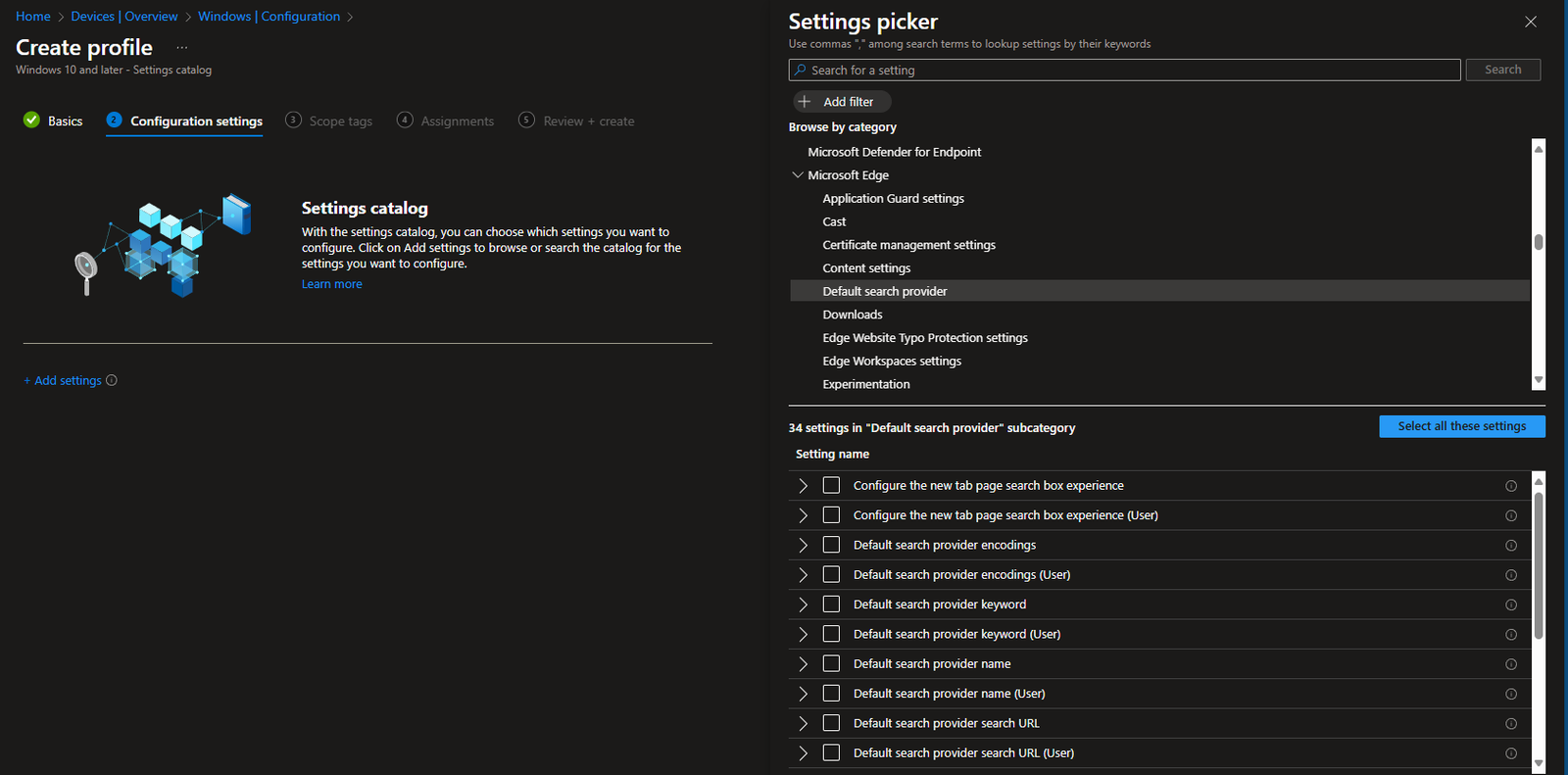
In the Microsoft Intune admin center, go to Devices → Windows → Configuration (or Configuration profiles) and choose Create → New policy. Set Platform to Windows 10 and later and Profile type to Settings catalog, then click Create. On Basics, enter a name (e.g. “Default search provider – Google”) and an optional description, then click Next. On Configuration settings, click Add settings to open the Settings Picker so you can add the Edge and Chrome search-provider settings.
Below: creating a new configuration profile with Platform Windows 10 and later and Profile type Settings catalog.
The screenshot shows the Basics step where you enter the policy name and optional description.
Microsoft Edge: Default Search Provider
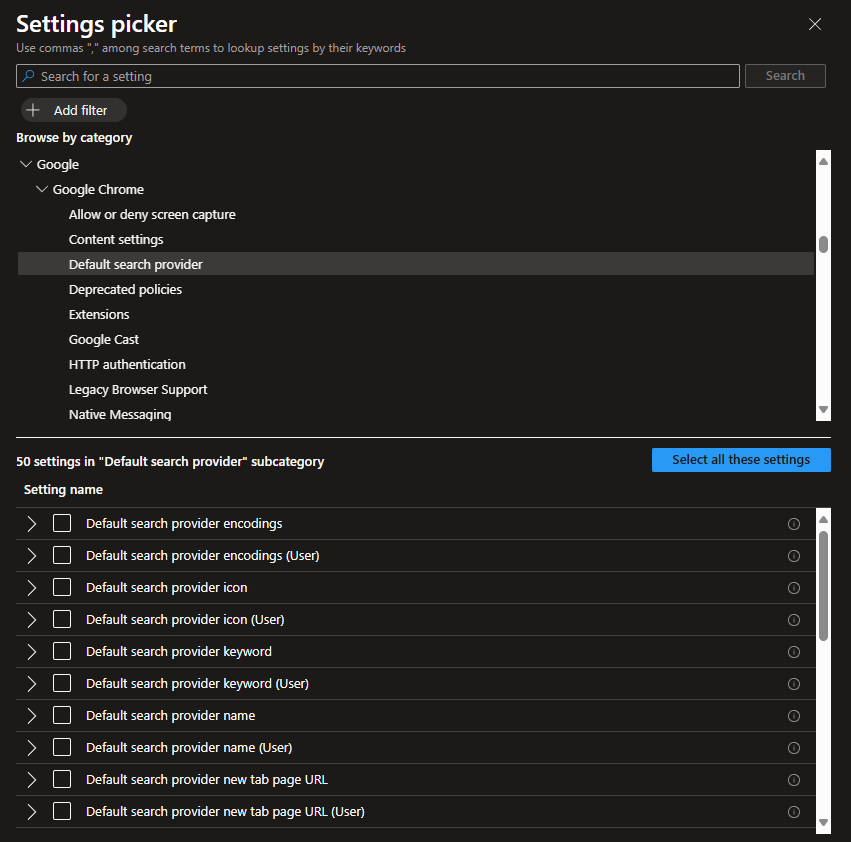
In the Settings Picker, go to Microsoft Edge → Default search provider. Add these four settings:
- Configure the new tab page search box experience . Optional. If you don’t set this, the new-tab search box can still use Bing by default. Set to Enabled and choose Address bar so the new-tab experience uses your default search provider.
- Default search provider name . Set to Enabled and enter Google.
- Default search provider search URL . Set to Enabled and enter
https://www.google.com/search?q={searchTerms}. The{searchTerms}placeholder is replaced by the user’s query. - Enable the default search provider . Set to Enabled so the default search provider is active.
Save the Edge settings. You can use a regional Google URL (e.g. https://www.google.nl/search?q={searchTerms}) if you prefer.
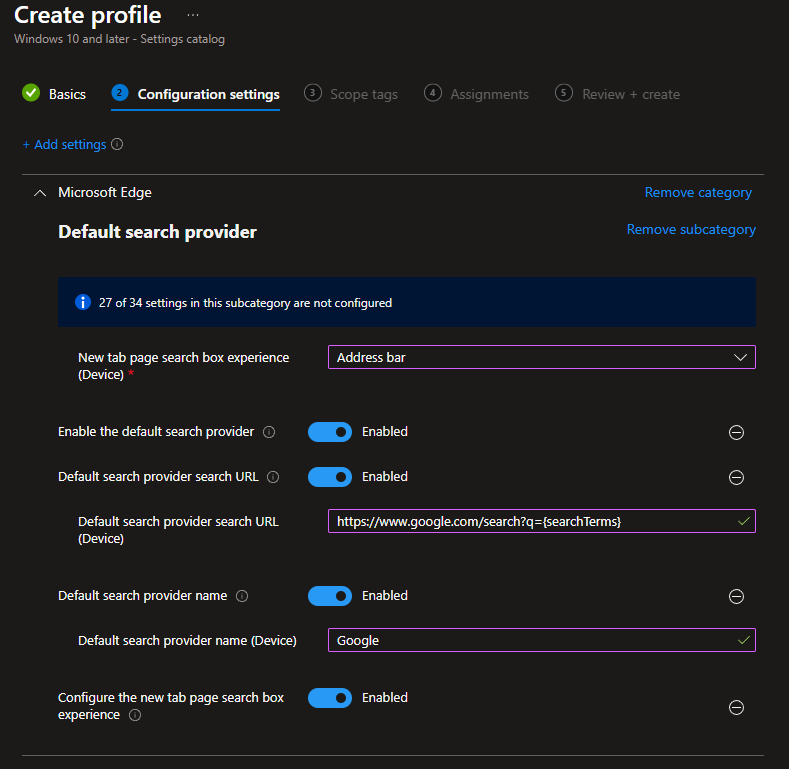
Below: the four Microsoft Edge default search provider settings added and ready to configure.
The screenshot shows the values set for Edge: Configure the new tab page search box experience = Address bar, Default search provider name = Google, Default search provider search URL = https://www.google.com/search?q={searchTerms}, Enable the default search provider = Enabled.
Google Chrome: Default Search Provider
In the same profile, add settings for Google → Google Chrome → Default search provider. Add these three settings (Chrome doesn’t have the “new tab search box experience” option in the same way):
- Default search provider name . Set to Enabled and enter Google.
- Default search provider search URL . Set to Enabled and enter
https://www.google.com/search?q={searchTerms}(or your regional URL, e.g.https://www.google.nl/search?q={searchTerms}). - Enable the default search provider . Set to Enabled.
Save the Chrome settings. Both browsers will now use Google as the default search provider when the profile is applied.
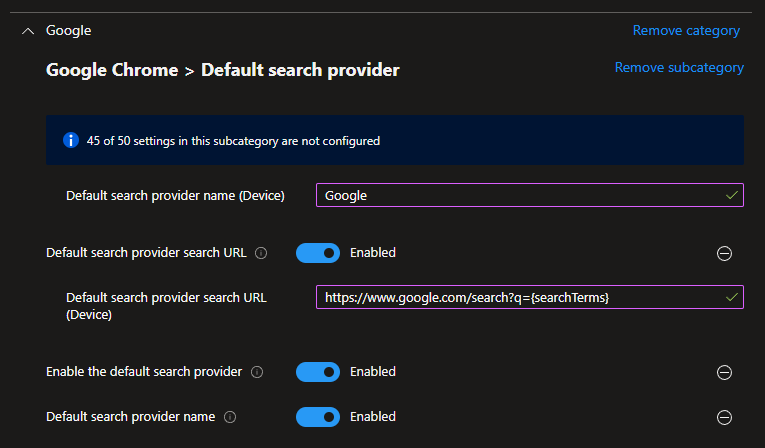
Below: the three Google Chrome default search provider settings added (name, search URL, enable).
The screenshot shows the values set for Chrome: Default search provider name = Google, Default search provider search URL = https://www.google.nl/search?q={searchTerms} (or .com), Enable the default search provider = Enabled.
Assign and Verify
Finish the wizard: set Scope tags if needed, then go to Assignments and assign the profile to the device or user groups that should get Google as the default search provider (e.g. All devices or a specific Entra group). Save and Create the profile. After the next sync, devices will receive the policy.
To verify: on a managed device, open Microsoft Edge and go to Settings → Privacy, search, and services. Under the search section you should see the default search engine set to Google and the new-tab search behaviour as configured. In Google Chrome, go to Settings → Search engine (or the search section); the default search engine should show as Google. If you used a regional URL, search results will follow that region.
Below: Edge settings showing the configured search engine and new-tab search behaviour (Privacy, search, and services).
Summary
To set Google as the default search provider for Microsoft Edge and Google Chrome with Microsoft Intune: create a Settings Catalog profile (Devices → Windows → Configuration → Create → Settings catalog). For Edge, under Microsoft Edge → Default search provider, enable and set: Configure the new tab page search box experience (Address bar), Default search provider name (Google), Default search provider search URL (https://www.google.com/search?q={searchTerms}), and Enable the default search provider. For Chrome, under Google → Google Chrome → Default search provider, enable and set the name, search URL, and enable the default search provider. Assign the profile to your Windows device or user groups. Confirm in Edge (Privacy, search, and services) and Chrome (Search engine) that Google is the default. Using the Settings Catalog avoids ADMX imports and custom policies and keeps both browsers aligned on the same search provider.