Microsoft Entra Global Secure Access sends traffic to Microsoft 365 services (Exchange Online, SharePoint Online, Teams, and related apps) over Microsoft’s own protected network instead of the public internet. That gives you encrypted, consistent paths to the cloud and lets you tie access to Conditional Access: only traffic that comes “from” Global Secure Access is treated as compliant, so you can block everyone else. That reduces exposure to token theft, replay attacks, and unmonitored access, and helps align with regulatory and internal security requirements. This post walks through turning on the Microsoft traffic profile, enabling Adaptive Access for Conditional Access signaling, creating a Conditional Access policy that allows access only via Global Secure Access, and deploying the Global Secure Access client to devices.
Requirements
You need Microsoft Entra ID P1 (or a higher plan that includes it) to use the Microsoft traffic profile. For devices: Windows 10, Windows 11, or Android are supported; iOS and macOS may be available in preview. Check current docs. On Windows, devices must be Microsoft Entra joined or Microsoft Entra hybrid joined; Entra registered–only devices are not supported. Typical roles: Global Secure Access Administrator to configure Global Secure Access, Conditional Access Administrator to build the block policy, and for user/group assignment to the traffic profile you often need Application Administrator as well (in combination with Global Secure Access Administrator). Use least-privilege and exclude emergency access accounts from any blocking policy.
Turn On the Microsoft Traffic Profile
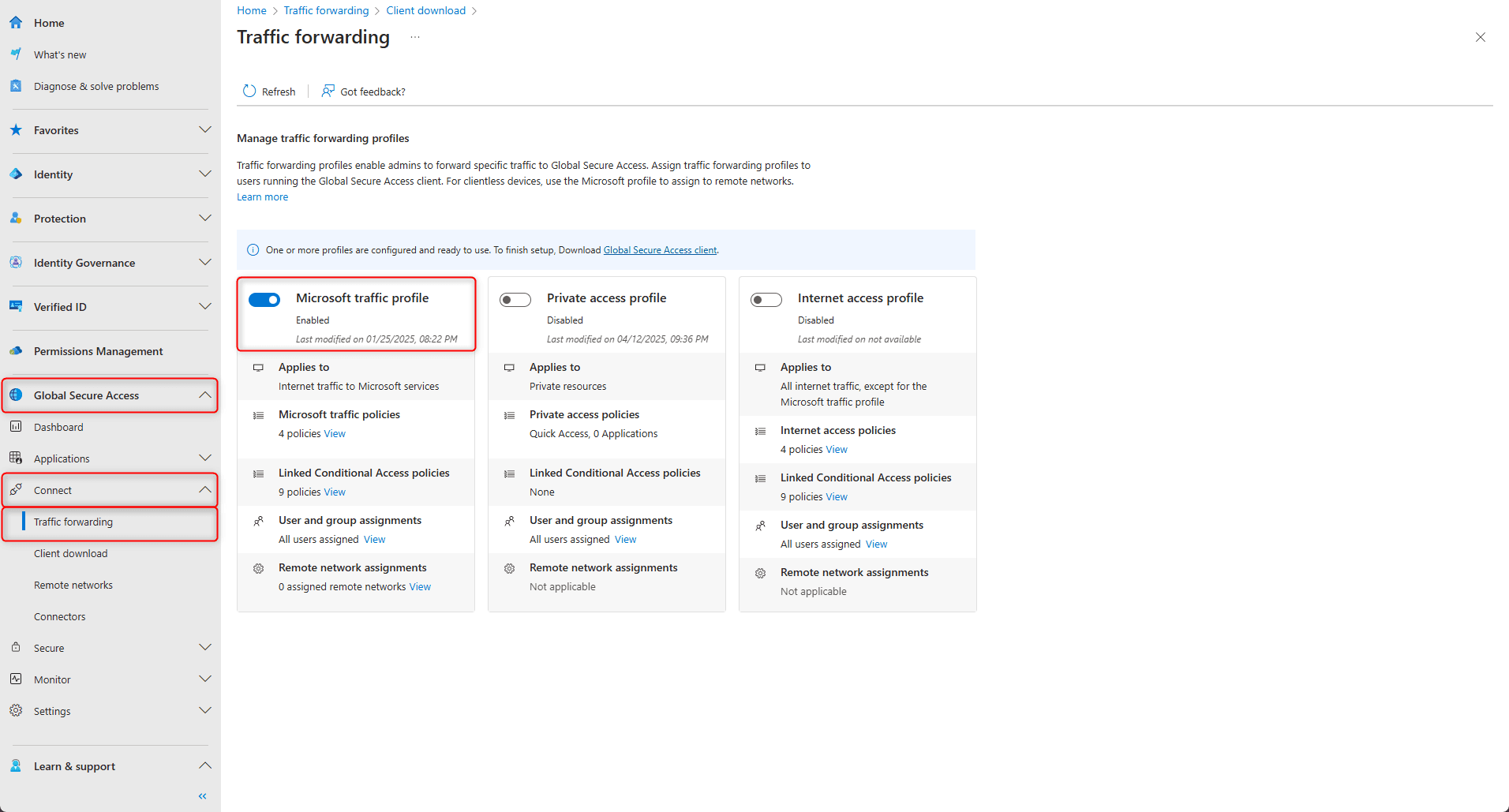
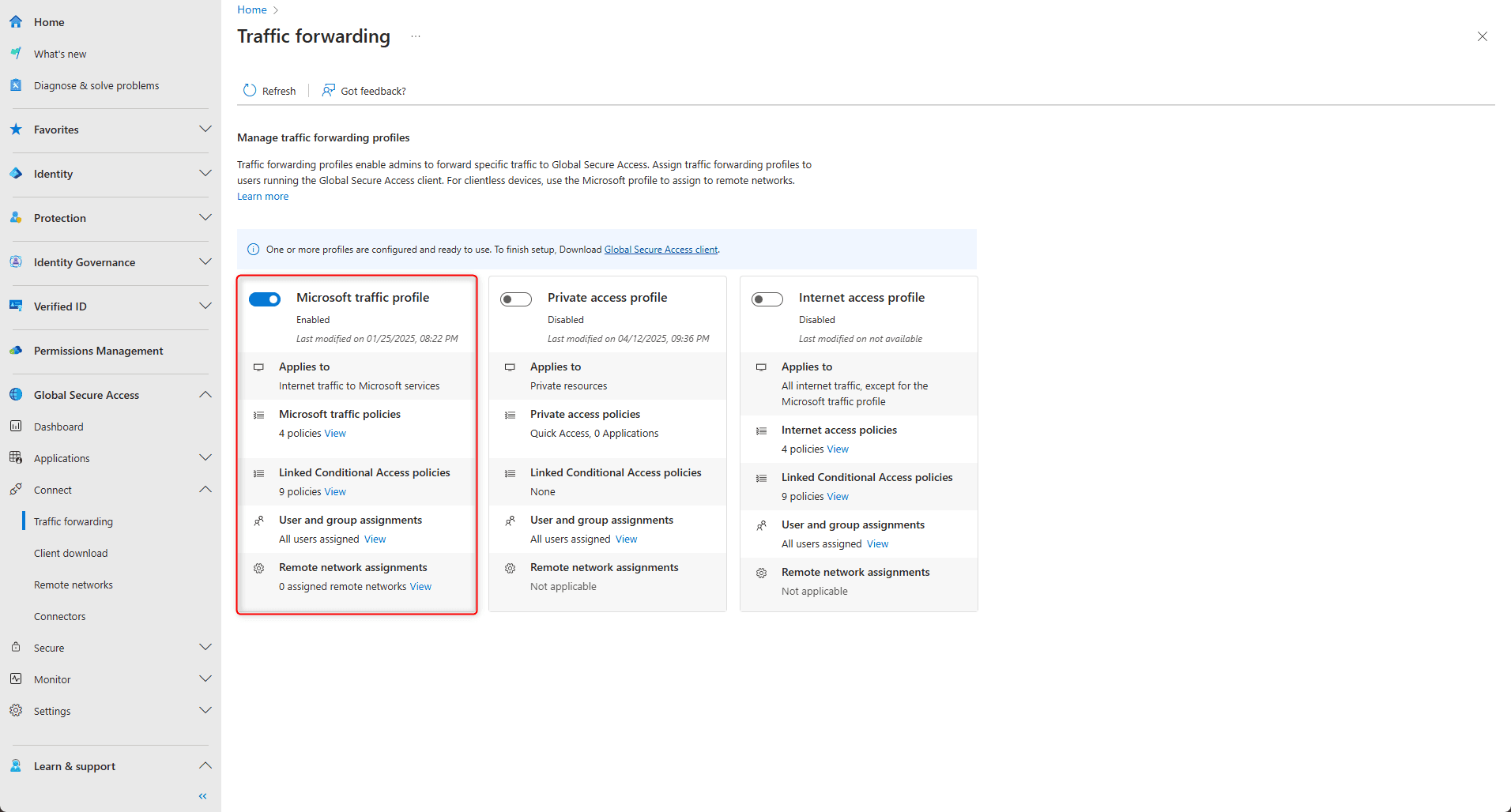
In the Microsoft Entra admin center, go to Global Secure Access → Connect → Traffic forwarding. Enable the Microsoft traffic profile. By default it includes traffic for Exchange Online, Skype for Business and Teams, SharePoint Online and OneDrive for Business, and Microsoft 365 Common and Office Online. You can expand each application and turn individual apps on or off if you need finer control. Under the same area you configure which users and groups get the profile; assigning all users, or specific users or groups, requires both Global Secure Access Administrator and Application Administrator. Save the traffic profile when done.
The screenshot below shows Global Secure Access traffic forwarding and the Microsoft traffic profile.
Policies, Rules, and User Assignment
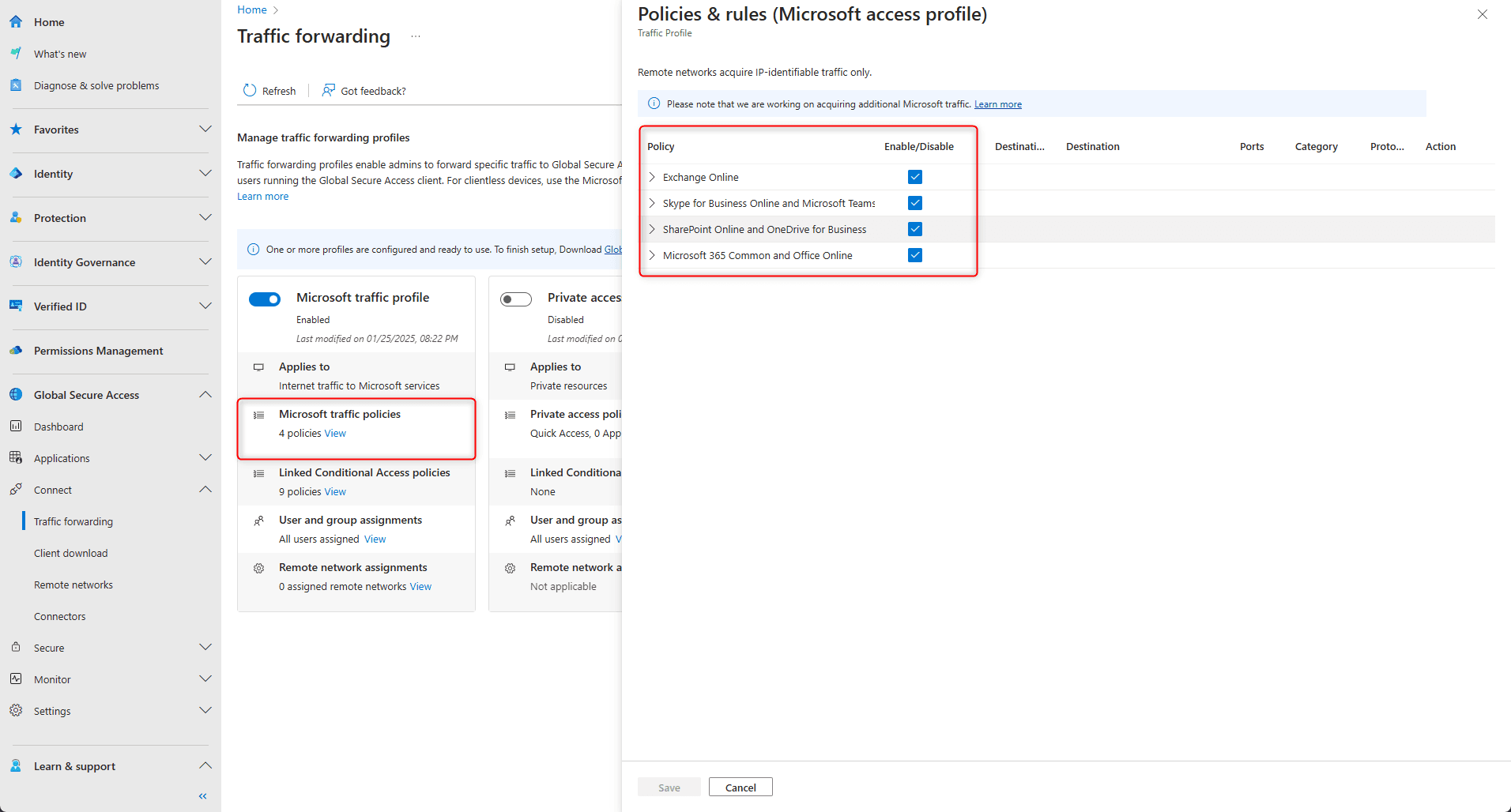
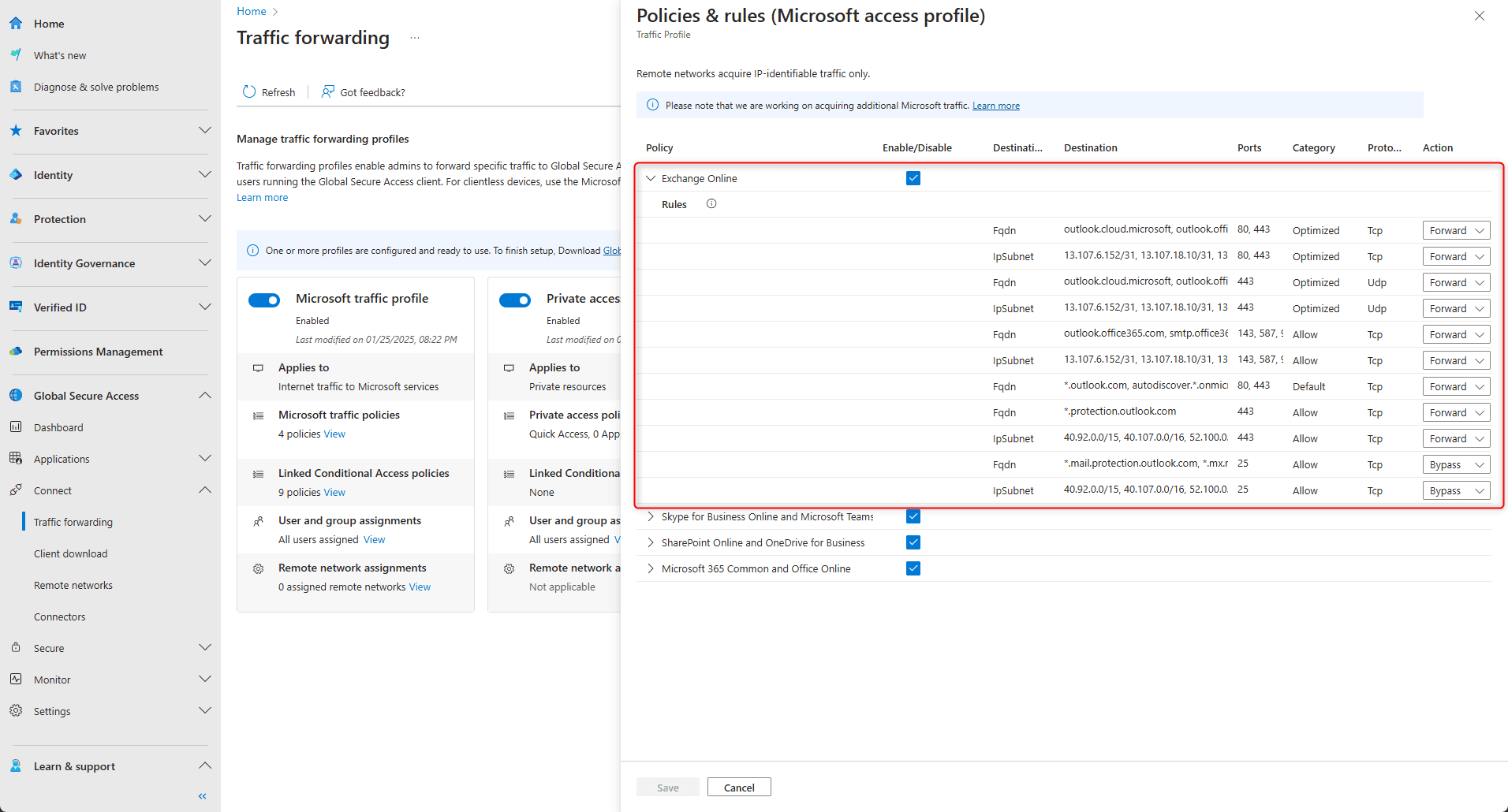
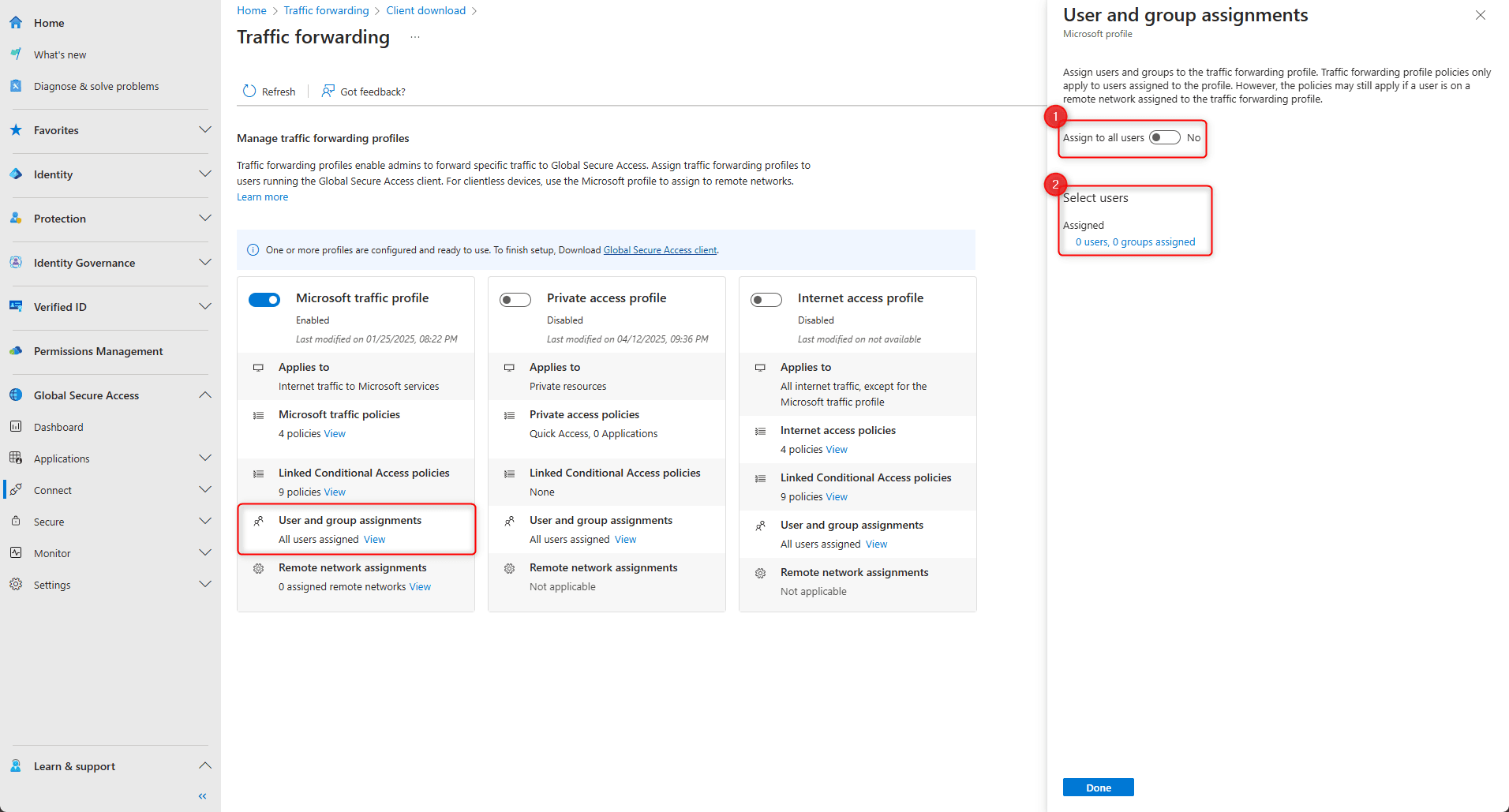
Under the Microsoft traffic profile you can manage which applications are included and who the profile applies to. Use Policies & rules (or the equivalent section in the portal) to review or change included apps. For user assignment you can target all users or select specific users or groups; remember that changing assignments needs the Application Administrator role in addition to Global Secure Access Administrator. Once the Microsoft traffic profile is enabled and assigned, traffic from those users to the included apps will be eligible to be routed through Global Secure Access when the client is installed and connected.
Below: the Microsoft traffic profile policies and application list.
The following screenshot shows user and group assignment for the traffic profile.
Enable Adaptive Access (CA Signaling)
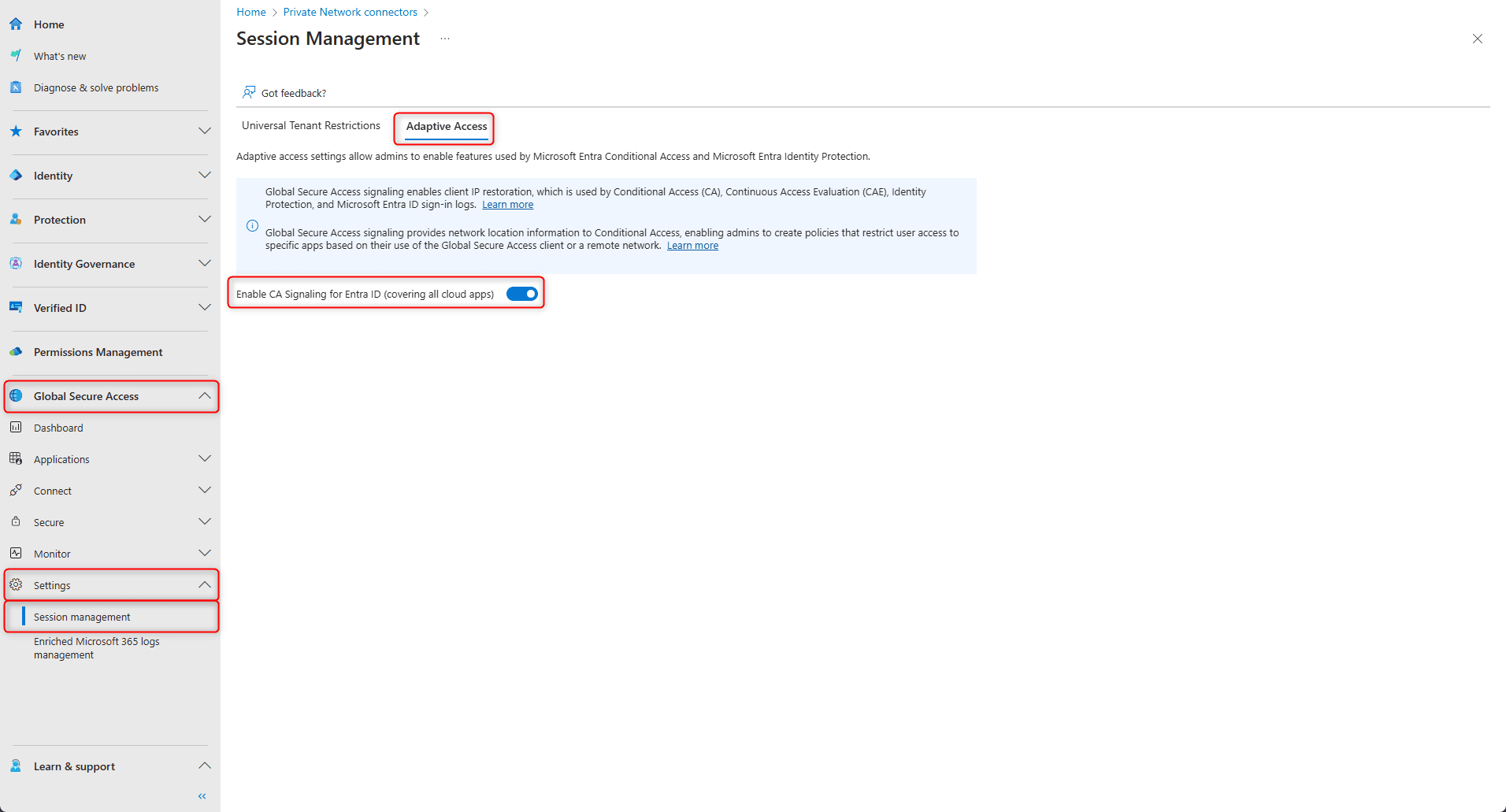
So that Conditional Access can treat “traffic from Global Secure Access” as a compliant network, you must enable Adaptive Access and allow CA (Conditional Access) signaling. In the Entra admin center go to Global Secure Access → Settings → Session management → Adaptive Access. Turn on Enable CA Signaling for Entra ID (covering all cloud apps). After this, sign-ins that use the Global Secure Access client will signal the compliant network location to Conditional Access, and you can build a policy that blocks access unless the request comes from that location.
Below: Session management and Adaptive Access CA signaling in Global Secure Access.
The screenshot shows enabling CA Signaling for Entra ID.
Conditional Access: Allow Only Global Secure Access
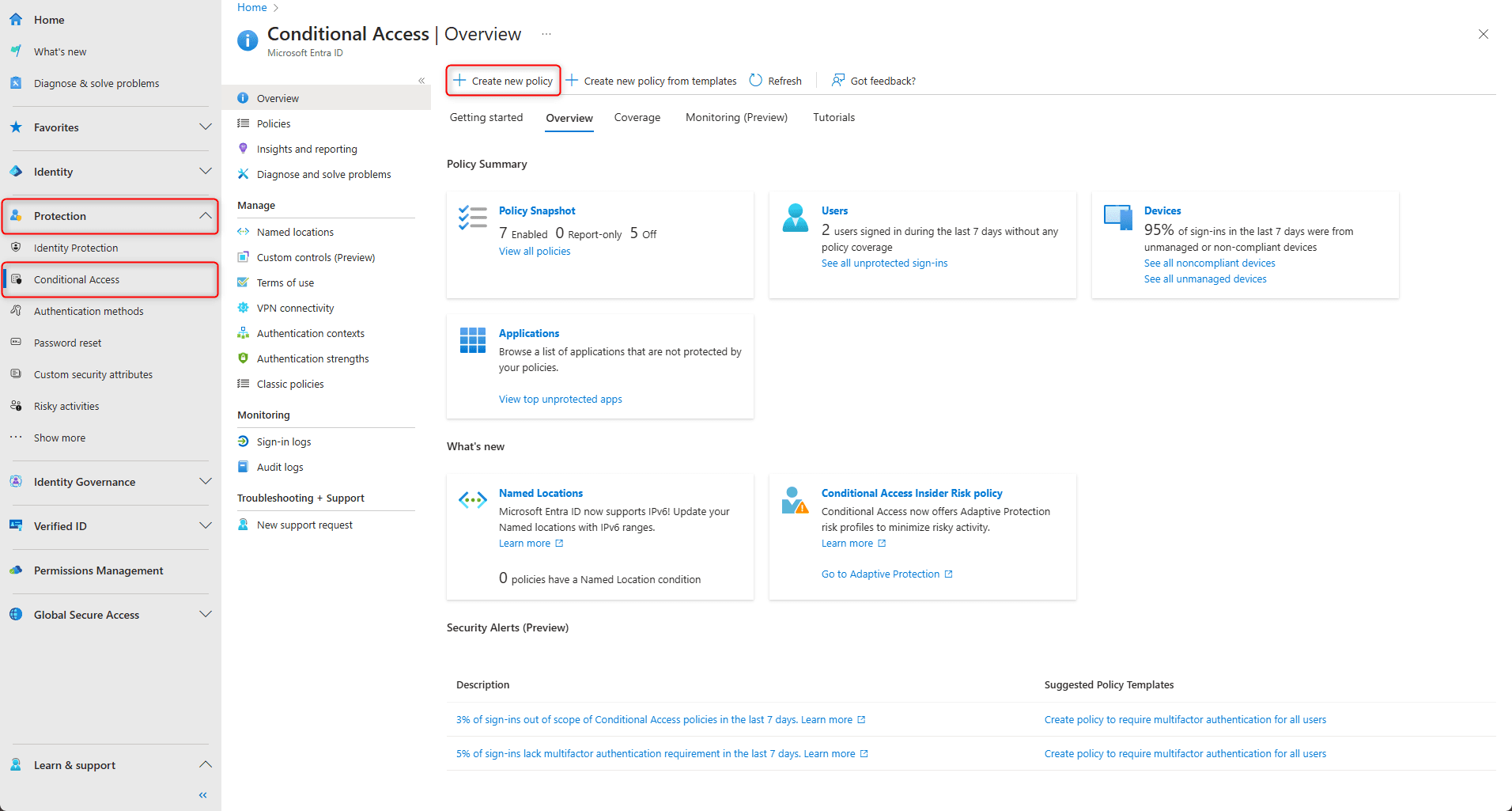
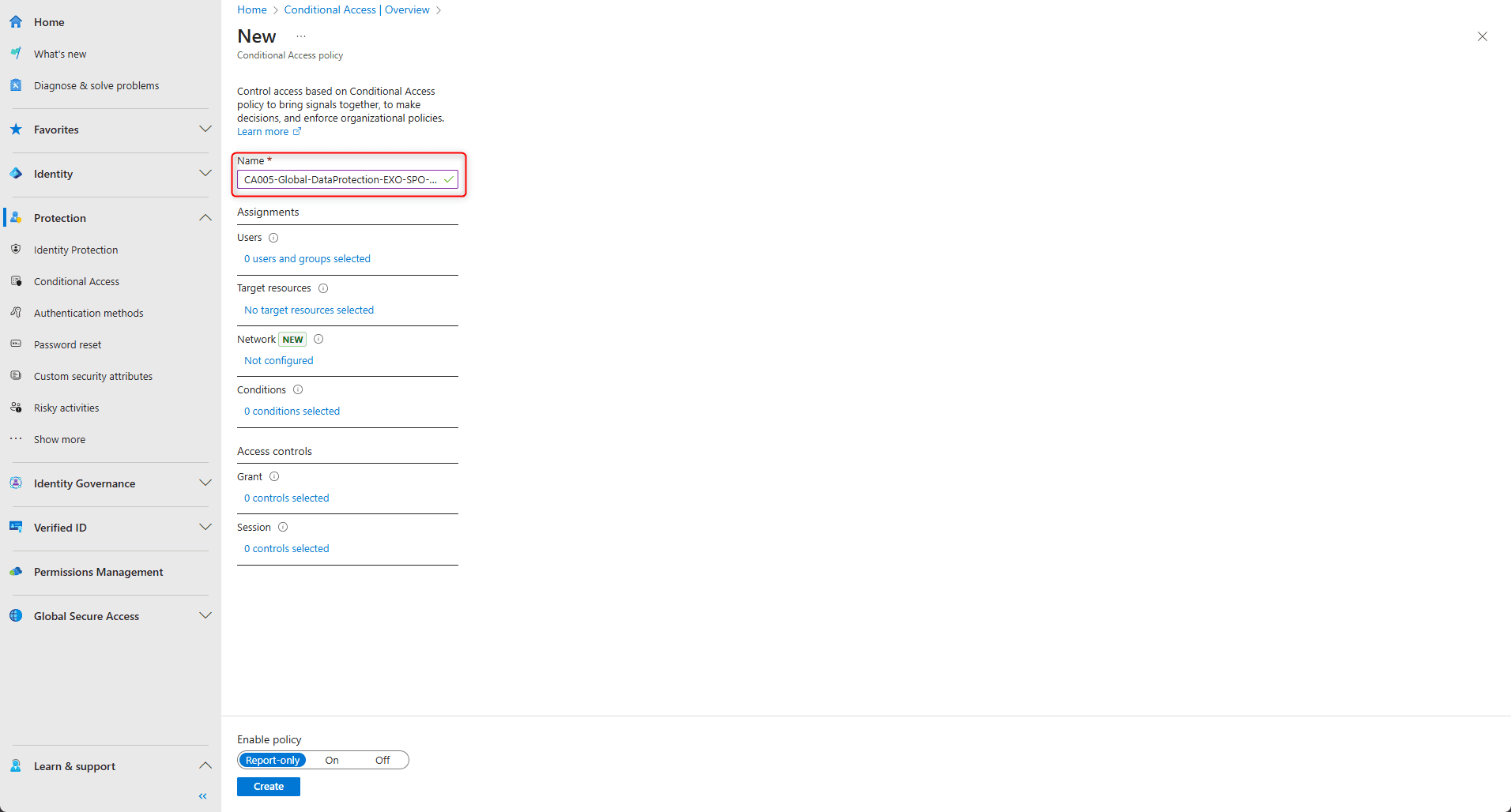
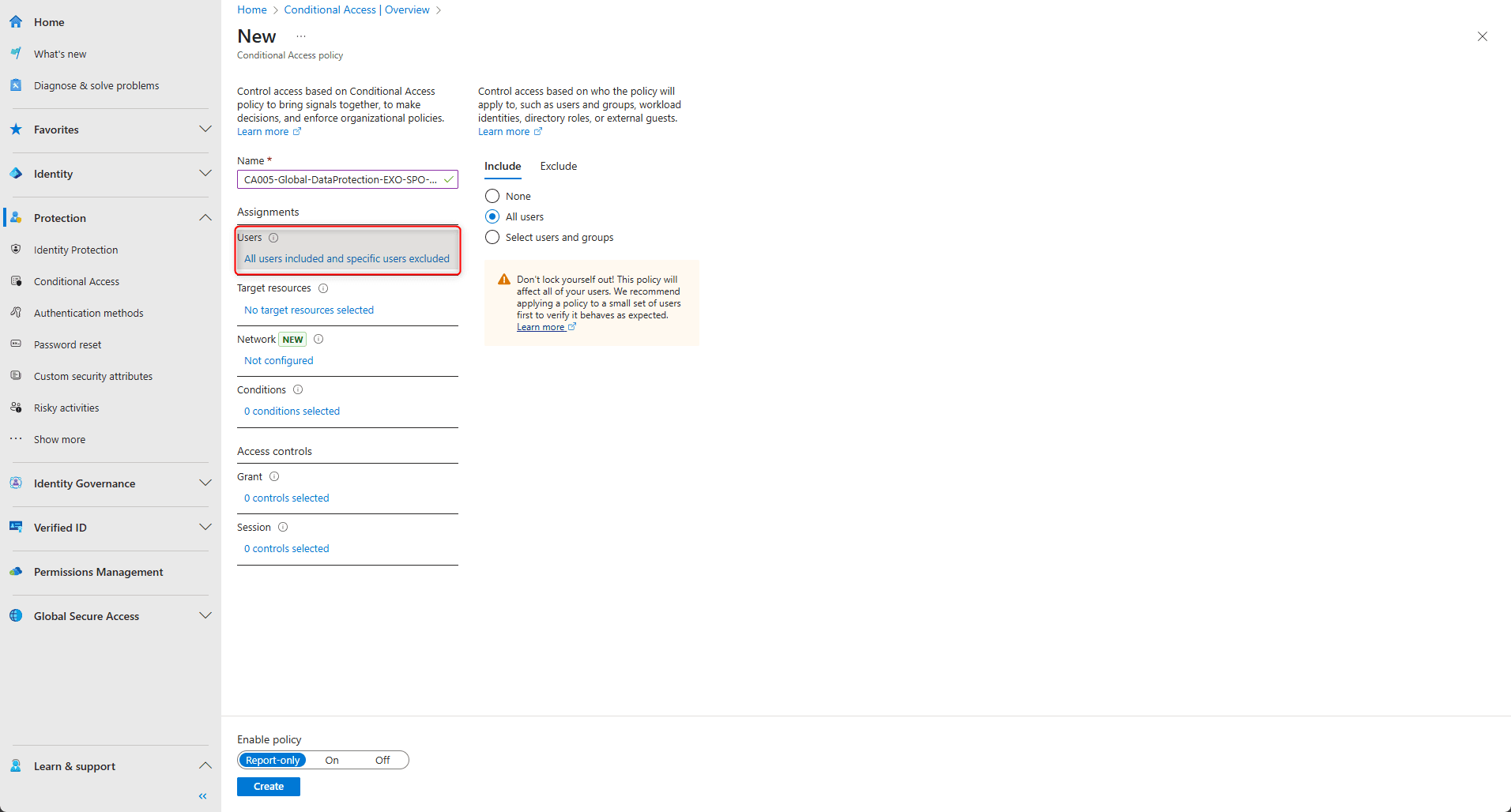
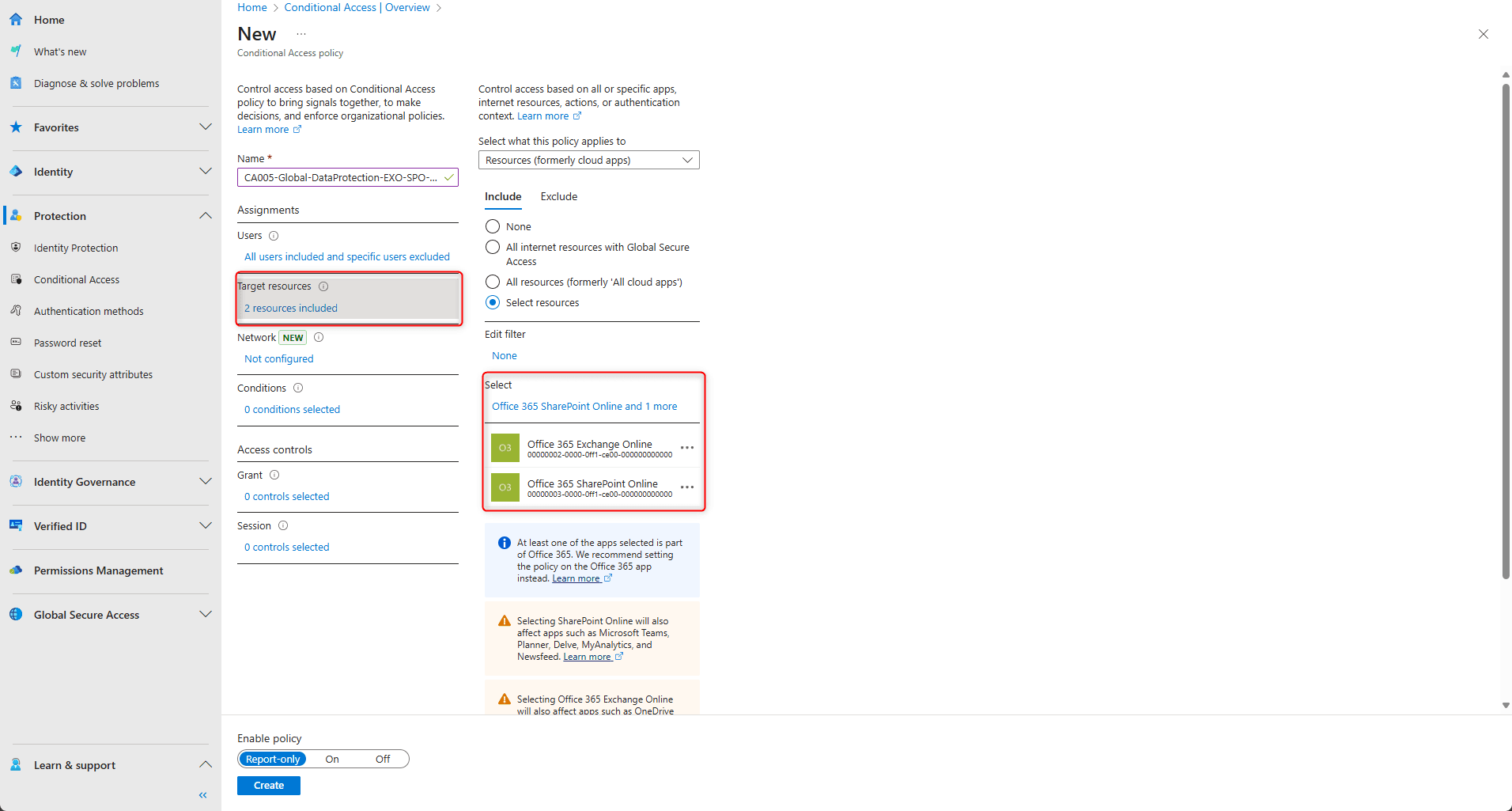
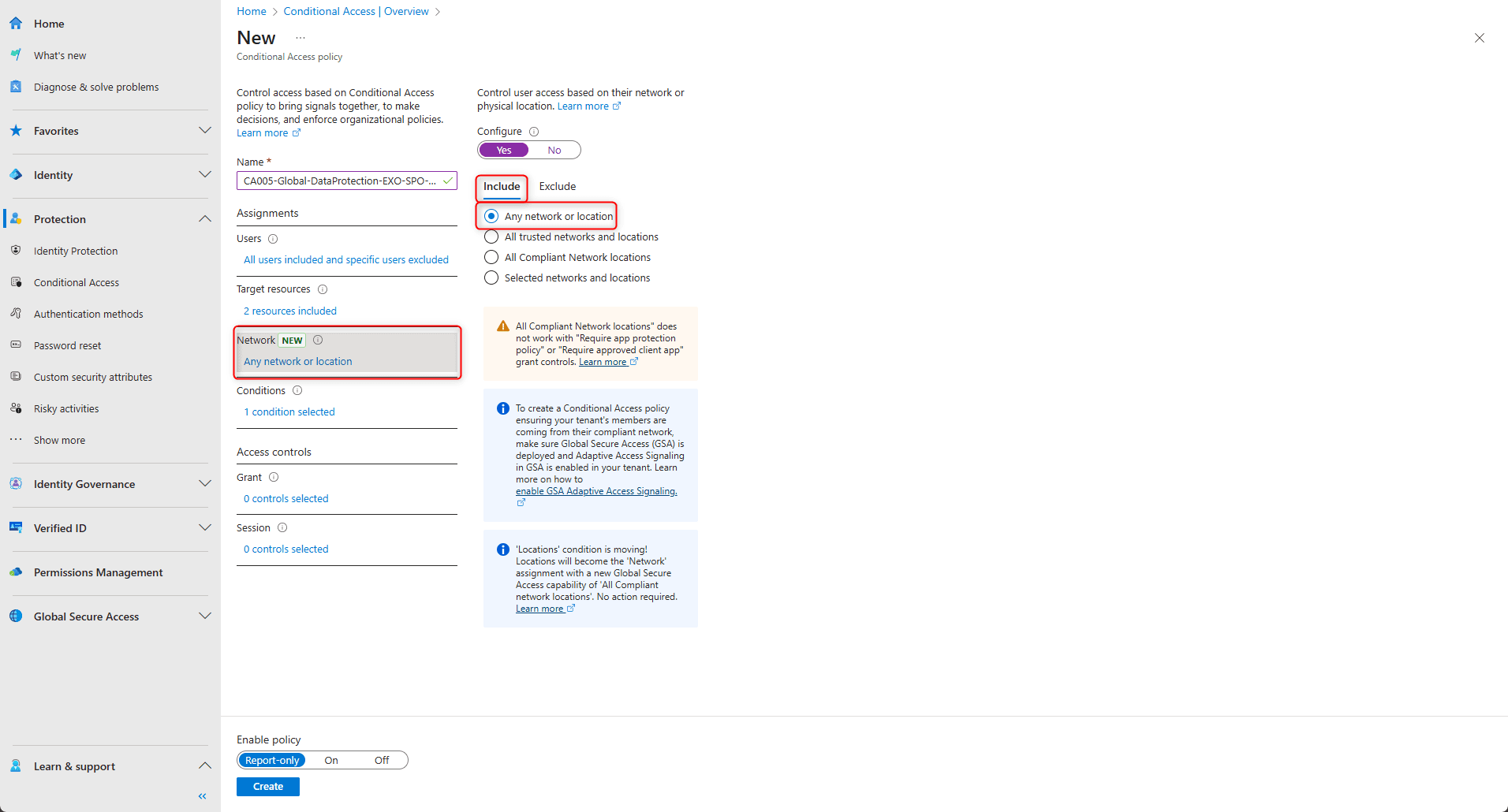
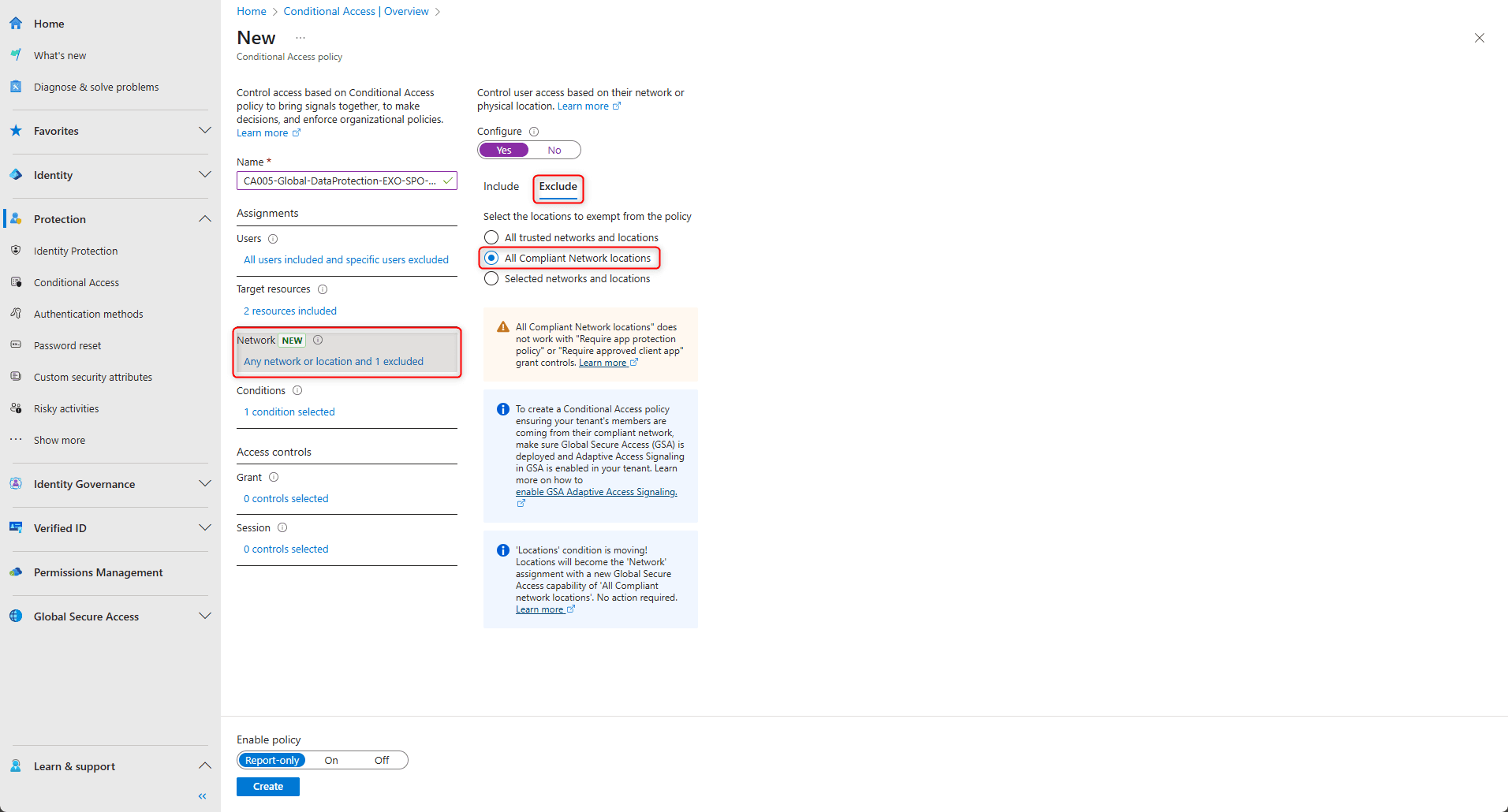
Create a new Conditional Access policy in Protection → Conditional Access → Create new policy. Give it a clear name (e.g. “Block M365 unless via Global Secure Access”). Under Users, include the users who should be required to use Global Secure Access for Microsoft 365, and exclude emergency access accounts. Under Target resources, select the cloud apps that are routed through the Microsoft traffic profile. E.g. Exchange Online, SharePoint Online, Microsoft Teams, Office 365. So the policy applies to the same set of services. Under Conditions you can optionally restrict by device platform (e.g. Windows, Android) if you only enforce GSA on certain platforms. Under Grant, choose Block access. Under Session (or the equivalent control), you need to ensure that only traffic from the compliant network is allowed. To do that, under Network (in the main policy): Include “Any network or location” and Exclude “All Compliant Network Locations.” That way, any request that is not from a compliant network (and only Global Secure Access traffic is marked compliant once CA signaling is on) is blocked. Enable the policy and create it. It takes effect immediately: access to the selected apps is only possible when the request is routed through Global Secure Access.
Below: creating a new Conditional Access policy.
The screenshot shows the policy name and user assignment.
Below: target resources (cloud apps) for the policy.
The following screenshot shows Network: include any, exclude compliant.
Below: Grant block access and enabling the policy.
Deploy the Global Secure Access Client
Users need the Global Secure Access client on their device so that Microsoft 365 traffic is sent through the protected path. On Windows (Windows 10 1809 or later, or Windows 11) and Android (8.0 or later), you can deploy the client via Microsoft Intune (e.g. as a Win32 app or through Company Portal), via Microsoft Endpoint Configuration Manager, or users can install from the Microsoft Store or a direct download. Ensure devices are Entra joined or hybrid joined (Windows) and have internet access. After installation, the client connects to Global Secure Access; once connected, traffic to the Microsoft 365 apps included in the traffic profile is routed through it and Conditional Access sees the compliant network signal.
The screenshot below shows deploying the Global Secure Access client via Intune or Company Portal.
Verify and Troubleshoot
Confirm the client shows a “Connected” or similar status on the device. Open a Microsoft 365 app (e.g. Outlook, Teams, SharePoint) and use it normally; access should succeed when the client is connected. Then disconnect or disable the client (or use a device without it) and try again. Access to the selected apps should be blocked by the Conditional Access policy. In the Entra admin center, check Sign-in logs for the user and look for sign-ins that show the Global Secure Access / compliant network location when access is allowed, and block when it is not. If the client does not connect: verify device join state, network connectivity, and that the user is in the traffic profile assignment. If access is still allowed without Global Secure Access: confirm the Conditional Access policy is enabled, the correct users and apps are targeted, “All Compliant Network Locations” is excluded under Network, and no other policy is granting access. If Adaptive Access does not seem to apply, ensure CA Signaling for Entra ID is enabled under Global Secure Access → Settings → Session management → Adaptive Access.
Below: Conditional Access and Global Secure Access verification.
Summary
To secure Microsoft 365 apps with Microsoft Entra Global Secure Access: (1) Enable the Microsoft traffic profile under Global Secure Access → Connect → Traffic forwarding, assign users/groups, and optionally tune which apps are included. (2) In Global Secure Access → Settings → Session management → Adaptive Access, enable CA Signaling for Entra ID. (3) Create a Conditional Access policy that targets the same Microsoft 365 apps, includes the right users (and excludes emergency accounts), and under Network includes “Any” and excludes “All Compliant Network Locations,” with Grant = Block. So only requests from the compliant (Global Secure Access) network are allowed. (4) Deploy the Global Secure Access client to Windows and Android devices (e.g. via Intune or Company Portal). Once the client is connected, Microsoft 365 traffic uses the protected path and Conditional Access permits access; without it, access is blocked. That gives you encrypted, network-enforced access to Microsoft 365 and helps mitigate token theft and unauthorized access while supporting compliance goals.





