Managed Windows devices often need a restart to finish updates, apply policy, or clear long uptime. Instead of rebooting each machine by hand, you can schedule reboots with Microsoft Intune using a Settings catalog profile: add the Reboot settings (Daily Recurrent, Single, or Weekly Recurrent) and set the time in ISO 8601 format. Devices then restart at the configured time. Once or on a daily or weekly schedule. This guide walks through creating and assigning that profile.
Why Schedule Reboots?
Scheduling reboots helps with:
- Updates and policy . Many updates and some Intune/Group Policy changes need a restart; a scheduled reboot ensures they complete without manual action.
- Off-peak restarts . You can set the time (e.g. night or weekend) so restarts happen when users are less affected.
- Uptime and stability . Periodic reboots can reduce issues from long uptime and free resources.
- Compliance . Some policies require restarts within a window; a schedule helps meet that.
Reboot Schedule Types
Intune exposes three reboot options under Reboot in the Settings catalog:
- Single . One reboot at a specific date and time. Use for a one-off maintenance window. Setting the value to empty (null) removes the schedule.
- Daily Recurrent . A reboot every day at the same time, starting from a given date and time. Use for nightly or daily maintenance. Empty date removes the schedule.
- Weekly Recurrent . A reboot every week at the same time, starting from a given date and time. Use for weekly maintenance. Empty date removes the schedule.
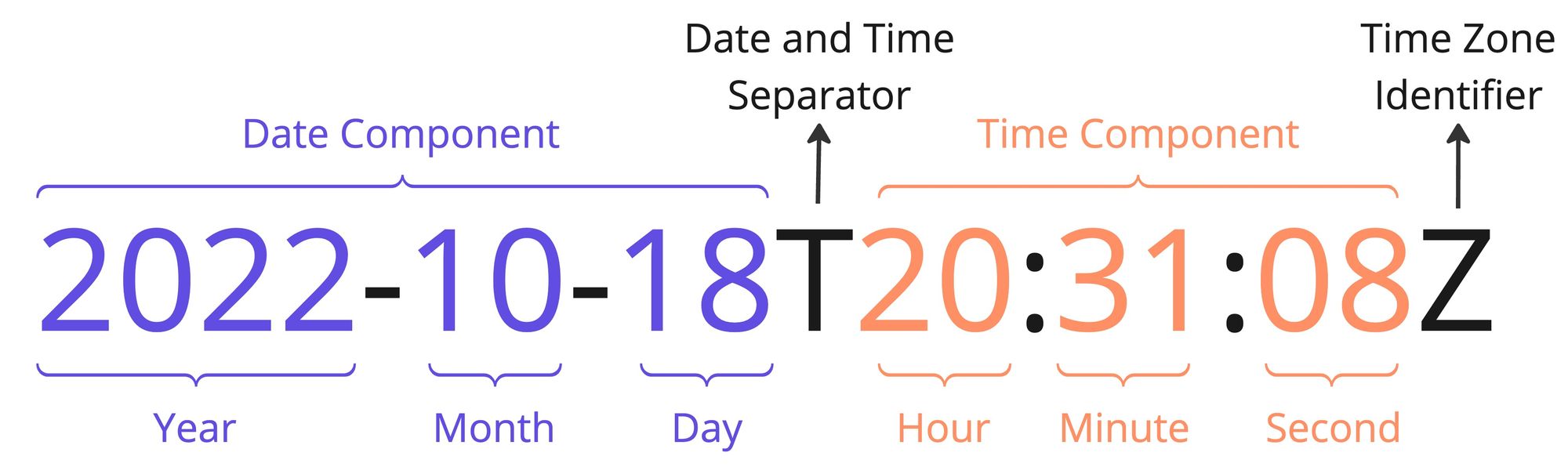
You choose one of these and supply the time in ISO 8601 format (e.g. 2025-10-25T15:25:00Z for 25 October 2025 at 15:25 UTC).
What You’ll Configure
You will create one Settings catalog configuration profile for Windows 10 and later, add Daily Recurrent, Single, or Weekly Recurrent under Reboot, set the date/time in ISO 8601 format, then assign the profile to the users or devices that should follow the schedule.
Step 1: Create the Configuration Profile
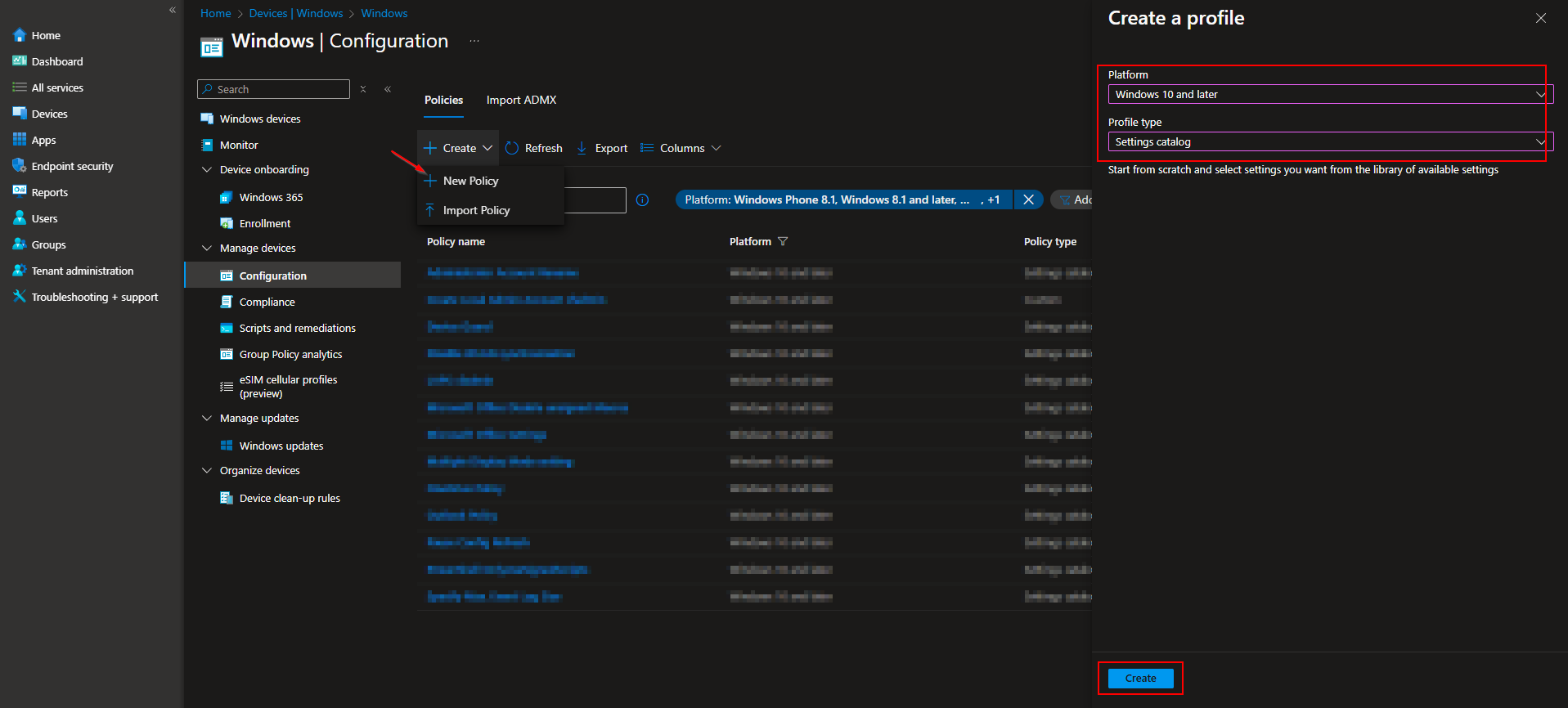
In the Microsoft Intune admin center, go to Devices → Windows → Configuration profiles. Click Create → New policy. Set Platform to Windows 10 and later and Profile type to Settings catalog. Click Create.
On Basics, enter a Name (e.g. “Scheduled reboot – Weekly”) and optionally a Description. Click Next.

Step 2: Set the Reboot Schedule
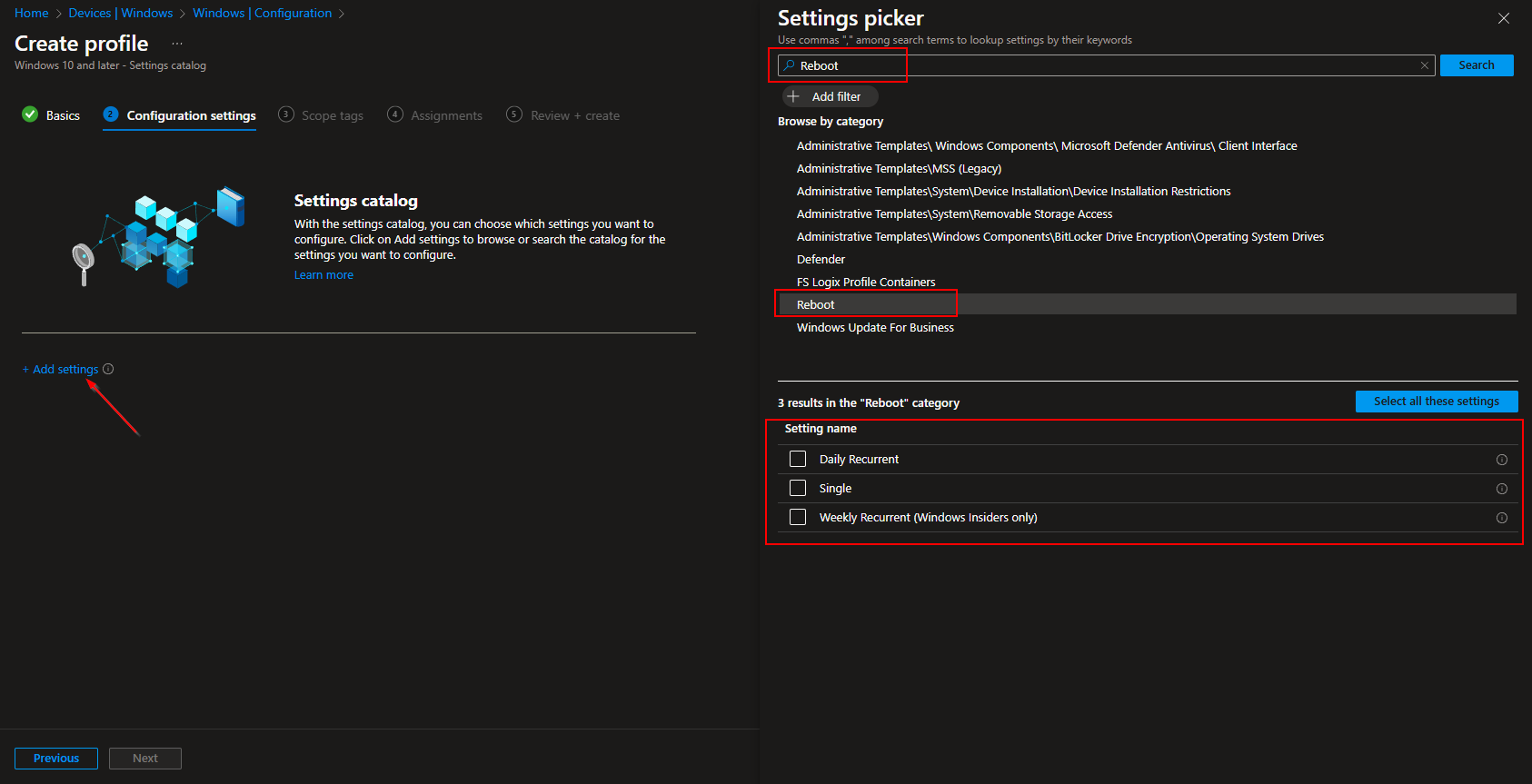
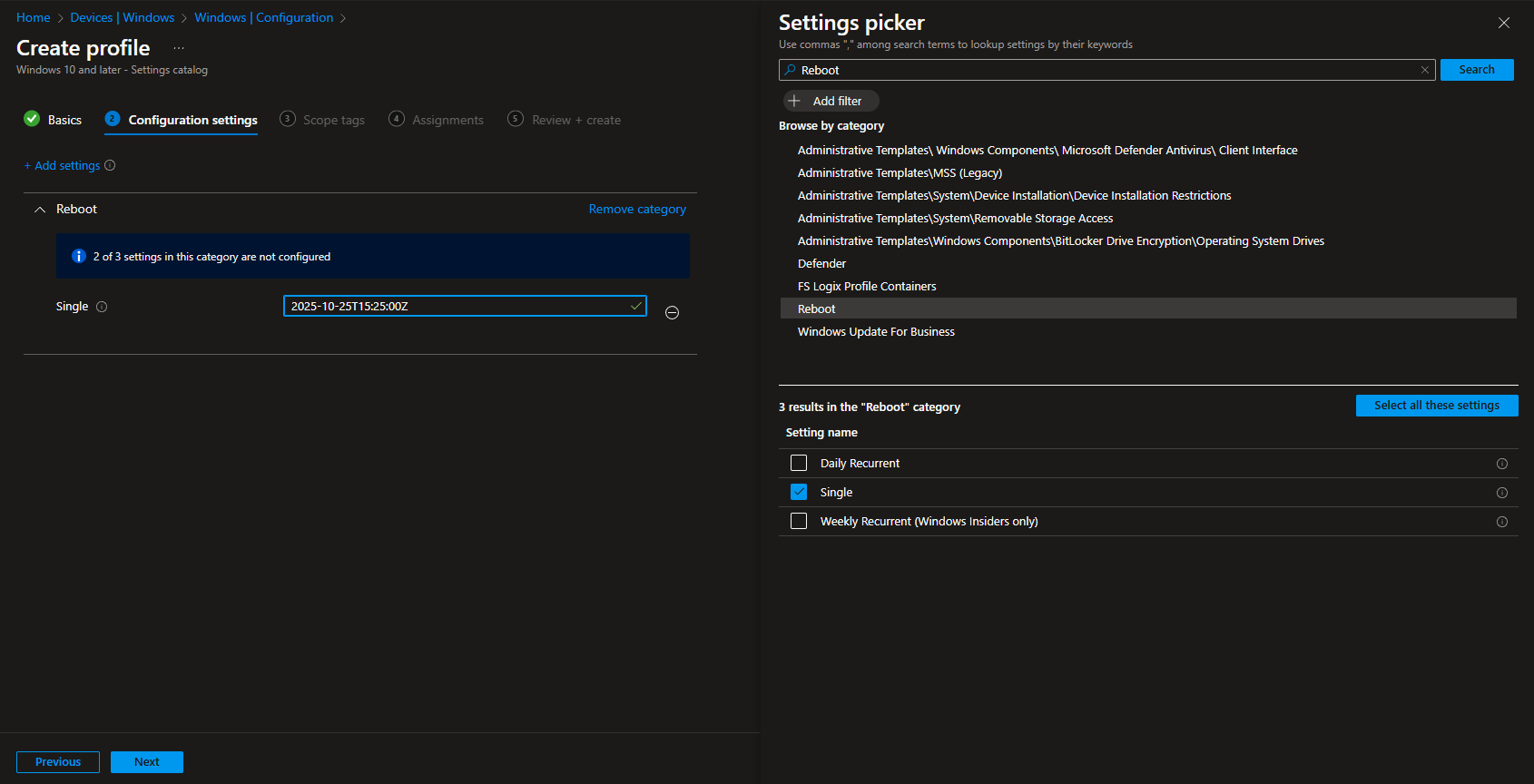
On Configuration settings, click Add settings. Search for Reboot. Open Reboot and select the schedule type you want: Daily Recurrent, Single, or Weekly Recurrent. Enable the setting and enter the date and time in ISO 8601 format.
ISO 8601 date and time format
The reboot time is specified in ISO 8601 format, for example 2025-10-25T15:25:00Z, which means 25 October 2025 at 15:25 UTC. Use Z for UTC or an offset (e.g. +02:00) for a specific time zone. The start date and time you set define when the first (or only) reboot occurs; for daily or weekly, the same time is used for subsequent occurrences.
Set scope tags if your tenant uses them, then on Assignments add the groups (or All Users / All Devices) that should receive this policy. Click Next, then Review + create, and Create.
After the profile syncs to targeted devices, Windows will reboot according to the schedule. To remove a schedule later, you can update the profile and set the date/time value to empty (null) or remove the setting, then reassign.
Wrap-up
You can schedule a reboot with Microsoft Intune by creating a Settings catalog profile for Windows 10 and later, adding Daily Recurrent, Single, or Weekly Recurrent under Reboot, and setting the date and time in ISO 8601 format. Assign the profile to the users or devices that should follow the schedule. Use Single for a one-time reboot, Daily for nightly maintenance, or Weekly for weekly maintenance windows.





