Windows 11 shows a Widgets button and a Chat (Teams) icon on the taskbar by default. In corporate environments you may want to hide both so the taskbar is cleaner and users are not tempted by consumer Teams Chat (which uses a personal Microsoft account and is often not allowed or useful at work). You can remove both from the taskbar using a Settings catalog configuration profile in Microsoft Intune. This guide walks through creating the profile, disabling the Chat icon and widgets, and assigning the policy. Optionally, you can also uninstall the consumer Microsoft Teams app so it is fully removed.
What This Policy Controls
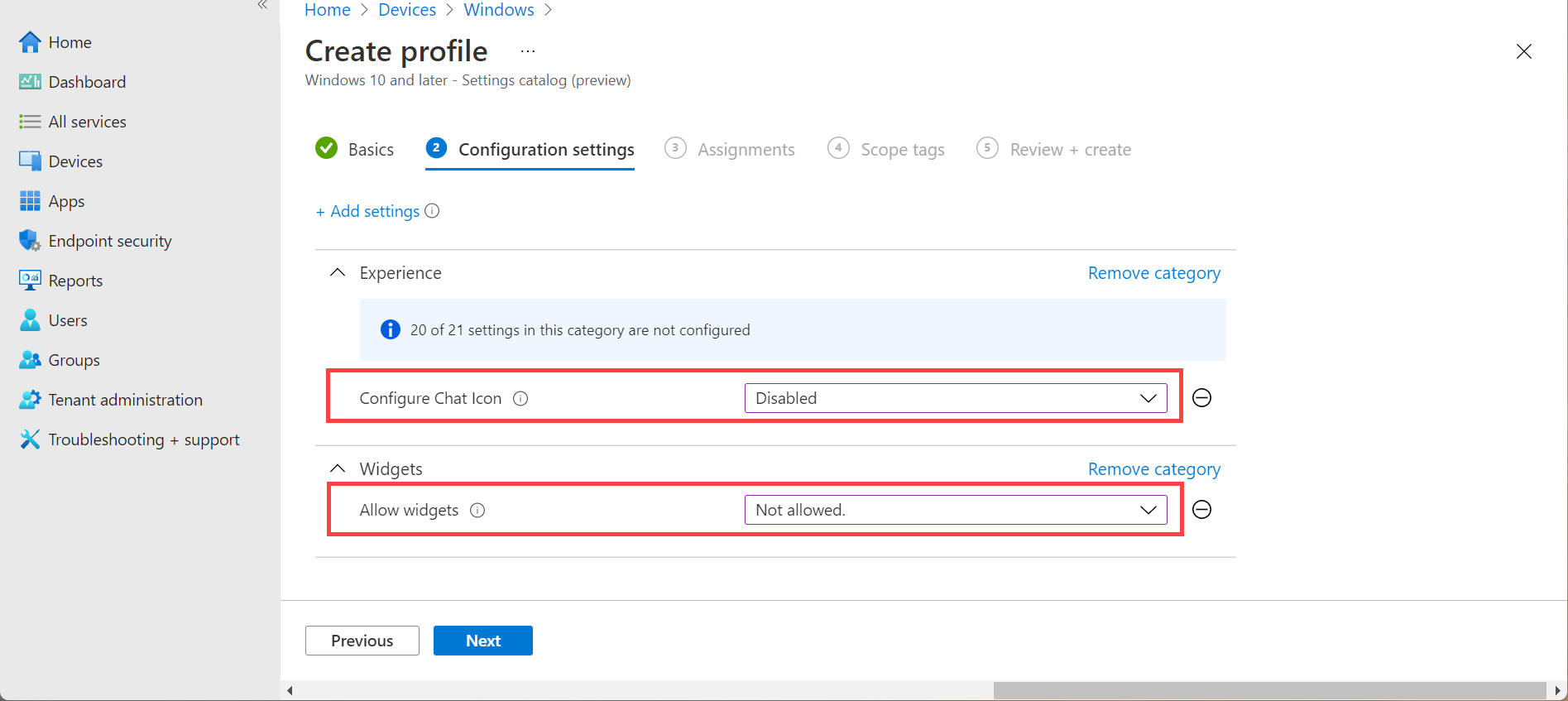
Configure Chat Icon . When set to Disabled, the Chat (Teams) icon is removed from the Windows 11 taskbar. The built-in Chat experience is the consumer Microsoft Teams app; disabling the icon hides it from the taskbar but does not uninstall the app. To remove the app entirely, you need a separate uninstall (e.g. Win32 app or PowerShell script) before or after the policy.
Allow widgets . When set to Not allowed, the Widgets button is removed from the taskbar and users cannot open the widgets panel. That keeps the taskbar minimal and avoids distractions or data exposure via widgets.
Create a Settings Catalog Profile
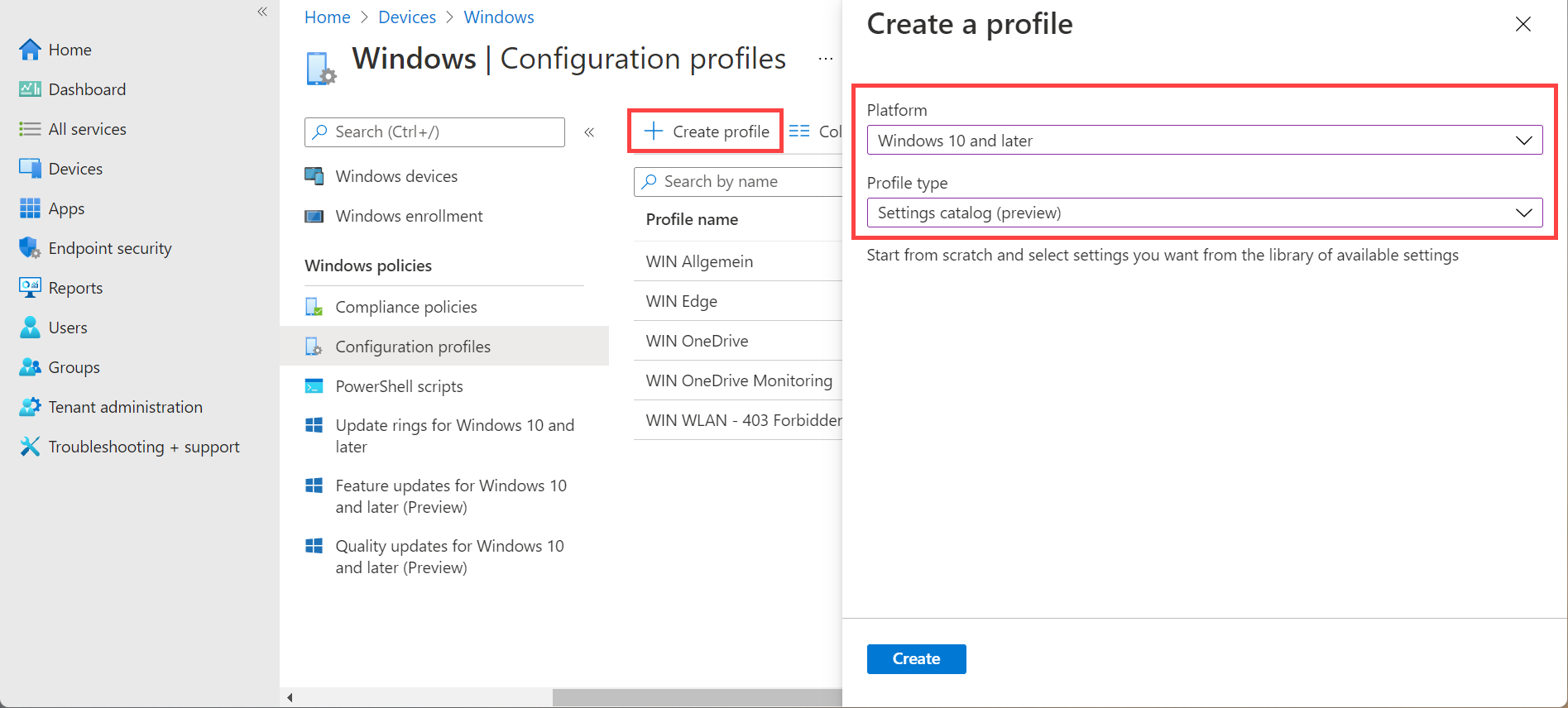
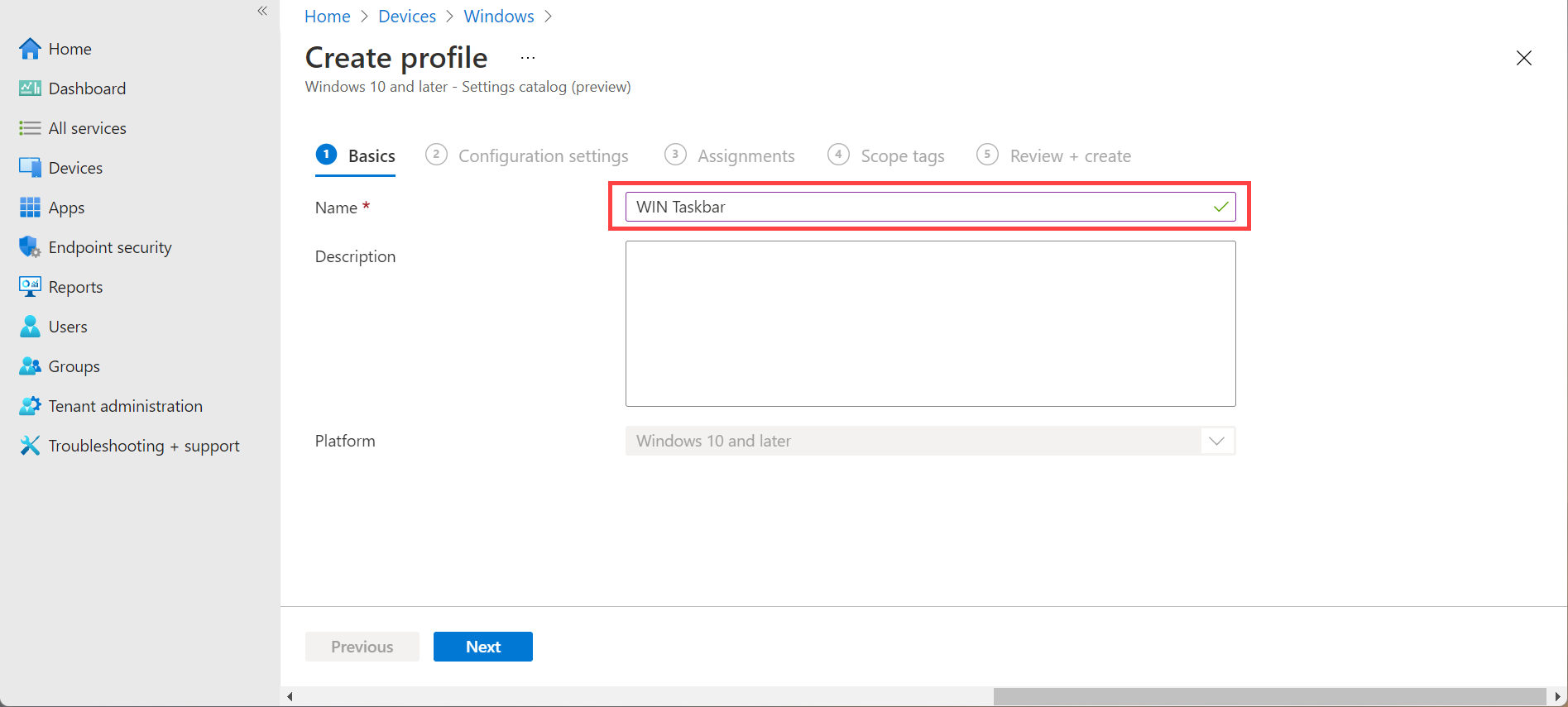
In the Microsoft Intune admin center, go to Devices → Windows → Configuration profiles. Click Create → New policy. Set Platform to Windows 10 and later and Profile type to Settings catalog. Click Create. On Basics, give the profile a name (e.g. “Remove Windows 11 Taskbar Widgets and Chat” or “WIN 11 Taskbar – No Widgets No Chat”) and optionally a description. Click Next.
Add Chat Icon and Widgets Settings
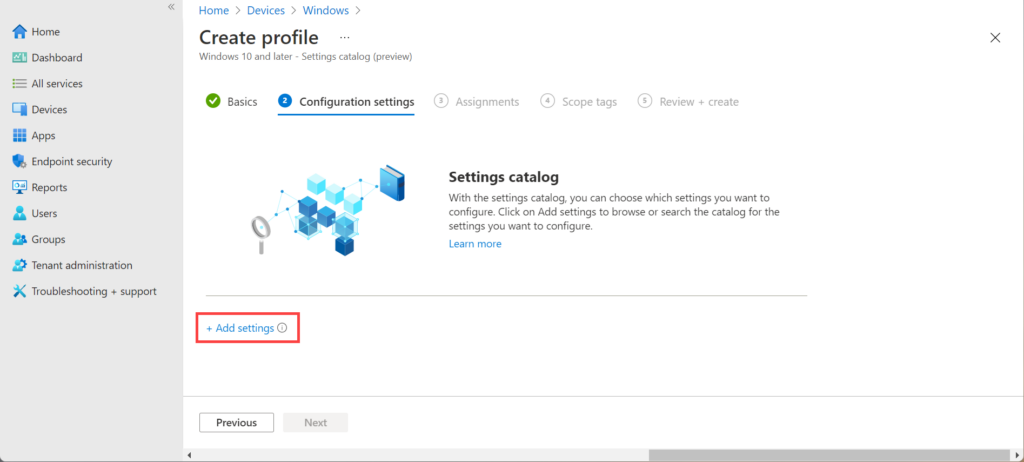
On Configuration settings, click Add settings. In the settings picker, search for Configure Chat Icon and add it; set it to Disabled. Then search for Allow widgets and add it; set it to Not allowed. The quickest way to find them is to search by name. Click Next when done.
Assign the Profile
On Assignments, add the user or device groups that should have the taskbar widgets and Chat icon removed (e.g. All Devices, All Users, or a group of Windows 11 devices). Click Next, apply scope tags if your tenant uses them, then Review + create and Create. After the profile syncs to targeted devices, the Widgets button and Chat icon will be hidden from the taskbar.
Optional: Uninstall Consumer Microsoft Teams
Disabling the Chat icon only hides the taskbar shortcut; the consumer Microsoft Teams app may still be installed. To remove it completely (e.g. so it does not appear in Start or run in the background), uninstall it via a Win32 app (uninstall command or script) in Intune, a PowerShell script deployed via Intune, or by configuring the app to be removed during device provisioning (e.g. Autopilot or imaging). Deploy the uninstall before or after the Settings catalog profile; doing it before the first user sign-in avoids the app ever appearing. For package names and uninstall methods, see Uninstall apps and Microsoft Learn documentation on removing the Teams consumer app.
Summary
To remove Windows 11 taskbar widgets and Chat with Microsoft Intune: create a Settings catalog configuration profile for Windows 10 and later, add Configure Chat Icon set to Disabled and Allow widgets set to Not allowed, then assign the profile to the user or device groups that should have a cleaned-up taskbar. Optionally uninstall the consumer Microsoft Teams app via a Win32 app or PowerShell script so the Chat app is fully removed. For more on Windows 11 taskbar and Start customization, see Configure Windows 11 taskbar on Microsoft Learn.





