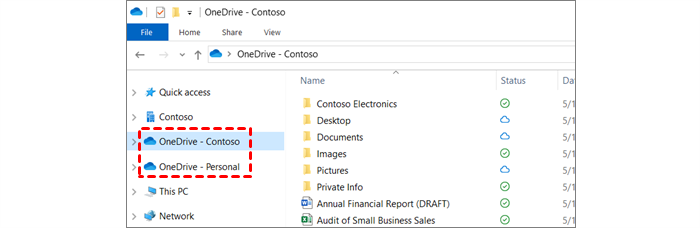
On devices where both work or school OneDrive and personal OneDrive are available, Windows Explorer can show a separate “Personal” OneDrive entry. That extra icon often confuses users who expect only their work OneDrive, and it can lead to accidental use of personal accounts on corporate devices. With Microsoft Intune you can remove the personal OneDrive option and the associated icon by enabling the setting Prevent users from syncing personal OneDrive accounts (User) in a Settings catalog profile. This guide walks through creating and assigning that profile.
Why Remove the Personal OneDrive Icon?
Blocking personal OneDrive sync and removing the icon helps with:
- Clarity . Users see only work or school OneDrive in Explorer, reducing confusion about which account is in use.
- Policy . Some organizations do not allow personal cloud sync on corporate devices; this policy enforces that.
- Support . Fewer “which OneDrive is this?” questions and fewer accidental personal syncs.
When the policy is applied, users cannot add or sync a personal OneDrive account in the OneDrive client, and the personal OneDrive entry in Explorer is removed or no longer appears.
What You’ll Configure
You will create one Settings catalog configuration profile for Windows 10 and later, add the setting Prevent users from syncing personal OneDrive accounts (User) under OneDrive, enable it, then assign the profile to the users or devices where you want personal OneDrive blocked.
Step 1: Create the Configuration Profile
In the Microsoft Intune admin center, go to Devices → Windows → Configuration profiles. Click Create → New policy. Set Platform to Windows 10 and later and Profile type to Settings catalog. Click Create.

On Basics, enter a Name (e.g. “OneDrive – Block personal sync”) and optionally a Description. Click Next.

Step 2: Enable the OneDrive Setting
On Configuration settings, click Add settings. Search for Personal OneDrive or OneDrive. Open OneDrive, select Prevent users from syncing personal OneDrive accounts (User), and enable the setting. Click Next.

Set scope tags if your tenant uses them, then on Assignments add the groups (or All Users / All Devices) that should receive this policy. Click Next, then Review + create, and Create.
After the profile syncs to targeted devices, users will no longer be able to add or sync a personal OneDrive account, and the personal OneDrive icon in Windows Explorer will be removed or hidden for those users.
Wrap-up
You can remove the personal OneDrive icon with Microsoft Intune by creating a Settings catalog profile for Windows 10 and later, enabling Prevent users from syncing personal OneDrive accounts (User) under OneDrive, and assigning the profile to the users or devices where you want personal OneDrive blocked. Work or school OneDrive continues to work as before; only personal OneDrive sync is disabled, and the extra Explorer icon is removed.