On managed Windows PCs, the navigation pane in File Explorer can show both OneDrive for work or school and OneDrive (personal). When you only need the work account visible, the personal OneDrive icon adds clutter and can confuse users. There is no built-in Intune or Windows policy to hide just the personal icon. But you can do it by removing a single registry key. This post shows a PowerShell script that removes that key and how to roll it out with Microsoft Intune (one-time script or Proactive Remediation) so the change applies across your fleet.
Why Hide the OneDrive Personal Icon
Windows uses a namespace registry key to show the OneDrive Personal shortcut in the Explorer sidebar. The GUID {018D5C66-4533-4307-9B53-224DE2ED1FE6} corresponds to that entry. Deleting this key under the current user’s hive (HKCU) hides the icon for that user without affecting OneDrive for work or school. The change is per-user; deploying the script via Intune (or Proactive Remediation) ensures every targeted user gets the cleanup. A one-time PowerShell script is often enough; Proactive Remediation keeps the icon hidden even if something recreates the key later (e.g. after a repair or update), but it requires Enterprise E3/E5, Education A3/A5, or VDA. It is not available for Microsoft 365 Business Premium.
The Removal Script
The script below targets the OneDrive Personal namespace key. If the key exists, it removes it and logs the action; if not, it logs that the icon is already hidden. Execution is recorded in a transcript under C:\ProgramData\Microsoft\IntuneManagementExtension\Logs for troubleshooting.
$registryPath = "HKCU:\Software\Microsoft\Windows\CurrentVersion\Explorer\Desktop\NameSpace\{018D5C66-4533-4307-9B53-224DE2ED1FE6}"
$logFilePath = "C:\ProgramData\Microsoft\IntuneManagementExtension\Logs\Remove-OneDrivePersonal-script.log"

Start-Transcript -Path $logFilePath

if (Test-Path -Path $registryPath) {
    try {
        Remove-Item -Path $registryPath -Force -Verbose
        Write-Output "OneDrive Personal removed."
    }
    catch {
        Write-Error "Error: $($_.Exception.Message)"
    }
}
else {
    Write-Output "OneDrive Personal is already hidden."
}

Stop-Transcript
Deploy as an Intune PowerShell Script
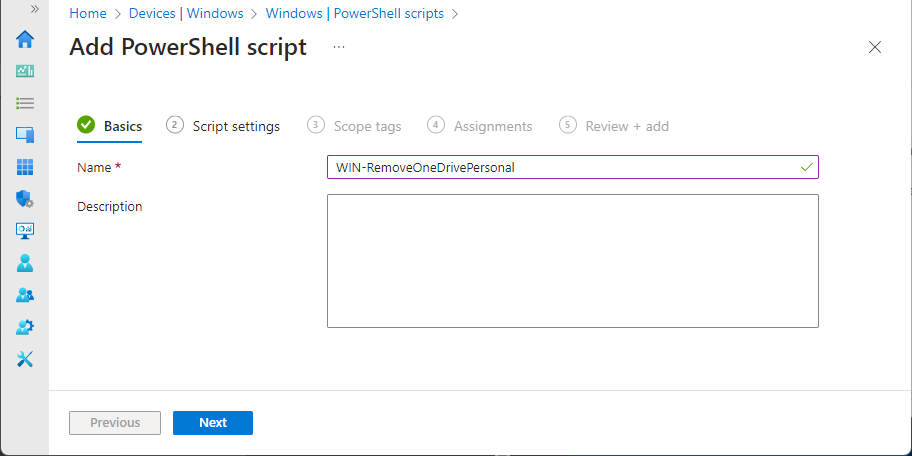
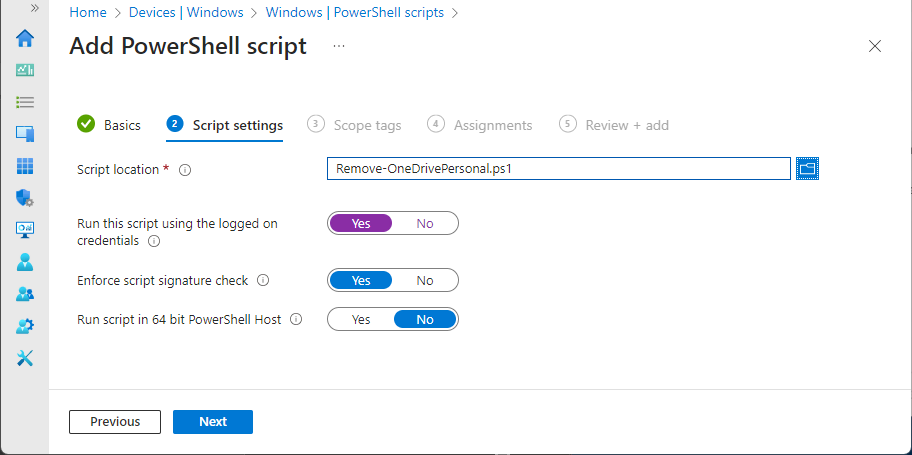
To run the script once on devices (or users), use Intune’s built-in PowerShell scripts. In the Microsoft Intune admin center, go to Devices → Windows → PowerShell scripts and click Add. On Basics, set a name (e.g. “Remove OneDrive Personal from Explorer”) and optional description. On Script settings, upload the .ps1 file. Run the script in the 64-bit PowerShell host; you can run it in user context so it applies to the signed-in user’s registry. Assign the script to the desired user or device groups. After sync, the script runs on targeted devices and removes the key for the current user; results appear under the script in Intune.
Option: Proactive Remediation
If you have Proactive Remediation (Enterprise E3/E5, Education A3/A5, or VDA), you can use the same logic as a detection and remediation pair so the icon stays hidden over time.
Detection script. Exit 1 if the key exists (remediation needed), 0 if it does not:
$registryPath = "HKCU:\Software\Microsoft\Windows\CurrentVersion\Explorer\Desktop\NameSpace\{018D5C66-4533-4307-9B53-224DE2ED1FE6}"

if (Test-Path -Path $registryPath) {
    Write-Output "OneDrive Personal is visible"
    exit 1
}
else {
    Write-Output "OneDrive Personal is already hidden."
    exit 0
}
Remediation script. Use the same removal script shown earlier (remove the key if present, with transcript logging). Create a script package under Reports → Endpoint analytics → Proactive remediations, upload both scripts, set a schedule (e.g. daily), and assign to the same groups. When detection finds the key, remediation runs and removes it; the next run reports compliant. This is not available for Microsoft 365 Business Premium.
Registry Key and Logging
The key HKCU:\Software\Microsoft\Windows\CurrentVersion\Explorer\Desktop\NameSpace\{018D5C66-4533-4307-9B53-224DE2ED1FE6} is the Windows namespace entry for the OneDrive Personal item in the Explorer navigation pane. Removing it only hides that icon; it does not uninstall OneDrive or change work/school sync. The main script writes a transcript to C:\ProgramData\Microsoft\IntuneManagementExtension\Logs\Remove-OneDrivePersonal-script.log, which helps confirm success or debug failures on a given device.
Summary
To remove the OneDrive Personal icon from Windows Explorer with Microsoft Intune: use a PowerShell script that deletes the namespace registry key {018D5C66-4533-4307-9B53-224DE2ED1FE6} under the current user. Deploy the script once via Devices → Windows → PowerShell scripts and assign it to your users or devices. For ongoing enforcement, use Proactive Remediation (detection + remediation) if your licensing supports it. There is no native policy for this; the script is a simple and reliable way to keep the Explorer sidebar consistent and focused on work or school OneDrive.





