Stale user profiles on shared or multi-user Windows devices can consume a lot of disk space. Intune’s Shared PC or profile-cleanup options can remove profiles based on last sign-in or free space, but they do not always behave consistently. In some environments, disks have filled up completely and users could no longer sign in; at that point the only fix is often a reinstall. To avoid that, you can use Proactive Remediation in Intune to monitor for old profiles and optionally remove them automatically. This post describes a script package that identifies profiles older than a configurable number of days (using folder modification dates instead of the often-unreliable LastUseTime) and either reports them or deletes them.
Create the Proactive Remediation Package
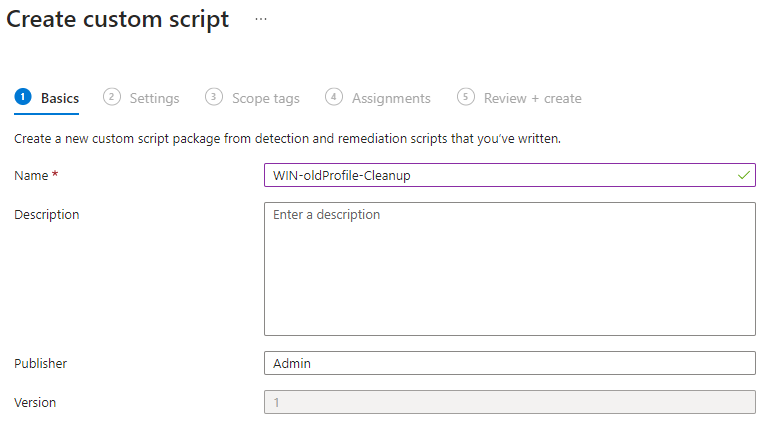
In the Microsoft Intune admin center, go to Reports → Endpoint analytics → Proactive remediations and click Create script package. Give the package a name (e.g. “WIN oldProfile Monitor” or “WIN-oldProfile-Cleanup”) and optional description.

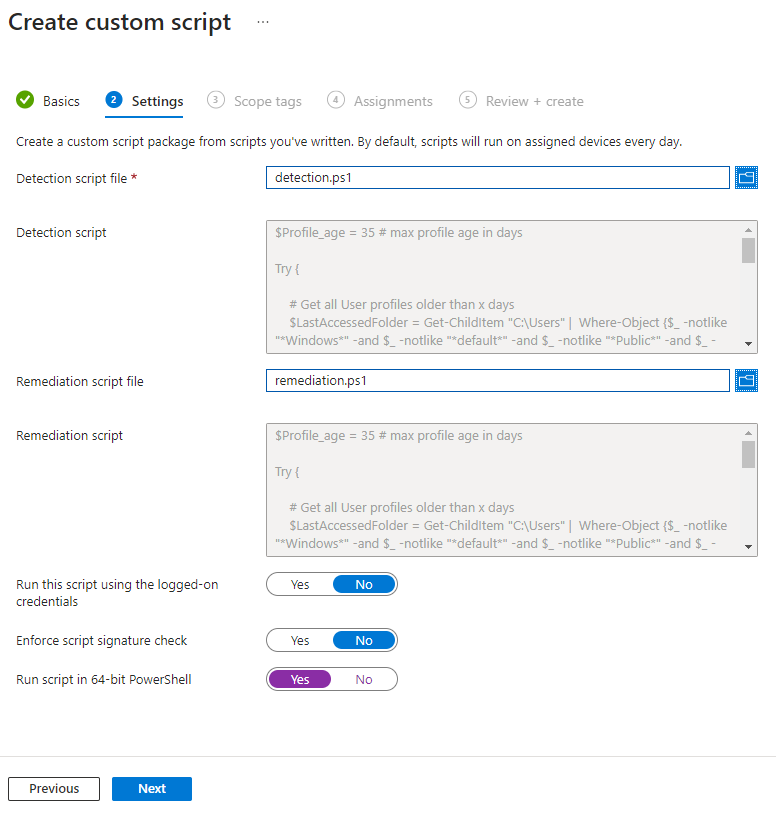
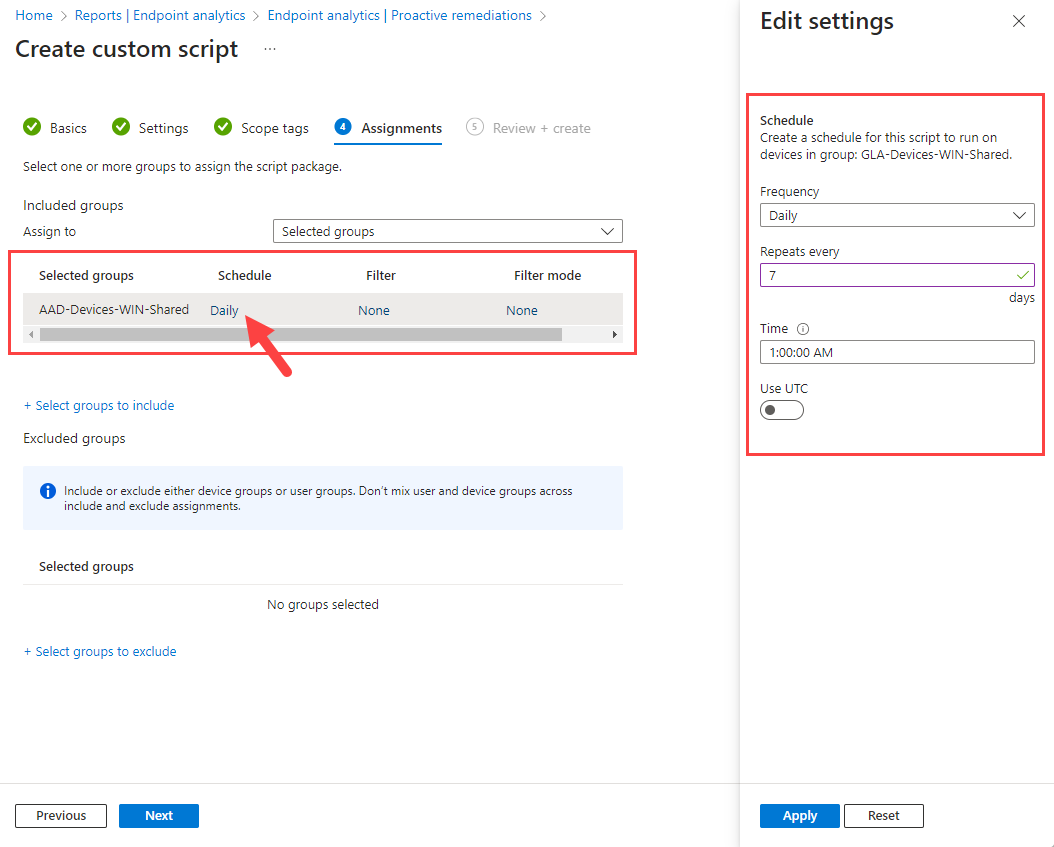
Upload the detection script (required). For monitoring only, you leave the remediation script empty so Intune only runs detection and reports which devices have old profiles. To allow automatic removal, upload the remediation script as well. A practical approach is to deploy with detection only first, review the results in Endpoint analytics, and then add remediation once you are satisfied with the list of profiles that would be removed. Set a scope tag if your tenant uses them, then assign the package to the desired device group and choose a schedule (e.g. daily or every few hours).
Viewing Results in Endpoint Analytics
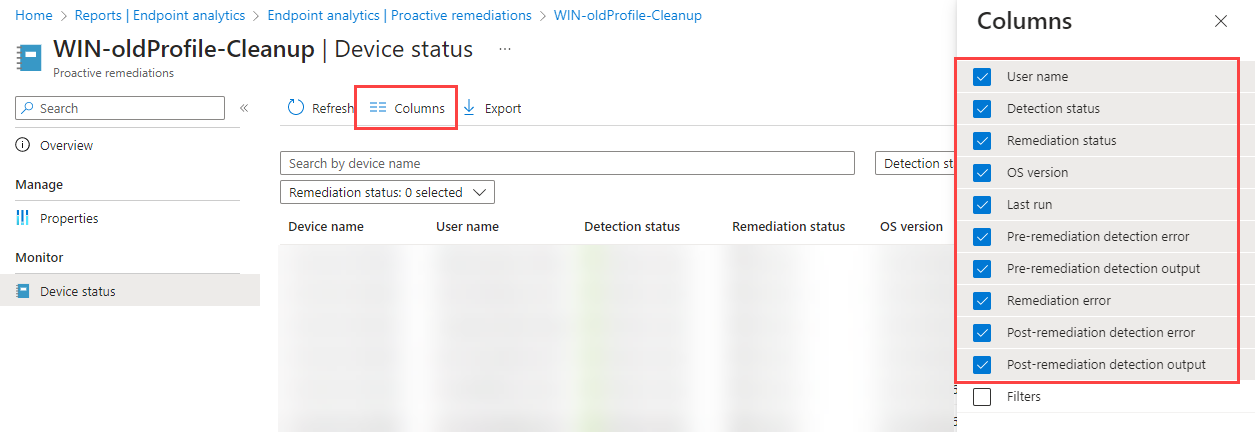
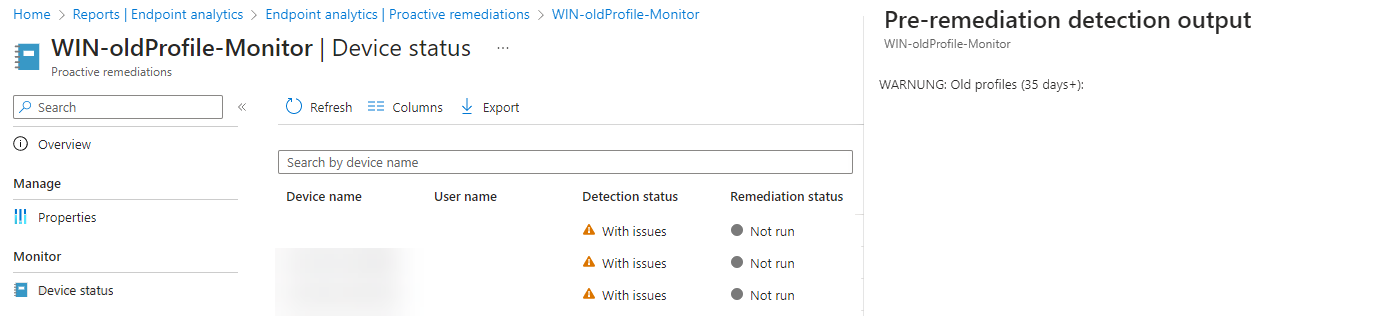
In the Proactive remediations view, expand the column options and show all columns so you can see detection output, remediation output, and errors. Intune keeps only the last run per device. For example, if the package runs every hour, you see the most recent hour’s result. If you deploy detection only (no remediation script), you will see data in Pre-remediation detection outputs or Pre-remediation detection error; remediation does not run, so you can see which devices have old profiles without deleting anything. When both detection and remediation are configured, a detection that finds old profiles (exit code 1) triggers remediation; after that run you will see Post-remediation detection outputs as well, so you can confirm the cleanup.



How the Scripts Work
Both scripts use a Profile_age variable (e.g. number of days). They look at user profile folders under C:\Users and exclude the system folders: Default, Windows, Public, and Admin. Instead of using the profile’s LastUseTime (which can be wrong when antivirus or other tools touch profiles and update that value), the scripts use the LastWriteTime of each profile folder. Folders older than Profile_age days are collected, then filtered to those that do not correspond to a current local user account (Get-LocalUser). The remaining paths are matched to Win32_UserProfile instances to build a list of profiles to remove (Profiles_2remove).
Detection script: If Profiles_2remove has any items, the script writes a warning with the profile paths and exits with code 1 so Intune runs remediation. Otherwise it outputs current profiles and exits 0.
if ($Profiles_2remove) {
    Write-Warning "Old profiles ($Profile_age days+): $($Profiles_2remove.LocalPath)"
    Exit 1
} else {
    Write-Output -NoEnumerate $(Get-CimInstance -Class Win32_UserProfile | Select-Object LocalPath, LastUseTime)
    Exit 0
}
Remediation script: If Profiles_2remove has any items, the script calls Remove-CimInstance on each so Windows removes the profile (registry and folder) properly. Otherwise it reports that no old profiles were found.
if ($Profiles_2remove) {
    $Profiles_2remove | Remove-CimInstance
} else {
    Write-Output "No old profiles found."
}
Why Use Folder LastWriteTime Instead of LastUseTime
Profile LastUseTime from Win32_UserProfile is often incorrect when antivirus or other software scans or touches profile folders. The value can reflect the last scan time for every profile. Using the profile folder’s LastWriteTime (modification date) gives a more reliable signal for “last real use” and avoids removing profiles that are still in use but were only recently scanned. Relying on folder dates improves the chance that only truly unused profiles are flagged for removal.
Suggested Practices
- Deploy detection only first and review which profiles would be removed before enabling remediation.
- Pilot on a small device group, then roll out to more devices.
- Set Profile_age to a value that fits your environment (e.g. 60 or 90 days) so you do not remove recently used profiles.
- Ensure users know that old profiles may be deleted and that important data should be stored in OneDrive or network locations.
- Check Proactive Remediation results periodically to confirm behavior and adjust the age threshold if needed.
Summary
To remove old user profiles with Microsoft Intune: create a Proactive Remediation script package under Reports → Endpoint analytics → Proactive remediations. Use a detection script that finds profile folders older than a set number of days (via folder LastWriteTime, excluding Default, Windows, Public, Admin) and matches them to Win32_UserProfile; exit 1 to trigger remediation. Optionally add a remediation script that calls Remove-CimInstance on those profiles. Deploy detection-only first to monitor, then add remediation and assign to device groups on a schedule. This helps prevent disk-full and login failures without relying solely on Intune’s built-in profile cleanup.





