Microsoft has documented a phishing technique that abuses the Device Code Authentication Flow. That flow is intended for devices that cannot easily enter credentials. For example Microsoft Teams Rooms, set-top boxes, or IoT devices. An attacker starts the flow, receives a short-lived code from Microsoft, and then socially engineers a victim to open microsoft.com/devicelogin and type in that code. The victim sees a legitimate Microsoft login page; once they enter the code, the attacker’s session is granted access to the victim’s account. Because device code sign-in does not always require phishing-resistant MFA (e.g. FIDO2 or Windows Hello), attackers can gain access without stealing a password or a one-time code. Threat actors such as Storm-2372 have used this method. You can reduce the risk by using Conditional Access in Microsoft Entra ID (formerly Azure AD) to block or tightly control device code authentication. This post explains the threat briefly, how to block device code flow by default, how to allow it only for legitimate scenarios (e.g. Teams Rooms), and how to add monitoring and other safeguards.
Why Device Code Phishing Is Different
In a typical credential-phishing attack, the victim is tricked into giving a password or MFA code to a fake site or prompt. With device code phishing, the victim is sent to the real Microsoft sign-in page and only asked to enter a code. There is no password or MFA token to steal. The victim is authorizing the attacker’s existing device-code session. If your tenant does not require phishing-resistant methods for that flow, the attacker can complete sign-in. Blocking or restricting the device code flow in Conditional Access removes or narrows this path for attackers.
Blocking Device Code Authentication with Conditional Access
For most organizations, the strongest mitigation is to block device code authentication by default via a Conditional Access policy, and then create a separate policy that allows it only for specific users or groups (e.g. dedicated accounts or devices that legitimately need it). In the Microsoft Entra admin center, go to Protection → Conditional Access and create a new policy. Give it a clear name (e.g. “Block device code flow”).
Assignments: Include All users (or the user groups that should be protected). Exclude emergency access (break-glass) accounts so you do not lock yourself out. Exclude service accounts or other principals that must use device code if you have them. Under Target resources → Cloud apps, select All cloud apps for broad protection, or at least high-value apps such as Microsoft 365 Exchange Online, SharePoint Online, Microsoft Teams, and Azure Management. Under Conditions (or the equivalent control in your tenant), add a condition for Authentication flows and select Device code flow. Under Grant (or Access controls), choose Block access. Set the policy to Report-only first, run it for a few days, and review the sign-in logs to ensure no legitimate scenarios are blocked. Then switch the policy to On so it is enforced. Do not leave it in Report-only indefinitely.
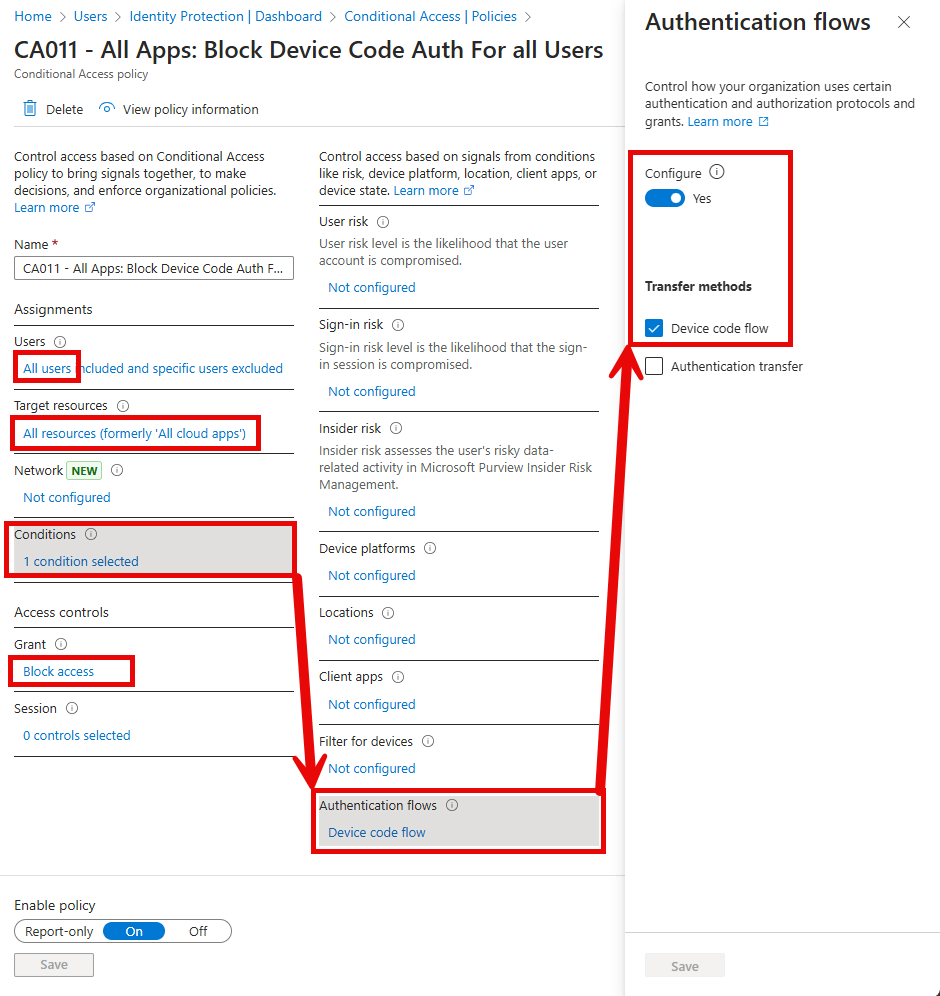
You can also deploy this using a JSON template for Conditional Access if your organization uses policy-as-code or wants a repeatable setup; Microsoft and the community publish examples for device code blocking. Once the blocking policy is enabled, sign-in attempts that use the device code flow will be blocked for the included users and apps unless they are explicitly allowed by another policy (e.g. an exception policy).
Allowing Device Code Only Where Necessary
Some workloads rely on the device code flow. For example Microsoft Teams Rooms (MTR), certain kiosks, or other keyboard-less devices. For those, create a separate Conditional Access policy that allows device code flow only for a dedicated group. Create a security group (e.g. “MTR-DeviceCode-Exception”) and add only the accounts or devices that must use device code. In the exception policy, include only that group, target the same (or a subset of) cloud apps, set the condition for Device code flow, and use Grant to allow access. So: the default policy blocks device code for everyone; the exception policy allows it only for the exception group. Optionally, add a Condition such as Named locations so device code is allowed only from your corporate network or known IP ranges. That way, even if an account is in the exception group, device code sign-in from an unknown location can still be blocked. Use IP (or location) restrictions together with the group so exceptions stay narrow.
Optional: Dynamic Groups for Exceptions
If you use licensing or device attributes to identify Teams Rooms or similar devices, you can build a dynamic group (e.g. devices with a Teams Rooms Pro license or a specific attribute) and use that group in the exception policy. That reduces manual membership changes when you add or remove MTR or kiosk devices.
Monitoring and Additional Hardening
Use Sign-in logs in Entra ID (Monitoring & health → Sign-in logs) and filter by authentication method or client app to see device code sign-in attempts. Review them regularly and investigate any that are unexpected. You can create alerts in Azure Monitor or Microsoft Sentinel when device code flow is used, so the security team is notified. Enforce phishing-resistant MFA (FIDO2, Windows Hello for Business, or certificate-based authentication) for sensitive users and apps; that way, even if device code were somehow used, stronger authentication is still required where you have configured it. Microsoft Defender for Identity (or other identity protection) can help detect anomalous sign-in patterns. Finally, train users to be suspicious of any request to enter a code on microsoft.com/devicelogin when they did not initiate a sign-in themselves. They should not enter codes from email, chat, or unsolicited sources.
Summary
Device code phishing abuses the OAuth device code flow: the victim is tricked into entering a code on the real Microsoft login page, and the attacker gains access without stealing a password. In Microsoft Entra ID, use Conditional Access to block device code authentication for all users (and all cloud apps or high-risk apps), excluding emergency access accounts. Add a second policy that allows device code only for a specific group (e.g. MTR or kiosk accounts), and optionally restrict that policy by IP or named location. Use Report-only first to validate, then enforce the block. Monitor sign-in logs for device code usage, enable phishing-resistant MFA where possible, and educate users not to enter codes from unsolicited requests. Together, these steps significantly reduce the risk of device code phishing in your tenant.





