Many installers and updates add shortcuts to the Public Desktop or user desktops. To keep desktops clean without manually removing them, you can use Proactive Remediation in Microsoft Intune (Endpoint Manager). A detection script checks for unwanted shortcuts; if it finds any, it exits with code 1 and Intune runs a remediation script that deletes them. You define the shortcut names and desktop path (public only or all user desktops) and run the package on a schedule (e.g. hourly). This guide walks through the scripts and how to create and assign the Proactive Remediation package in Intune.
License Requirements
Proactive Remediations require one of the following:
- Windows 10/11 Enterprise E3 or E5 (included in Microsoft 365 F3, E3, or E5)
- Windows 10/11 Education A3 or A5 (included in Microsoft 365 A3 or A5)
- Windows 10/11 Virtual Desktop Access (VDA) per user
For details, see Proactive remediations on Microsoft Learn.
Detection Script
The detection script defines which shortcut names to look for and which desktop path to check. If any of those shortcuts exist, the script exits with 1 so Intune runs the remediation script. Example (Public Desktop only):
$Shortcuts2Remove = "Google Chrome.lnk", "VLC media player.lnk"
$DesktopPath = "C:\Users\Public\Desktop"
$ShortcutsOnClient = Get-ChildItem $DesktopPath -ErrorAction SilentlyContinue
$ShortcutsUnwanted = $ShortcutsOnClient | Where-Object { $_.Name -in $Shortcuts2Remove }

if (-not $ShortcutsUnwanted) {
    Write-Host "No unwanted shortcuts found."
    exit 0
} else {
    Write-Host "Unwanted shortcut(s) detected."
    exit 1
}
To monitor all user desktops, set $DesktopPath so you can enumerate them (e.g. Get-ChildItem "C:\Users\*\Desktop") and check for the same names. Keep $Shortcuts2Remove in sync with the remediation script.
Remediation Script
The remediation script uses the same list of shortcut names and desktop path. It finds matching shortcuts and deletes them. Example (Public Desktop only):
$Shortcuts2Remove = "Google Chrome.lnk", "VLC media player.lnk"
$DesktopPath = "C:\Users\Public\Desktop"
$ShortcutsOnClient = Get-ChildItem $DesktopPath -ErrorAction SilentlyContinue

try {
    $ShortcutsOnClient | Where-Object { $_.Name -in $Shortcuts2Remove } | Remove-Item -Force
    Write-Host "Unwanted shortcut(s) removed."
} catch {
    Write-Error "Error removing shortcut(s): $_"
}
Extend the logic if you also target user desktops (e.g. loop over C:\Users\*\Desktop). Save the detection script as detection.ps1 and the remediation script as remediation.ps1.
Create the Script Package in Intune
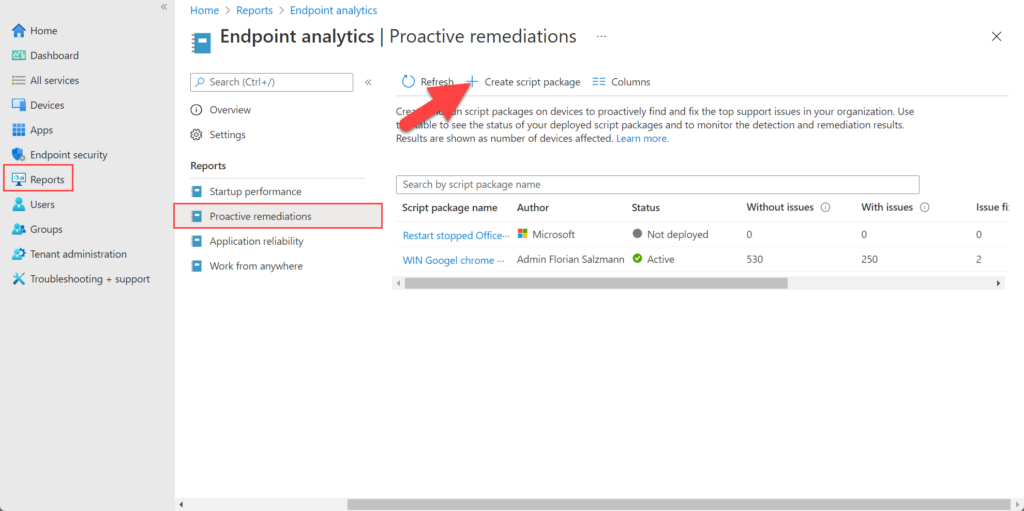
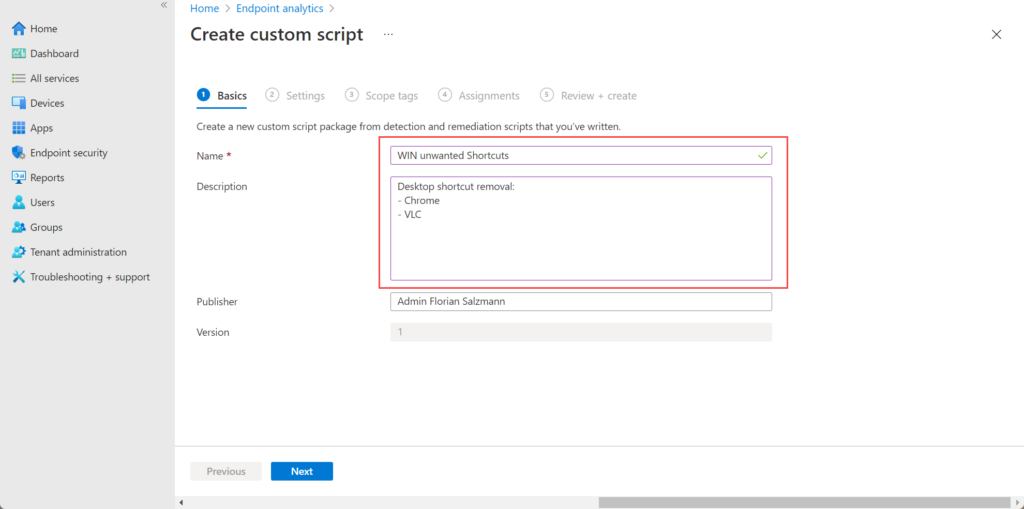
In the Microsoft Intune admin center, go to Reports → Endpoint analytics → Proactive remediations. Click Create script package (or Add). On Basics, give the package a name (e.g. “Remove unwanted desktop shortcuts”) and optionally a description. Click Next.
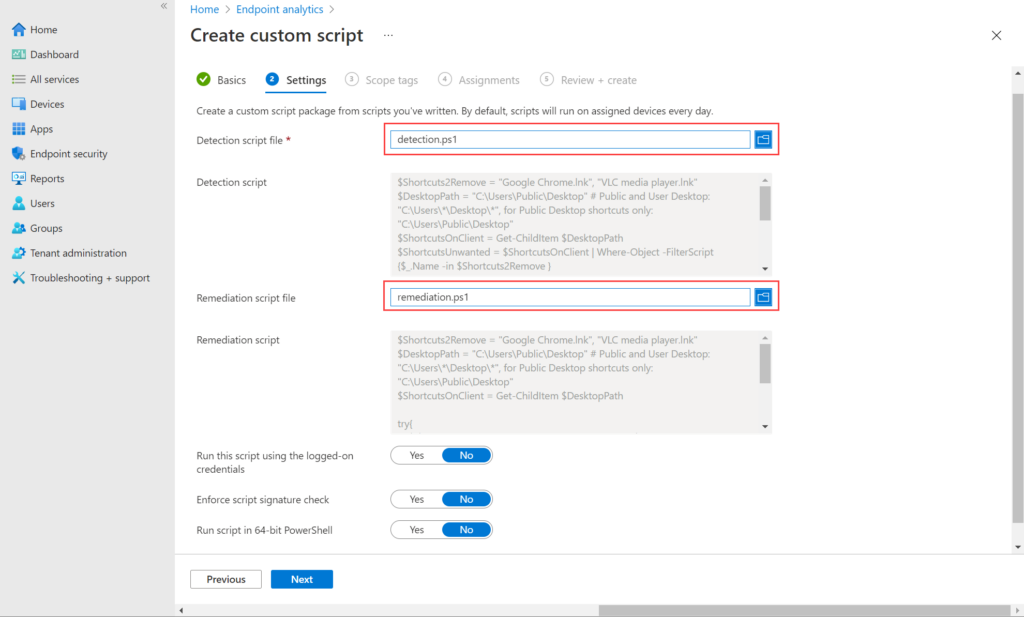
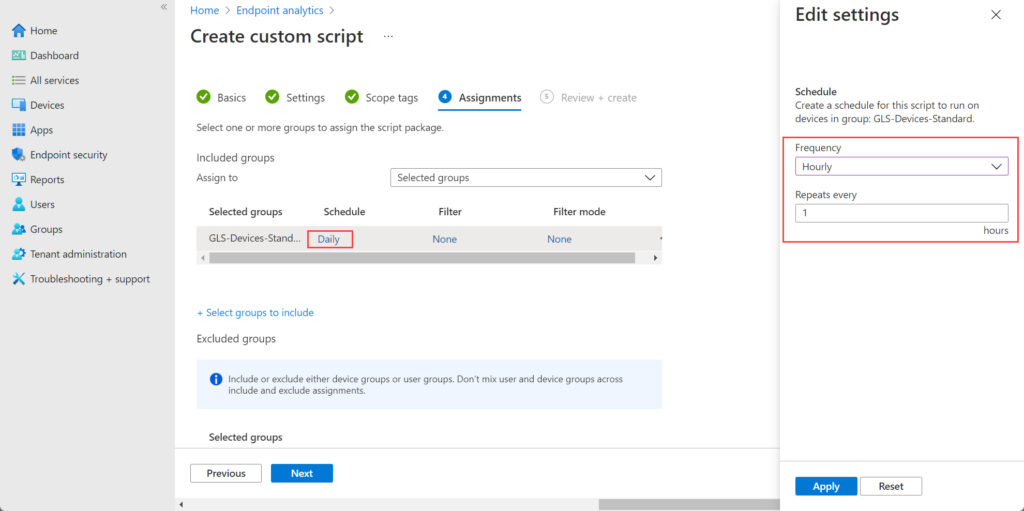
On Settings, upload Detection script file (detection.ps1) and Remediation script file (remediation.ps1). Adjust the scripts as needed before uploading. Click Next. On Scope tags, add scope tags if your tenant uses them. On Assignments, add the groups that should receive this package (e.g. All Devices or a Windows devices group). Set the Schedule (e.g. hourly) so detection runs regularly. Click Next, then Create.
How It Runs
On the configured schedule, the detection script runs on each assigned device. It checks the desktop path for the shortcut names in $Shortcuts2Remove. If none are found, it exits 0 and nothing else runs. If any are found, it exits 1; Intune then runs the remediation script, which deletes those shortcuts. On the next run, detection should exit 0 unless new unwanted shortcuts appear. You can view results and history under the script package in Proactive remediations. Test on a small group first and start with a longer interval (e.g. daily) if you prefer; then shorten (e.g. hourly) once you are satisfied.
Summary
To proactively remove unwanted desktop shortcuts with Microsoft Intune: create a detection script that exits 0 when no unwanted shortcuts are found and 1 when they are; create a remediation script that deletes those shortcuts from the chosen path (Public Desktop only or all user desktops). In Intune go to Reports → Endpoint analytics → Proactive remediations → Create script package, upload both scripts, assign the package to your Windows device groups, and set a schedule. Ensure your tenant has a qualifying license (e.g. Windows Enterprise E3/E5 or Education A3/A5). For more on Proactive Remediation, see Proactive remediations on Microsoft Learn.





