When users sync files with OneDrive on Windows, you can collect sync status and health data so it appears in the Microsoft 365 admin center. To do that, you enable the Sync admin reports setting and provide a Tenant Association Key so reports are tied to your tenant. Microsoft Intune can push this configuration to managed Windows devices using an administrative template (or Settings catalog) profile. This guide walks through creating the profile, enabling sync admin reports, adding the tenant key, and assigning the policy.
What OneDrive Monitoring Gives You
With sync admin reports enabled and the Tenant Association Key set, OneDrive clients on managed devices send sync and health data to Microsoft. In the Microsoft 365 admin center you can view OneDrive sync health and related reports: sync status per device, errors and warnings, storage usage, and file sync statistics. That helps you spot sync problems, adoption gaps, and compliance or audit needs without asking users to run manual reports.
Get Your Tenant Association Key
The Tenant Association Key links OneDrive sync data from your devices to your Microsoft 365 tenant so reports show up in your admin center. You can get it in the Microsoft 365 admin center under Reports → Usage → OneDrive sync health (or the equivalent OneDrive sync / admin reports page). You can also obtain it by running the OneDrive sync admin reports command in PowerShell; see OneDrive sync health report on Microsoft Learn. Copy the key and keep it handy. You will enter it in the Intune profile.
Create a Configuration Profile
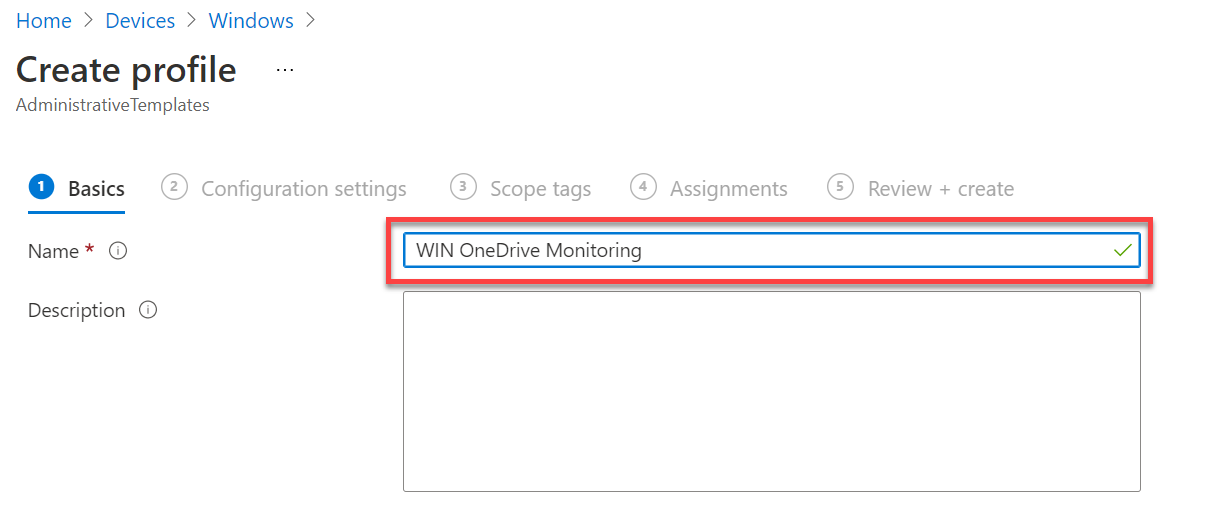
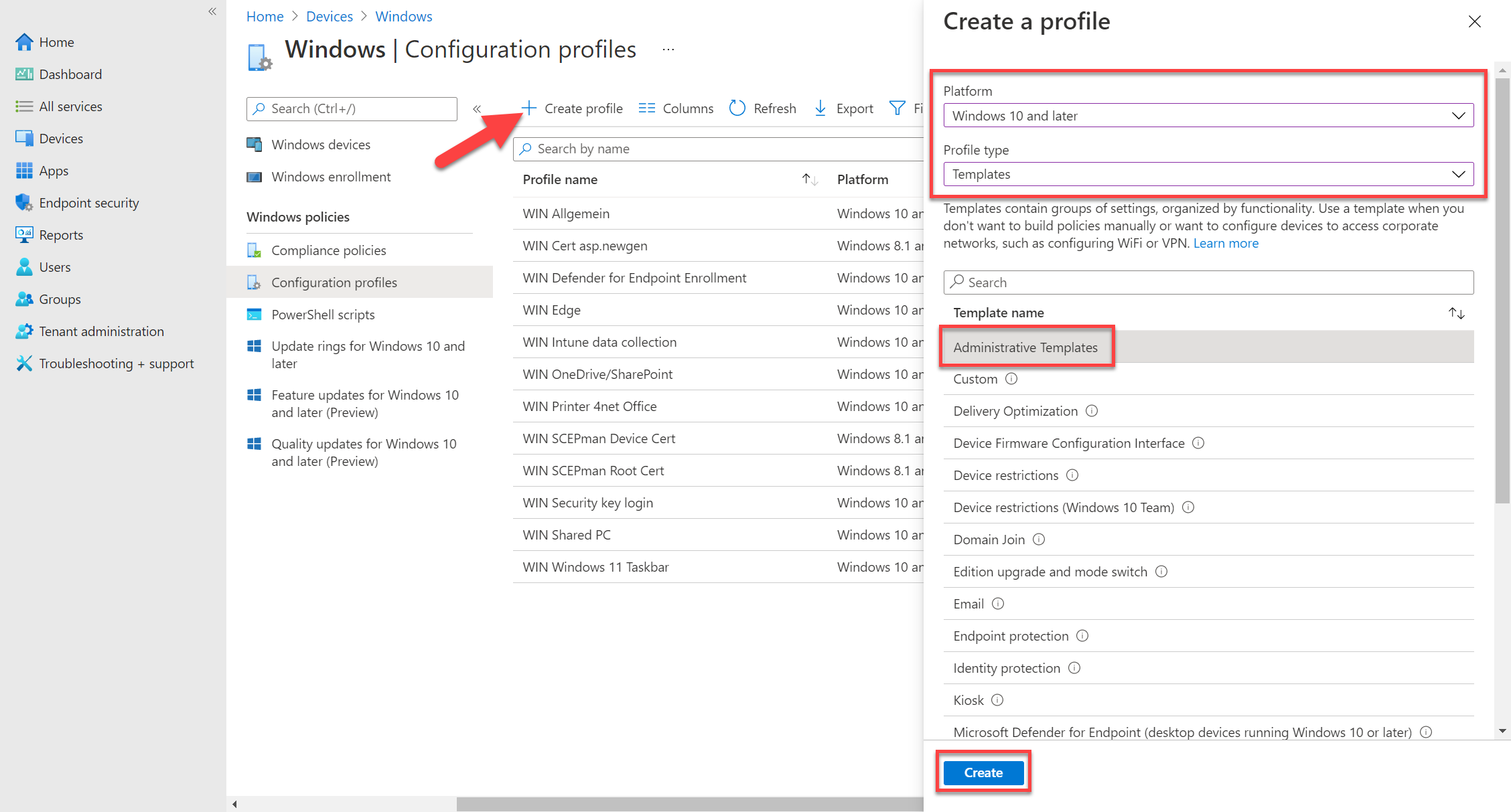
In the Microsoft Intune admin center, go to Devices → Windows → Configuration profiles. Click Create → New policy. Set Platform to Windows 10 and later and Profile type to Templates. Choose Administrative templates (or use Settings catalog if your tenant uses it for OneDrive). Click Create. On Basics, give the profile a name (e.g. “OneDrive Monitoring” or “WIN OneDrive Monitoring”) and optionally a description. Click Next.
Enable Sync Admin Reports and Add the Tenant Key
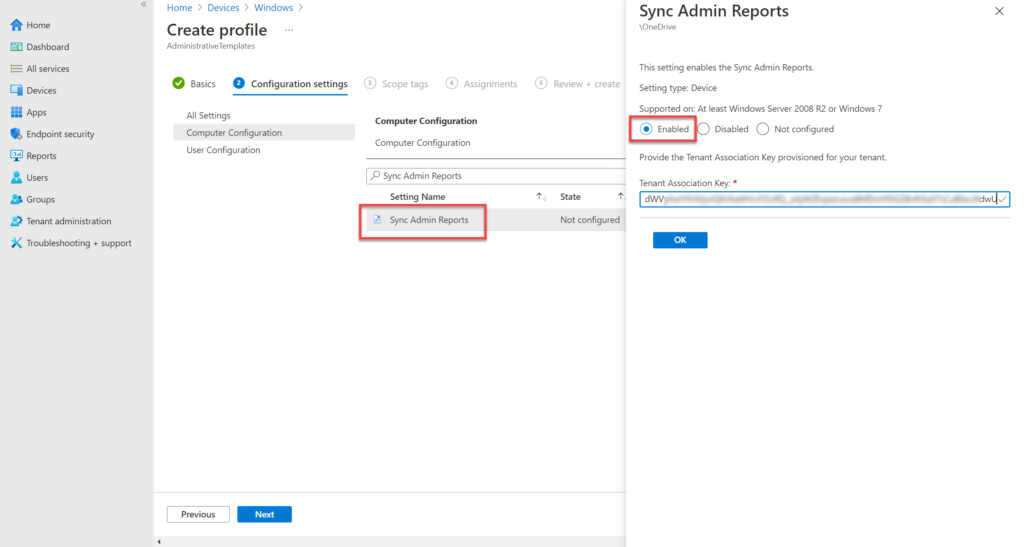
On Configuration settings, click Add settings or browse the template. Search for Sync admin reports (or the equivalent OneDrive sync reporting setting). Select it and set it to Enabled. When enabled, you will be prompted for the Tenant Association Key. Paste the key you obtained from the Microsoft 365 admin center or PowerShell. Save the setting and click Next.
Assign the Profile
On Assignments, add the user or device groups that should have OneDrive monitoring enabled (e.g. All Devices, All Users, or a group of Windows devices that use OneDrive). Click Next, complete any scope tags or applicability rules, then Review + create and Create. After the profile syncs to targeted devices, OneDrive clients will start sending sync data; reports in the Microsoft 365 admin center may take a short time to populate.

View OneDrive Reports
In the Microsoft 365 admin center, go to Reports → Usage and open OneDrive sync health (or the OneDrive sync / admin reports page). You will see sync status per device, sync errors and warnings, storage usage, and file sync statistics. Use this to troubleshoot sync issues, track adoption, and support compliance or auditing. For more on the sync health report and Tenant Association Key, see OneDrive sync health report on Microsoft Learn.
Summary
To monitor OneDrive status with Microsoft Intune: obtain your Tenant Association Key from the Microsoft 365 admin center (Reports → Usage → OneDrive sync health) or via PowerShell. Create a Windows 10 and later configuration profile using Administrative templates (or Settings catalog), enable the Sync admin reports setting, and enter the Tenant Association Key. Assign the profile to the user or device groups that use OneDrive. Then view sync status and admin reports in the Microsoft 365 admin center under Reports → Usage → OneDrive sync health.





