Keeping Windows up to date is central to a secure environment. Microsoft Intune gives you Update rings for Windows 10 and later: a single place to control quality and feature update timing, user experience, deadlines, and restarts. You can also turn on Windows Update reporting and adjust how restart notifications behave so users are prompted to choose when to reboot. This guide walks through creating an update ring and two optional enhancements: health monitoring for reporting and a policy that keeps the restart notification visible until the user acts.
Why Use Intune Update Rings?
Update rings let you:
- Defer updates . Delay quality and feature updates by a set number of days so you can validate before broad rollout.
- Set deadlines and grace periods . Define when updates must be installed and when restarts can be enforced.
- Control user options . Allow or block pausing updates, checking for updates, and pre-release builds.
- Target different groups . Use separate rings (e.g. pilot vs. broad) with different deferral and experience settings.
What You’ll Do
You will create one Update ring for Windows 10 and later in Intune, configure update and user-experience settings, and assign it to users or devices. Optionally, you will add a Windows health monitoring configuration profile scoped to Windows Updates for richer reporting, and a Settings catalog profile to set Auto Restart Required Notification Dismissal to User Dismissal so the restart prompt stays until the user chooses an action.
Step 1: Create an Update Ring
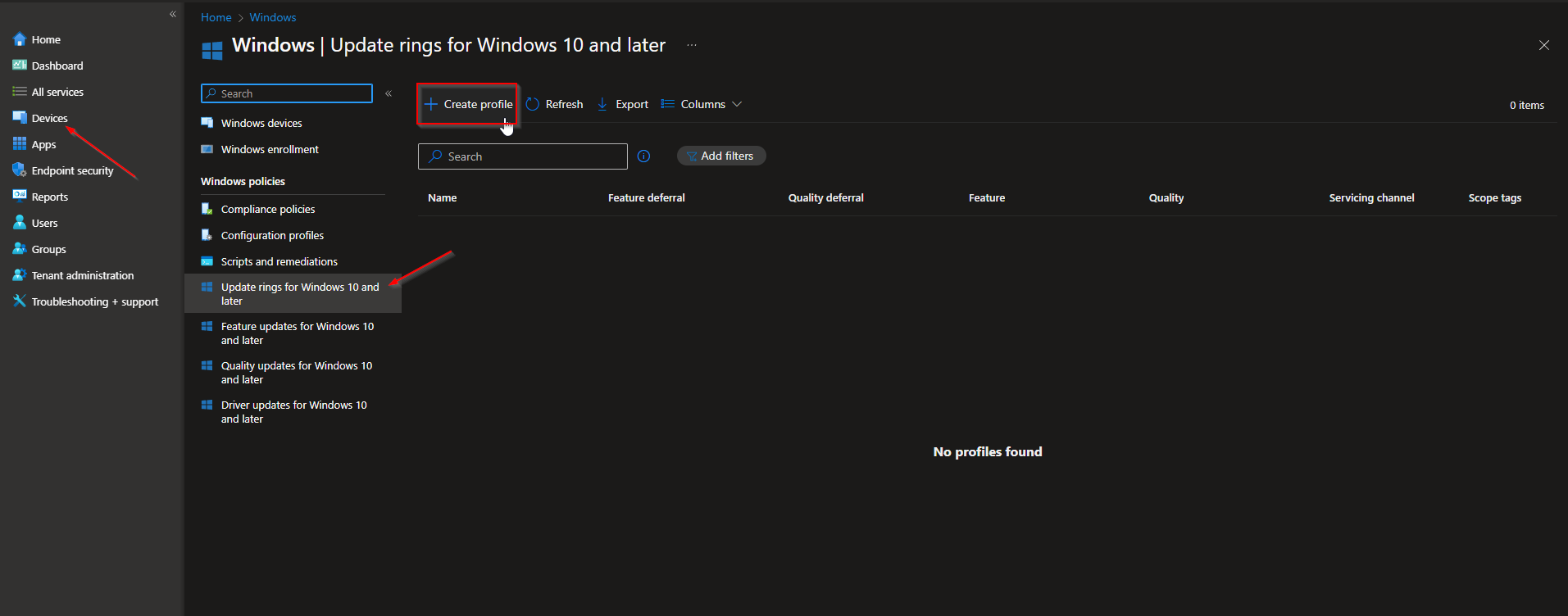
In the Microsoft Intune admin center, go to Devices → Windows → Update rings for Windows 10 and later. Click Create profile.
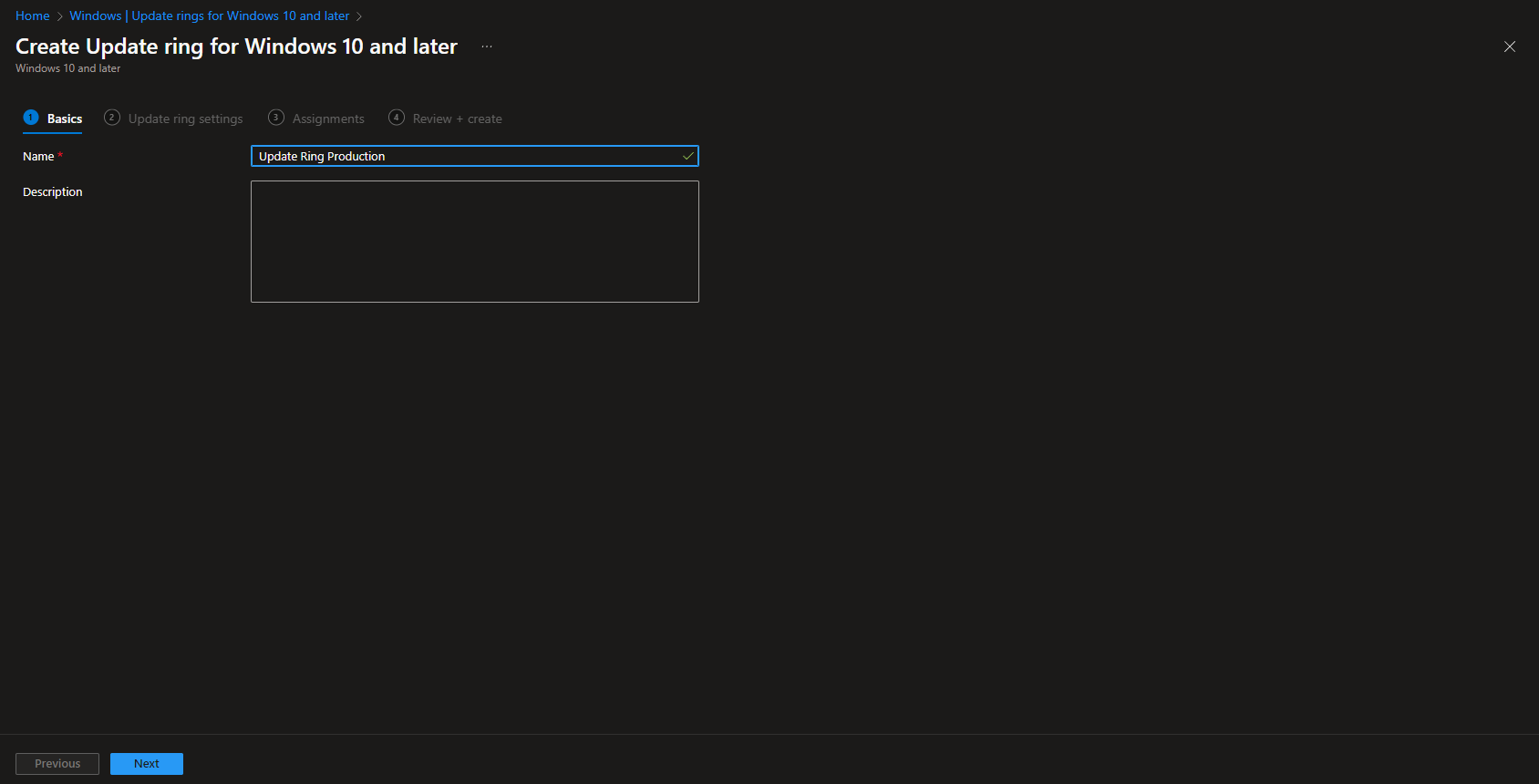
On Basics, enter a Name (e.g. “Production – Windows Update Ring”) and optionally a Description. Click Next.
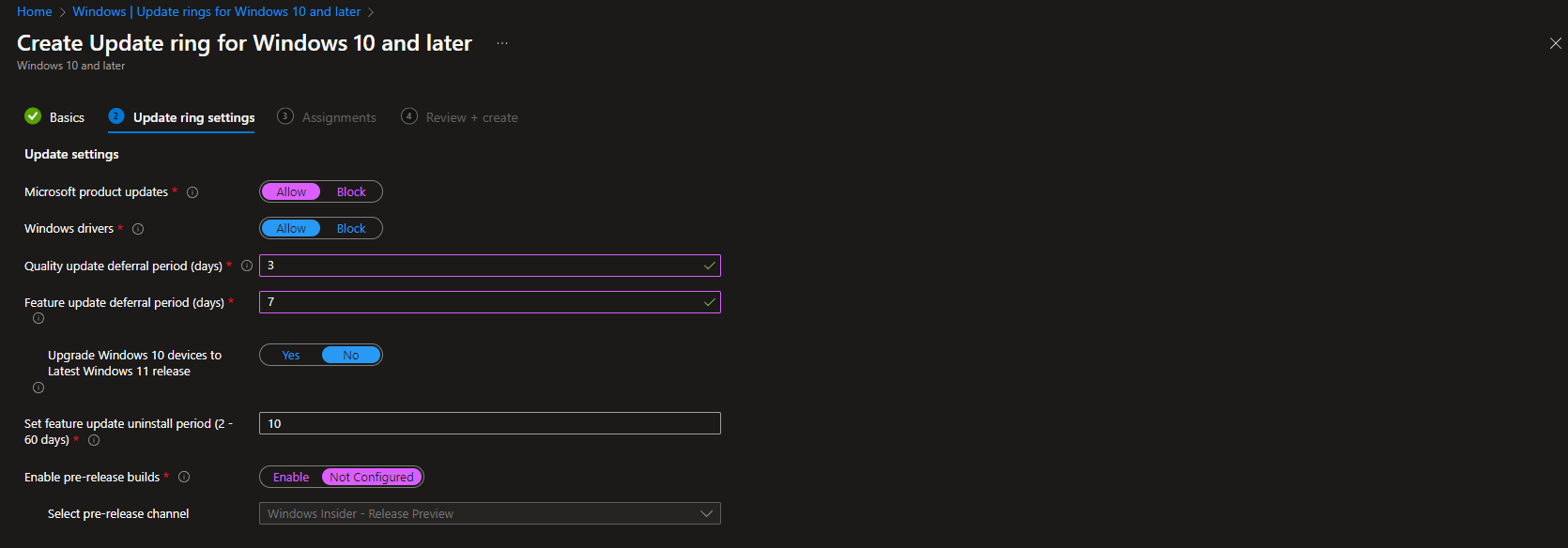
Update and upgrade settings
On the configuration tab, set the behavior you want. Examples:
- Microsoft Product updates . Enable to allow updates for Microsoft products (e.g. Office, OneDrive) from Microsoft Update.
- Windows drivers . Allow or block driver updates via Windows Update.
- Quality update deferral period (days) . Delay quality updates by this many days after release (e.g. 3).
- Feature update deferral period (days) . Delay feature updates by this many days (e.g. 7).
- Upgrade Windows 10 devices to Latest Windows 11 release . Yes to allow eligible Windows 10 devices to upgrade to Windows 11; No to keep them on Windows 10.
- Set feature update uninstall period (2–60 days) . How long users can uninstall a feature update.
- Enable pre-release builds . Enable only if you want devices on a Windows Insider channel; usually leave disabled for production.
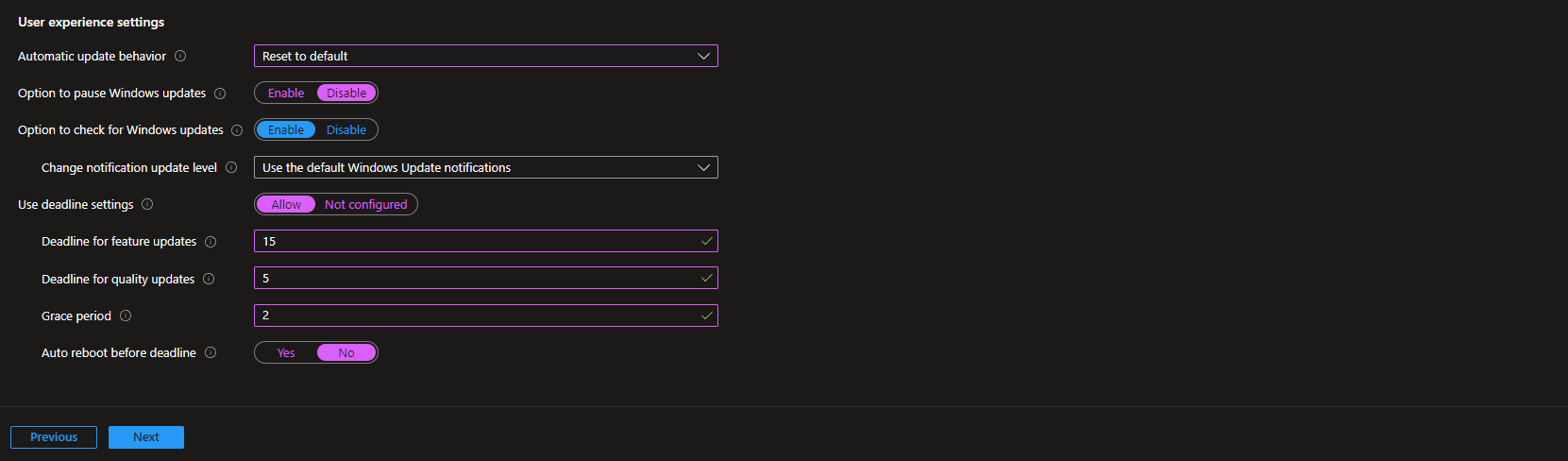
User experience
Configure how updates and restarts are presented:
- Automatic update behavior . E.g. “Reset to default” to use the default Windows Update flow, or choose a specific schedule.
- Option to pause Windows updates . Disable if you do not want users to pause updates.
- Option to check for Windows updates . Allow or block the “Check for updates” button.
- Change notification update level . What update notifications users see (default or custom).
- Use deadline settings . Enable to set deadlines and grace period.
- Deadline for feature updates / Deadline for quality updates . Days after the deferral period by when the update must be installed.
- Grace period . Days after the deadline before a forced restart can occur.
- Auto reboot before deadline . Enable or disable automatic reboot before the deadline; many leave this off so users can choose when to restart.
On Assignments, add the groups (users or devices) that should receive this ring. Click Next, then Review + create, and Create.
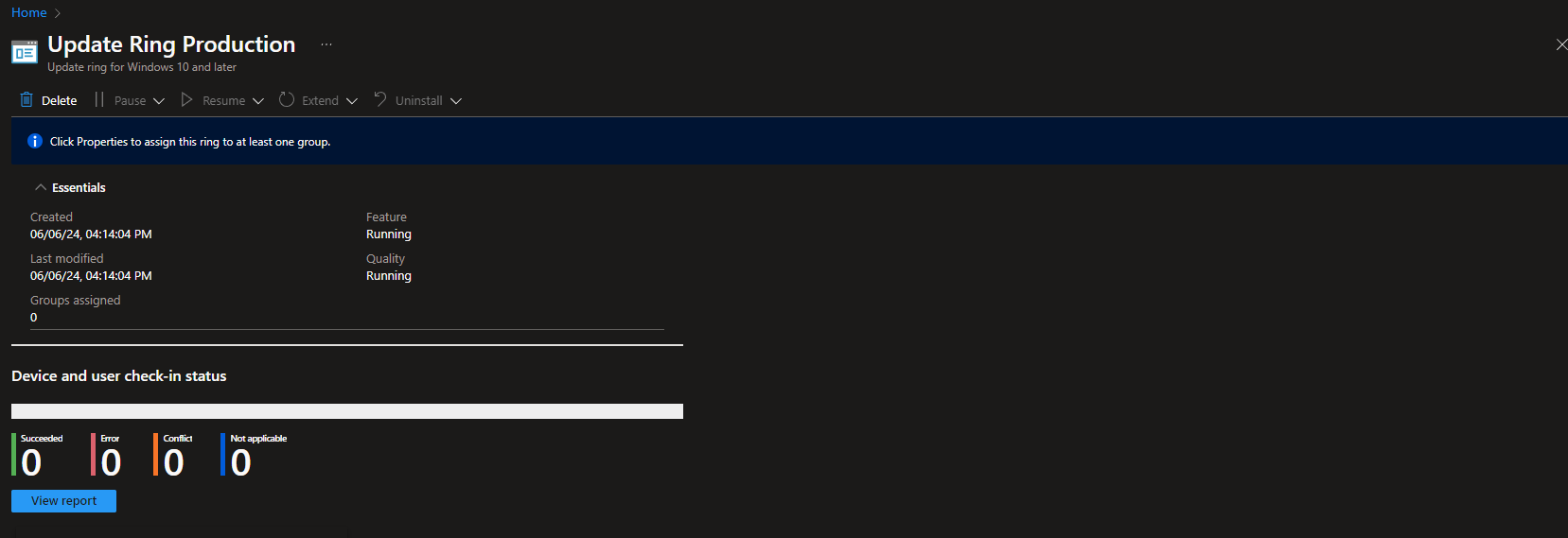
After creation, the ring appears under Update rings for Windows 10 and later. You can open it to edit, duplicate, or view basic status; for more detailed analytics, enable Windows Update reporting in the next step.
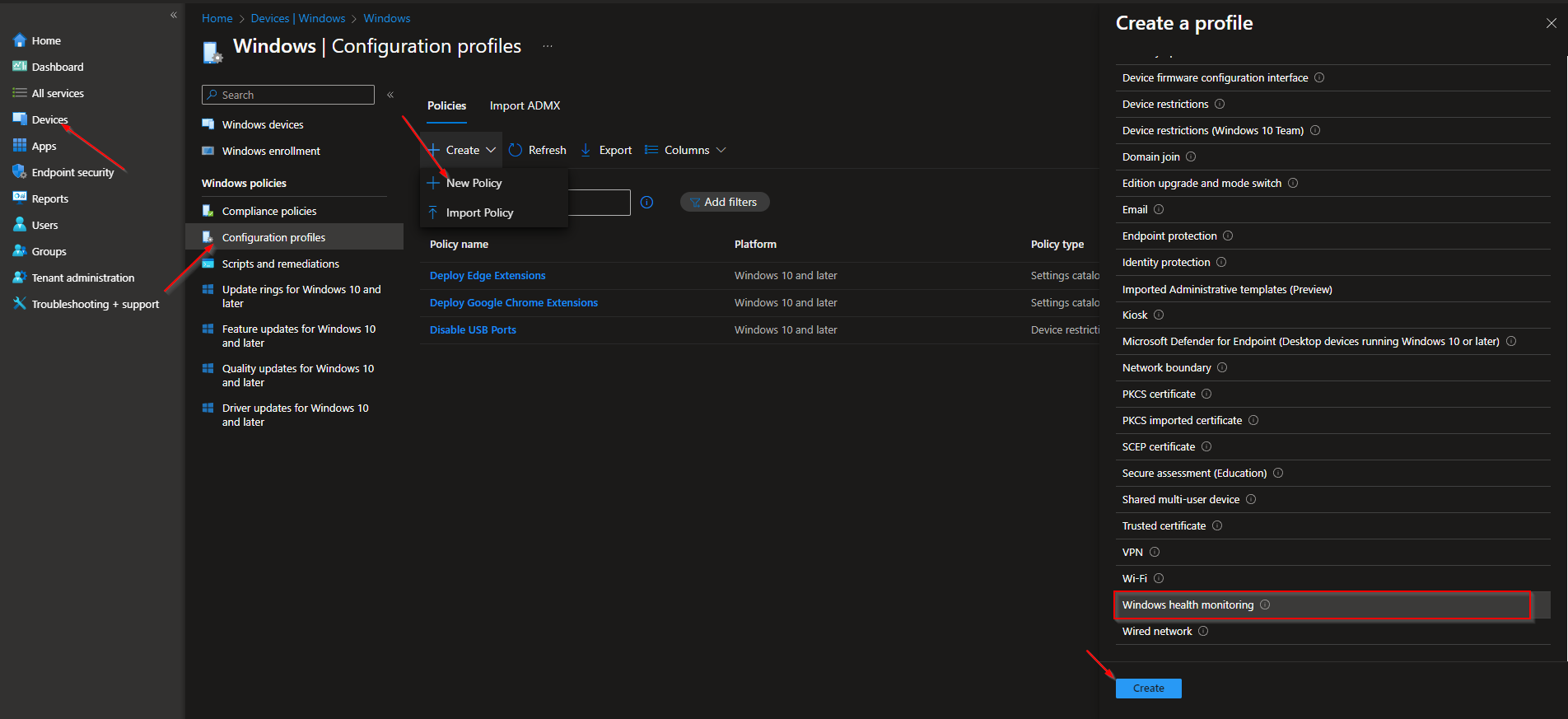
Step 2 (Optional): Enable Windows Update Reporting
Intune can collect additional Windows Update data and show it under Reports → Windows Updates. To enable this, create a configuration profile using the Windows health monitoring template and scope it to Windows Updates.
Note: If you already have a Windows health monitoring profile (sometimes called “Intune data collection policy”), edit that profile instead of creating a second one to avoid conflicts.
Go to Devices → Windows → Configuration profiles. Click Create → New policy. Set Platform to Windows 10 and later, Profile type to Templates, and select Windows health monitoring. Click Create.

Name the profile and click Next. On Configuration settings, enable Health monitoring and set the Scope to Windows Updates. Click Next, set scope tags and assignments, then Review + create and Create.
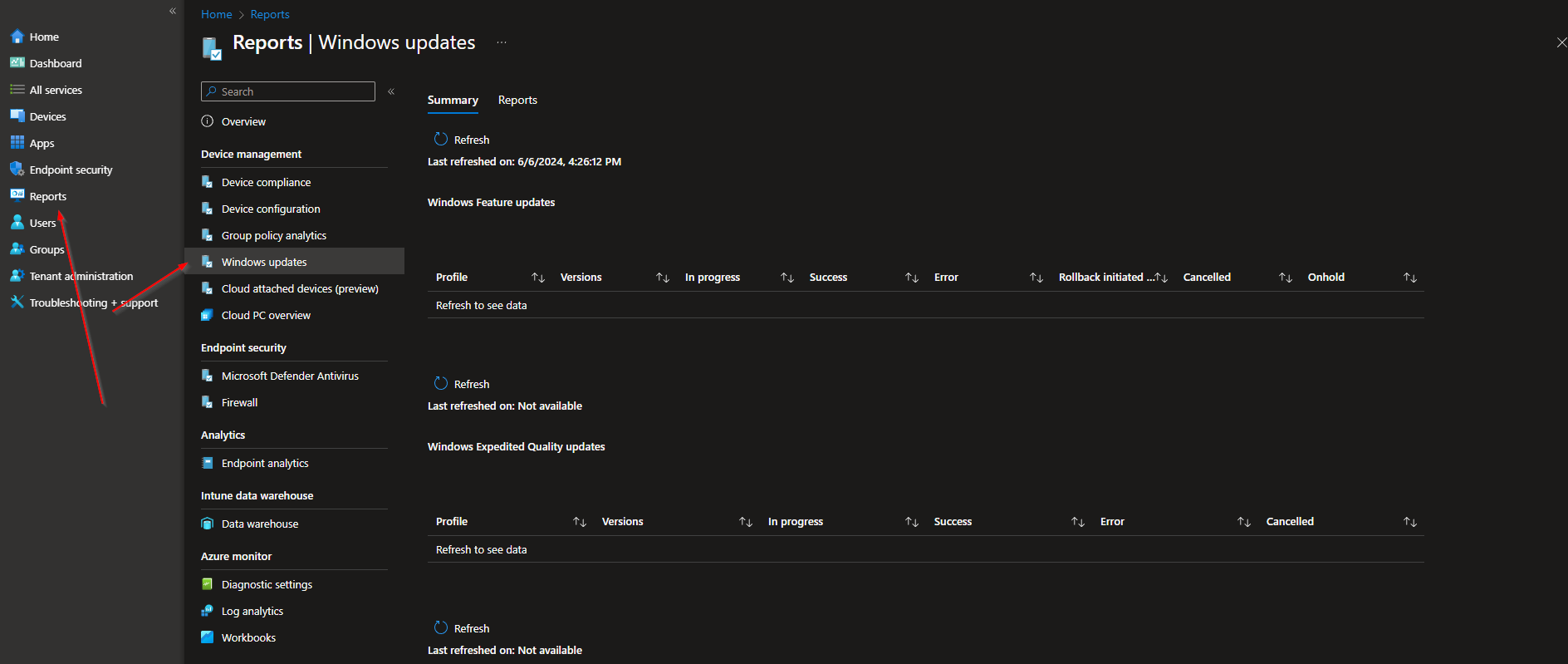
Reporting data can take some time to appear. Once available, view it under Reports → Windows Updates.
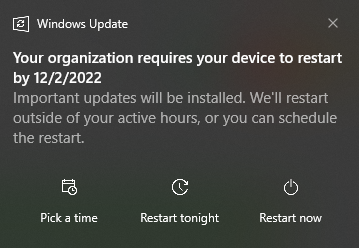
Step 3 (Optional): Keep Restart Notification Until User Acts
By default, the “Restart required” notification can disappear after a short time (e.g. 25 seconds), and some users never choose a restart until a forced reboot occurs. You can change this so the notification stays visible until the user selects an option (e.g. schedule restart or snooze).
Create a Settings catalog profile and set Auto Restart Required Notification Dismissal (under Windows Update for Business) to User Dismissal.
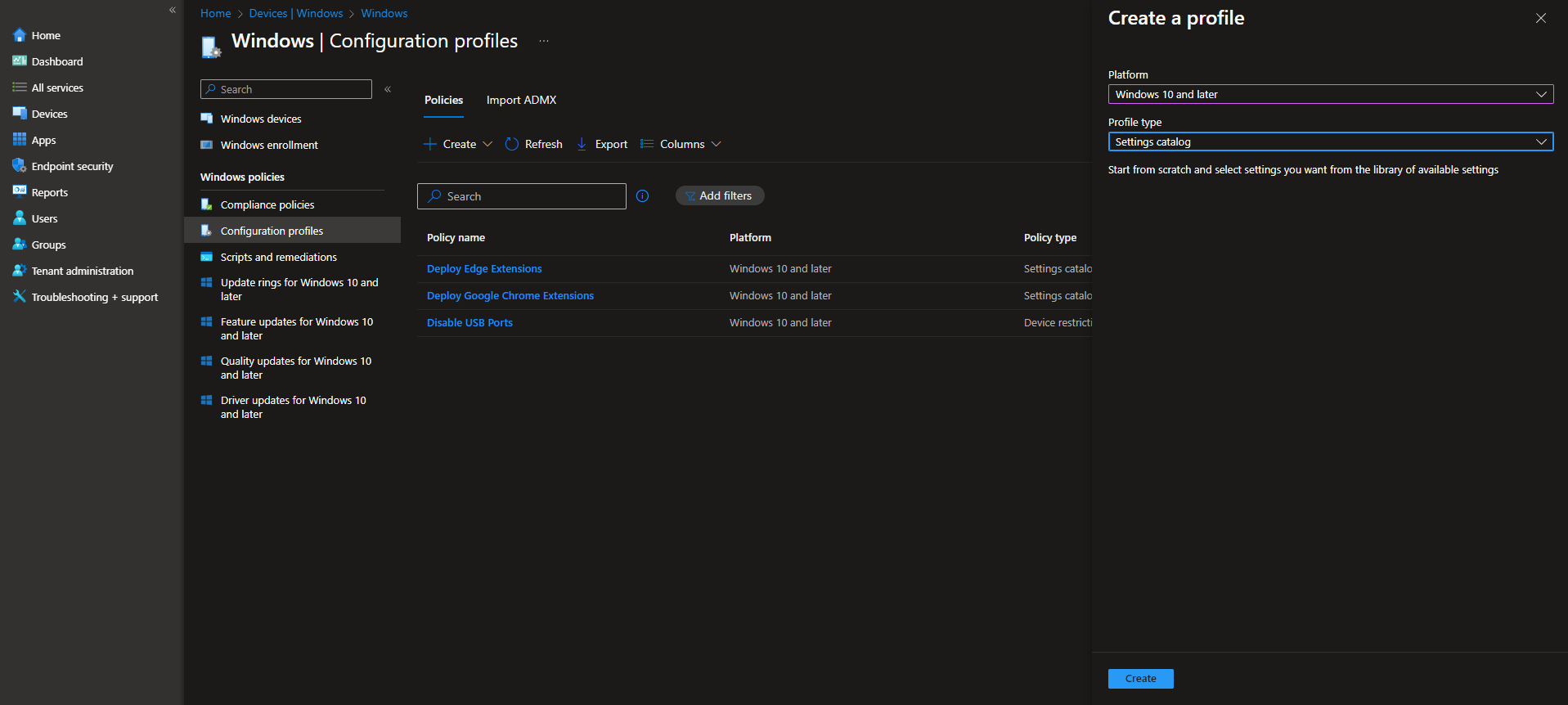
Go to Devices → Windows → Configuration profiles. Click Create → New policy. Set Platform to Windows 10 and later and Profile type to Settings catalog. Click Create.
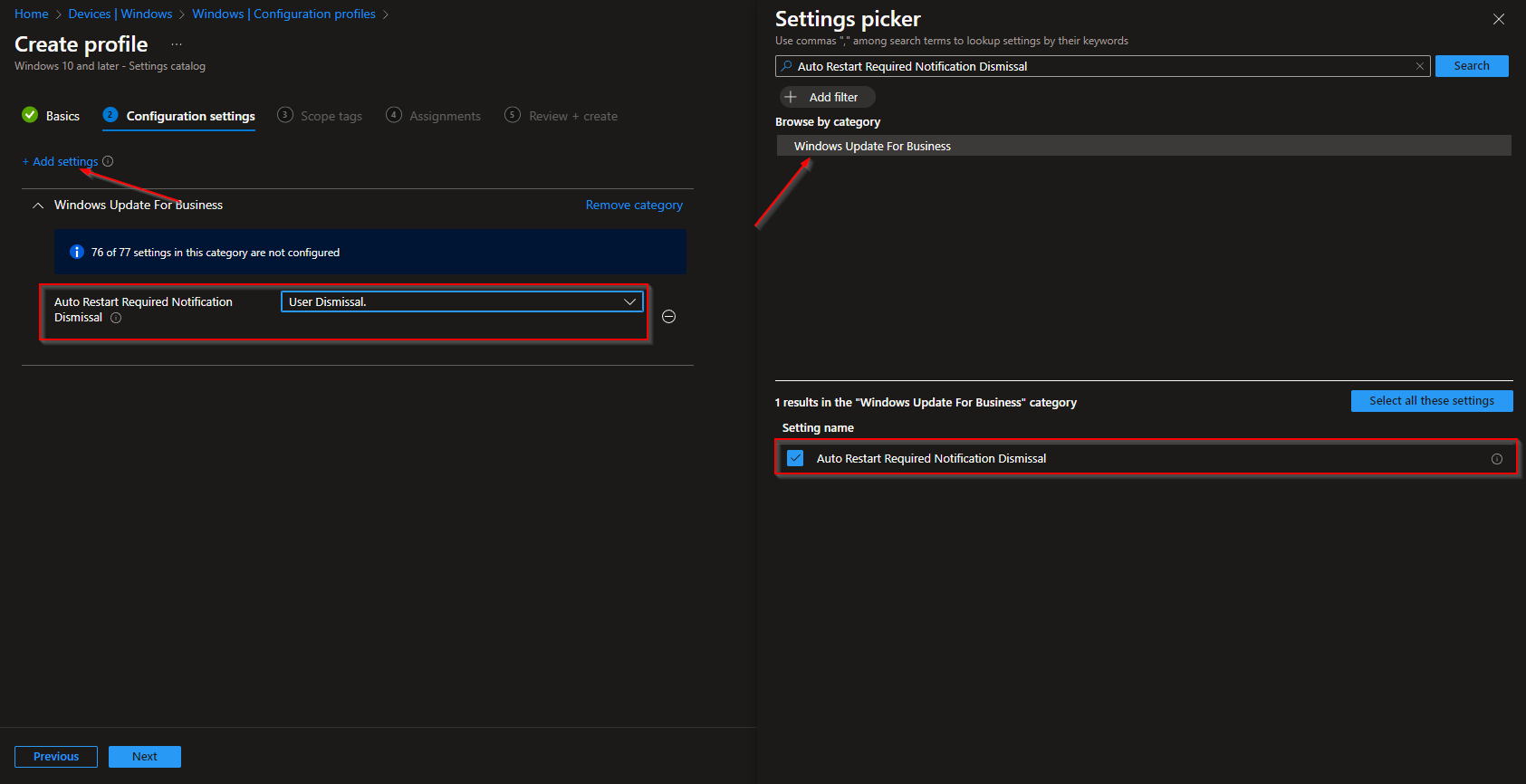
Name the profile (e.g. “Restart notification – User dismissal”) and click Next. On Configuration settings, click Add settings, search for Auto Restart Required Notification Dismissal, and select the setting under Windows Update for Business. Enable it and set the value to User Dismissal. Click Next, set scope tags and assignments, then Review + create and Create.
Wrap-up
You can manage Windows Updates with Microsoft Intune by creating an Update ring for Windows 10 and later: set deferral periods, deadlines, grace period, and user experience (pause, check for updates, notifications, auto reboot). Optionally, add a Windows health monitoring profile scoped to Windows Updates for better reporting under Reports → Windows Updates, and a Settings catalog profile that sets Auto Restart Required Notification Dismissal to User Dismissal so the restart prompt remains until the user chooses an action. Together, these give you controlled rollout, visibility, and clearer user prompts for restarts.





