Personal Data Encryption (PDE) on Windows encrypts user data and releases the decryption key only when the user signs in with Windows Hello for Business. Unlike BitLocker, which releases the key at device boot. That adds a second layer: even if someone has access to the disk (e.g. after boot or from another account), the contents of PDE-protected folders stay encrypted until the right user signs in with Windows Hello. Starting with Windows 11 version 24H2, PDE can protect the known Windows folders Documents, Desktop, and Pictures. You manage this from Microsoft Intune using the Personal Data Encryption disk encryption template under Endpoint security. This post explains how PDE fits with BitLocker, what you need (Windows 11 24H2+, Windows Hello, Intune), how to create and assign the policy, and what users see (including the Windows Hello requirement).
PDE vs. BitLocker
BitLocker encrypts the whole drive and unlocks at boot (TPM, PIN, or recovery key). PDE encrypts selected user data and unlocks at user sign-in with Windows Hello. Use both: BitLocker for full-disk protection, PDE for an extra per-user layer on Documents, Desktop, and Pictures. PDE requires Windows Hello for Business; if a user signs in with a password only, they cannot access PDE-encrypted files and will see a prompt to use Windows Hello.
Requirements
You need Windows 11 version 24H2 or later for PDE on known Windows folders. Windows Hello for Business must be configured and working before you enable PDE; otherwise users cannot unlock their data. The Intune Personal Data Encryption template is available in recent Intune service releases (e.g. 2409 and later. Check the admin center). Devices must be enrolled in Intune and the policy assigned to the right users or devices. Consider configuring additional hardening (e.g. key protection, audit) via the Settings catalog if available.
Creating the PDE Policy in Intune
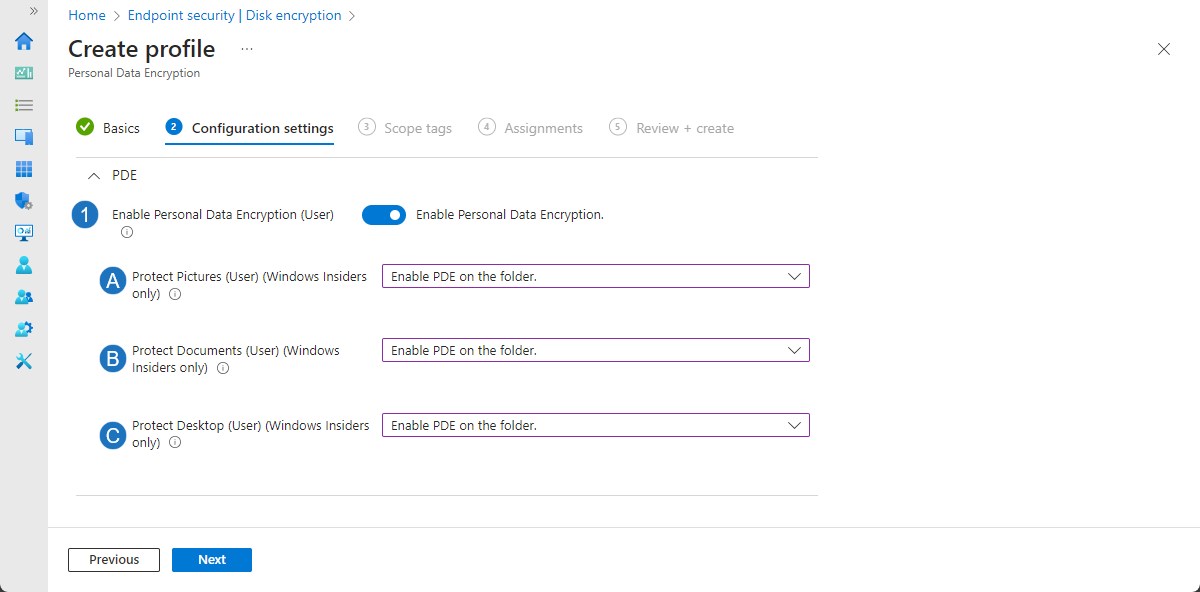
In the Microsoft Intune admin center, go to Endpoint security → Disk encryption and choose Create → New policy. On the Create a profile page, select Windows and the Personal Data Encryption template, then Create. On Basics, give the profile a name (e.g. “PDE – Known Windows folders”) and an optional description. On Configuration settings: turn on Enable Personal Data Encryption (User), then enable PDE for each folder you want to protect. Protect Pictures (User), Protect Documents (User), and Protect Desktop (User). Each set to “Enable PDE on folder” (or the equivalent option in the UI). You can enable one, two, or all three. Save the step, set scope tags and assignments, then create the profile. The policy is backed by the PDE CSP (EnablePersonalDataEncryption and ProtectFolders/ProtectDocuments, ProtectDesktop, ProtectPictures).
The screenshot below shows the Intune Personal Data Encryption policy where you enable PDE and protect Documents, Desktop, and Pictures.
What Users See
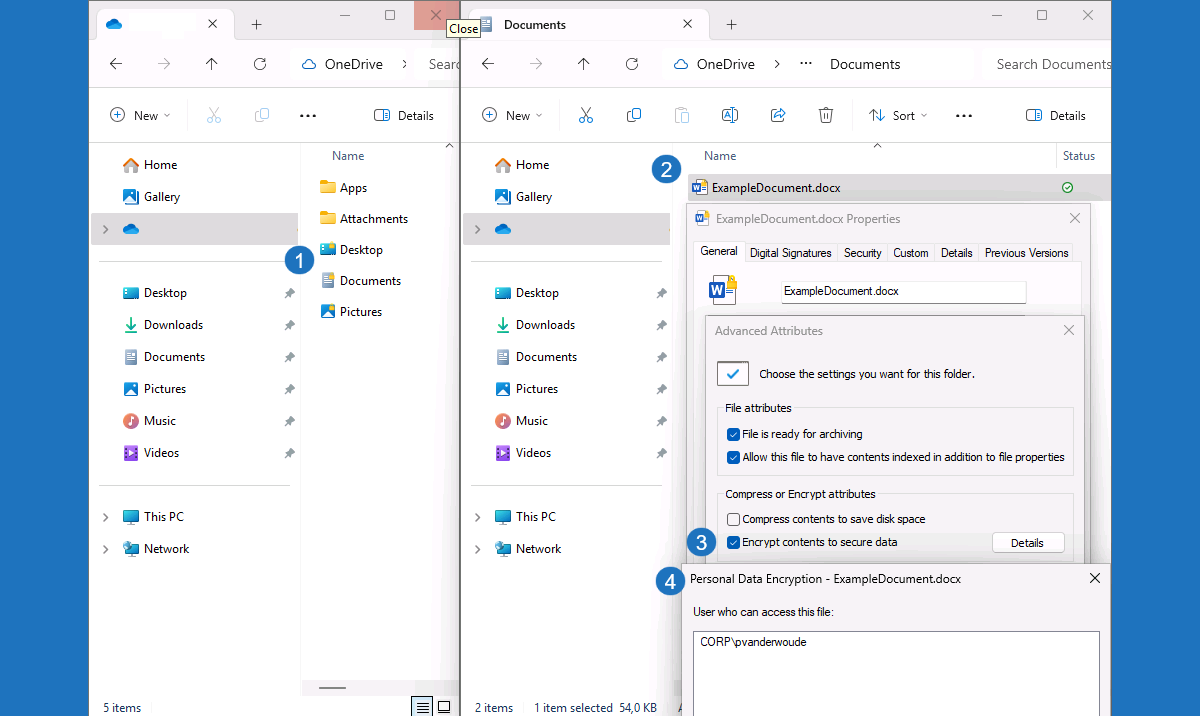
After the policy applies, files and folders under Documents, Desktop, and Pictures (whichever you enabled) are encrypted by PDE. In File Explorer, protected items show a yellow lock icon. In file properties, Advanced attributes indicate encryption, and the Details tab can show that Personal Data Encryption is in use. If a user signs in with username and password instead of Windows Hello, they will see a message that they must use Windows Hello to access organization-encrypted files. So ensure Windows Hello is set up and communicated before rolling out PDE.
Below: File Explorer and file properties showing the PDE yellow lock and encryption indicators.
Tips and Troubleshooting
Enable Windows Hello for Business and verify it works before enabling PDE. Pilot with a small group, then roll out. If lock icons do not appear, confirm the device is on Windows 11 24H2 or later, the policy is assigned, and the folders are the standard Documents, Desktop, or Pictures locations. If users get the “use Windows Hello” message, they need to sign in with Windows Hello (PIN, fingerprint, or face). If the policy does not apply, check enrollment and assignment. Use BitLocker and PDE together for full-disk plus per-user folder protection, and review Settings catalog options for key hardening and logging.
Summary
To manage Personal Data Encryption for known Windows folders with Microsoft Intune: go to Endpoint security → Disk encryption, create a new policy with the Personal Data Encryption template (Windows). Enable Personal Data Encryption (User) and enable PDE for Protect Documents, Protect Desktop, and Protect Pictures as needed. Assign the policy to users or devices. Requirements: Windows 11 24H2 or later and Windows Hello for Business. PDE releases the decryption key at user sign-in with Windows Hello, not at boot, and works alongside BitLocker. Users see yellow lock icons on protected files and must use Windows Hello to access them.





