Shared PC Mode on Windows 11 lets you control who can sign in, what runs at startup, and. Importantly. How user accounts and profiles on the device are managed. When many people use the same device, cached Entra ID (Azure AD) or Active Directory accounts can fill the disk and cause login or performance issues. Account management in Shared PC Mode is about defining when those cached accounts are removed and when local user profiles are cleaned up. You enable Shared PC Mode and the Account Manager in Microsoft Intune via a Settings catalog profile, and you must set all Shared PC options before turning the mode on: settings applied after Shared PC Mode is already enabled may not take effect. This post focuses on managing accounts on the device: which settings to use, how to configure them in the Settings catalog, how local accounts and exemptions work, and how to combine them with profile deletion on restart.
Enabling Shared PC Mode and Account Manager
Shared PC Mode is turned on by configuring either Enable Shared PC Mode With OneDrive Sync or Enable Shared PC Mode in the Settings catalog. Once enabled, the device follows the other Shared PC settings you have defined (including account management). For account cleanup you also enable Enable Account Manager. The Account Manager removes cached Entra ID and Active Directory user accounts from the device when certain conditions are met. By default when disk space is low. You can tune when deletion starts and stops using Deletion Policy, Disk Level Deletion, Disk Level Caching, and Inactive Threshold. Configure every Shared PC–related setting you need in the same (or a coordinated) profile, then assign it; do not enable Shared PC Mode first and add settings later, or they may not apply.
Account Management Settings
Under the Shared PC category in the Settings catalog you can add:
- Deletion Policy. Controls when accounts are deleted. 0 = delete as soon as criteria are met (aggressive). 1 = delete when free disk space falls below the disk-level threshold (common choice). 2 = delete when both disk space is below the threshold and the account has been inactive for the inactive threshold (most conservative).
- Disk Level Deletion. Percentage of total disk capacity (0–100). When free space drops below this percentage, the Account Manager starts deleting cached accounts. Example: 25 means start deleting when less than 25% of the disk is free.
- Disk Level Caching. Percentage (0–100). When free space rises to this level, the Account Manager stops deleting. Example: 50 means stop when 50% of the disk is free.
- Inactive Threshold. Number of days (0–4294967295). Used when Deletion Policy is 2: accounts that have not signed in for this many days are eligible for deletion when disk space is also low.
- Enable Account Manager. Set to Enabled (true) so the Account Manager runs and applies the deletion policy.
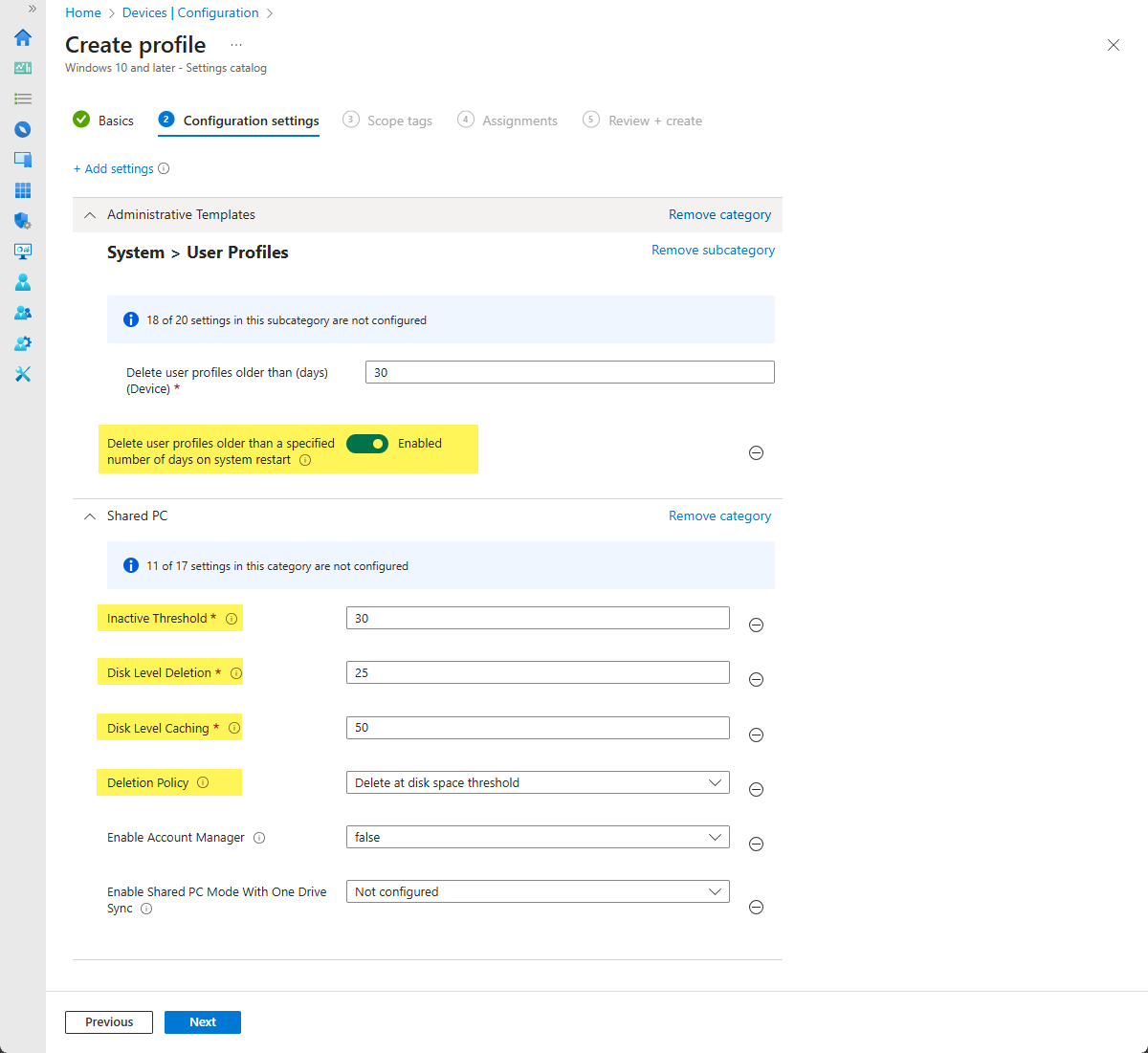
Typical values: Deletion Policy = 1 (disk threshold only), Disk Level Deletion = 25, Disk Level Caching = 50, Inactive Threshold = 30 days (for policy 2), Enable Account Manager = Enabled. Adjust percentages and days to match your disk sizes and usage.
Local Accounts and Profile Deletion on Restart
Shared PC Mode and the Account Manager apply to cached domain/Entra accounts. Guest and Kiosk local sign-in accounts are removed automatically when the user signs out. Manually created local accounts are not deleted by the Account Manager. To clean up local user profiles (including those created for domain users), use the Administrative Template setting Delete user profiles older than a specified number of days on system restart under Administrative Templates → System → User Profiles. Enable it and set the number of days (e.g. 30). On each restart, Windows will delete local profiles that are older than that. This complements the Account Manager so both cached accounts and old local profiles are kept under control.
Exempting Accounts from Deletion
You can protect specific accounts from being deleted by the Account Manager by adding their SID (security identifier) under the registry key HKLM\SOFTWARE\Microsoft\Windows\CurrentVersion\SharedPC\Exemptions\. Create a value (e.g. a REG_SZ or REG_DWORD) whose name or data refers to the SID, or follow the format documented for Shared PC exemptions. Accounts listed there will not be removed even if they meet the disk or inactivity criteria. Use this for local admin, service, or kiosk accounts that must always remain on the device. You can push the registry values via a custom configuration profile, script, or Group Policy.
Configuring in Intune
In the Microsoft Intune admin center, go to Devices → Windows → Configuration profiles and click Create → New policy. Choose Windows 10 and later and Settings catalog. On Basics, set a name (e.g. “Shared PC – Account management”) and an optional description. On Configuration settings, click Add settings. Search for Shared PC and add: Deletion Policy, Disk Level Caching, Disk Level Deletion, Enable Account Manager, and Inactive Threshold. Set them as above (e.g. Deletion Policy = 1, Disk Level Deletion = 25, Disk Level Caching = 50, Inactive Threshold = 30, Enable Account Manager = Enabled). Then open Administrative Templates → System → User Profiles and add Delete user profiles older than a specified number of days on system restart; set it to Enabled and set the number of days (e.g. 30). Add scope tags if required, assign the profile to the device groups that use Shared PC Mode, then create the profile. Ensure this profile is in place before any device has Shared PC Mode enabled.
Deletion Policy Options in Practice
Delete immediately (0). Accounts are removed as soon as they meet the criteria (e.g. disk below threshold). Use only if you want very aggressive cleanup. Delete at disk space threshold (1). Deletion starts when free space falls below Disk Level Deletion and stops when it reaches Disk Level Caching. This is the usual choice. Delete at disk space threshold and inactive threshold (2). Accounts are deleted only when disk space is low and the account has not been used for the Inactive Threshold days. Best when you want to keep recently used accounts even if space is tight.
Suggested Practices
- Define all Shared PC and account management settings in the same (or a logically grouped) profile and assign it before enabling Shared PC Mode on devices.
- Pilot on a small set of shared devices and confirm disk and profile behavior before rolling out.
- Exempt critical accounts (e.g. local admin, service accounts) via the SharedPC Exemptions registry key and document which SIDs are exempted.
- Tell users that accounts and profiles may be removed after inactivity or when disk space is low so they expect sign-in or data loss on shared devices.
- Monitor disk space and event logs (e.g. account deletion events) to confirm thresholds and exemptions work as intended.
Summary
To manage account management on Shared PCs with Microsoft Intune: enable Shared PC Mode (via Enable Shared PC Mode or Enable Shared PC Mode With OneDrive Sync) and Enable Account Manager in a Settings catalog profile. Set Deletion Policy (0, 1, or 2), Disk Level Deletion and Disk Level Caching (percentages), and Inactive Threshold (days) so cached Entra ID and AD accounts are removed when disk space is low or when both low space and inactivity apply. Add Delete user profiles older than a specified number of days on system restart from User Profiles to clean old local profiles on reboot. Configure all of this before enabling Shared PC Mode. Exempt accounts that must never be deleted by adding their SIDs under HKLM\SOFTWARE\Microsoft\Windows\CurrentVersion\SharedPC\Exemptions\. Assign the profile to shared device groups and pilot before broad deployment.





