When you onboard new Windows devices to Microsoft Intune. Especially ones that are freshly deployed or re-imaged. There is a period before Windows Update for Business (WUfB) or Autopatch fully controls updates. During that window, the device may still follow default Windows Update behavior and offer or install a newer feature update (e.g. Windows 11 25H2) even if you have a Feature Update policy in Intune that targets 24H2. To avoid that, you can set a local version lock as soon as the device is managed: pin it to Windows 11 24H2 so it does not pull 25H2 before your WUfB or Feature Update policy applies. This post explains why this gap exists, and three ways to lock devices to 24H2: a Settings catalog profile in Intune (recommended), a registry file, or a PowerShell script.
Why New Devices Can Upgrade Before Your Policy Applies
After a device enrolls in Intune, it must register with the Windows Update for Business service in the cloud. That registration can take from a few hours to as long as about 24 hours, depending on network, check-in frequency, and load. Until registration is done, your Feature Update policy (and often your update ring) is not yet in effect on the device. If Windows Update runs a check in that interval, it can already start downloading or installing a newer feature update (e.g. 25H2). Setting a target version locally via policy or registry ensures the device pins itself to 24H2 before WUfB takes over, so you avoid an unintended upgrade during onboarding.
Option 1: Settings Catalog in Intune (Recommended)
Using a Settings catalog profile keeps the version lock in Intune, easy to change later. In the Microsoft Intune admin center, go to Devices → Windows → Configuration profiles and click Create → New policy. Choose Windows 10 and later and Settings catalog. On Basics, set a name (e.g. “Lock Windows 11 to 24H2”) and an optional description such as “Prevents 25H2 during onboarding.” On Configuration settings, click Add settings, search for Windows Update for Business, and add the relevant settings. Set Product Version to Windows 11 and Target Release Version (or Target Release Version Info) to 24H2. Assign the profile to All devices or to the groups that receive new or re-imaged devices. Set assignment priority so this policy wins over other update-related profiles if needed, then create the profile.
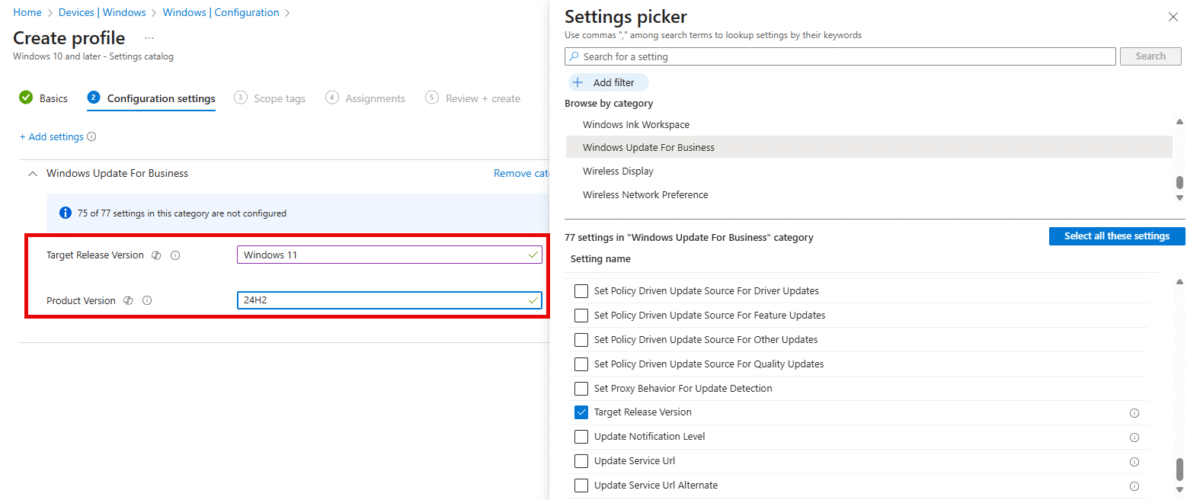
Newly enrolled devices will receive this configuration early in the enrollment flow and will pin themselves to Windows 11 24H2, so they do not pull 25H2 before your Feature Update policy is active. You can combine this with your existing Feature Update policy so that both the early lock and the long-term target are aligned.
Option 2: Registry
You can achieve the same result by writing the Windows Update policy keys in the registry. The values live under HKLM\SOFTWARE\Policies\Microsoft\Windows\WindowsUpdate: ProductVersion = Windows 11 (string), TargetReleaseVersion = 1 (DWORD), and TargetReleaseVersionInfo = 24H2 (string). Create a .reg file with those entries and deploy it via a Win32 app in Intune, a step in an Autopilot or imaging script, or Group Policy in a hybrid setup. The device will then honor the same target version as with the Settings catalog. Use this when you need the lock to apply from a script or image before or alongside Intune configuration.
Option 3: PowerShell
Running the same logic in PowerShell is useful for provisioning scripts, Intune PowerShell scripts, or Proactive Remediation. Ensure the registry path exists, then set the three properties (ProductVersion, TargetReleaseVersion, TargetReleaseVersionInfo). Run the script in 64-bit PowerShell on 64-bit Windows so you do not hit registry redirection (e.g. writing under Wow6432Node by mistake). In Intune, add the script under Devices → Windows → PowerShell scripts, run it in system context and in the 64-bit host, and assign it to the same device groups. The script can run during or right after enrollment so the lock is in place before the first Windows Update check.
$path = "HKLM:\SOFTWARE\Policies\Microsoft\Windows\WindowsUpdate"
if (-not (Test-Path $path)) { New-Item -Path $path -Force }
Set-ItemProperty -Path $path -Name "ProductVersion" -Value "Windows 11" -Type String -Force
Set-ItemProperty -Path $path -Name "TargetReleaseVersion" -Value 1 -Type DWord -Force
Set-ItemProperty -Path $path -Name "TargetReleaseVersionInfo" -Value "24H2" -Type String -Force
Verification and When to Change the Lock
On a target device, open PowerShell and run:
Get-ItemProperty -Path "HKLM:\SOFTWARE\Policies\Microsoft\Windows\WindowsUpdate" -ErrorAction SilentlyContinue |
    Select-Object ProductVersion, TargetReleaseVersion, TargetReleaseVersionInfo
You should see ProductVersion = Windows 11, TargetReleaseVersion = 1, and TargetReleaseVersionInfo = 24H2. When you are ready to move the fleet to a newer version (e.g. 25H2), update the Settings catalog profile (or your registry/PowerShell deployment) to the new target, test with a pilot group, then roll out. Give the version lock policy higher priority than other update policies so it is not overridden during onboarding.
Summary
To lock Windows 11 to 24H2 during onboarding with Microsoft Intune: apply a target version (Windows 11, 24H2) as early as possible so devices do not upgrade to 25H2 before Windows Update for Business is in control. The recommended method is a Settings catalog profile: search for Windows Update for Business, set Product Version to Windows 11 and Target Release Version to 24H2, and assign to all new or re-imaged devices. Alternatively, set the same values in the registry via a .reg file or a PowerShell script and deploy with Intune or your provisioning process. Verify with the registry check above; combine with your Feature Update policy for consistent control; and update the lock when you are ready to move to a newer Windows version.





