New Windows devices often ship with an older build and miss the latest quality (security) updates. Letting users sign in and use the device before those updates are applied can leave the device exposed until the next patch cycle. Microsoft added the option to install Windows quality updates during the out-of-box experience (OOBE), controlled by the Enrollment Status Page (ESP) in Microsoft Intune. When enabled, the device downloads and installs the latest Windows security updates before the user is considered “done” with setup. So the device is patched from first use. This adds roughly 20–40 minutes to provisioning and may trigger a restart (and a second sign-in). The setting is available in the ESP profile: Install Windows quality updates (might restart the device). New ESP profiles default to Yes; existing profiles default to No so current deployments are unchanged. Note: Microsoft has at times delayed or adjusted this capability; the configuration remains in Intune and is useful to understand and use when available.
Requirements and How It Fits In
Devices must run a supported version of Windows 11. The feature was introduced with the 2025-06 D updates (e.g. KB5060829, KB5060826). If the device does not have those updates (or later), a zero-day package (ZDP) is applied before the ESP is shown so the device can use the feature. The first security update that can be installed during OOBE in this flow is 2025-09 B. The behavior is controlled by the ESP profile assigned to the user or device. Existing ESP profiles have Install Windows quality updates (might restart the device) set to No by default so you do not change current flows by accident; new profiles default to Yes so new deployments can be secure-by-default.
How It Works with Update Rings
This feature honors your existing Windows Update for Business (WUfB) configuration. Update ring policies (deferrals, pauses, and so on) are synced to the device before the ESP phase that runs the update. The Windows Update scan then uses those policies, so you do not bypass deferrals or pauses. The last step in the ESP sequence is running the update scan and installing the applicable quality updates. If you use Windows Autopilot device preparation, that flow does not use the ESP; in that case, security updates during OOBE are handled by the device preparation process, and updates are still installed during setup.
Enabling the Setting in the Enrollment Status Page
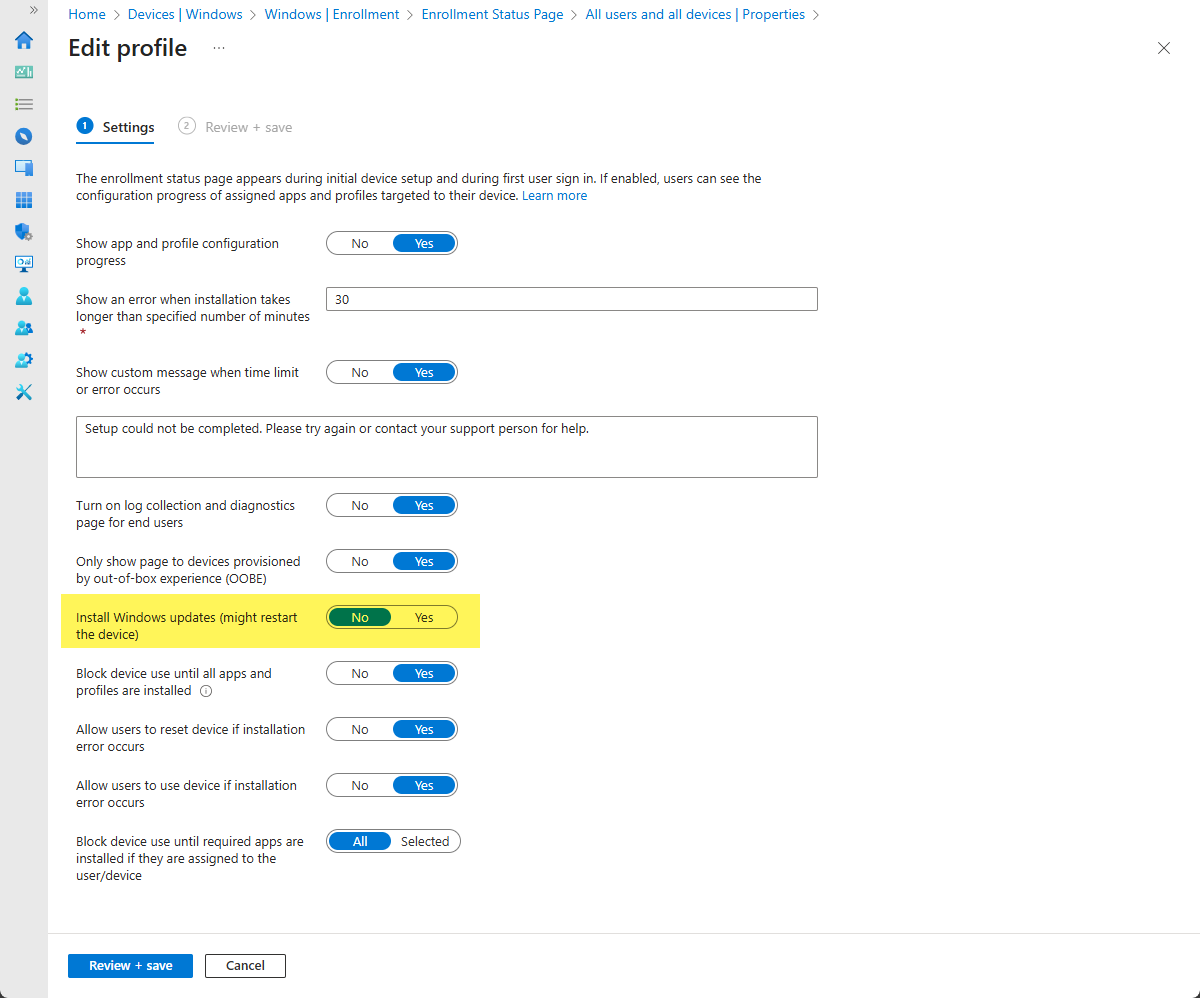
In the Microsoft Intune admin center, go to Devices → Windows → Enrollment → Enrollment Status Page. Open the profile you use for OOBE (e.g. the default “All users and all devices” profile or the one with the priority you use). Go to Properties and choose Edit next to the Settings section. On the Settings page, find Install Windows updates (might restart the device) and set it to Yes. Save the profile (e.g. via Review + save then Save). From then on, devices that hit this ESP during enrollment will install quality updates during OOBE before the user is shown as complete. For existing profiles you must change this from No to Yes; for new profiles it is already Yes by default.
The screenshot below shows the Enrollment Status Page settings with “Install Windows updates (might restart the device)” enabled.
What Users See
While the feature is enabled, the Enrollment Status Page stays on screen during setup. Windows Update runs, downloads and installs quality updates, and may restart the device. After a restart, the user may need to sign in again and the ESP may continue until updates are done. Total setup time typically increases by about 20–40 minutes. Tell users and help desk that first-time device setup can take longer when security updates are installed during OOBE.
When to Enable or Reconsider
Enable this when you want devices to be patched before first use and can accept the longer provisioning time and possible restart. Consider leaving it off (or using a separate ESP profile without it) when provisioning speed is critical, when devices will be updated immediately after enrollment by other means, or when the extra 20–40 minutes is not acceptable for your scenario. Pilot on a small set of devices and confirm timing and restart behavior before rolling out broadly.
Troubleshooting
If updates do not install during OOBE: confirm the device is on a supported Windows 11 version and has (or receives via ZDP) the 2025-06 D updates or later. If the ESP seems stuck: check network connectivity and access to Windows Update. The 20–40 minute delay is expected when updates are being applied. If the device restarts, users must sign in again. If the setting does not apply: confirm the correct ESP profile is assigned to the user or device and that the profile has Install Windows updates (might restart the device) set to Yes.
Summary
To install Windows security updates during the Windows out-of-box experience with Microsoft Intune: use the Enrollment Status Page profile. Under Devices → Windows → Enrollment → Enrollment Status Page, open the profile, edit Properties → Settings, and set Install Windows updates (might restart the device) to Yes. New ESP profiles default to Yes; existing ones default to No. The feature requires Windows 11 and the 2025-06 D updates (or a ZDP that delivers them before ESP). It respects your WUfB update ring configuration and adds roughly 20–40 minutes to provisioning; the device may restart and the user may need to sign in again. Use it when you want devices patched from first use and can accept the longer setup time.





