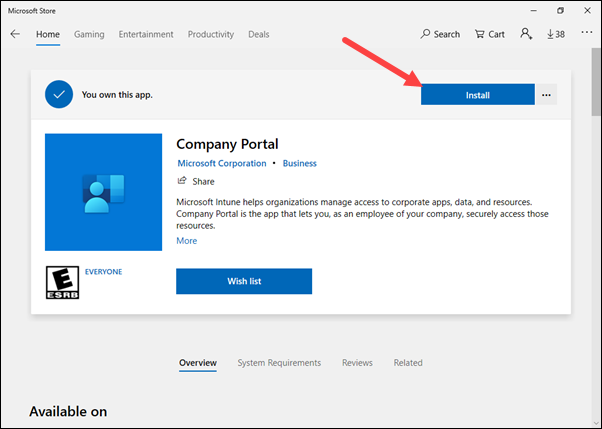
The Microsoft Intune Company Portal app on macOS is the “front door” for user-driven enrollment. It guides employees through signing in, installing the Intune management profile, and completing any required device checks so the Mac can receive policies, apps, and access to work resources. This guide covers the full process from download to verification.
What Company Portal Does on a Mac
After it’s installed, Company Portal becomes a self-service hub for work management. Users can:
- Sign in with a work or school account.
- Enroll the Mac by installing the Intune management profile.
- Install work apps assigned by the organization.
- Review device status and complete required setup steps (for example: FileVault encryption, passcode rules, or other compliance items).
Until enrollment is completed, the device can’t reliably receive Intune configuration profiles, compliance policies, or managed app assignments.
Before You Start (Prerequisites)
Make sure these basics are true before you begin:
- Your organization has Intune set up for macOS (including a valid Apple MDM Push certificate).
- You have a work/school account that’s licensed for Intune and allowed to enroll Macs.
- The Mac is running a supported macOS version for your tenant’s enrollment policies.
- You have local admin rights to install the app and approve installing the management profile.
Step 1: Download the Company Portal Installer
Download the Company Portal installer for Mac using Microsoft’s download redirect:
go.microsoft.com/fwlink/?linkid=853070
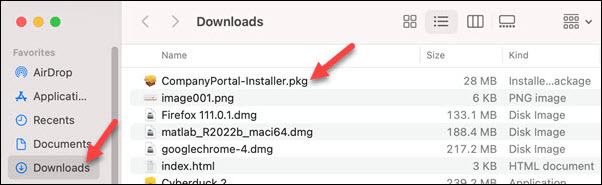
When the download completes, you’ll typically see a package file in your Downloads folder named something like CompanyPortal-installer.pkg.
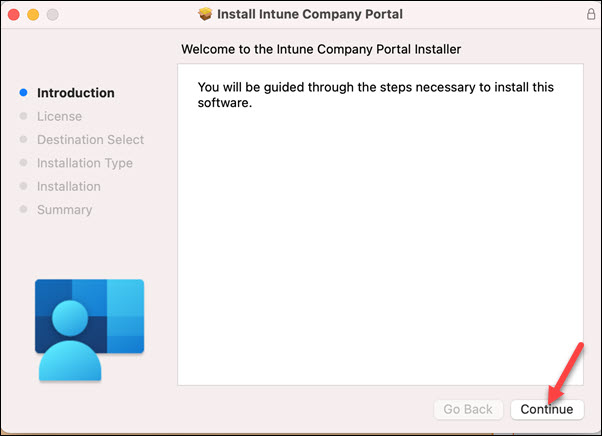
Step 2: Run the Installer
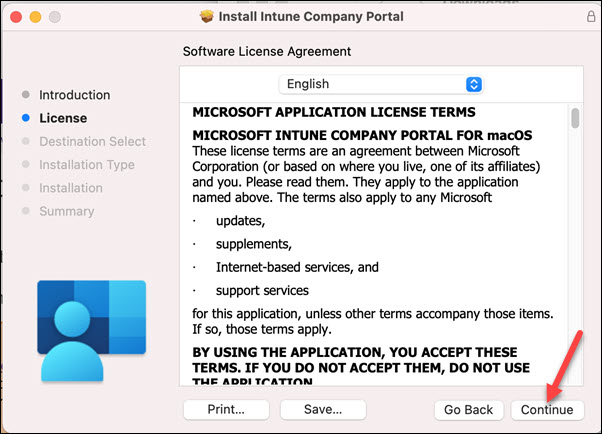
- Open the downloaded
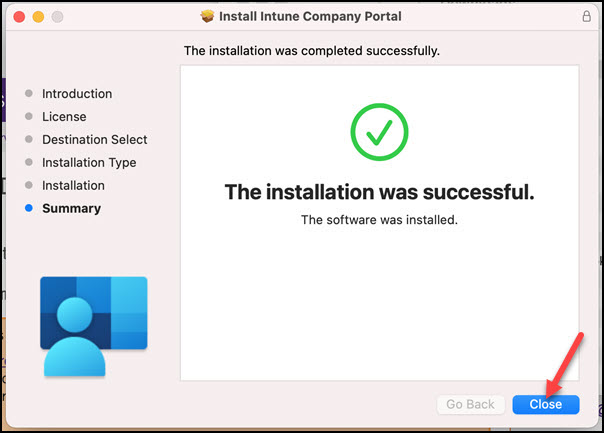
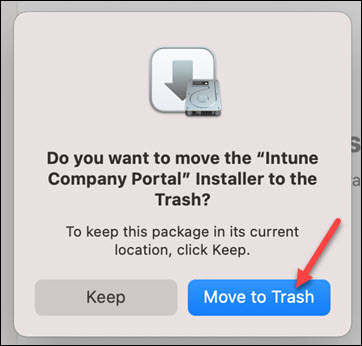
.pkgfile. - Follow the prompts: Continue → accept the license (if shown) → choose a destination → Install.
- When the installer finishes, open Company Portal from Applications (or with Spotlight).
Step 3: Sign In and Start Enrollment
- In Company Portal, sign in with your work or school account.
- When prompted to register the device with Intune, click Begin.
- Review the privacy information and click Continue.
At this stage, Company Portal is preparing the Mac for management and will guide you to the management profile step.
Step 4: Install the Intune Management Profile
This is the step that completes enrollment.
- On the Install management profile screen, click Download profile.
- macOS will open System Settings (or System Preferences) to the profile installation area.
- Select the downloaded management profile and click Install.
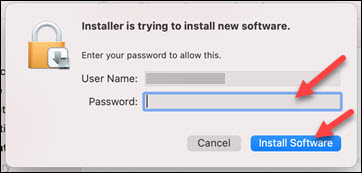
- Confirm the prompts and enter your Mac password when asked.
- Finish by clicking Enroll (or Install again, depending on the dialog).
Return to Company Portal and verify you see a green checkmark next to the management profile step.
Step 5: Complete Required Device Checks (If Prompted)
Many tenants enforce baseline requirements. If your organization requires device settings, you’ll see a “Checking device settings” section with items you must fix.
- Make the changes in System Settings as described.
- Go back to Company Portal and click Retry.
- Repeat until all checks pass, then click Done.
Confirm Enrollment
Use one (or both) of these checks:
- Company Portal: open Devices / My Devices and confirm your Mac appears.
- Intune admin center (admin verification): check Devices → All devices and confirm the device shows as enrolled and (after sync) compliant.
Common “Gotchas” to Avoid
- Wrong account: make sure you sign in with the work/school account that’s allowed to enroll.
- Missing admin rights: you need local permissions to install the app and approve the profile.
- Stopping at the profile step: downloading the profile isn’t enough—installing it is what finishes enrollment.
- Skipping compliance steps: if Company Portal lists required changes, policies and apps may not apply until the device meets requirements.
Summary
To install Microsoft Intune Company Portal on a Mac, download the installer, run the .pkg, sign in, and follow the prompts to download and install the Intune management profile in System Settings. After enrollment, complete any required device checks and confirm the Mac appears in Company Portal (and in the Intune admin center for admins).





