Microsoft Intune can deploy the full Microsoft 365 Apps suite (Word, Excel, PowerPoint, Outlook, and more) to Windows 10 and Windows 11 devices. You add the app as the “Microsoft 365 Apps” type, choose which apps and options to include, then assign the suite to users or devices. Project and Visio can be included if you have the right licenses. This walkthrough covers adding the suite, configuring it with the configuration designer or XML, and assigning it.
Things to Know First
- Target devices must run Windows 10/11 Creators Update or later. Deployment is not supported on Windows Home, Team, or Holographic.
- Intune deploys Office from the Microsoft 365 Apps suite only. Not the Microsoft Store (Centennial) version. Do not mix Store-installed Office with an Intune Microsoft 365 Apps deployment on the same device; it can cause data loss or corruption.
- If Office is open during install, the installation can fail and users may lose unsaved work. Ask users to close Office before the deployment runs.
- Only one Microsoft 365 Apps deployment is applied per device. A new required or available assignment overwrites the previous one (e.g. if the new suite omits Word, Word will be uninstalled). Visio and Project are handled separately.
- Choose 32-bit or 64-bit. You can install 32-bit on both 32-bit and 64-bit machines; 64-bit installs only on 64-bit devices.
- Remove MSI from end-user devices . If you enable this, Intune will remove existing Office MSI installations before installing Microsoft 365 Apps. The installation will not succeed if MSI Office is present and this option is not used. Removing MSI removes all Office MSI apps from the device, not only the apps you select in the suite.
Step 1: Add Microsoft 365 Apps
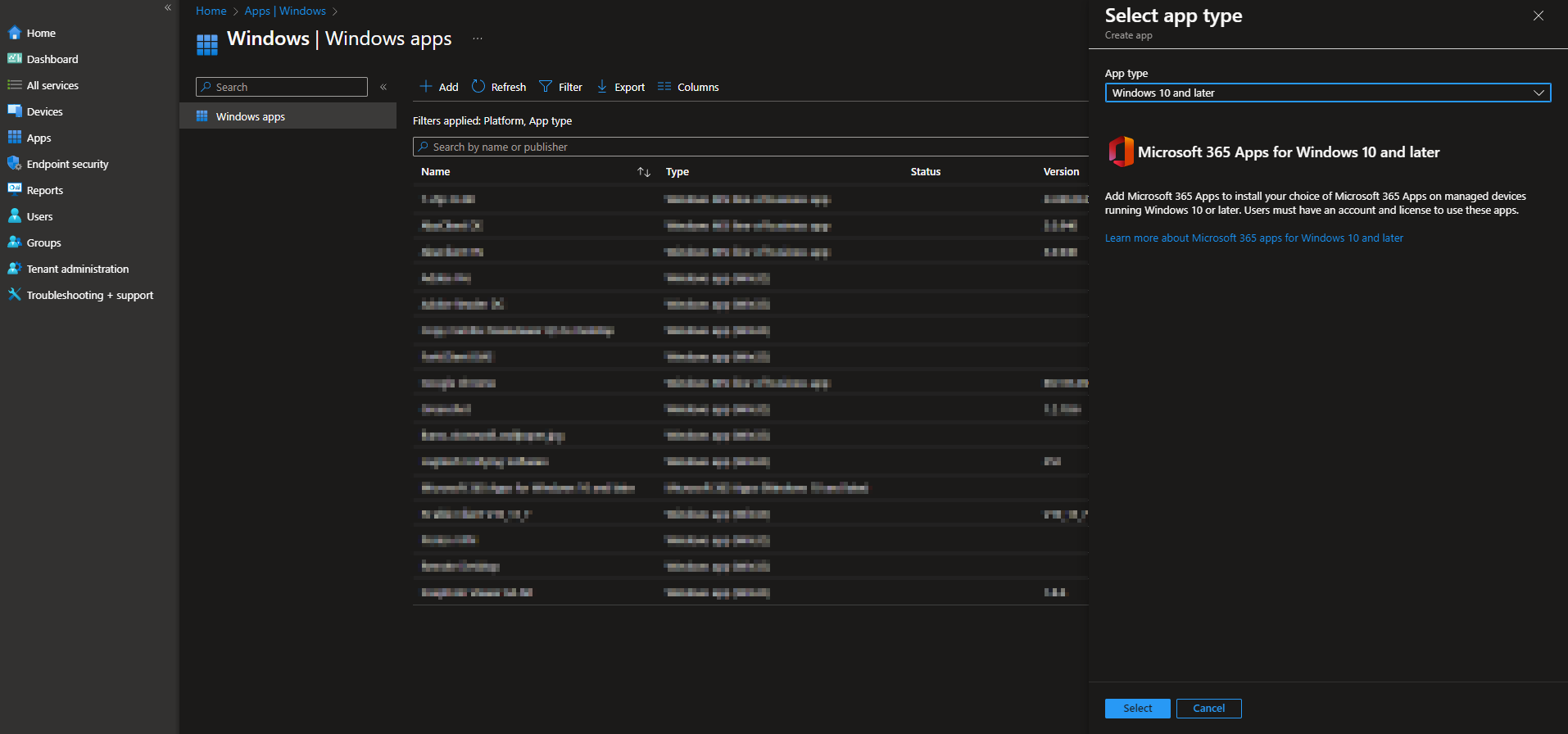
In the Microsoft Intune admin center, go to Apps → All apps → Add. In the Select app type pane, under Microsoft 365 Apps, choose Windows 10 and later. Click Select. The Add Microsoft 365 Apps wizard opens.
Step 2: App Suite Information
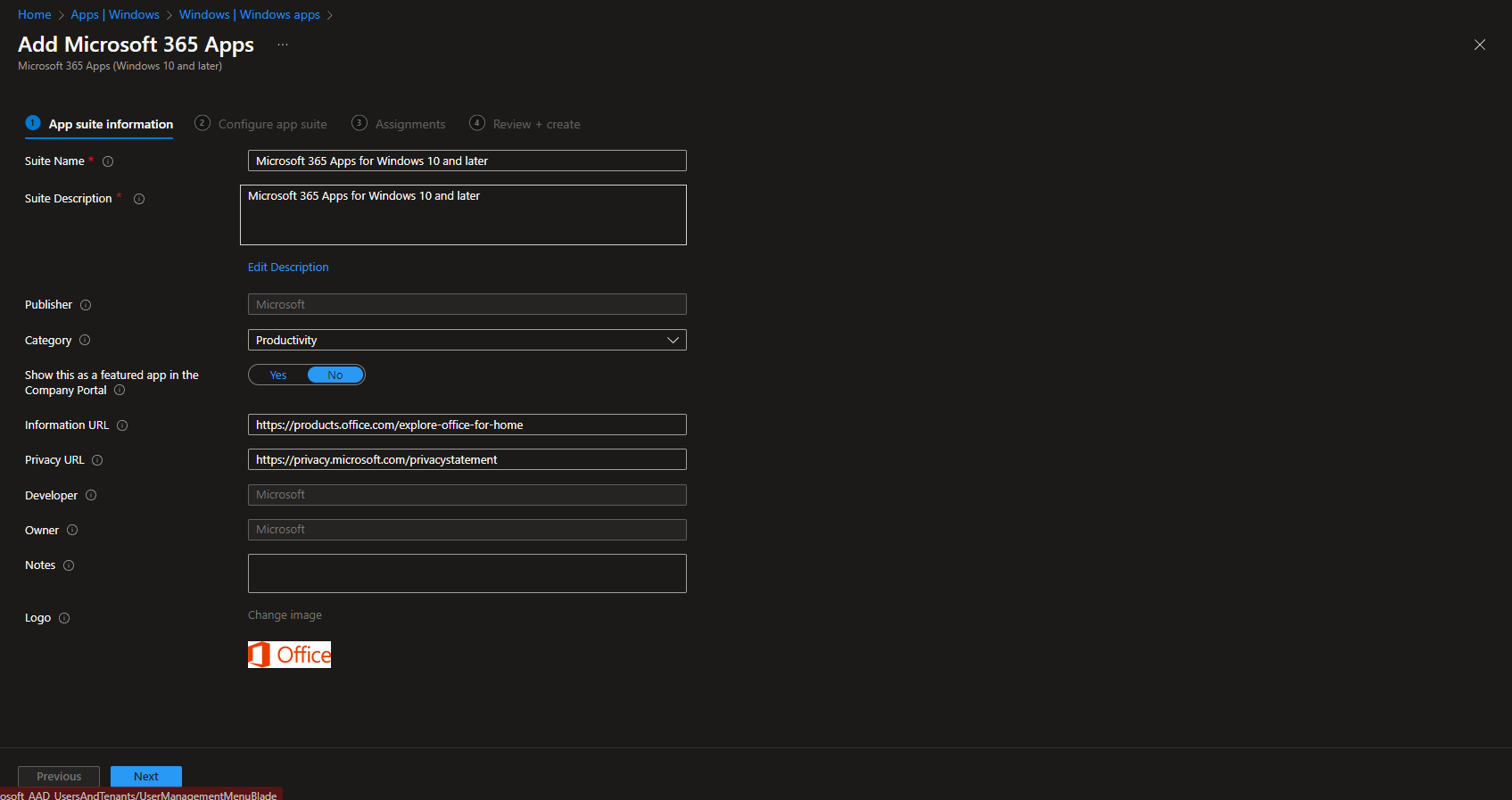
On the App suite information page, set how the suite appears in Intune and in the Company Portal:
- Suite Name . Name shown in the Company Portal. Use a unique name so it’s easy to identify.
- Suite Description . Optional description (e.g. which apps are included).
- Publisher . Microsoft (read-only).
- Category . Optional; helps users find the app when browsing.
- Show this as a featured app in the Company Portal . Optional; shows the suite prominently on the Company Portal home page.
- Information URL and Privacy URL . Optional links shown in the Company Portal.
- Notes . Internal notes for admins.
Click Next when done.
Step 3: Configure the App Suite
On the Configure app suite page you can use either the Configuration designer or Enter XML data.
Option A: Configuration designer
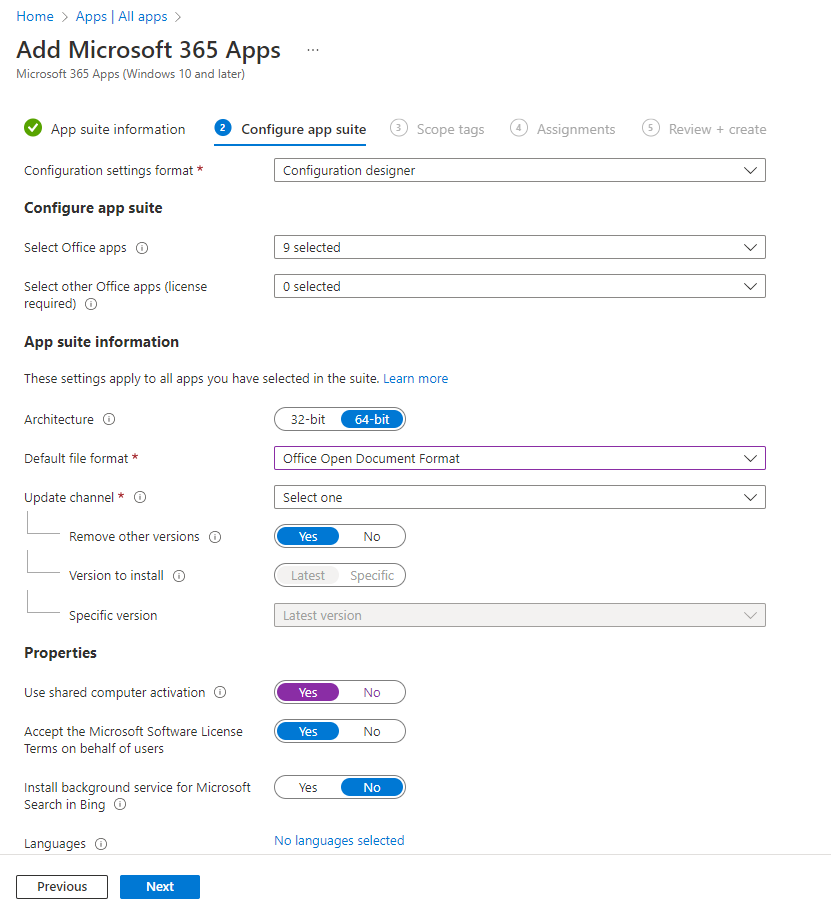
Select Configuration designer. Then configure:
- Select Office apps . Pick the standard apps (Word, Excel, PowerPoint, Outlook, etc.) to include.
- Select other Office apps (license required) . Add Project Online desktop client or Visio Online Plan 2 if you have licenses.
- Architecture . 32-Bit or 64-bit.
- Default file format . Open XML or Open Document Format.
- Update Channel . Monthly, Monthly (Targeted), Semi-Annual, or Semi-Annual (Targeted).
- Remove other versions . Yes to remove existing Office MSI before installing (recommended if devices have MSI Office).
- Version to install . Latest or a specific version; if specific, choose the version from the list.
- Use shared computer activation . Enable when multiple users share the same PC.
- Automatically accept the app end user license agreement . Optional; skips the EULA prompt for users.
- Languages . Office installs in the language(s) that match Windows by default. Add more language packs here if needed.
Option B: XML data
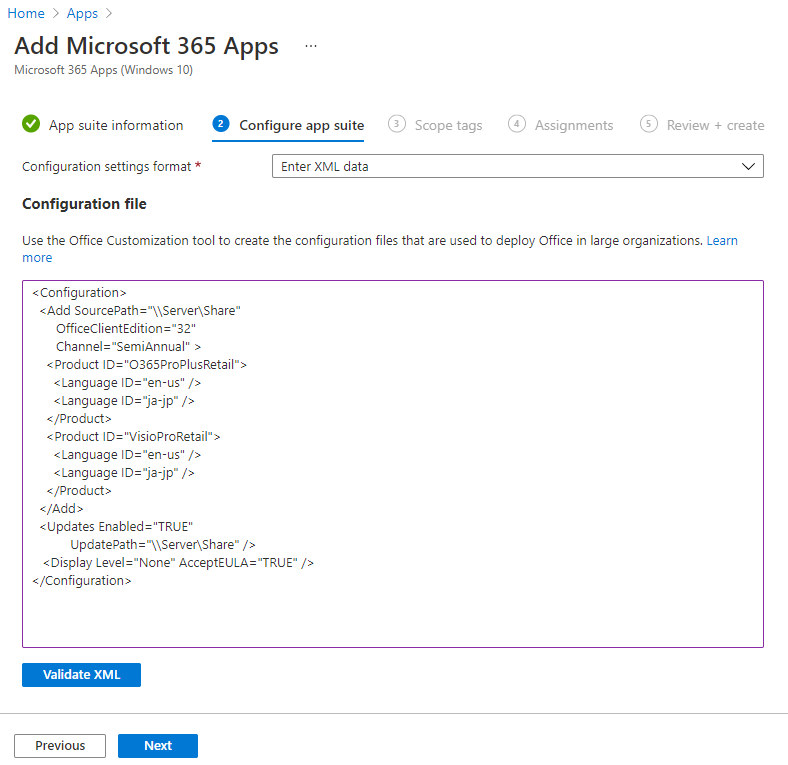
Select Enter XML data and paste your Office Deployment Tool (ODT) configuration XML. Use this when you need options not exposed in the designer or when reusing an existing config. The Product ID is typically O365ProPlusRetail (Microsoft 365 Apps for enterprise) or O365BusinessRetail (business edition). Only the business edition can be fully configured via XML in this flow. For XML reference, see Microsoft’s Configuration options for the Office Deployment Tool.
Click Next.
Step 4: Scope Tags (Optional)
Add Scope tags if your tenant uses them to control who sees this app in Intune. Click Next.
Step 5: Assignments
Choose Required, Available for enrolled devices, or Uninstall for the groups that should receive this suite. Required installs the suite automatically; Available lets users install it from the Company Portal. Click Next.
Step 6: Review + Create
Review all settings on the Review + create page. Click Create to add the app to Intune. The suite will appear in the app list and will sync to assigned devices according to your assignment and Intune sync schedule.
Wrap-up
You can install Microsoft 365 Apps on Windows 10/11 devices with Intune by adding the app type “Microsoft 365 Apps” (Windows 10 and later), filling in app suite information, configuring the suite with the configuration designer or XML, and assigning it to users or devices. Keep prerequisites in mind. Especially one deployment per device, no mixing with Store Office, and closing Office during install. To avoid failed installs or data issues.





