Organizations that use both Windows and Macs often want the same productivity suite everywhere. With Microsoft Intune you can deploy Microsoft 365 Apps (Office for Mac) to enrolled macOS devices the same way you manage other apps. No manual installs or user downloads. This guide walks through adding the Microsoft 365 apps app type in Intune, choosing which apps to include, and assigning it to your Mac users or devices.
What You Get
Microsoft 365 Apps for macOS in Intune is a built-in app type that installs the native Office apps (Word, Excel, PowerPoint, Outlook, OneNote, and others, depending on your selection) from the Microsoft 365 service. Installation is handled by Intune; devices receive the app after policy sync. You control which apps are in the suite and who gets them via group assignments.
Before You Start
Ensure your Macs are enrolled in Microsoft Intune (user or device enrollment). Users or devices need a valid Microsoft 365 (or Office 365) license that includes the apps you plan to deploy. You’ll also need permission in Intune to add and assign apps (e.g. Application Administrator or a custom role with app management).
Add Microsoft 365 Apps for macOS in Intune
In the Microsoft Intune admin center, go to Apps → macOS → Apps. Click Add → App type and choose Microsoft 365 apps (under the “Other” or “Microsoft 365” category, depending on the portal). Click Select.
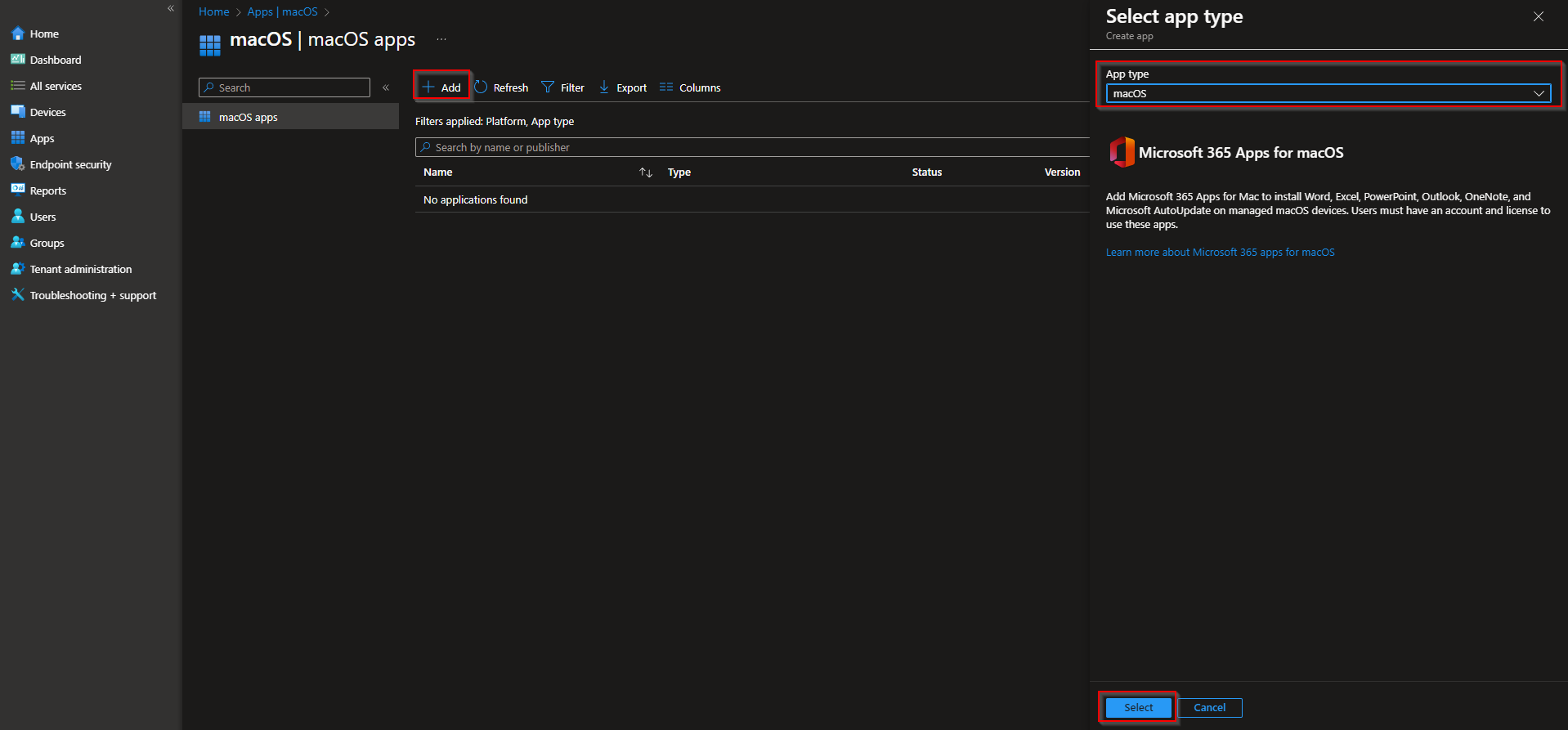
On the App suite information (or equivalent) step, set:
- Name . E.g. “Microsoft 365 Apps for Mac” or “Office for macOS.”
- Description . Optional; useful for other admins.
Then choose which apps to include in the suite (e.g. Word, Excel, PowerPoint, Outlook, OneNote, Teams). The exact list depends on the Microsoft 365 apps experience in your tenant. Leave out any apps you don’t want installed. Click Next.
Assign the App
On Assignments, add the groups that should receive Microsoft 365 Apps on their Macs. You can target user groups or device groups; typically user groups are used so the same user gets Office on every Mac they use. Set Required if you want the app installed automatically, or Available if users install it from the Company Portal. Click Next, complete any remaining steps (e.g. scope tags, review), then Create (or Add).

After the app is created, Intune will deploy it to assigned Macs according to your sync and assignment settings. Users may need to sign in to Office with their work account the first time they open an app. For update behavior and additional options, check the app properties in Intune and the Microsoft 365 Apps for Mac deployment documentation on Microsoft Learn.
Summary
To install Microsoft 365 Apps on macOS devices with Microsoft Intune: go to Apps → macOS → Apps, add an app of type Microsoft 365 apps, configure the app suite (name and which apps to include), then assign the app to the right user or device groups. Use Required for automatic install or Available for self-service from the Company Portal. Ensure Macs are enrolled and licensed for the apps you deploy.





