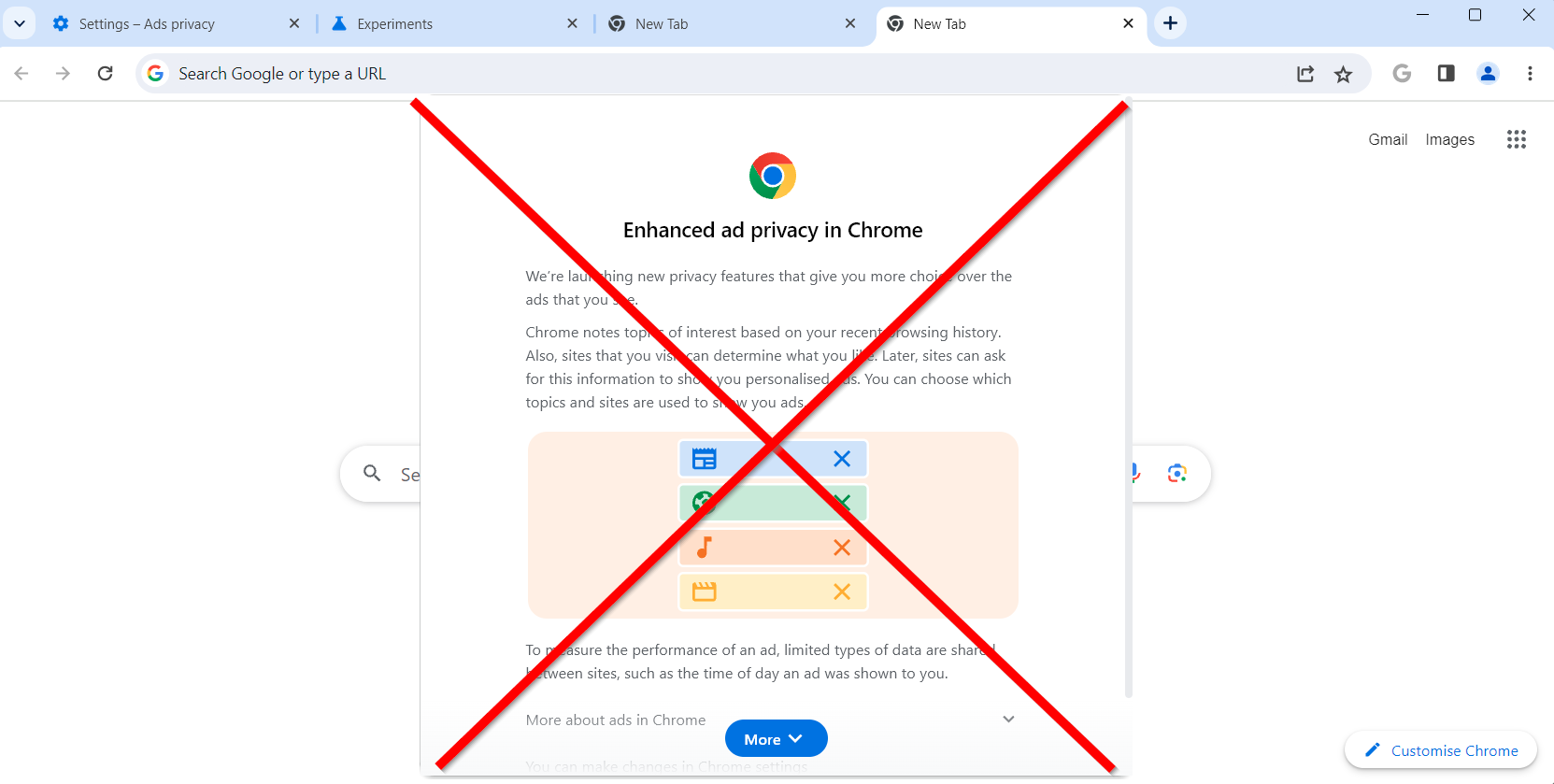
Google Chrome can show a prompt asking users to “Turn on an ad privacy feature” (Privacy Sandbox). In managed environments you may want to hide this so users are not prompted and browser behavior stays consistent. The setting is not in the Intune Settings catalog; you use imported Administrative templates (ADMX): download the Chrome policy templates, import Windows and Chrome ADMX into Intune, then create an Imported Administrative templates profile and set Choose whether the Privacy Sandbox prompt can be shown to your users to Disabled. This guide walks through the download, import, and policy steps.
What Is the Ad Privacy Prompt?
Chrome’s “Turn on an ad privacy feature” prompt invites users to enable Privacy Sandbox–related ad privacy controls. Letting users choose can lead to inconsistent settings, support questions, or choices that conflict with organizational policy. Hiding the prompt via policy keeps the experience consistent and under IT control.
Why Hide It?
Hiding the prompt helps with:
- Consistency . Same Chrome behavior across devices; no user-by-user ad privacy choices.
- Support . Fewer questions about the prompt and fewer misconfigured or conflicting settings.
- Policy . Browser configuration stays aligned with organizational privacy and compliance decisions.
Overview: Two Phases
You will (1) download the Chrome policy templates and import Windows, Google, and Chrome ADMX/ADML into Intune (Windows first, then Google, then Chrome), and (2) create an Imported Administrative templates profile, find Choose whether the Privacy Sandbox prompt can be shown to your users, set it to Disabled, then assign the profile. Skip the import steps if you already have these templates in your tenant.
Phase 1: Download and Import ADMX Templates
The Privacy Sandbox prompt setting is exposed via Chrome ADMX. Download the Chrome policy templates (Chrome Browser policy templates) from Google. You will import three sets: Windows (from the device), then Google, then Chrome.
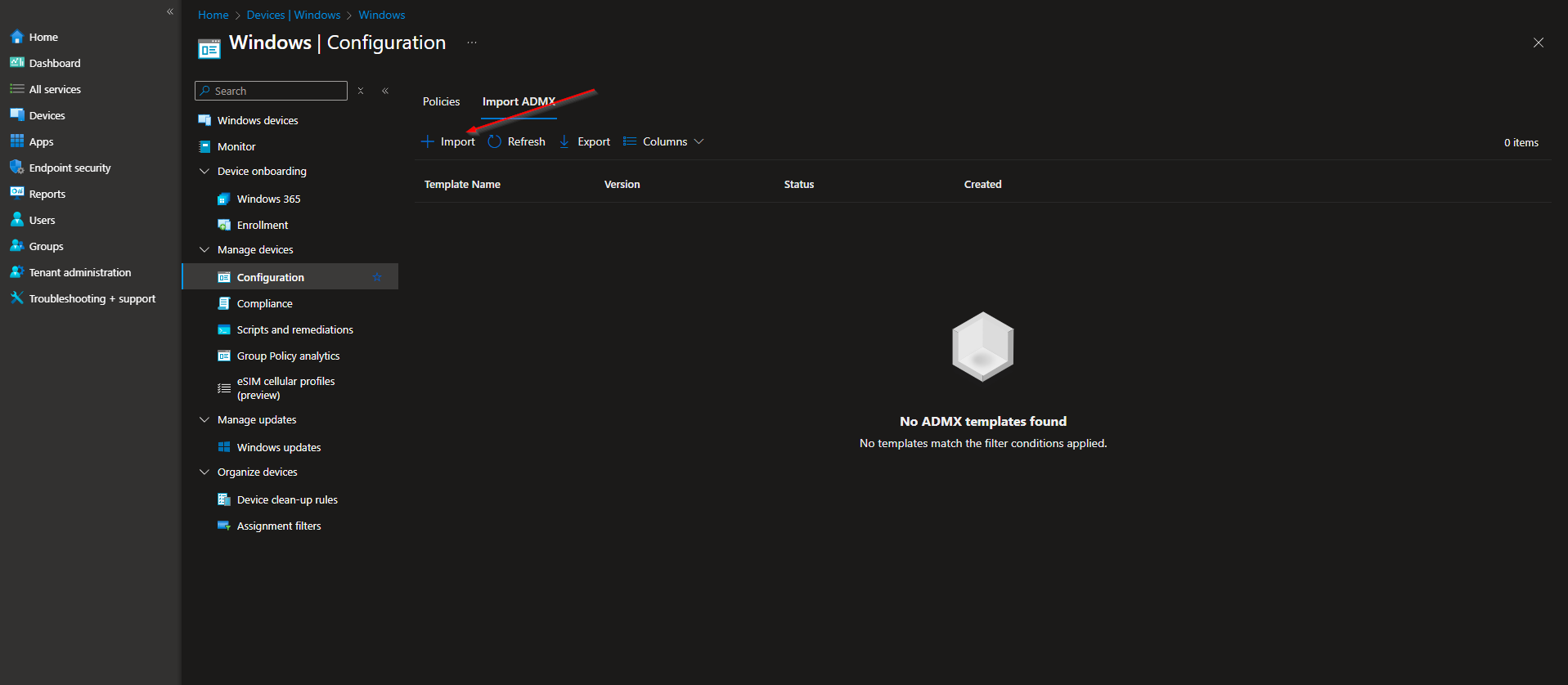
In the Microsoft Intune admin center, go to Devices → Windows → Configuration profiles. Click Import ADMX, then Import. Import Windows first (Chrome templates can depend on it); otherwise the Chrome import may fail.
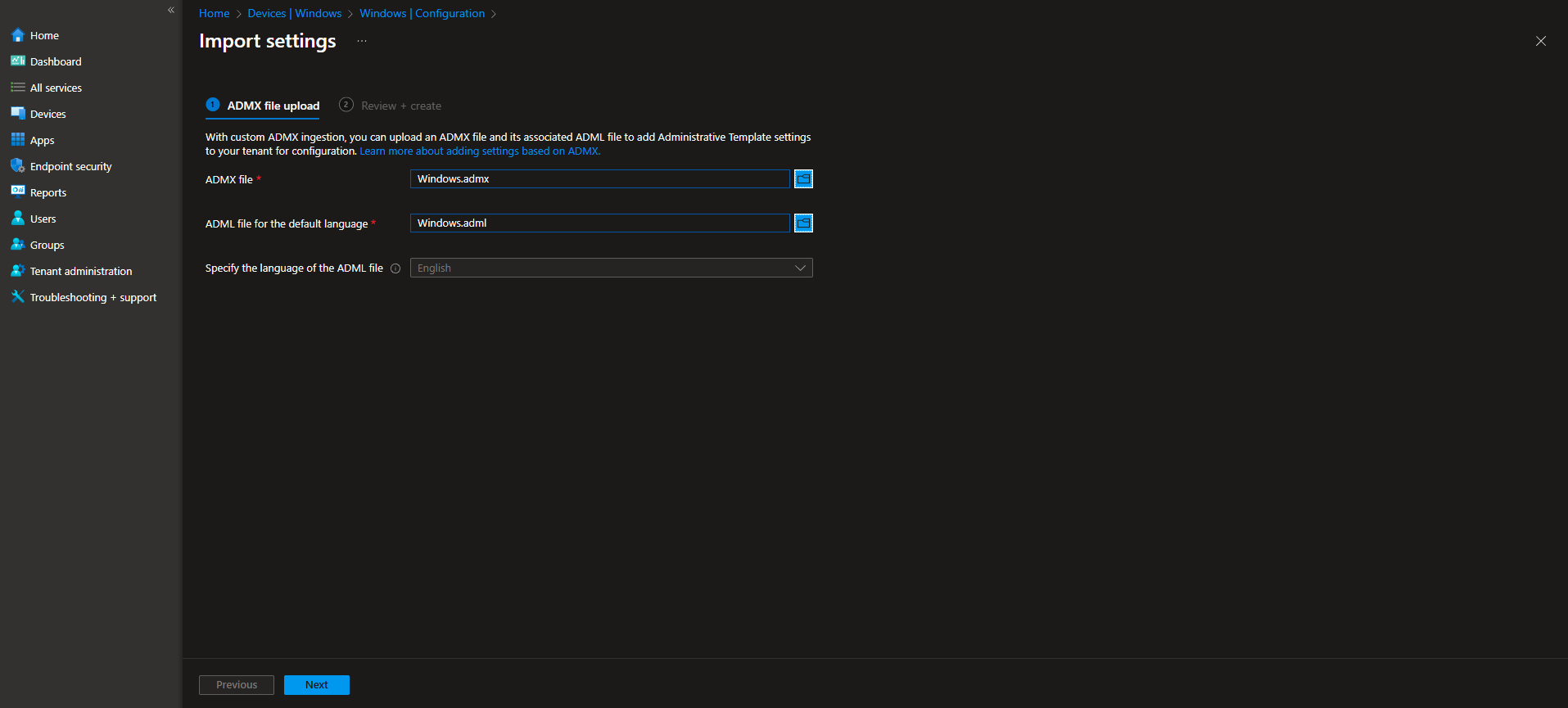
Windows: Upload windows.admx from C:\Windows\PolicyDefinitions\windows.admx and windows.adml from C:\Windows\PolicyDefinitions\en-US\windows.adml (or your language folder). Click Next and Import.
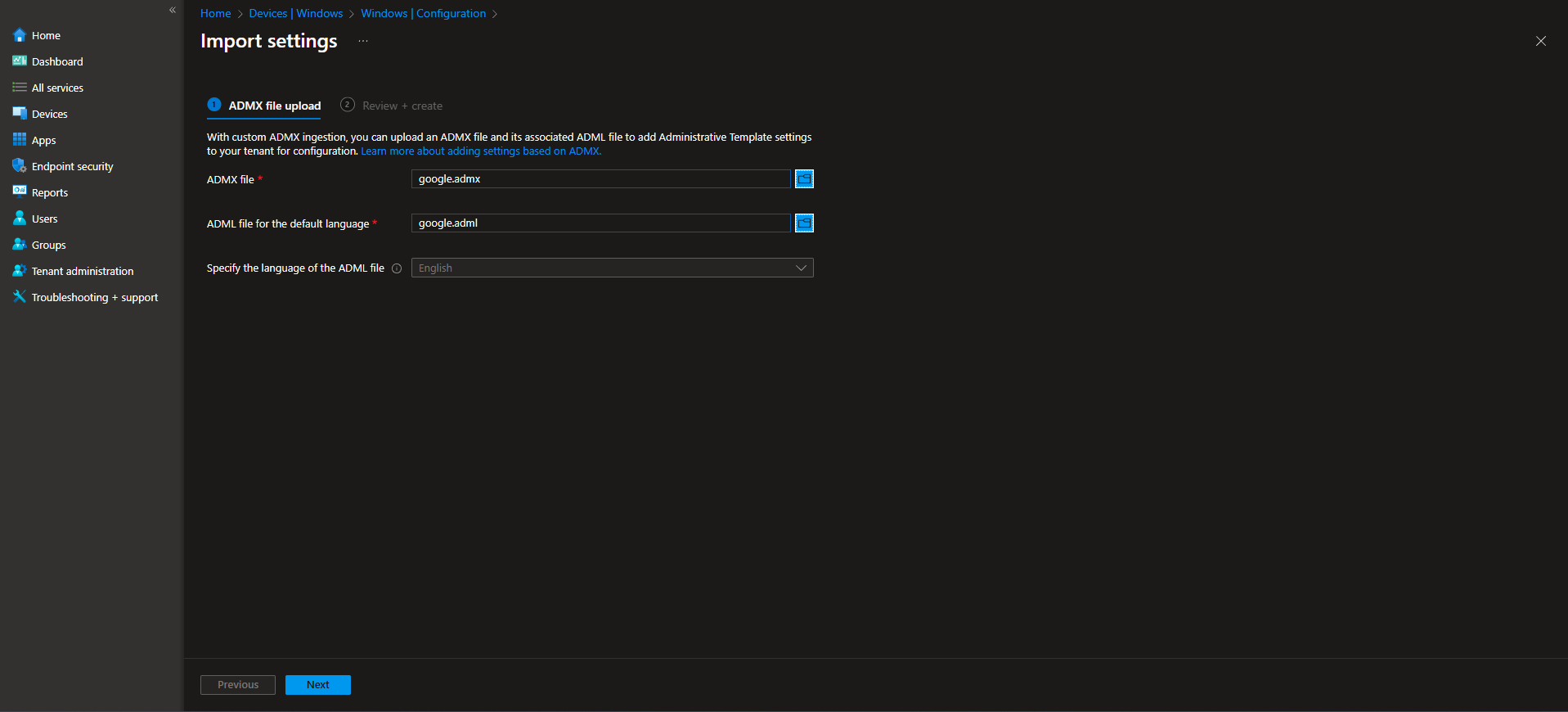
Google: From the downloaded Chrome policy ZIP, upload google.admx from policy_templates\windows\admx\google.admx and google.adml from policy_templates\windows\admx\en-US\google.adml. Click Next and Import.
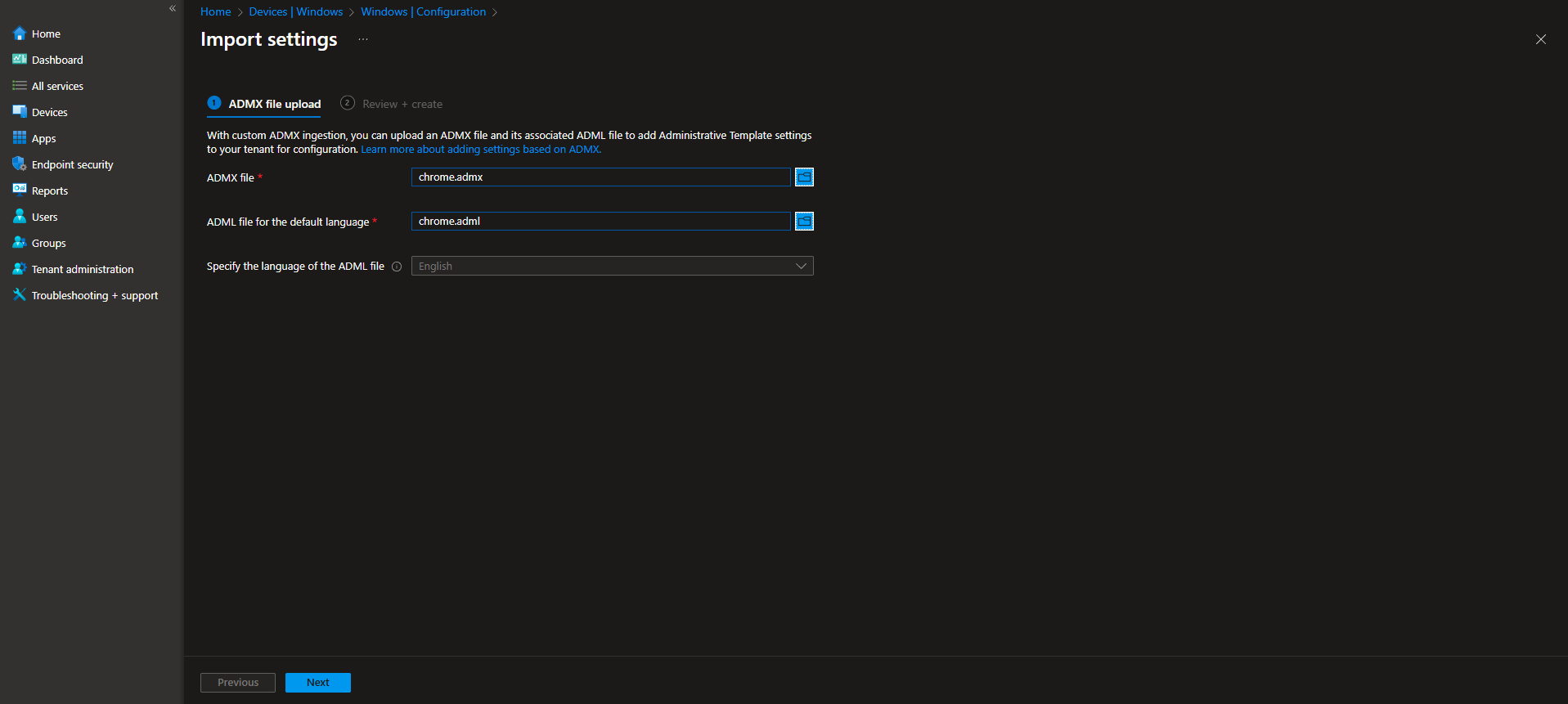
Chrome: Upload chrome.admx from policy_templates\windows\admx\chrome.admx and chrome.adml from policy_templates\windows\admx\en-US\chrome.adml. Click Next and Import.
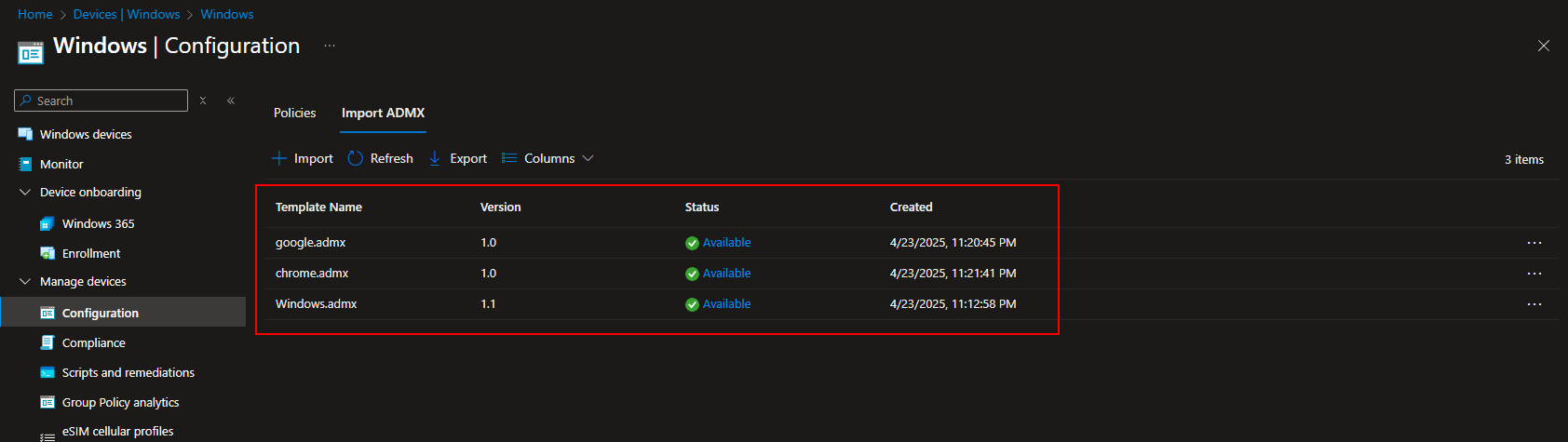
Phase 2: Create the Policy and Disable the Prompt
Go to Devices → Windows → Configuration profiles. Click Create → New policy. Set Platform to Windows 10 and later, Profile type to Templates, and choose Imported Administrative templates. Click Create.
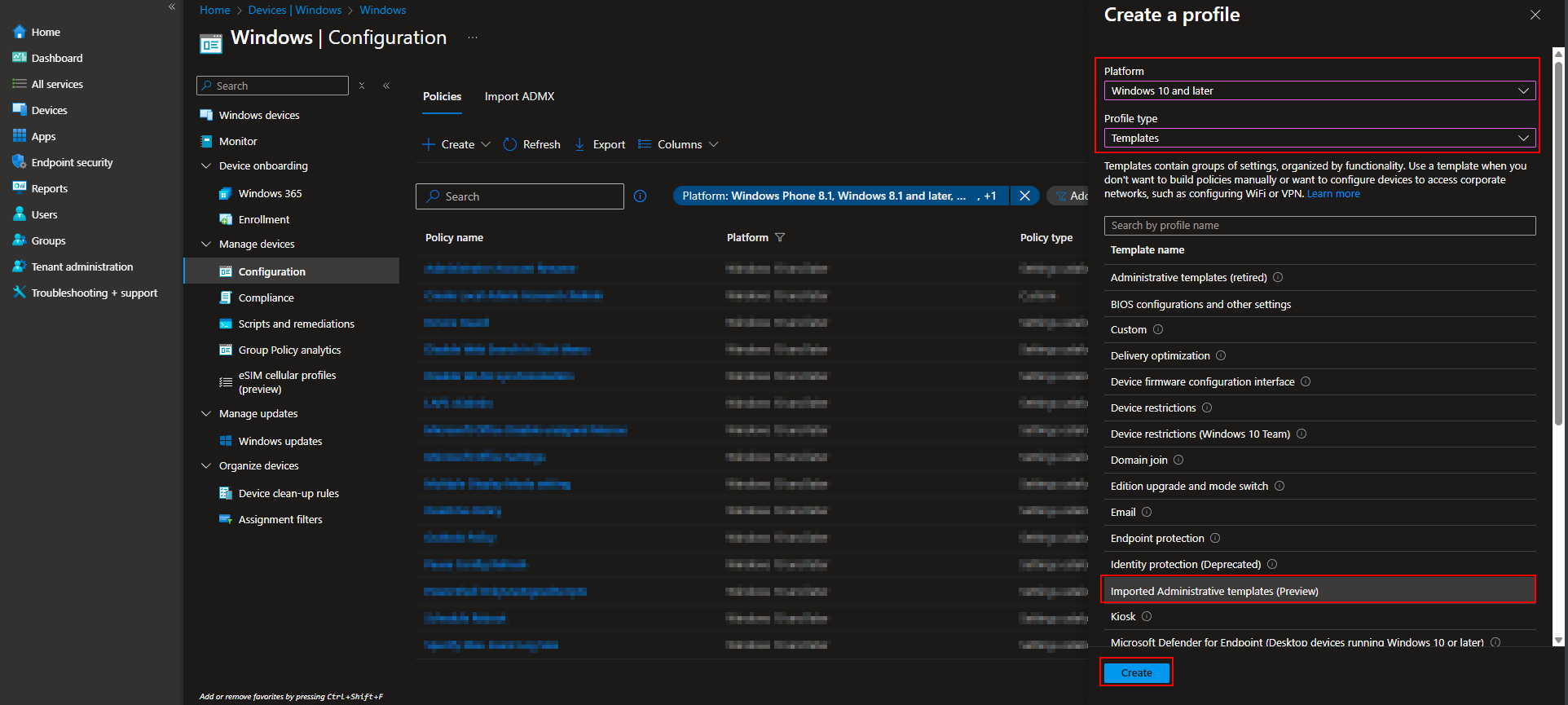
On Basics, enter a Name (e.g. “Chrome – Hide ad privacy prompt”) and optionally a Description. Click Next.
On Configuration settings, click All Settings and search for Privacy Sandbox prompt or Choose whether the Privacy Sandbox prompt can be shown to your users. Open the policy. You can target it at User or Device; choose the scope that fits your assignment (e.g. Device). Set the policy to Disabled so the prompt is not shown. Click Next.
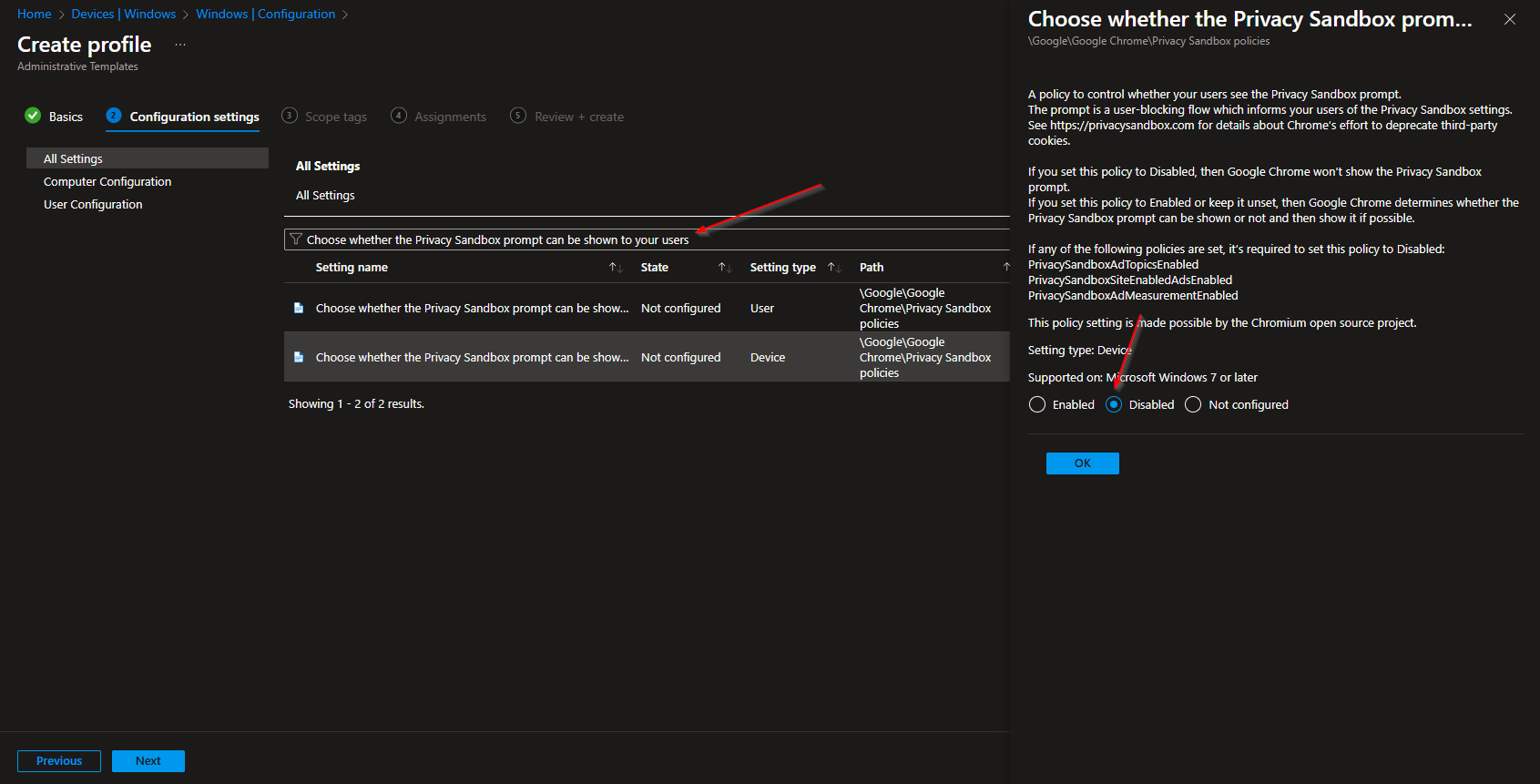
Set scope tags if needed, then on Assignments add the groups (or All Users / All Devices) that should receive this policy. Click Next, then Review + create, and Create.
After the profile syncs to targeted devices, Chrome will no longer show the “Turn on an ad privacy feature” prompt to those users.
Wrap-up
You can hide “Turn on an ad privacy feature” in Chrome with Microsoft Intune by downloading the Chrome policy templates, importing Windows, Google, and Chrome ADMX/ADML into Intune (in that order), then creating an Imported Administrative templates profile that sets Choose whether the Privacy Sandbox prompt can be shown to your users to Disabled. Assign the profile to the users or devices where you want the prompt suppressed. This keeps Chrome behavior consistent and avoids user-facing ad privacy prompts in managed environments.





