Preparing for the end of support of Windows 10 and moving devices to Windows 11 often runs into one issue: low disk space. Devices with small SSDs (e.g. 128 GB) or full user profiles can meet the Windows 11 hardware requirements but still fail during the feature update. Windows Update may download the upgrade and then fail during unpacking or staging because there is not enough free space. To reduce those failures, you can use Intune Proactive Remediation to detect when free space on the system drive is below a threshold and when the user can reclaim a meaningful amount from Recycle Bin and Downloads. The remediation then shows a clear notification with options to open those folders or run an automatic cleanup. This post describes why free space matters, how the detection and remediation scripts work, how to deploy them in Intune, and how to tune thresholds and scheduling. A ready-to-use example is available in the Intune FreeDiskSpace Remediation repository; you can use it as-is or adapt it.
Why Free Space Matters for Windows 11 Upgrades
Windows 11 specifies a minimum of 64 GB storage, but in practice the upgrade process needs a comfortable buffer. Many deployments run into trouble when free space is below roughly 25–30 GB: the download may succeed but unpacking or applying the update fails. Detecting low space early and guiding users to free some (e.g. from Recycle Bin and Downloads) reduces failed upgrades and support calls. Proactive Remediation runs in user context so the notification appears for the signed-in user and cleanup actions (empty Recycle Bin, clear Downloads if they choose) do not require admin rights.
What the Remediation Does
The solution has two parts. The detection script checks free space on drive C. If it is below a set minimum (e.g. 30 GB), the script then measures the combined size of the user’s Downloads folder and Recycle Bin. If that combined size is at least a second threshold (e.g. 500 MB), the script exits with code 1 so Intune runs the remediation. That way you only prompt users when there is enough reclaimable space to be worth it. The remediation script shows a notification (toast or dialog) that explains that more space is needed for the Windows 11 upgrade and offers buttons to open Downloads, open Recycle Bin, or run an automatic cleanup (empty Recycle Bin and optionally clean Downloads). The message can remind users that files in Downloads are not backed up and they should move anything important before cleaning. Users stay in control while you reduce upgrade failures.
How the Detection Script Works
The detection script reads free space on C (e.g. with Get-PSDrive -Name C). If free space is at or above the minimum (e.g. 30 GB), it exits 0 (no remediation). If free space is below that, it computes the total size of files in %USERPROFILE%\Downloads (recursively) and the total size of items in the Recycle Bin (e.g. via the Shell.Application COM object). It adds those two values. If the sum is below the reclaim threshold (e.g. 500 MB), it exits 0 so you do not show the notification when cleanup would not help much. If the sum is at or above the threshold, it exits 1 to trigger remediation. You can change the minimum free space (e.g. 25 or 30 GB) and the minimum reclaim size (e.g. 500 MB) to match your environment.
$MinGBFree    = 30
$MinReclaimMB = 500
$freeBytes = (Get-PSDrive -Name C -ErrorAction SilentlyContinue).Free
if ($freeBytes -ge ($MinGBFree * 1GB)) { Write-Output "OK. Free space above $MinGBFree GB."; exit 0 }
# ... measure Downloads + Recycle Bin ...
if ($combinedBytes -ge ($MinReclaimMB * 1MB)) { Write-Output "Low space. Trigger remediation."; exit 1 }
Write-Output "No remediation needed."; exit 0
How the Remediation Presents Options
The remediation script displays a notification (e.g. Windows toast or a small GUI) with a title such as “More space needed for the Windows 11 upgrade” and a short message. It can offer: Open Downloads (opens the user’s Downloads folder), Open Recycle Bin (opens Recycle Bin), and Clean up now (empties Recycle Bin and optionally deletes contents of Downloads or moves them). The script can optionally show a hero image at the top of the notification; if you use one, keep it small (e.g. under 10 KB, or 728×360 px) and embed it as Base64 in the script or write it to a temp file so the toast can display it. If you do not need an image, omit that part or set a placeholder to skip it.
Deploy in Intune
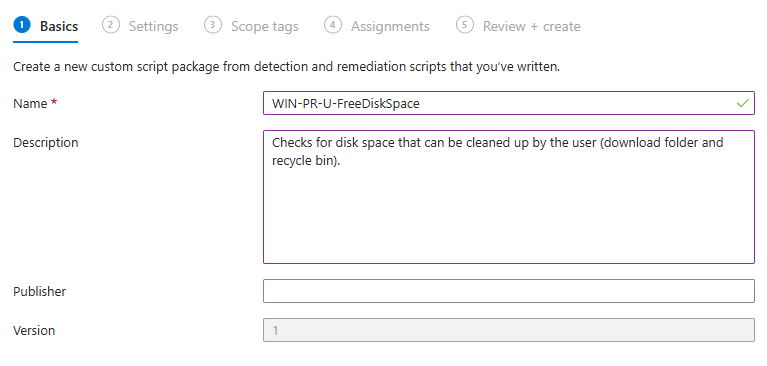
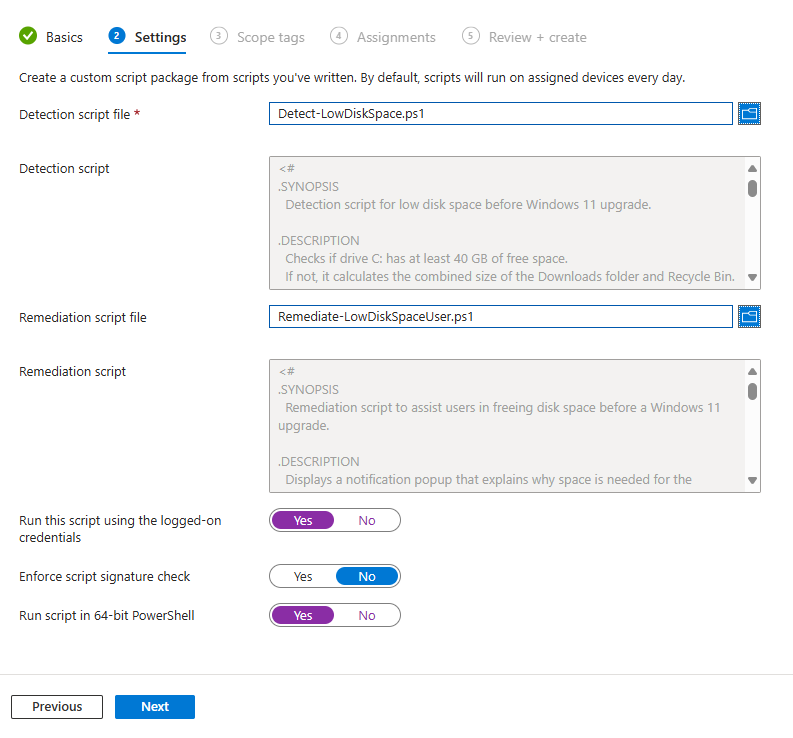
In the Microsoft Intune admin center, go to Devices → Scripts and remediations → Remediations (or Proactive remediations under Reports → Endpoint analytics, depending on your tenant). Click Create. Upload the detection script and the remediation script. Set Run this script using the logged-on credentials to Yes so the notification runs in the user’s context and can open their Downloads and Recycle Bin. Set Run script in 64-bit PowerShell Host to Yes. Leave Enforce script signature check as No unless you sign scripts. Add scope tags if you use them.
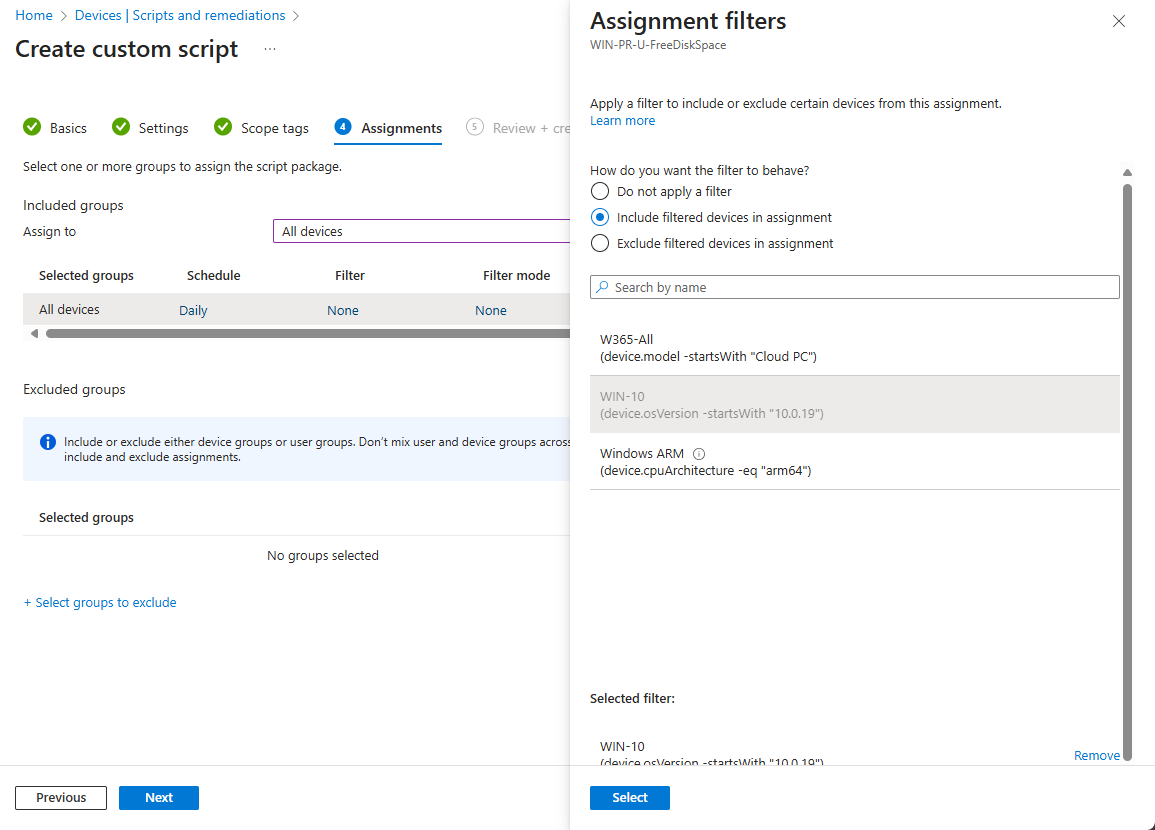
Under Assignments, target a pilot group first, then add the broader set of Windows 10 devices you are upgrading (you can use a filter such as device.osVersion -startsWith "10.0.19" if you only want Windows 10). Set the schedule to run every few days (e.g. every 3–7 days) during normal operations; you can tighten it to daily or every few hours during your upgrade wave. Once a user cleans up and free space is above the threshold, detection will pass and the notification will not show again until space is low again.
Monitoring and Tuning
In the Remediations view, check Device status (or the equivalent report) to see how many devices triggered detection and how many completed remediation successfully. Use Pre-remediation detection outputs to see which devices reported low space and how much reclaimable space they had. Use Post-remediation detection outputs to confirm that after cleanup, free space passed the threshold. Adjust the 30 GB and 500 MB values if too many or too few devices are triggered, and adjust the schedule based on how aggressively you are rolling out Windows 11.
Suggested Practices
- Pilot the remediation on a small group before assigning it to all Windows 10 devices.
- Tell users in advance that they may see a message about freeing space for the Windows 11 upgrade and that they can open Downloads or Recycle Bin to clean up themselves.
- Consider additional cleanup (e.g. temp files, old profiles) with separate scripts or policies if you still see space-related failures.
- During the main upgrade window, run the remediation more frequently (e.g. daily or every 4–6 hours) so devices get the prompt before the next update attempt.
Summary
To free up space for Windows 11 upgrades with Intune Remediation: use a detection script that checks free space on C (e.g. below 30 GB) and the combined size of Downloads and Recycle Bin (e.g. at least 500 MB), and exits 1 when both conditions are true. Use a remediation script that shows a notification with options to open Downloads, open Recycle Bin, or run an automatic cleanup, and remind users that Downloads are not backed up. Create a Proactive Remediation in Intune under Devices → Scripts and remediations → Remediations, upload both scripts, run with logged-on user credentials and 64-bit PowerShell, assign to your Windows 10 upgrade groups, and set a schedule (e.g. every 3–7 days, or more often during the upgrade wave). This reduces Windows 11 upgrade failures due to low disk space while keeping users in control of what gets deleted.





