When Microsoft ships an out-of-band security update outside Patch Tuesday. For a zero-day or critical vulnerability. You often need it on devices right away. Normal update rings and deferral periods are built for steady, phased rollout, not emergency patching.
Microsoft Intune can push that patch quickly using Expedited Quality Updates. An expedited update is treated as high priority: it overrides usual update ring and deferral behavior so targeted devices get the patch as soon as possible. This post walks through creating an expedited update profile, choosing the target build, setting a restart deadline, and checking deployment.
What Expedited Quality Updates Do
Expedited Quality Updates is a feature in Intune for urgent Windows quality (security/cumulative) updates. When you create an expedited update profile and assign it to devices:
- Intune treats the update as high priority and pushes it ahead of normal update ring schedules.
- Deferral and phased rollout from your update rings don’t block the expedited update.
- Devices receive and install the update until they reach the version you specify; once they’re on that version, the expedited profile no longer applies.
Use it only when the risk of waiting outweighs the benefit of your usual pilot and phased rollout.
When to Use Expedited Updates
Reserve expedited updates for real emergencies, for example:
- Microsoft has released an out-of-band update for an active or critical vulnerability.
- Your normal update timeline would leave devices exposed too long.
- Security or compliance requires the patch to be applied as soon as possible.
Expedited updates skip pilot and phased rollout, so any bad interaction with the update will hit all targeted devices. Use them when the security need clearly justifies that trade-off.
User Impact and Restart Deadlines
Expedited updates are not silent: users get update and restart notifications. How soon they must restart depends on the Number of days to wait before restart in the profile:
- 0 days . Restart is requested as soon as the update is installed. Fastest protection, most disruptive.
- 1 day . Users have about 24 hours before a restart is required. Balances urgency and productivity.
Tell users in advance that a critical update is being deployed and that they may be prompted to restart. Set the restart deadline to match how urgent the patch is.
Create an Expedited Update Profile
In the Microsoft Intune admin center, go to Devices → Windows 10 and later updates → Quality updates. Click Create profile (or + Create profile).
Creating an expedited quality update profile in Intune.
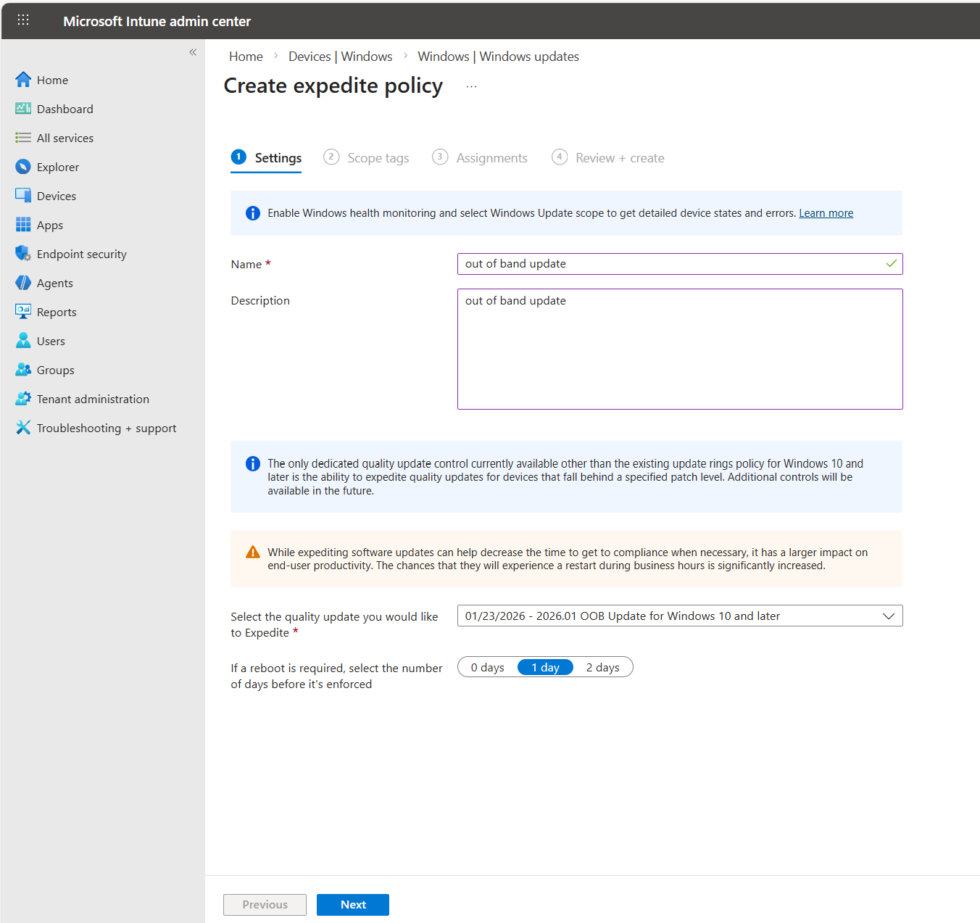
Profile Name
Give the profile a clear name, e.g. “EXPEDITED: Security update [date]”, “URGENT: Out-of-band patch [KB]”, or “Emergency: [vulnerability name]”. That helps other admins understand what it’s for.
Expedite Installation Target
Set Expedite installation if device OS version is less than to the Windows build or version that includes the out-of-band update. The dropdown is filled by Microsoft with available targets. Pick the exact version that corresponds to the security update you’re pushing. Devices below that version will get the expedited update; once they reach it, the expedited profile no longer applies.
Restart Deadline
Set Number of days to wait before restart to 0 (restart as soon as possible) or 1 (about 24 hours). Choose based on how critical the patch is and how much notice users have.
Assign and Create
Assign the profile to the device or user groups that should receive the expedited update. If you have a little time, assign to a small canary group first, confirm the update and restart behavior, then add the rest. Click through to Review + create, confirm the target version and restart deadline, then click Create.
Check Deployment Status
Use the dedicated report for expedited updates: Reports → Windows Updates → Windows Expedited Update Report. It shows how many devices received the update, installation success, and devices that may need attention. Standard update reports may not reflect expedited status immediately.
Tips
- Use expedited updates only when the security risk justifies skipping normal pilot and phased rollout.
- Notify users before deployment that a critical update is coming and they may be prompted to restart.
- If possible, target a small group first, then expand once you’re satisfied.
- Document why you used an expedited update (e.g. CVE, advisory) for compliance and future reference.
- Remove or stop assigning expedited profiles once devices are on the target version so they don’t linger unnecessarily.
Wrap-Up
For out-of-band security updates that can’t wait for your normal update rings, use Expedited Quality Updates in Microsoft Intune. Create a profile under Devices → Windows 10 and later updates → Quality updates, set the expedite target to the build that includes the patch, choose a restart deadline (0 or 1 day), assign to your groups, and create. Monitor the Windows Expedited Update Report to confirm deployment. Use this feature sparingly and only when the urgency clearly outweighs the loss of your usual rollout safeguards.





