OneDrive syncs files from known folders (Desktop, Documents, Pictures, etc.) to the cloud so they are available on other devices. Some file types or names are better left out of sync: for example desktop shortcuts (e.g. *.lnk) often cause duplicate or broken shortcuts when synced across PCs, and excluding them is a common request. Organizational branding in Microsoft Edge that depends on OneDrive desktop sync also works better when you can exclude specific items from upload. You can define these exclusions in Microsoft Intune using the Settings catalog and the OneDrive policy Exclude specific kinds of files from being uploaded (backed by EnableODIgnoreListFromGPO in OneDrive ADMX). This post explains why to exclude certain files, how to configure the setting in Intune, and how to use patterns (e.g. *.lnk) or exact names. You can also use Block syncing of specific file types in the SharePoint admin center, but the Intune approach gives more flexibility and device-level control.
Why Exclude Files from OneDrive Sync
Common reasons to exclude specific files from OneDrive uploads:
- Shortcuts. Syncing
.lnkfiles can create duplicates or shortcuts that point to apps that are not installed on another device. - Organizational branding. Edge branding that relies on OneDrive desktop sync may require excluding certain files so the “exclude” feature is not disabled.
- Large or temporary files. Installers, temp files, or caches that do not need to be in the cloud.
- Application-specific files. Logs, caches, or local databases that should stay on the device.
- Security or policy. Keeping sensitive or local-only files out of OneDrive.
Excluded files remain on the device and are not uploaded; they do not sync to other devices, which is often what you want for shortcuts and similar items.
Configuring the Exclusion in Intune
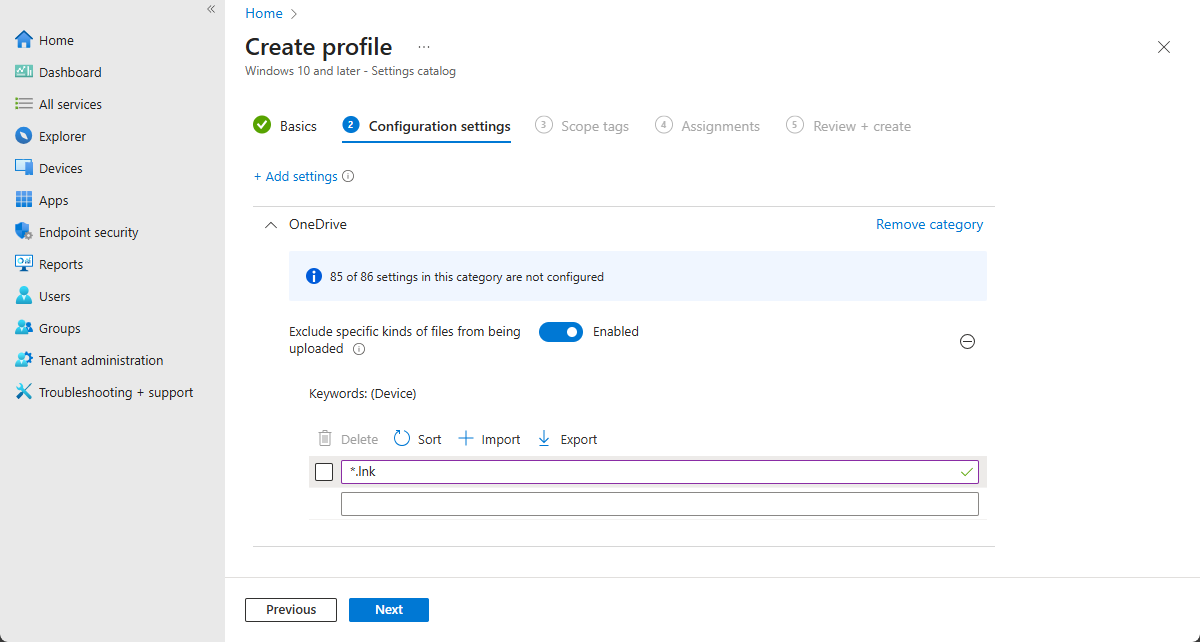
The OneDrive ADMX exposes Exclude specific kinds of files from being uploaded (EnableODIgnoreListFromGPO). In Intune this appears under the Settings catalog with the rest of the OneDrive ADMX-backed settings. In the Microsoft Intune admin center, go to Devices → Windows → Configuration profiles and click Create → New policy. Choose Windows 10 and later and Settings catalog, then click Create. On Basics, set a name (e.g. “OneDrive – Exclude specific files from upload”) and an optional description. On Configuration settings, click Add settings, search for OneDrive, and add Exclude specific kinds of files from being uploaded (or EnableODIgnoreListFromGPO). Set the setting to Enabled. In the Keywords (or equivalent) field, enter the file patterns or exact names to exclude. One per line or as allowed by the UI. For example, *.lnk excludes all shortcut files. You can use wildcards (e.g. *.tmp, *.log) or exact names (e.g. setup.exe). Add scope tags if required, assign the profile to the desired user or device groups, then create the profile.
The screenshot below shows the Intune Settings catalog with the “Exclude specific kinds of files from being uploaded” setting for OneDrive.
File Pattern Examples
Typical patterns:
*.lnk. All shortcut files (desktop, Start menu, etc.).*.tmp. Temporary files.*.log. Log files.*.cache. Cache files.*.db. Local database files (use with care).setup.exe. Exact filename (no wildcard).
You can specify multiple patterns in the Keywords field (one per line or as the UI allows). Use * as a wildcard; for exact names use the full name (e.g. setup.exe). Be careful with broad patterns like *.exe so you do not exclude executables users expect to sync.
Suggested Practices
- Start with
*.lnkto exclude shortcuts; it avoids most shortcut-sync issues. - Pilot on a small group before rolling out to all users.
- Document which patterns you exclude and why.
- Review exclusions periodically and adjust if needed.
- Use specific patterns instead of very broad ones (e.g. avoid excluding all
*.exeunless required).
User Experience and Troubleshooting
Excluded files stay on the local PC and are not uploaded; users do not see them in OneDrive on other devices, and OneDrive does not report sync errors for them. If files still sync after you deploy the policy: confirm the profile is assigned and the device has received it, and restart OneDrive or have the user sign out and back in. If a pattern does not work, check syntax (wildcards vs. exact names) and that the Keywords value is formatted as expected (e.g. one pattern per line). You can combine this with the SharePoint admin center setting “Block syncing of specific file types” for tenant-wide control; the Intune setting gives per-device, policy-driven exclusions.
Summary
To exclude specific files from being uploaded to OneDrive with Microsoft Intune: create a Settings catalog profile (Windows 10 and later) under Devices → Windows → Configuration profiles. Add the OneDrive setting Exclude specific kinds of files from being uploaded (EnableODIgnoreListFromGPO), set it to Enabled, and in Keywords enter the file patterns or exact names (e.g. *.lnk for all shortcuts). Use wildcards for types and full names for specific files. Assign the profile to the desired user or device groups. Excluded files remain local and do not sync to OneDrive, which helps avoid duplicate or broken shortcuts and supports scenarios like Edge organizational branding that rely on desktop sync.





