Enrolling Windows devices in Microsoft Intune lets you push policies, apps, Wi‑Fi, email, and security settings to those devices. You can enroll both personal (BYOD) and organization-owned PCs; Intune can manage work data and configuration without taking full control of the device or touching personal data. This post summarizes the main enrollment methods so you can choose the right one for your scenario.
Enrollment Methods at a Glance
Intune supports several ways to get Windows devices under management. Some are user-driven (the user adds a work account or goes through setup); others are IT-driven (bulk, Device Enrollment Manager, or Autopilot). Some methods Microsoft Entra join the device and optionally auto-enroll it in Intune (with Microsoft Entra ID P1/P2 and MDM auto-enrollment); others enroll in Intune only (MDM-only). Requirements and behavior differ by method. Below are the main options.
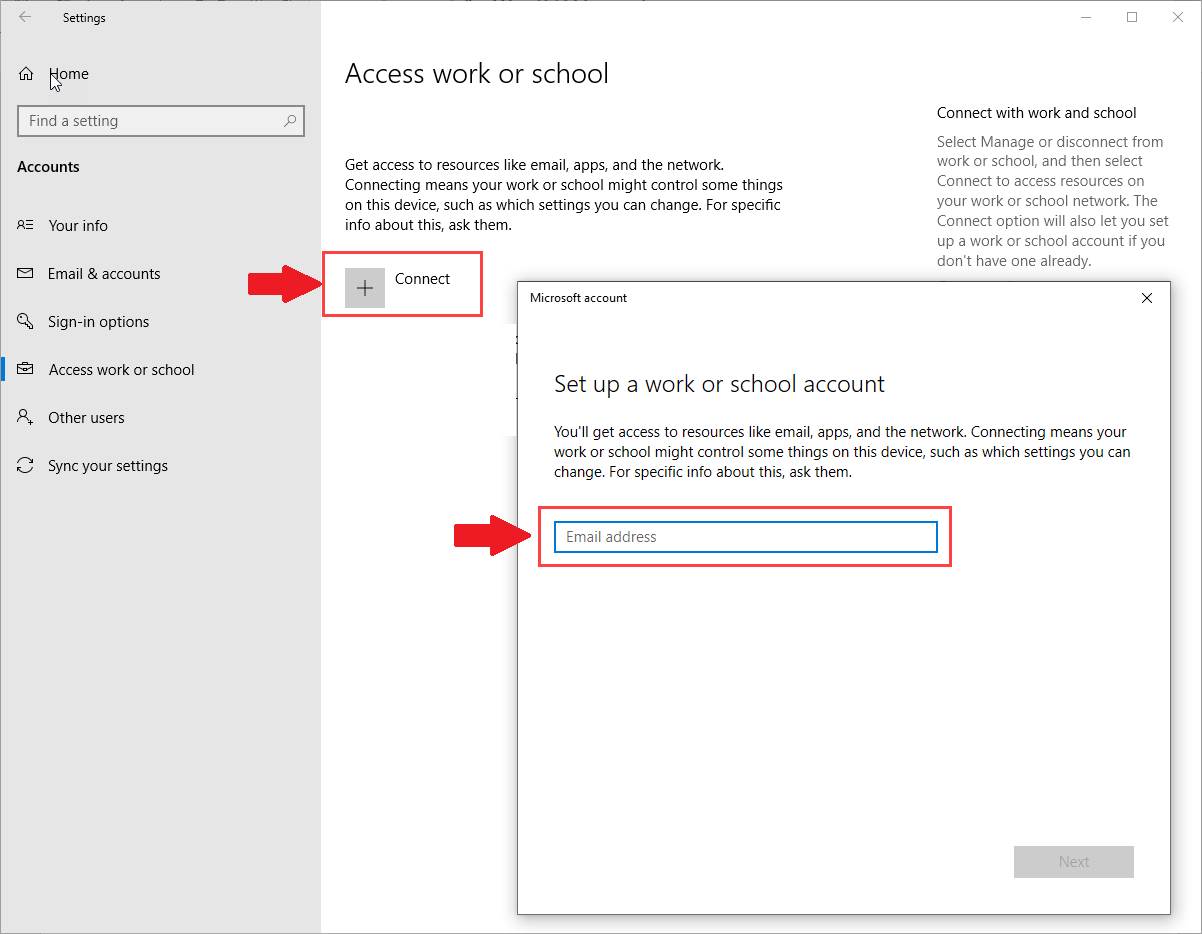
1. Add Work or School Account (Settings)
The user opens Settings → Accounts → Access work or school and adds a work or school account. The device is Microsoft Entra joined. If you have Microsoft Entra ID P1 or P2 and MDM auto-enrollment for Intune is enabled, the device is also enrolled in Intune. This approach is common when you are not using Windows Autopilot. Give users instructions to add their work account from Settings.
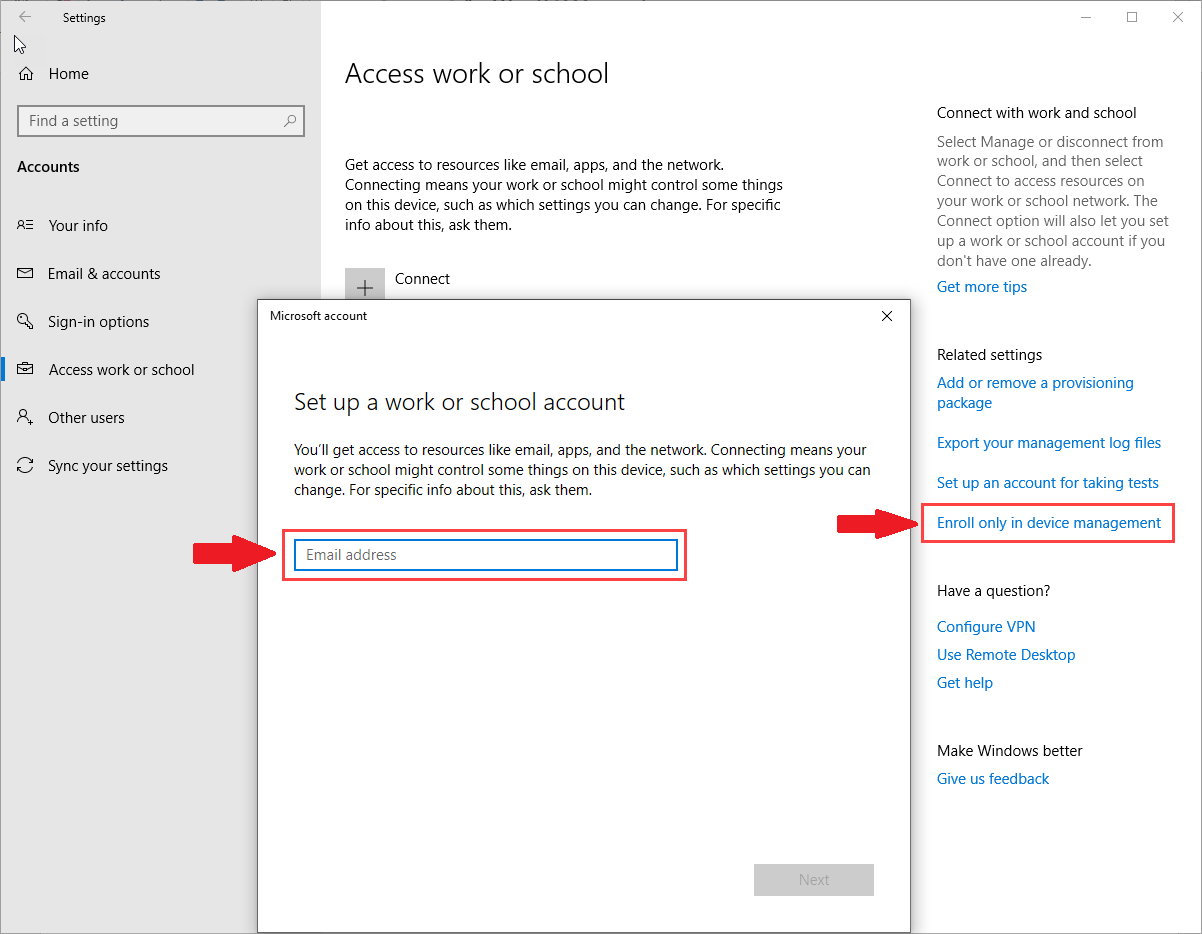
2. Enroll in MDM Only (User-Driven)
The device is enrolled in Intune only. It is not Microsoft Entra joined. Use this when you do not have Microsoft Entra ID P1 or P2 (required for automatic Intune enrollment with Entra join). The user enrolls via the Company Portal or the “Enroll only in device management” flow so the device is managed by Intune without being joined to Microsoft Entra ID.
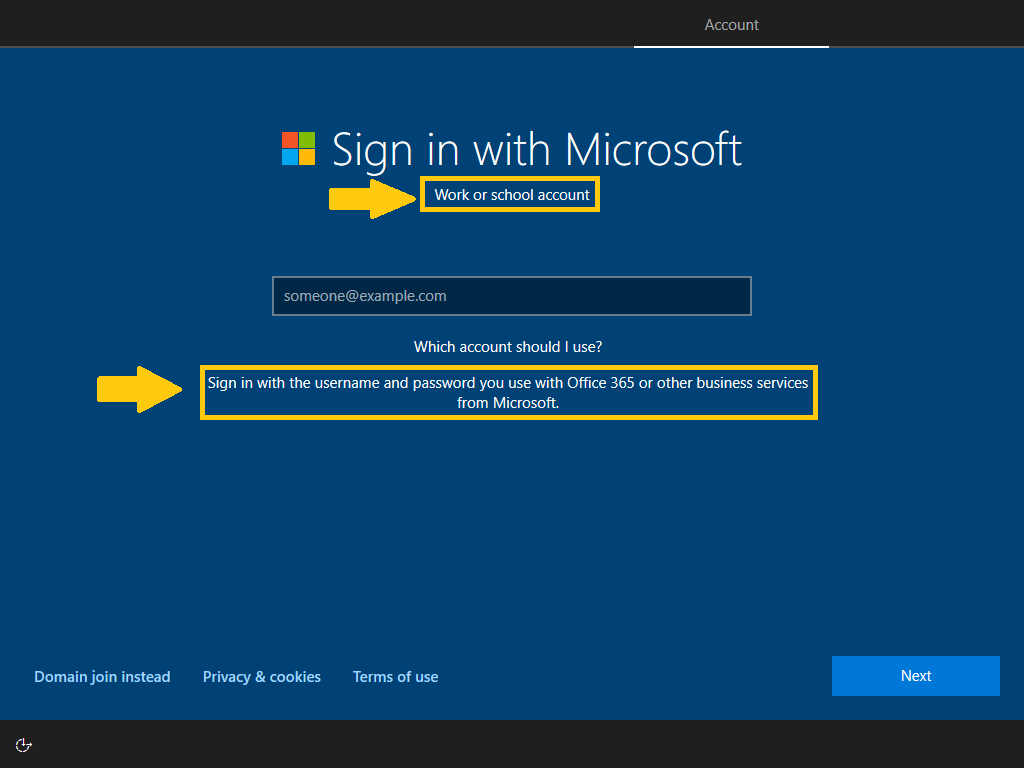
3. Microsoft Entra Join During OOBE
Same result as adding a work or school account from Settings, but the join happens during the Out of Box Experience (OOBE). The user chooses “Set up for work or school” and signs in with a work account. With Entra ID P1/P2 and Intune auto-enrollment, the device is Entra joined and enrolled in Intune. Suited for scenarios where devices are shipped with Windows (e.g. Windows Pro) and users join during first-time setup; you can then use Intune to upgrade to Windows Enterprise if needed.
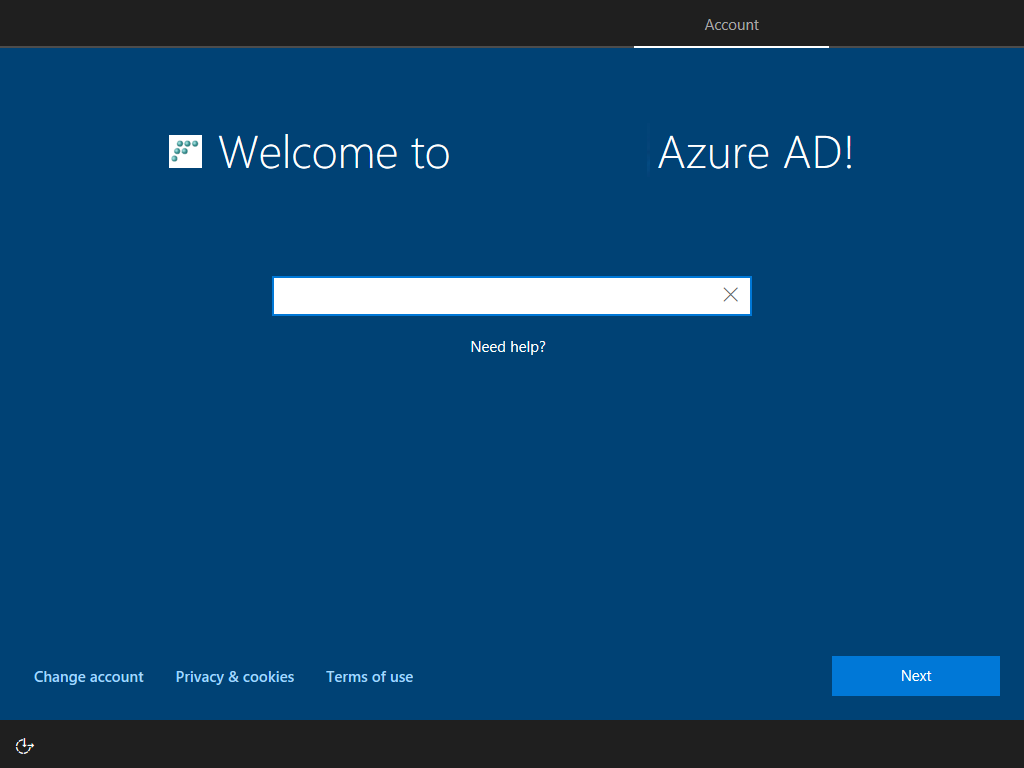
4. Microsoft Entra Join with Autopilot (User-Driven)
Same as OOBE Entra join, but the device is registered in Windows Autopilot and the OOBE is customized. Many screens can be skipped so users get a shorter, branded setup. With Entra ID P1/P2 and Intune auto-enrollment, the device is Entra joined and enrolled in Intune during OOBE. You can show the desktop first and then apply apps and policies in the background. This is often the preferred method for new corporate devices when Autopilot is available.
5. Microsoft Entra Join with Autopilot (Self-Deploying)
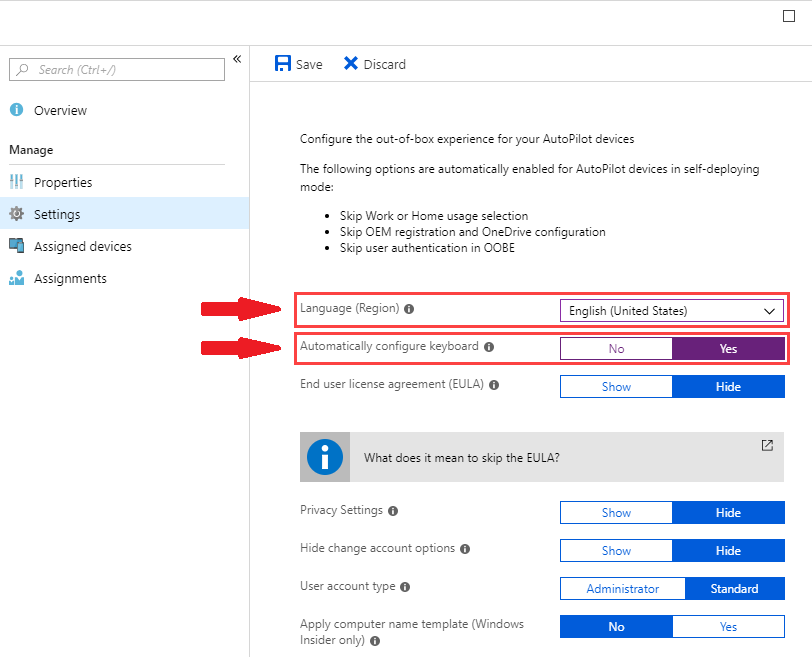
Like user-driven Autopilot, but fully automated: after the device is powered on, OOBE can be skipped and the device is Entra joined and enrolled in Intune with no user interaction. Suited for kiosks or shared devices. You can pre-assign a user so the only thing left for the user to do is sign in with a password. This gives the most streamlined setup of the Autopilot options.
6. Enroll in MDM Only (Device Enrollment Manager)
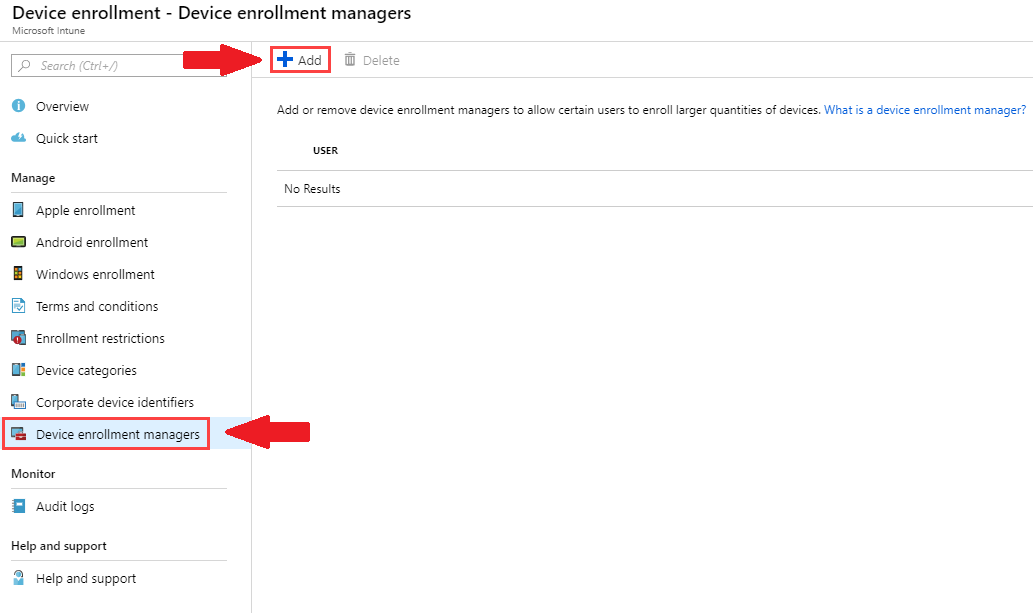
Similar to MDM-only user enrollment, but performed by IT using a Device Enrollment Manager (DEM) account. The DEM enrolls devices (up to a limit, e.g. 1000 per account), signs into Company Portal, and installs the apps the end user needs before handing the device over. The device is managed by Intune but not Entra joined under the end user’s identity. The person performing enrollment needs local admin (or equivalent) to complete the enrollment steps. Check Intune documentation for current DEM limits and rules.
7. Configuration Manager Co-Management
Co-management lets you manage Windows devices with both Microsoft Configuration Manager and Intune. It bridges traditional ConfigMgr management and modern Intune management so you can move to the cloud in phases. Co-management is a good fit when ConfigMgr already manages the devices; once co-management is enabled, the device is managed by both ConfigMgr and Intune, and you can choose which workload (e.g. compliance, apps) is handled by which product.
8. Microsoft Entra Join (Bulk Enrollment)
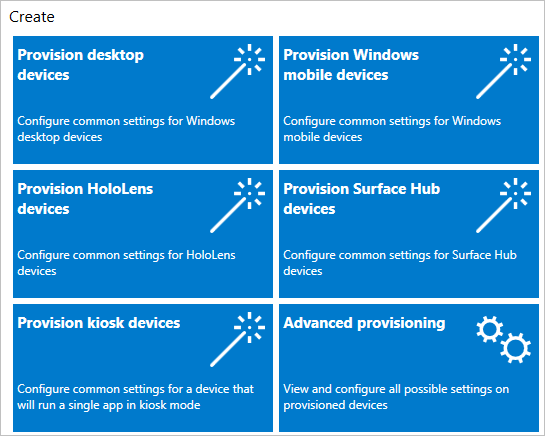
Bulk enrollment lets you prepare many devices for Intune and Microsoft Entra join without reimaging. You create a provisioning package with the Windows Configuration Designer app (from the Microsoft Store), then apply the package during OOBE or from Settings. Devices that receive the package are Entra joined and, with Entra ID P1/P2 and Intune auto-enrollment, enrolled in Intune. Users do not have to follow “add work or school account” manually. They just run or apply the package. Useful when you want a simple, consistent enrollment experience without Autopilot.
Wrap-up
You can enroll Windows devices in Intune in several ways: add work or school account from Settings, MDM-only (user or DEM), Entra join during OOBE, Autopilot (user-driven or self-deploying), Configuration Manager co-management, or bulk enrollment with a provisioning package. Choose the method that matches your licensing (Entra ID P1/P2 for auto-enrollment with join), whether the device is user-owned or corporate-owned, and whether you use Autopilot or ConfigMgr. Once enrolled, devices receive the policies and apps you assign in Intune.





