Microsoft Intune supports three main ways to enroll macOS devices: Automated Device Enrollment (ADE) for corporate-owned Macs linked to Apple Business Manager, manual enrollment via the Company Portal for devices not in ABM, and user enrollment for personal (BYOD) Macs with limited management. Which path you use depends on device ownership and whether you have ABM. This guide walks through prerequisites and step-by-step setup for each method.
Three Ways to Enroll Macs in Intune
Automated Device Enrollment (ADE) . Devices are added to Apple Business Manager (or Apple School Manager) and assigned to an Intune enrollment profile. When the user powers on the Mac and goes through Setup Assistant, the device enrolls automatically and gets the profile you defined. Best for corporate-owned Macs; requires ABM and an enrollment program token in Intune.
Manual enrollment (device enrollment) . The user installs the Company Portal app, signs in with a work or school account, and installs the MDM profile. The Mac is fully managed. Use this when devices are not in ABM (e.g. existing corporate Macs or personal devices you want to fully manage).
User enrollment (BYOD) . The user installs Company Portal and enrolls with a work or school account. Only work-related apps and policies apply; personal data and apps stay out of scope. Use for employee-owned Macs where you want work separation without full device control.
What You Need First
For any macOS enrollment you need: a Microsoft Intune (or Microsoft 365) license, an Apple MDM Push certificate configured in Intune, and (for ADE) an Apple Enrollment Program Token from Apple Business Manager linked to Intune. For manual and user enrollment, users need the Company Portal app for Mac (download from aka.ms/EnrollMyMac). For ADE, devices must be in ABM (via reseller or Apple Configurator 2) and assigned to your enrollment profile. See Set up Apple Enrollment Program Token and Get an Apple MDM push certificate on Microsoft Learn if you have not done this yet.
Automated Device Enrollment (ADE)
In the Microsoft Intune admin center, go to Devices → macOS → Enrollment → Enrollment program tokens. Select your token, then open Profiles. Click Create profile → macOS. Give the profile a name (e.g. “Corporate Macs”) and click Next.
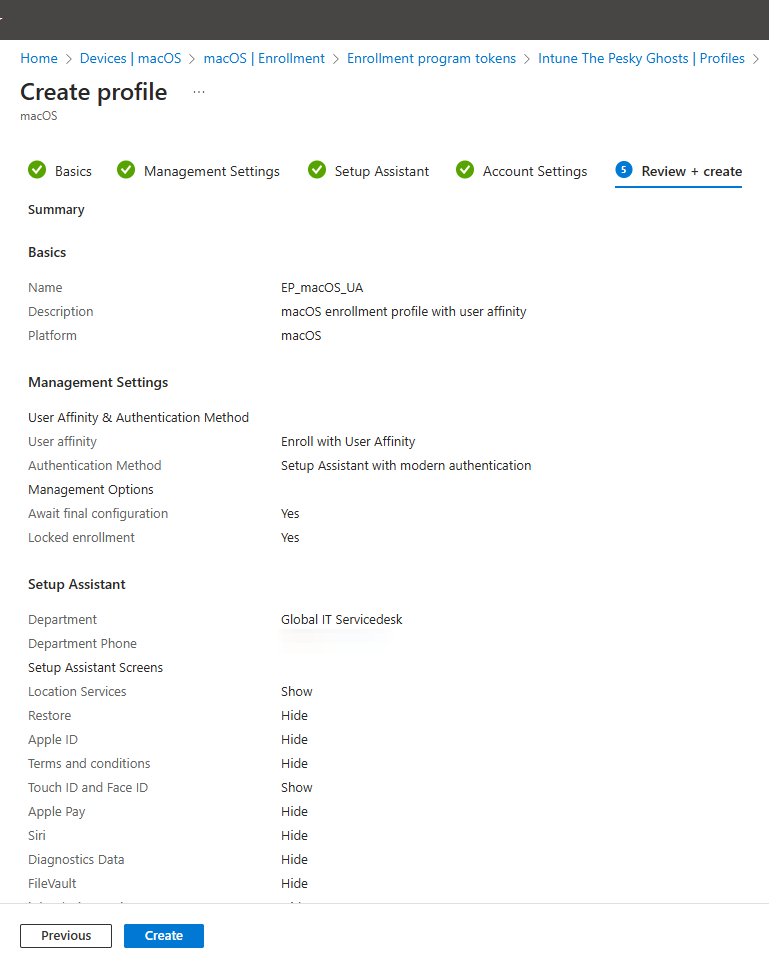
On Management settings, set User affinity to “Enroll with User Affinity,” Authentication method to “Setup Assistant with modern authentication,” Await final configuration to Yes, and Locked enrollment to Yes. Click Next. On Setup Assistant, set Department and Department phone if desired, then choose which Setup Assistant screens the user sees (language, region, account, etc.). Click Next. On Account settings, configure the local primary account: set Create a local primary account to Yes and Prefill account info to Yes if you want to prefill the account. Click Next, then Create.
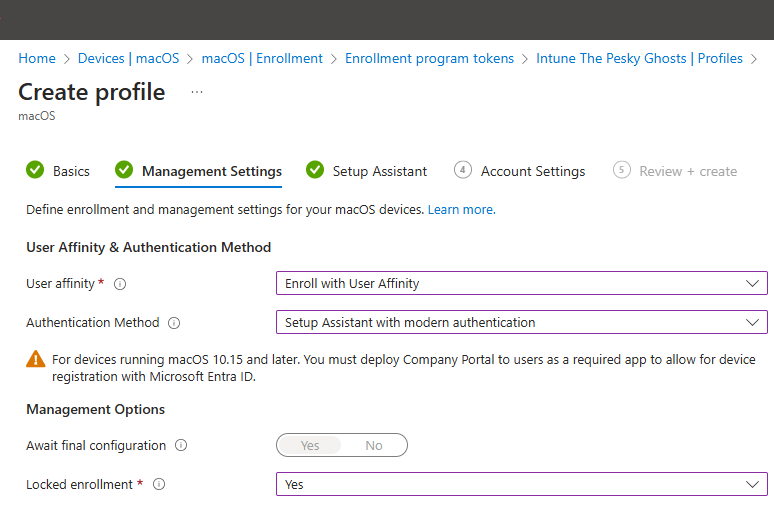
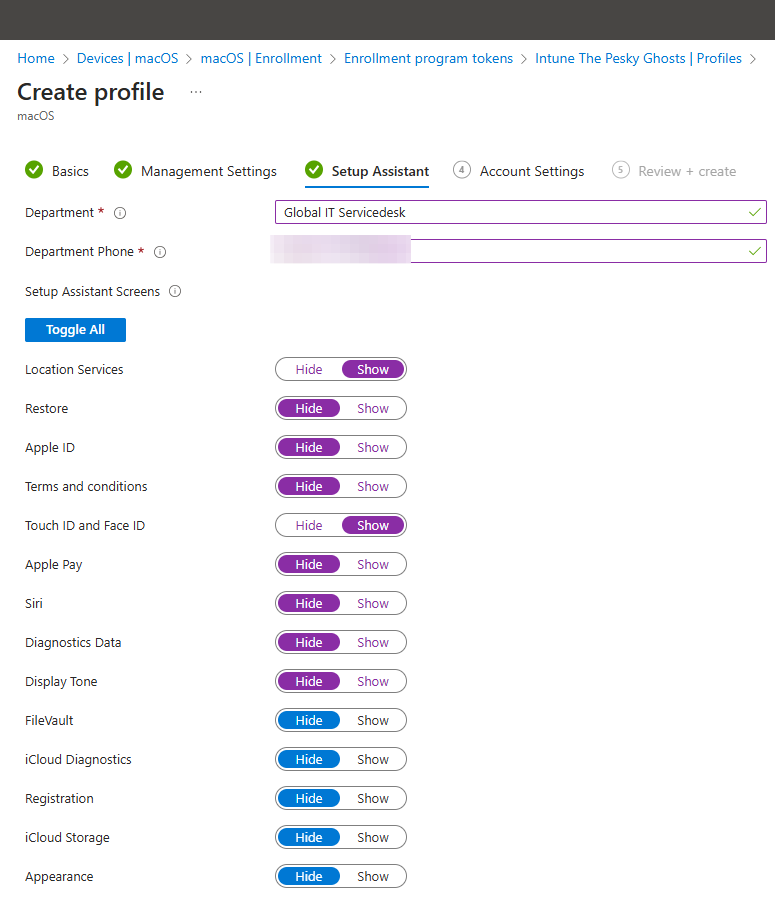
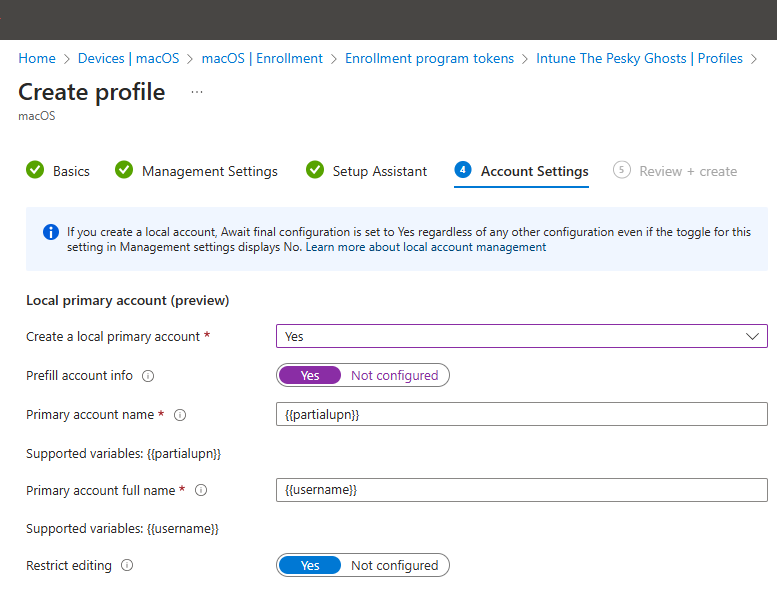
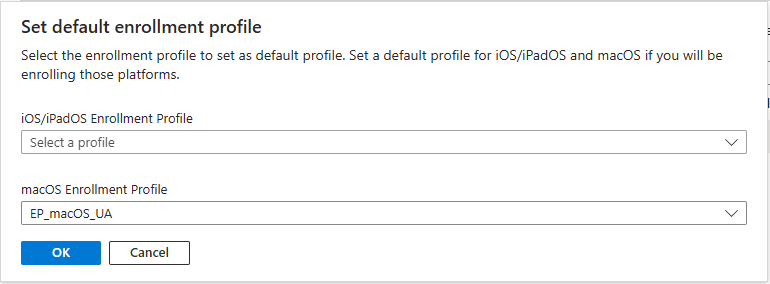
After the profile is created, set it as the Default profile for macOS: under Enrollment program tokens, open Default profile and select your new macOS enrollment profile. When a new or wiped Mac that is in ABM and assigned to this token starts up, the user goes through Setup Assistant and the device enrolls in Intune automatically.
Manual Enrollment with Company Portal
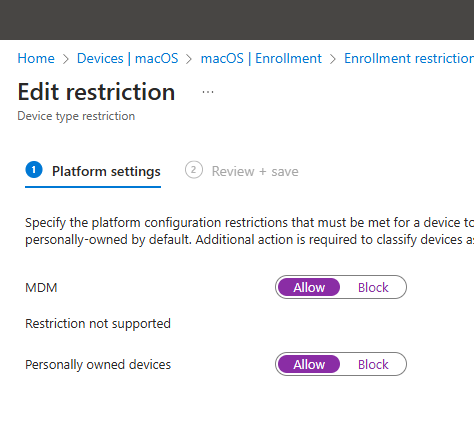
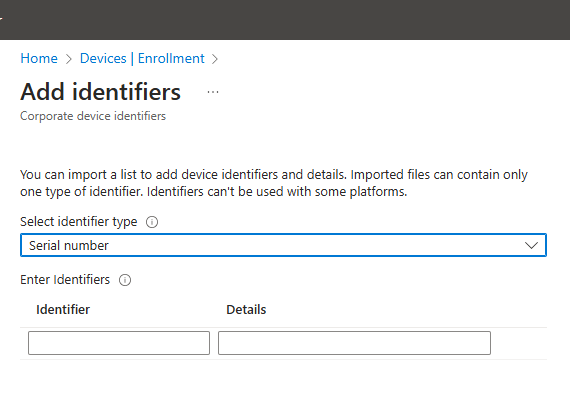
For Macs not in Apple Business Manager, use manual enrollment. In Intune go to Devices → macOS → Enrollment → Device platform restrictions and ensure Personally owned devices is allowed (or use Corporate device identifiers so only devices you add by serial number can enroll). Users then download the Company Portal from aka.ms/EnrollMyMac, open it, and sign in with their work or school (Entra ID) account. When prompted, they install the MDM profile: System Settings → General → Profiles, select the management profile, and approve it. The Mac enrolls and receives Intune policies. Using corporate device identifiers (e.g. serial numbers) lets you restrict enrollment to known company devices while still using manual enrollment.
User Enrollment (BYOD)
For employee-owned Macs, use user enrollment so only work data and apps are managed. In Intune, Device platform restrictions for macOS must allow personally owned devices (or use corporate identifiers if you only want specific Macs). The user downloads Company Portal from aka.ms/EnrollMyMac, signs in with their work or school account, and installs the MDM profile when prompted (System Settings → General → Profiles). After enrollment, only work-related apps and policies apply; personal data and apps remain outside MDM control. IT can still enforce work security policies and assign work apps.
Check Enrollment and Apply Policies
In the Intune admin center, go to Devices → macOS (or All devices and filter by macOS). Click a device to see its enrollment status, compliance, and assigned policies. Ensure it shows as enrolled and, if you use compliance policies, compliant. Then create and assign compliance policies (passwords, encryption, OS version, firewall, etc.) and configuration profiles (Wi‑Fi, VPN, certificates) under Devices → macOS → Compliance and Configuration. For more on securing enrolled Macs, see Enroll macOS devices on Microsoft Learn.
Summary
To enroll macOS devices in Intune: use Automated Device Enrollment for corporate Macs in Apple Business Manager (create an enrollment profile under Enrollment program tokens, set management settings, Setup Assistant, and account settings, then set it as the default profile); use manual enrollment for Macs not in ABM (allow personally owned or use corporate identifiers, then have users install Company Portal and the MDM profile); use user enrollment for BYOD Macs (same Company Portal flow, with work-only management). Ensure the Apple MDM Push certificate and, for ADE, the Enrollment Program Token are configured. After enrollment, verify devices under Devices → macOS and assign compliance and configuration policies as needed.