Windows delivers two main types of monthly updates: security and quality updates (often called B week releases, on the second Tuesday) and optional non-security updates (often called D week releases, on the fourth Tuesday). Optional updates can include new features, non-security fixes, and controlled feature rollouts (CFRs). On devices managed by Windows Update for Business, optional updates are not installed by default. You have to explicitly enable them. In Windows Settings, the Get the latest updates as soon as they're available slider controls this behavior. You can enforce that behavior (or leave it to the user) from Microsoft Intune using the AllowOptionalContent policy via a Custom configuration profile. This post explains what optional updates are, how the policy values map to the slider and to CFRs, and how to configure the policy in Intune. The same setting may appear in the Settings catalog later; for now it is configured via the Policy CSP and a Custom profile.
What Optional Updates Include
Optional Windows updates typically include:
- Non-security fixes and features. Improvements and new capabilities that are not security patches.
- Controlled feature rollouts (CFRs). Features Microsoft rolls out gradually; enabling optional updates can include or exclude these depending on the policy value.
- Preview / D week releases. Non-security preview updates released on the fourth Tuesday of the month.
B week (second Tuesday) remains the primary cadence for security and quality updates; D week is for optional, non-security content. Enabling optional updates does not bypass your quality update deferral period. Deferrals still apply.
The AllowOptionalContent Policy
The setting is exposed in the Policy CSP under Update as AllowOptionalContent (backed by WindowsUpdate.admx). It controls whether the device receives optional updates and whether the user can change the “Get the latest updates as soon as they're available” slider. Supported values:
- 0 (default). Optional updates are not installed. The slider is off and the user can change it. Typical for production devices where you want stability.
- 1. Optional updates and CFRs are installed automatically. The slider is on and locked (user cannot change it). Good for pilots or early adopters.
- 2. Optional updates are installed automatically, but CFRs are not. The slider is off and locked. Use when you want non-security fixes without early CFRs.
- 3. Optional updates are offered; the user must choose to install them unless they turn the slider on themselves. User choice.
Because this policy is not yet in the Intune Settings catalog, you configure it with a Custom configuration profile and the Policy CSP OMA-URI.
Configuring the Policy in Intune
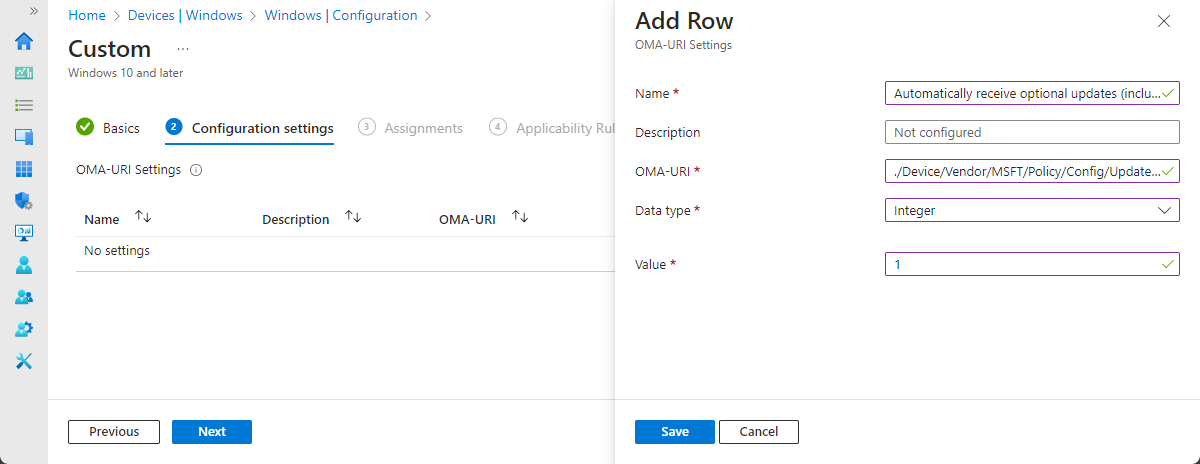
In the Microsoft Intune admin center, go to Devices → Windows → Configuration profiles and choose Create → New policy. Set Platform to Windows 10 and later, Profile type to Templates, and Template name to Custom, then Create. On Basics, give the profile a name (e.g. “Windows – Allow optional updates”) and an optional description. On Configuration settings, click Add and add one OMA-URI row:
- Name: e.g. “Allow optional content” (any label that distinguishes it).
- OMA-URI:
./Device/Vendor/MSFT/Policy/Config/Update/AllowOptionalContent - Data type: Integer
- Value:
1(to automatically receive optional updates including CFRs), or0,2, or3as needed.
Save the configuration step, set scope tags and assignments, configure applicability rules if required, then create the profile. The policy applies to assigned devices; the Settings app slider will reflect the chosen value (on/off and locked or user-editable as described above).
The screenshot below shows the Intune Custom configuration profile with the AllowOptionalContent OMA-URI for optional Windows updates.
What Users See
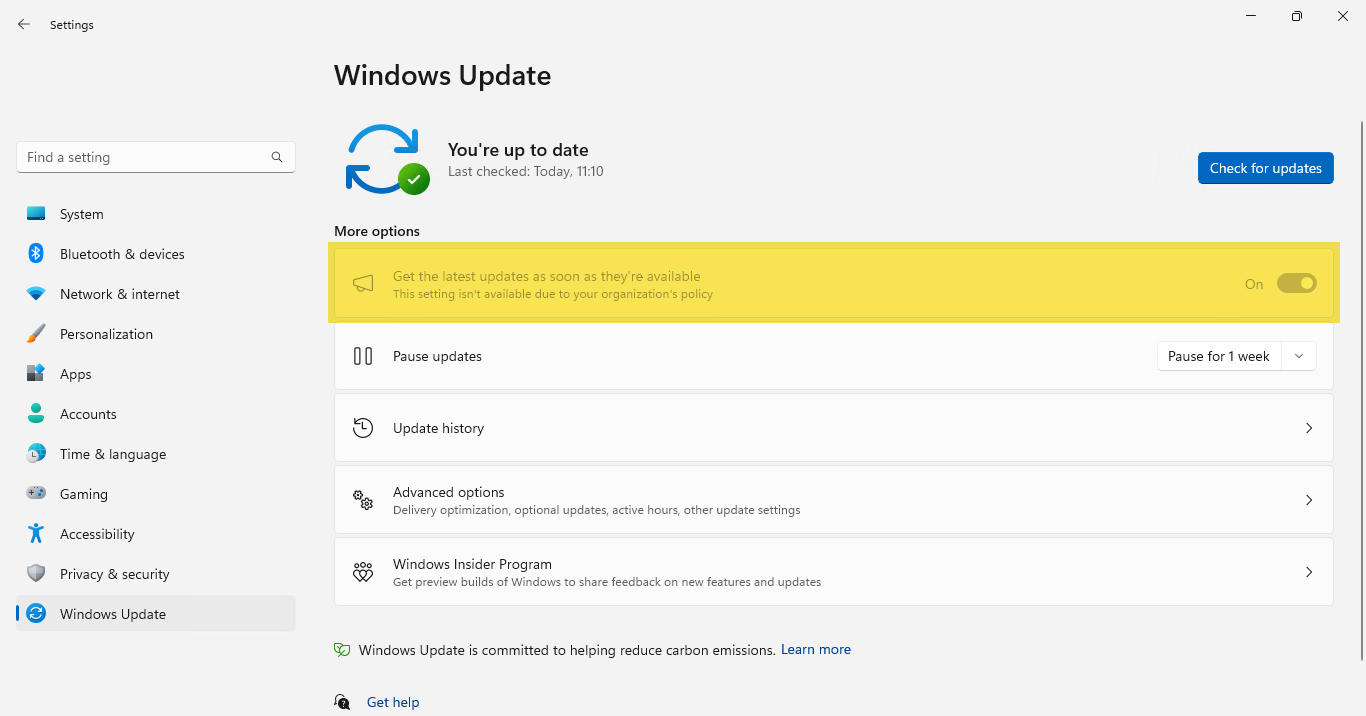
After the profile applies, open Settings → Windows Update. The Get the latest updates as soon as they're available option will match the policy: for value 1 it is on and grayed out; for 0 or 2 it is off (and locked for 2); for 3 the user can change it. Optional updates still respect your quality update deferral period, so you can use value 1 on a pilot group to test D week updates before they become part of the normal B week flow for the rest of the fleet, or keep production on 0 for maximum stability.
Below: Windows Update Settings with the “Get the latest updates as soon as they're available” option.
Practical Tips and Troubleshooting
Pilot optional updates on a small set of devices before enabling them broadly. Document which groups have which value so you can adjust or roll back. If the slider does not match the intended value, confirm the Custom profile is assigned and the OMA-URI and integer value are correct. If optional updates do not install, check that your update ring or deferral settings are not preventing them and that the device has received the policy. If you want CFRs, use value 1; if you want optional updates without CFRs, use value 2. When the same setting becomes available in the Settings catalog, you can migrate to a Settings catalog profile and remove the Custom OMA-URI if you prefer.
Summary
To enable optional Windows updates with Microsoft Intune: create a Custom configuration profile (Windows 10 and later, Templates → Custom). Add one OMA-URI: ./Device/Vendor/MSFT/Policy/Config/Update/AllowOptionalContent, data type Integer, value 1 (optional + CFRs, slider on and locked), 2 (optional without CFRs, slider off and locked), 3 (user choice), or 0 (no optional updates, default). Assign the profile to the desired user or device groups. The “Get the latest updates as soon as they're available” slider in Settings will reflect the policy. Optional updates still follow your quality update deferral period, so you can use this to give pilot devices early access to D week updates while keeping the rest of the fleet on B week–only or locked to a specific behavior.





