Microsoft Intune’s enhanced hardware inventory gives you richer device details in the admin center, but it stays off until you turn it on. The existing Hardware view for a device is unchanged; the new data appears in Resource Explorer and only after you deploy a device configuration profile that enables it. This walkthrough covers creating that profile, choosing which properties to collect, and where to view the results.
Turning on enhanced hardware inventory
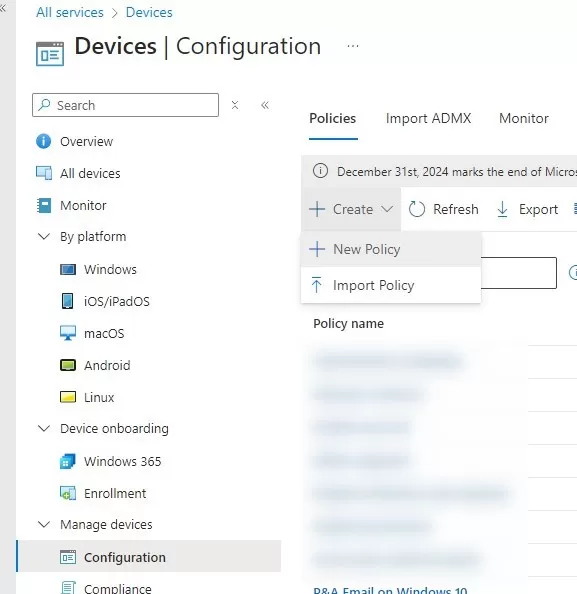
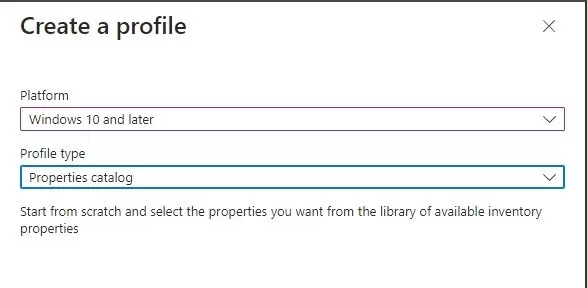
In the Microsoft Intune admin center, go to Devices → Manage → Devices → Configuration and create a new profile.
Creating a new configuration profile under Devices → Configuration.
On the basics step, give the profile a clear name (for example, “Enhanced hardware inventory – Windows”).
Naming the enhanced hardware inventory profile.
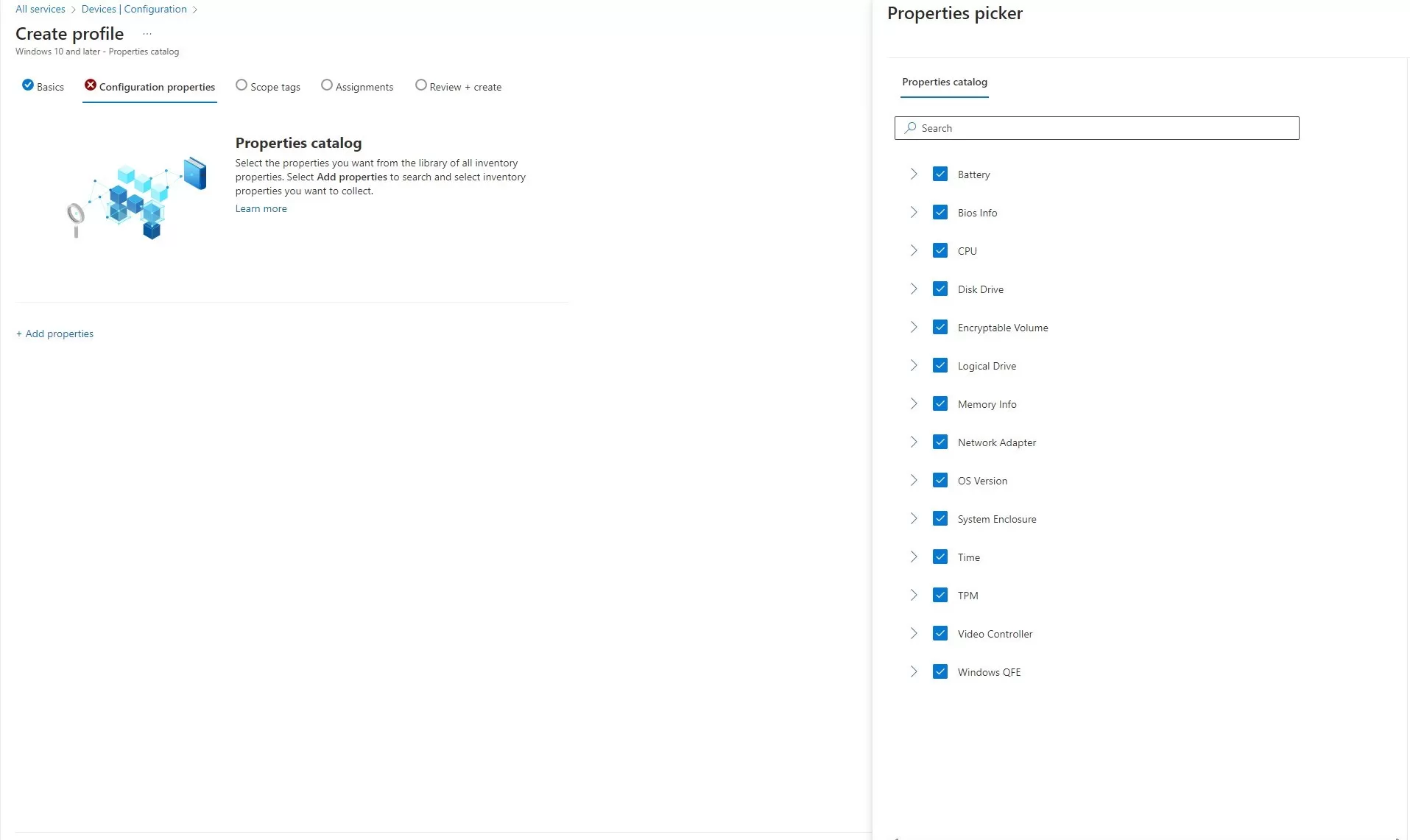
On configuration settings, no properties are selected by default. Pick the hardware properties you want to collect. Selecting all of them gives you the most flexibility later when building reports or filtering devices. You can always narrow down in queries.
Selecting which hardware properties to collect.
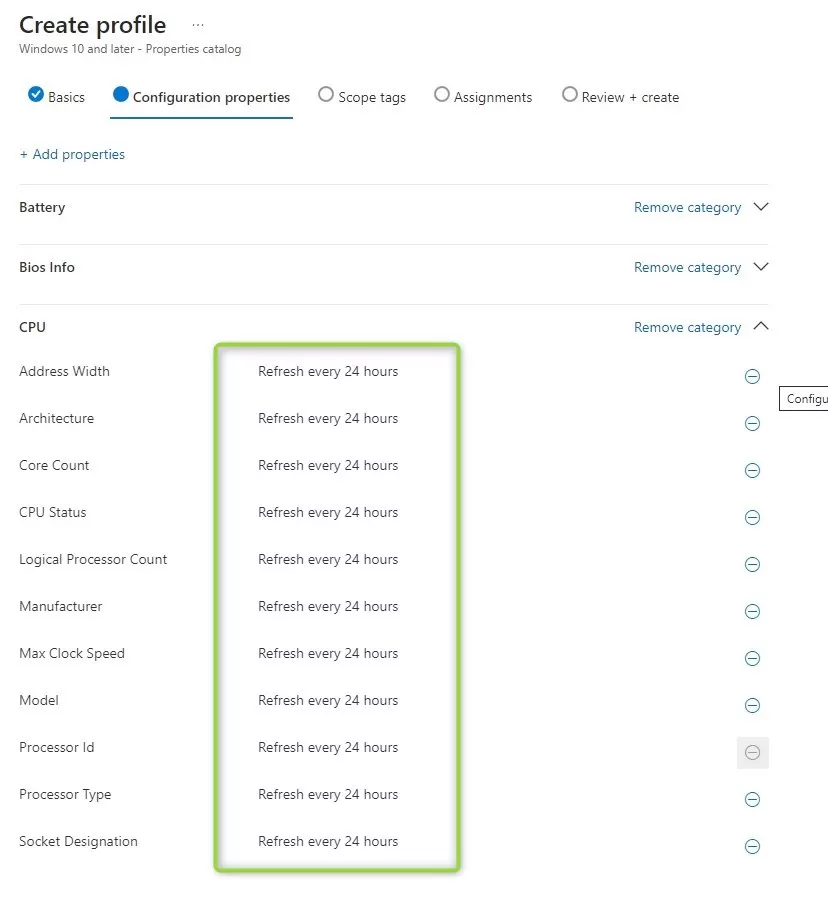
After you choose the properties, Intune shows that inventory for all of them refreshes on a 24-hour cycle.
Refresh cycle is every 24 hours for all selected properties.
Finish the wizard by setting scope tags and assignments the same way you would for any other device configuration profile. Once the profile is assigned and applied, enhanced inventory will start populating after the first sync cycle.
Where to view the data: Resource Explorer
Per-device enhanced inventory is available under each device’s Resource Explorer. You need at least Managed Devices Read to see it.
Resource Explorer showing enhanced hardware inventory for a device.
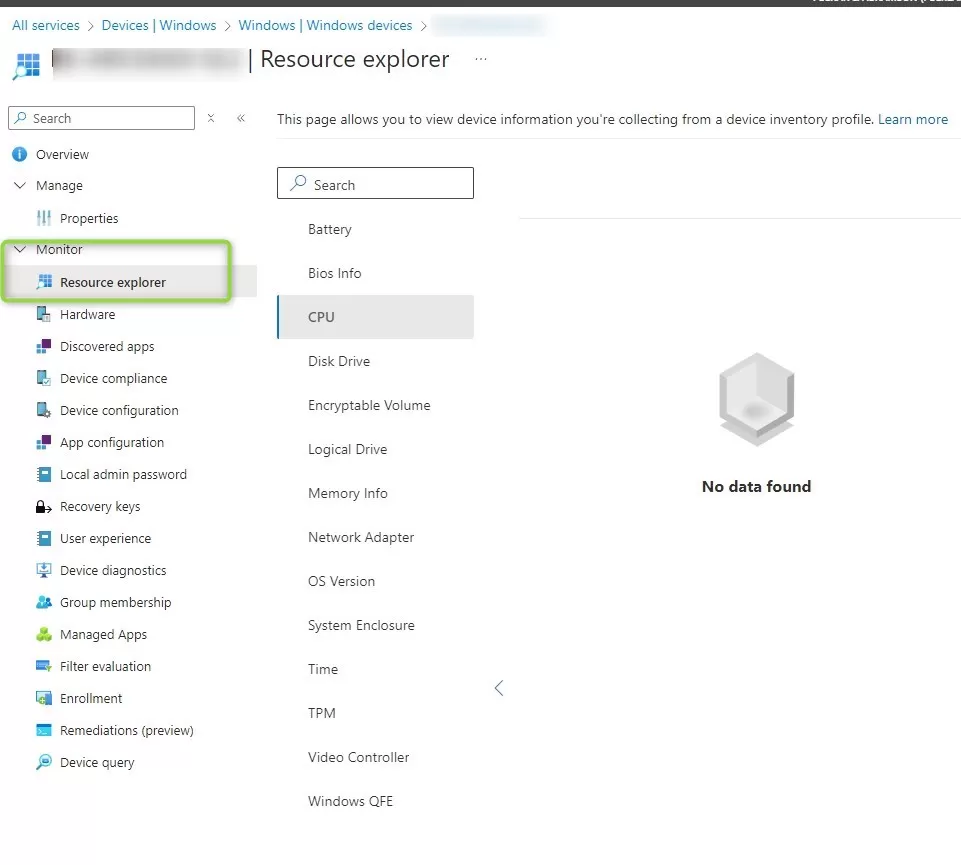
Note: Allow 24–48 hours after the profile is deployed for inventory to show up for the first time.
Example of the inventory view in Resource Explorer.

What you can do with it today
Right now the feature is focused on per-device visibility: you open a device in the console and view its collected properties in Resource Explorer. There is no built-in way yet to filter, group, or list devices by a specific inventoried field across the fleet.
What Microsoft has planned
This release is an early step; more is coming. Microsoft has indicated:
- Dynamic groups do not yet support using enhanced device inventory as criteria.
- Inventory may later include applications and registry items.
- Inventory data is not yet available for export via API.
As these capabilities ship, enhanced inventory will become more useful for automation and reporting.
Resource Explorer vs classic Hardware Inventory
They are not the same. Data is gathered and stored differently. For now, the practical approach is to use both: classic Hardware for what you already rely on, and Resource Explorer for the new enhanced dataset. Over time, Microsoft intends to converge on a single inventory experience.
Why two Resource Explorer entries under a device?
If you see two Resource Explorer nodes for one device, one comes from Configuration Manager (Tenant Attach) and one from Intune. Both can be used; Microsoft recommends using the newer Intune-based Resource Explorer for enhanced hardware inventory.
Learn more
For official documentation on advanced hardware inventory in Intune, see Microsoft Learn – Resource Explorer.
Summary
Intune’s enhanced hardware inventory adds a new way to see detailed device data in the admin center. Enable it by creating a device configuration profile under Devices → Configuration, selecting the hardware properties you want, and assigning the profile to your devices. Data appears in each device’s Resource Explorer after 24–48 hours and refreshes every 24 hours. Today the feature is per-device only; dynamic groups, app/registry inventory, and API export are on the roadmap. Use both the classic Hardware view and Resource Explorer until the experience is unified, and prefer the Intune Resource Explorer over the Tenant Attach one when viewing enhanced inventory.