Windows Fast Startup shortens boot time by writing the kernel and loaded drivers to a hibernation file at shutdown and reloading them at the next start. That can improve user experience, but some organizations need it off. For example when using BitLocker or when updates and policies must apply on a full shutdown. Microsoft Intune does not expose Fast Startup as a built-in setting, so you can control it with a PowerShell script that sets the HiberbootEnabled registry value, then deploy that script via Intune Scripts and Remediations (Platform Scripts). This guide walks through creating the script and deploying it.
What Is Fast Startup?
Fast Startup (hiberboot) uses the hibernation file so that “shutdown” is effectively a hybrid shutdown: the user session ends but the kernel and drivers are saved and restored on the next boot. The result is faster startup. The trade-off is that the system does not perform a full cold boot, which can matter for:
- BitLocker and encryption . Some scenarios expect a full shutdown and reboot for key release or recovery.
- Updates and policy . Certain updates or Group Policy/Intune settings apply or take effect only after a full restart.
- Dual-boot and diagnostics . Full shutdown may be required for other OSes or troubleshooting.
If your policy is to disable Fast Startup, or to enable it where it was turned off, you can enforce it with a script that sets the registry value and deploy that script to the right devices.
When to Enable or Disable It
Enable Fast Startup when you want shorter boot times and do not rely on full shutdown/restart behavior. Disable Fast Startup when you use BitLocker in a way that assumes full shutdown, when you need updates or policies to apply on full reboot, or when you want consistent cold boots for support or compliance. Choose one approach per group of devices and deploy the matching script.
What You’ll Do
You will (1) create a PowerShell script that sets HiberbootEnabled in HKLM:\SYSTEM\CurrentControlSet\Control\Session Manager\Power to 0 (disable) or 1 (enable), and (2) add the script in Intune under Devices → Scripts and Remediations → Platform Scripts as a Windows 10 and later script, upload it, set run options (e.g. system context, 64-bit host), then assign it to the users or devices that should get the change.
Step 1: Create the PowerShell Script
The setting is stored in the registry. Use one of the following scripts depending on whether you want to disable or enable Fast Startup.
To disable Fast Startup:
$RegistryPath = "HKLM:\SYSTEM\CurrentControlSet\Control\Session Manager\Power"
$PropertyName = "HiberbootEnabled"
$PropertyValue = 0
Set-ItemProperty -Path $RegistryPath -Name $PropertyName -Value $PropertyValue -Type DWORD -Force
To enable Fast Startup:
$RegistryPath = "HKLM:\SYSTEM\CurrentControlSet\Control\Session Manager\Power"
$PropertyName = "HiberbootEnabled"
$PropertyValue = 1
Set-ItemProperty -Path $RegistryPath -Name $PropertyName -Value $PropertyValue -Type DWORD -Force
Save the script as a .ps1 file (e.g. Disable-FastStartup.ps1 or Enable-FastStartup.ps1). You will upload this file in the next step.

Step 2: Deploy the Script in Intune
In the Microsoft Intune admin center, go to Devices → Scripts and Remediations → Platform Scripts. Click Add and select Windows 10 and later.
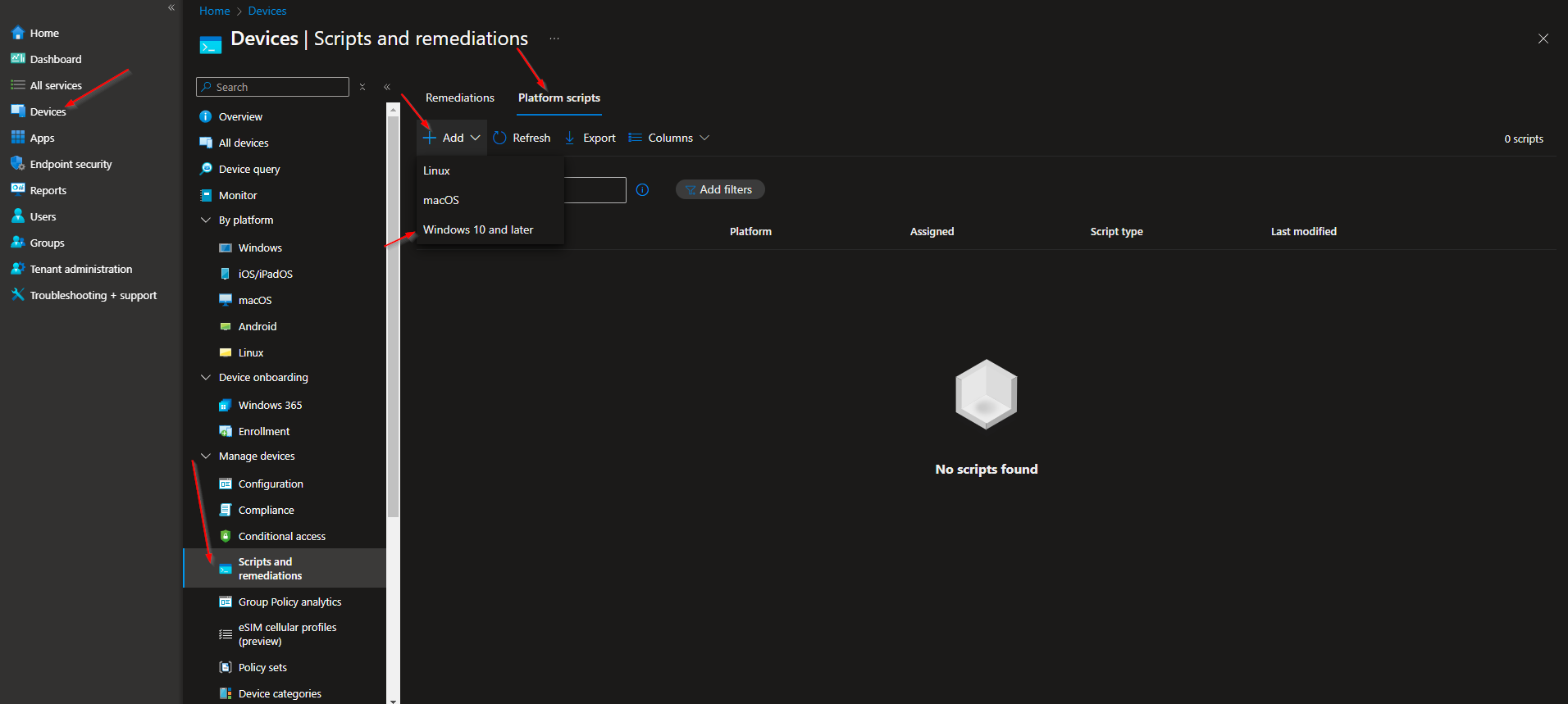
On Basics, enter a Name (e.g. “Disable Windows Fast Startup” or “Enable Windows Fast Startup”) and click Next.
On Script settings, upload the .ps1 file you created. Set:
- Run this script using the logged on credentials . No (so it runs in system context and can write to
HKLM). - Enforce script signature check . No (unless your scripts are signed and you want to enforce it).
- Run script in 64 bit PowerShell Host . Yes (recommended on 64-bit Windows).
Click Next.

On Assignments, add the groups (or All Users / All Devices) that should receive this script. Click Next, then Create.
After the script runs on targeted devices, Fast Startup will be disabled or enabled according to the registry value you set. The change takes effect on the next shutdown and boot.
Wrap-up
You can enable or disable Windows Fast Startup with Microsoft Intune by creating a PowerShell script that sets HiberbootEnabled in HKLM:\SYSTEM\CurrentControlSet\Control\Session Manager\Power to 0 (disable) or 1 (enable), then deploying that script via Scripts and Remediations → Platform Scripts for Windows 10 and later. Run the script in system context (not logged-on credentials) so it can modify the registry. Use this when you need consistent Fast Startup behavior. Either off for BitLocker and full reboots, or on for faster boot times. Across managed devices.





