Windows 11 includes a built-in Teams experience in the taskbar that is aimed at consumer and personal accounts. On managed business devices, many organizations prefer to hide this and standardize on the work-focused Microsoft Teams app instead. Using Microsoft Intune and the Settings Catalog, you can turn off the Chat icon so users no longer see or use the built-in Teams experience.
What You’ll Do
This guide uses a single Intune configuration profile (Settings Catalog) to disable the Windows 11 Chat icon. You will:
- Create a new configuration profile with platform Windows 10 and later and type Settings catalog.
- Add the Chat icon setting under Experience and set Configure Chat Icon to Disable.
- Assign the profile to the users or devices that should have the Chat icon hidden.
Other approaches exist (e.g. group policy or scripts); here we focus only on the Intune Settings Catalog method.
Step 1: Create a Settings Catalog Profile
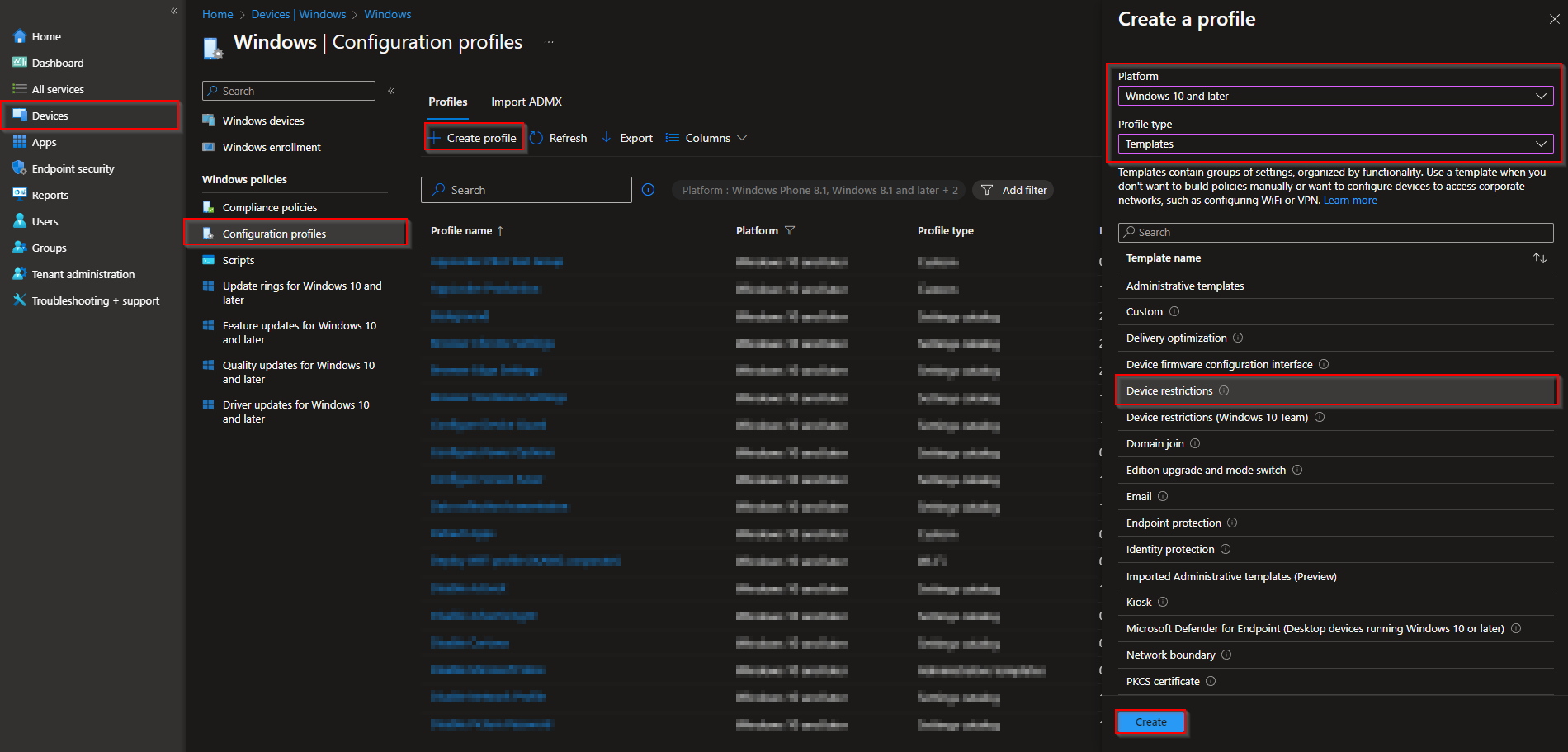
In the Microsoft Intune admin center, go to Devices → Windows → Configuration profiles. Click Create → Create profile.
Set Platform to Windows 10 and later and Profile type to Settings catalog. Click Create.
Step 2: Name and Describe the Profile
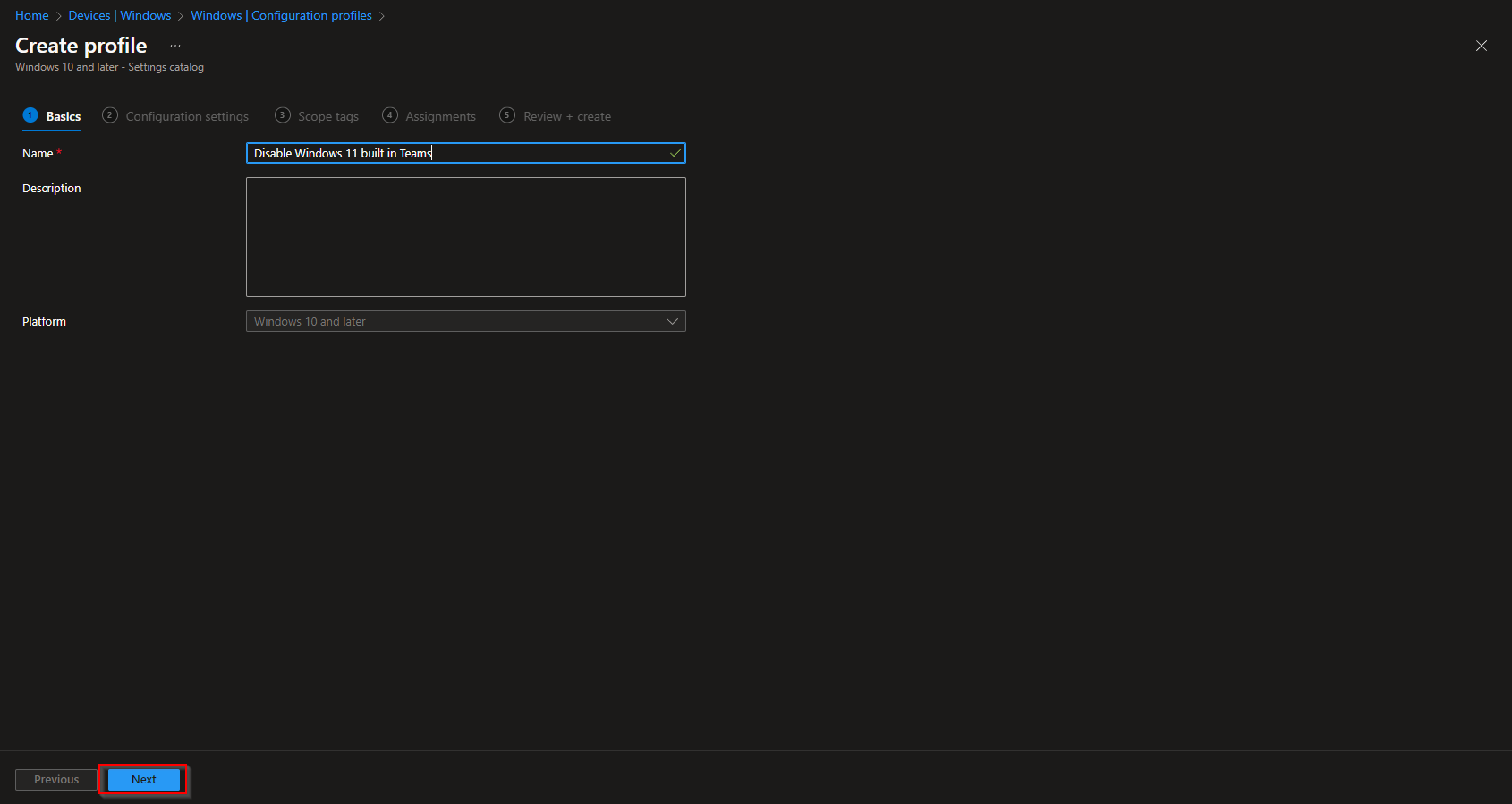
On the Basics tab, enter a Name (e.g. “Disable Windows 11 Chat Icon”) and optionally a Description. Click Next.
Step 3: Disable the Chat Icon
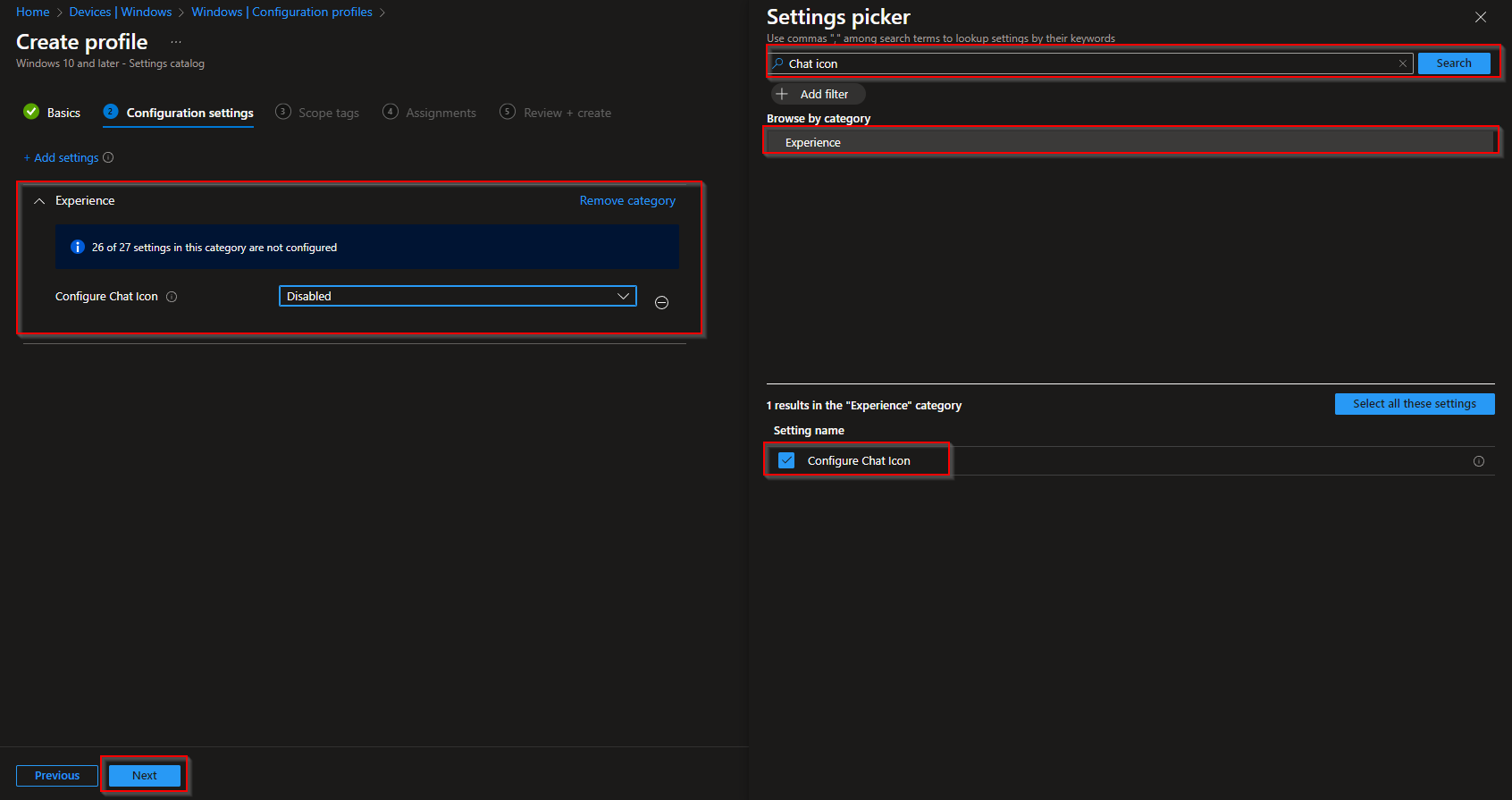
On the Configuration settings tab, click Add settings. In the search box, type Chat icon and open the Experience category. Locate Configure Chat Icon, add it, then set it to Disable. Click Next.
Step 4: Scope and Assignments
On Scope tags, add scope tags if your tenant uses them. Click Next.
On Assignments, add the groups (or All Users / All Devices) that should receive this policy. Click Next.
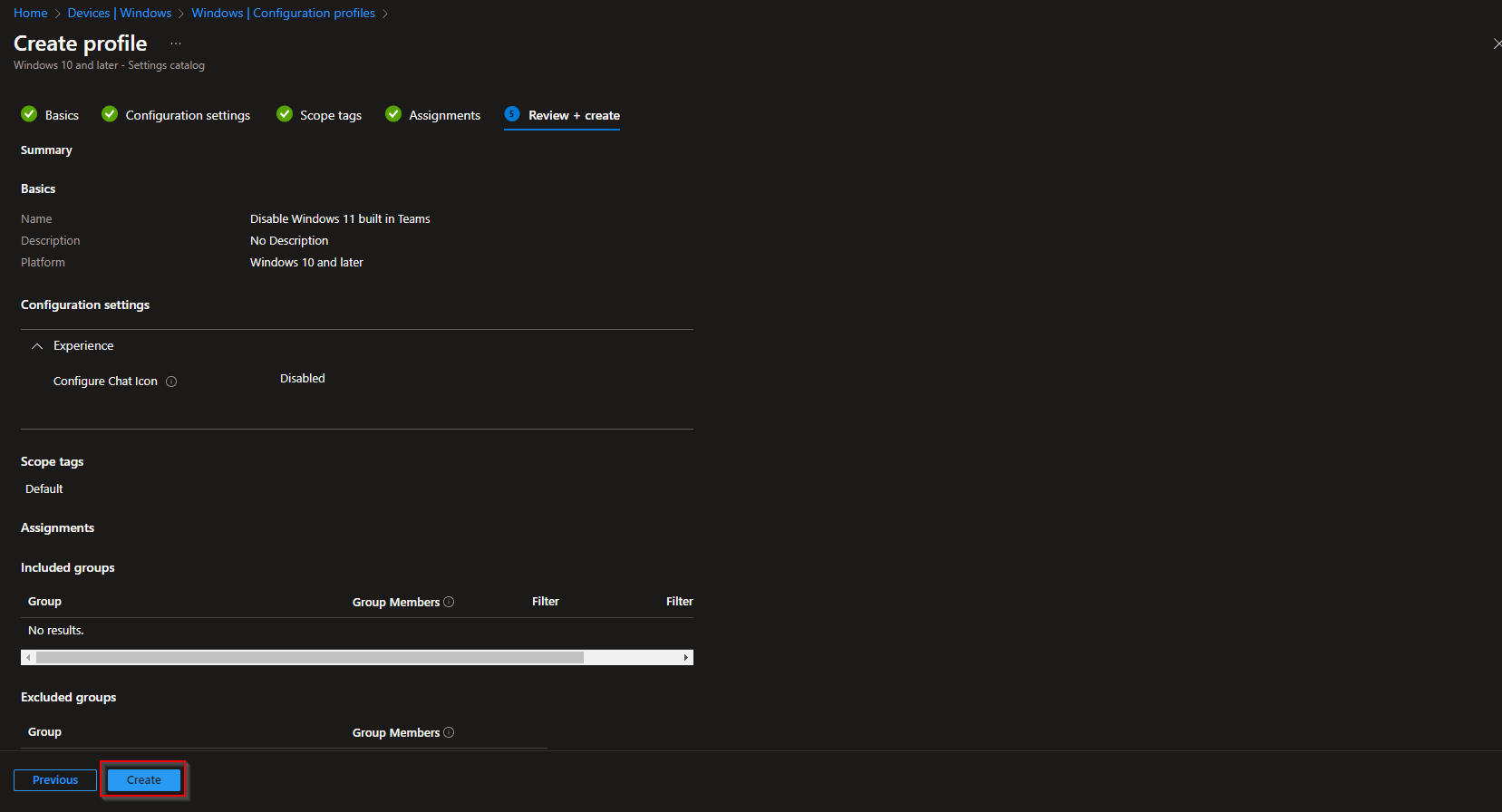
On Review + create, review the summary and click Create. Once the profile syncs to targeted devices, the Windows 11 built-in Teams Chat icon will be disabled for those users.
Wrap-up
You can hide the built-in Windows 11 Teams Chat experience by creating a Settings Catalog profile in Intune, disabling the Configure Chat Icon setting under Experience, and assigning the profile to the right users or devices. This keeps the taskbar focused on work tools while avoiding the consumer Teams app on managed PCs.





