Some organizations prefer to hide the Microsoft Store app from users to reduce unsanctioned installs and keep PCs consistent. You can do that with a single Intune policy while still deploying Store apps (such as Company Portal) through Intune. This setting only blocks direct access to the Store app for end users.
At a Glance
You will create one Intune configuration profile (Settings catalog) that:
- Uses the administrative template setting Turn off the Store application under Windows Components → Store.
- Is assigned to the users or devices that should no longer see or launch the Store app.
Store app deployment via Intune continues to work; only the Store app UI is disabled for targeted devices.
Step 1: Create a Settings Catalog Profile
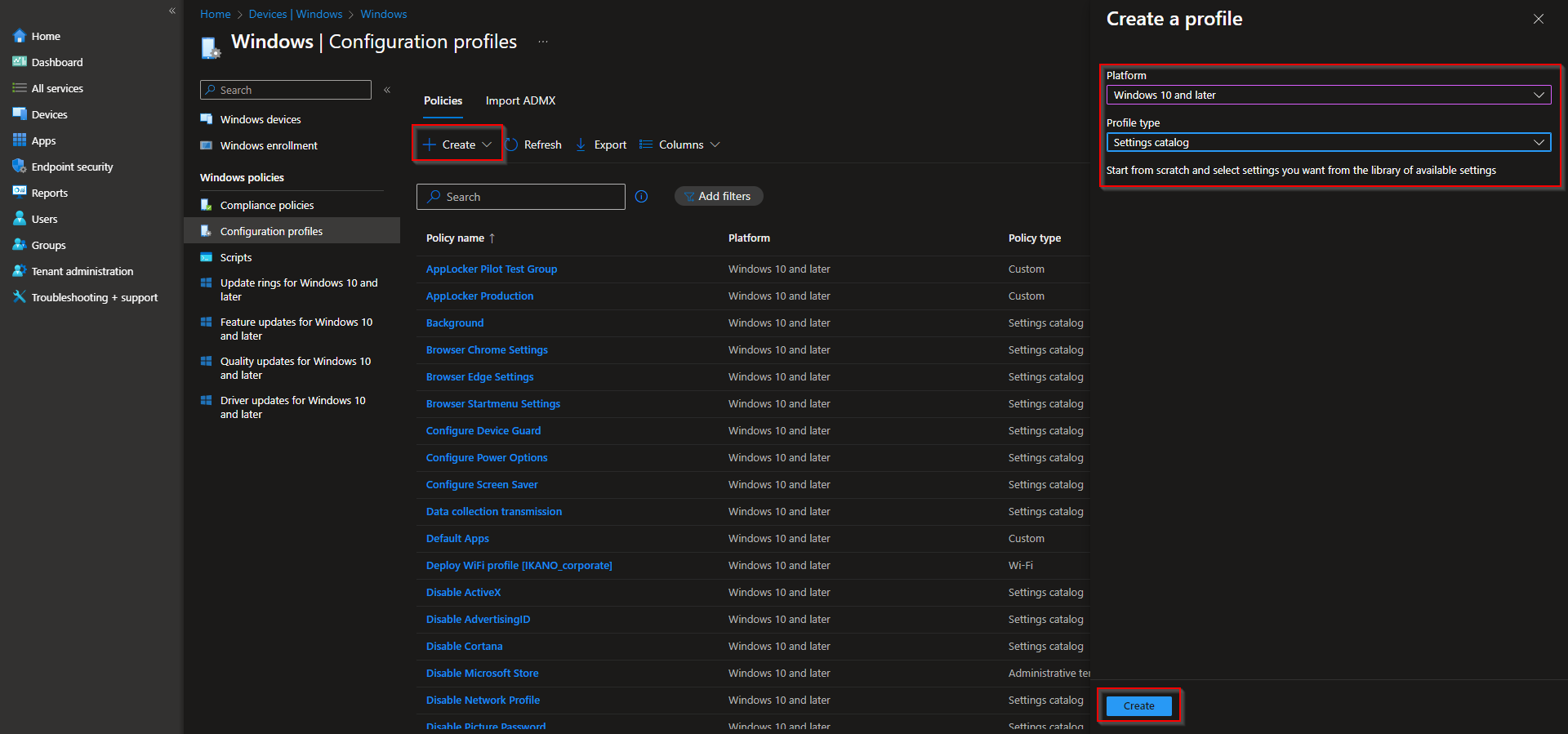
In the Microsoft Intune admin center, go to Devices → Windows → Configuration profiles. Click Create → New policy.
Set Platform to Windows 10 and later and Profile type to Settings catalog. Click Create.
Step 2: Name the Profile and Add the Setting
On the Basics tab, enter a Name (e.g. “Disable Microsoft Store”) and optionally a Description. Click Next.

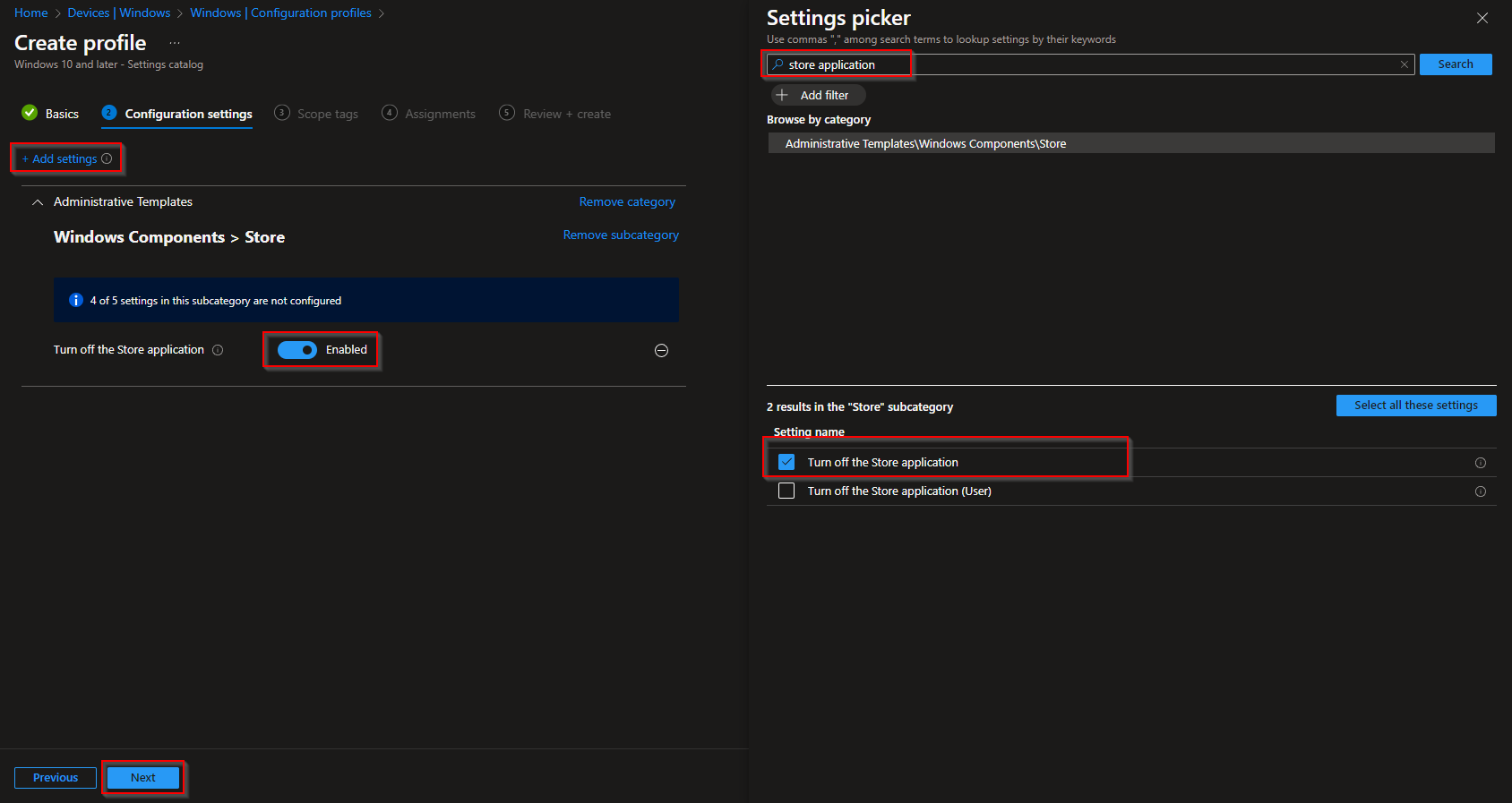
On the Configuration settings tab, click Add settings. Search for store application (or Store), then expand Administrative Templates → Windows Components → Store. Add Turn off the Store application, enable the setting on the left, and click Next.
Step 3: Scope, Assignments, and Create
On Scope tags, add tags if your tenant uses them. Click Next.
On Assignments, add the groups (or All Users / All Devices) that should have the Store app disabled. Click Next.
On Review + create, confirm the profile and click Create.

Once the profile syncs to targeted devices, the Microsoft Store app will be turned off for those users. You can still deploy Microsoft Store apps (including Company Portal) through Intune; this policy only blocks direct use of the Store app on the device.
Wrap-up
You can disable the Microsoft Store app with Intune by creating a Settings Catalog profile and enabling Turn off the Store application under Administrative Templates → Windows Components → Store. Assign the profile to the right users or devices to lock down the Store while keeping Intune-based Store app deployment in place.





