Microsoft Edge can show desktop notifications from websites. Those pop-ups can distract users, expose sensitive content (e.g. email or calendar), and be used for phishing or social engineering. Disabling them centrally with Microsoft Intune removes that risk and keeps behavior consistent. You use a single Settings catalog profile: enable Default notification setting under Microsoft Edge → Content settings and set it to Don't allow any site to show desktop notifications. This guide walks through creating and assigning that profile.
Reasons to Block Edge Notifications
Turning off website notifications at the policy level helps with:
- Security . Fake or malicious notifications can direct users to phishing pages or trigger unwanted actions; blocking all site notifications removes that attack surface.
- Privacy . Notifications may show message previews or other data on the lock screen or to passers-by; disabling them reduces accidental exposure.
- Productivity . Fewer interruptions from pop-ups helps users stay focused.
- Standardization . One policy applies the same rule to all managed Edge instances without depending on user settings.
What You’ll Do
You will create one Settings catalog configuration profile for Windows 10 and later, add Default notification setting under Microsoft Edge → Content settings, set it to Don't allow any site to show desktop notifications, then assign the profile to the users or devices where you want notifications disabled.
Create the Configuration Profile
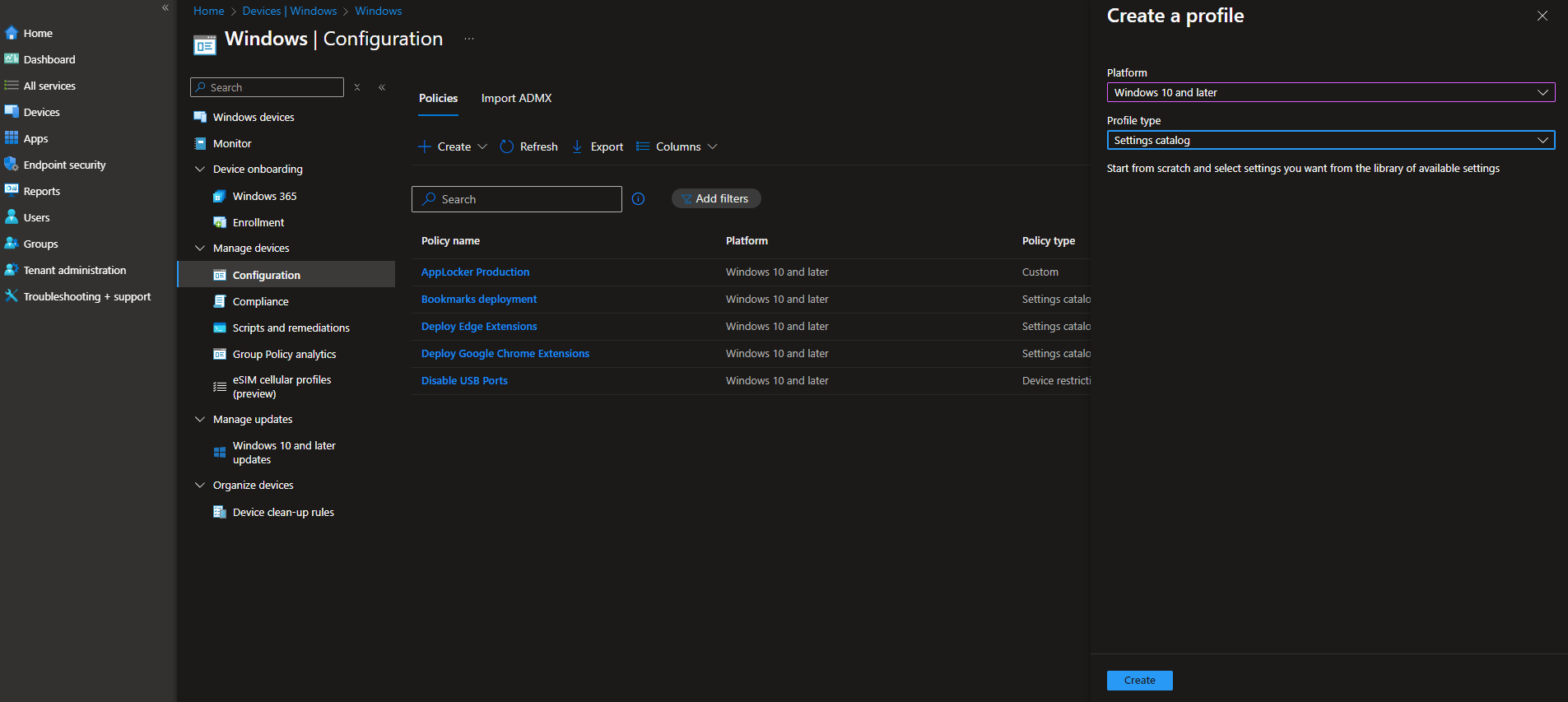
In the Microsoft Intune admin center, go to Devices → Windows → Configuration profiles. Click Create → New policy. Set Platform to Windows 10 and later and Profile type to Settings catalog. Click Create.
On Basics, enter a Name (e.g. “Edge – Disable desktop notifications”) and optionally a Description. Click Next.

Add the Notification Setting
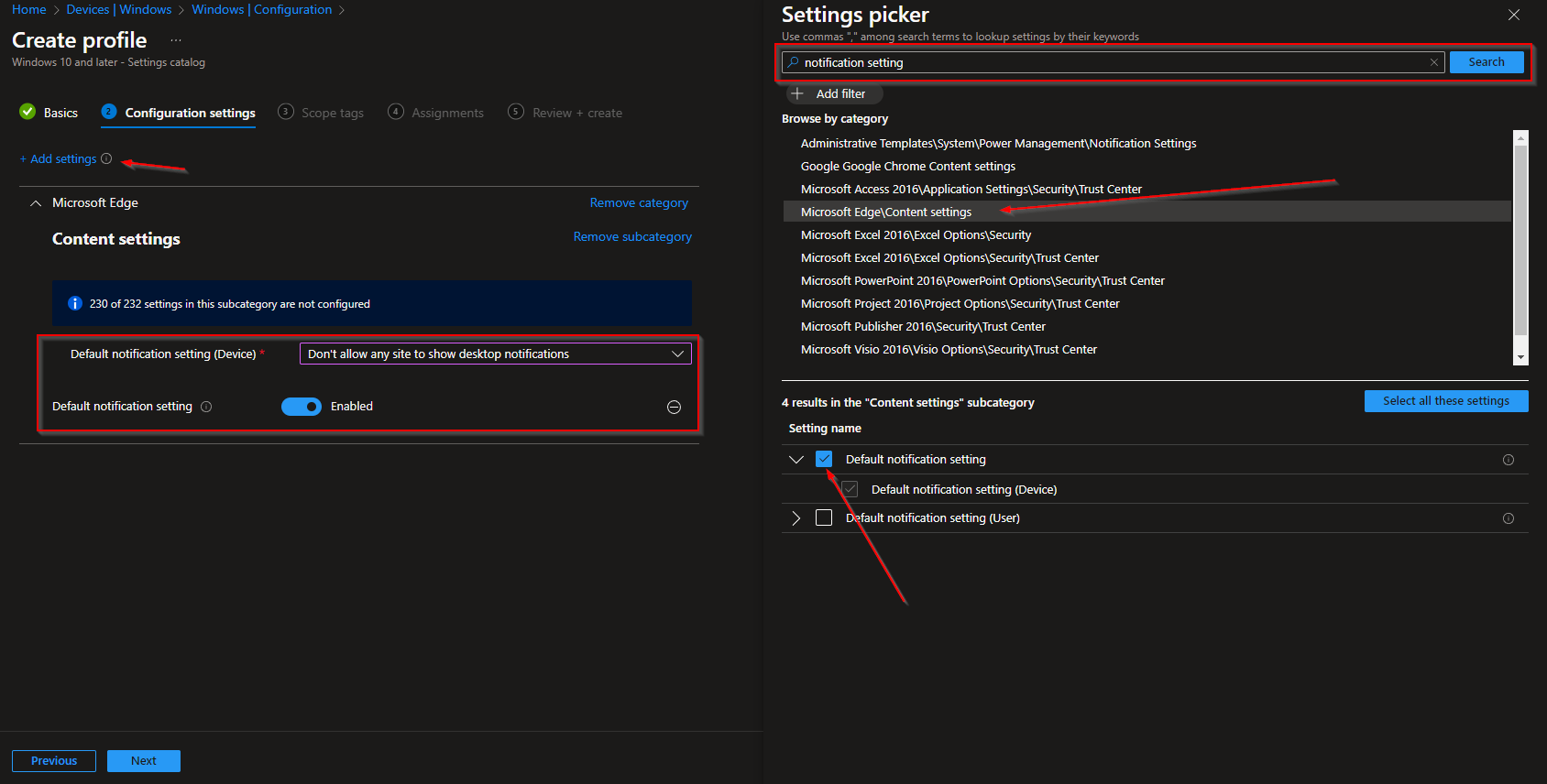
On Configuration settings, click Add settings. Search for notification setting or Content settings. Open Microsoft Edge → Content settings, select Default notification setting, and enable the setting. Set the value to Don't allow any site to show desktop notifications. Click Next.
Set scope tags if your tenant uses them, then on Assignments add the groups (or All Users / All Devices) that should receive this policy. Click Next, then Review + create, and Create.
Once the profile syncs to targeted devices, Edge will no longer show desktop notifications from any website for those users. Existing per-site notification permissions are overridden by this policy.
Wrap-up
You can disable Edge browser notifications with Microsoft Intune by creating a Settings catalog profile for Windows 10 and later, enabling Default notification setting under Microsoft Edge → Content settings, and setting it to Don't allow any site to show desktop notifications. Assign the profile to the users or devices where you want notifications blocked. For Google Chrome, you can use the same approach with a Settings catalog profile and the Chrome Default notification setting under Content settings (see our post on disabling Chrome browser notifications with Intune).





