Windows can automatically discover and connect to network printers and show them in the printer list. In environments with many printers, that can clutter the list and lead users to pick the wrong printer or waste time finding the right one. You can turn off this behavior by setting a registry value and deploying it with a PowerShell script in Microsoft Intune. This guide shows the script and how to add it as an Intune PowerShell script and assign it to your devices.
What Connect Printer Automatically Does
When “Connect printer automatically” (or automatic printer setup) is enabled, Windows discovers network printers and adds them to the user’s printer list. That’s convenient in small setups but in offices with lots of printers it often shows more than users need. Disabling it keeps the printer list limited to printers you deploy (e.g. via Group Policy or Intune) or that users add manually, reducing confusion and wrong-print jobs.
PowerShell Script to Disable It
Disabling automatic printer connection is done via the registry. The path used by Windows for this behavior is under HKLM\SOFTWARE\Microsoft\Windows\CurrentVersion\NcdAutoSetup. Create the Private key if it does not exist and set AutoSetup to 0 (DWORD) to turn off automatic setup. Example script:
# Disable automatic connect printer (NcdAutoSetup)
New-Item -Path "HKLM:\SOFTWARE\Microsoft\Windows\CurrentVersion\NcdAutoSetup" -Name "Private" -Force
New-ItemProperty -Path "HKLM:\SOFTWARE\Microsoft\Windows\CurrentVersion\NcdAutoSetup\Private" -Name "AutoSetup" -Value 0 -PropertyType DWord -Force
Save this as a .ps1 file (e.g. Disable-ConnectPrinterAutomatically.ps1). The script must run in the system context (as with Intune PowerShell scripts) so it can write to HKLM.
Deploy the Script with Intune
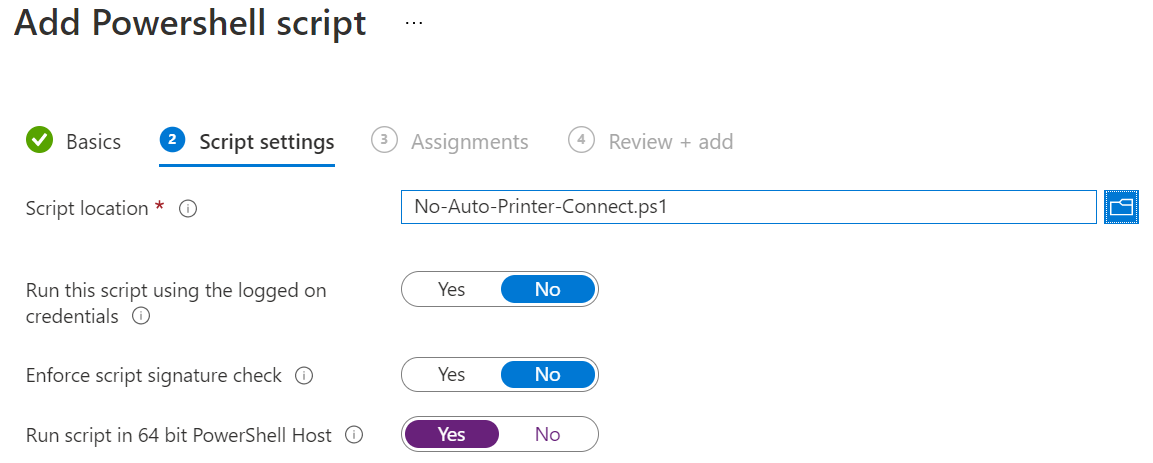
In the Microsoft Intune admin center, go to Devices → Windows → PowerShell scripts. Click Add. On Basics, give the script a name (e.g. “Disable Connect Printer Automatically”) and optionally a description. On Script settings, upload your .ps1 file. Leave Run this script using the logged on credentials off so it runs in the system context (required for HKLM). Click Next, add Assignments (user or device groups that should get the script), then Review + add and Add.
After the script runs on targeted devices, Windows will no longer automatically connect to discovered network printers. Users will only see printers you deploy or that they add themselves. For more on Intune PowerShell scripts, see Use PowerShell scripts in Intune on Microsoft Learn.
Summary
To disable Connect Printer Automatically with Microsoft Intune: create a PowerShell script that creates HKLM:\SOFTWARE\Microsoft\Windows\CurrentVersion\NcdAutoSetup\Private (if needed) and sets AutoSetup to 0 (DWord). Upload the script under Devices → Windows → PowerShell scripts → Add, assign it to the right user or device groups, and let it run. Windows will stop automatically connecting to discovered network printers, so users see only the printers you provide or add manually.





