Some organizations lock down Bluetooth on corporate PCs to reduce risk from peripheral devices or to enforce a consistent hardware policy. With Microsoft Intune and the Settings Catalog, you can disable Bluetooth so the toggle in Windows Settings is grayed out and users cannot turn it on.
What You’ll Do
You will create one Intune configuration profile (Settings catalog) that:
- Uses the Allow Bluetooth setting under Connectivity and sets it to Disallow Bluetooth.
- Is assigned to the users or devices that should have Bluetooth disabled.
After the profile syncs, the Bluetooth control in Windows will be disabled for targeted devices.
Step 1: Create a Settings Catalog Profile
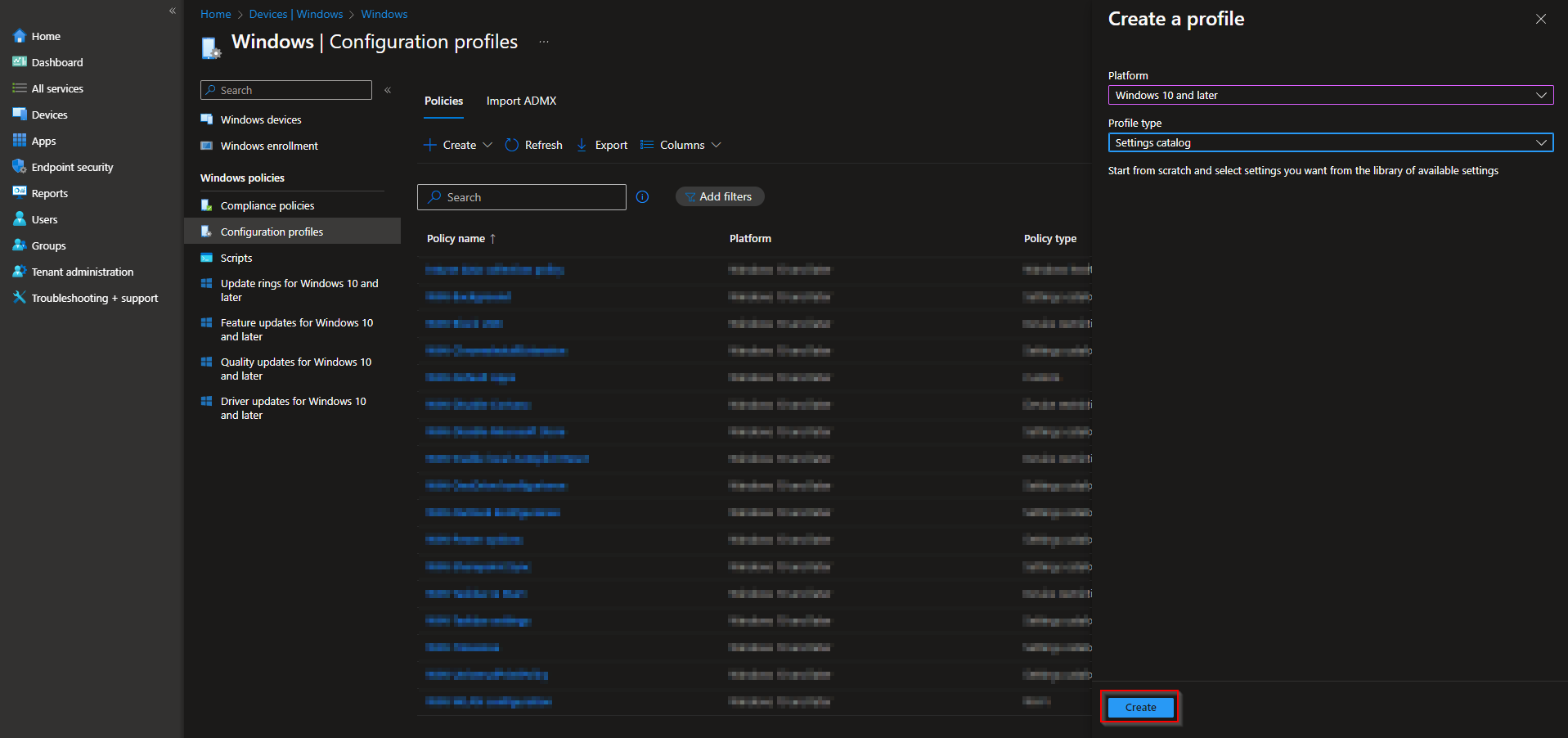
In the Microsoft Intune admin center, go to Devices → Windows → Configuration profiles. Click Create → New policy.
Set Platform to Windows 10 and later and Profile type to Settings catalog. Click Create.
Step 2: Name the Profile
On the Basics tab, enter a Name (e.g. “Disable Bluetooth”) and optionally a Description. Click Next.

Step 3: Configure the Bluetooth Setting
On the Configuration settings tab, click Add settings. Search for bluetooth, then expand Connectivity. Add Allow Bluetooth and set it to Disallow Bluetooth. Click Next.
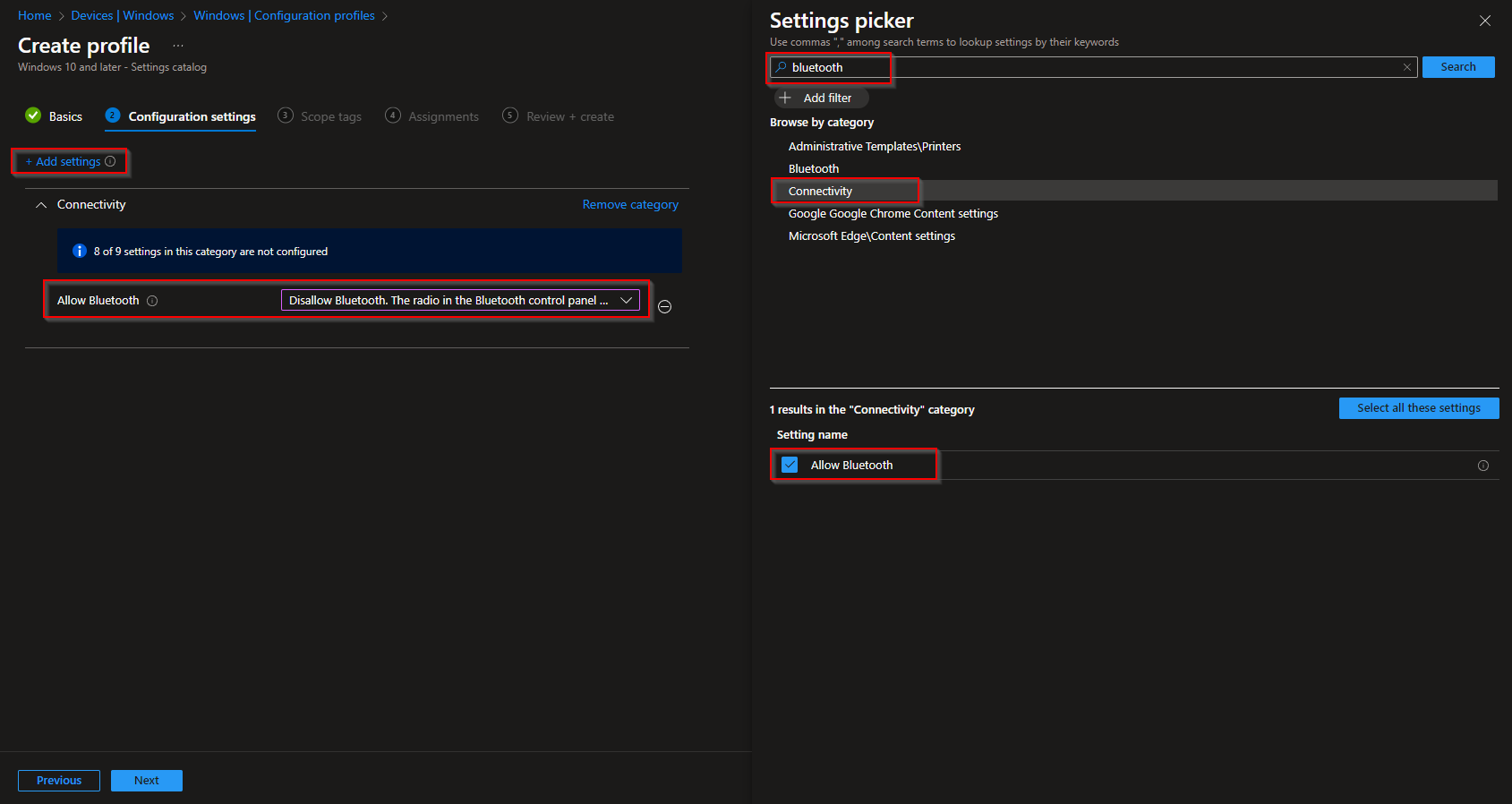
Allow Bluetooth options:
- Disallow Bluetooth . The Bluetooth toggle in Windows Settings is grayed out; users cannot turn Bluetooth on.
- Reserved . The toggle remains available and users can turn Bluetooth on or off.
- Allow Bluetooth (Default) . The toggle is available and users can enable or disable Bluetooth.

Step 4: Scope, Assignments, and Create
On Scope tags, add tags if your tenant uses them. On Assignments, add the groups (or All Users / All Devices) that should have Bluetooth disabled. On Review + create, confirm and click Create.
Once the profile syncs to targeted devices, Bluetooth will be disabled and users will not be able to re-enable it from Settings.
Wrap-up
You can disable Bluetooth with Intune by creating a Settings Catalog profile and setting Allow Bluetooth under Connectivity to Disallow Bluetooth. Assign the profile to the right users or devices to enforce the policy across your managed Windows environment.





