Keeping the same Start menu and taskbar layout on every Windows 11 device helps with training and support. Microsoft Intune can apply a single layout to many devices by using an XML file that describes the Start tiles and pinned taskbar apps. You create the XML (optionally from a reference PC), add the taskbar pin list if needed, then deploy it via a Windows 11 configuration profile.
This guide walks through exporting or building the layout XML, adding taskbar pins, and uploading and assigning the profile in the Intune admin center.
What You’ll Do
- Create an XML file that defines the Start menu layout (and optionally the taskbar).
- In Intune, create a Windows 11 configuration profile using the Device restrictions template, upload the XML, and assign it to users or devices.
After the profile applies, users get the defined Start and taskbar layout. Changes may require a sign-out or restart.
Step 1: Create the Layout XML
You can either export the Start layout from a reference machine or write the XML by hand. To export from a reference PC:
- On a Windows 11 device, arrange the Start menu tiles the way you want.
- Open PowerShell as Administrator.
- Run:
Export-StartLayout -UseDesktopApplicationID -Path C:/layout.xml
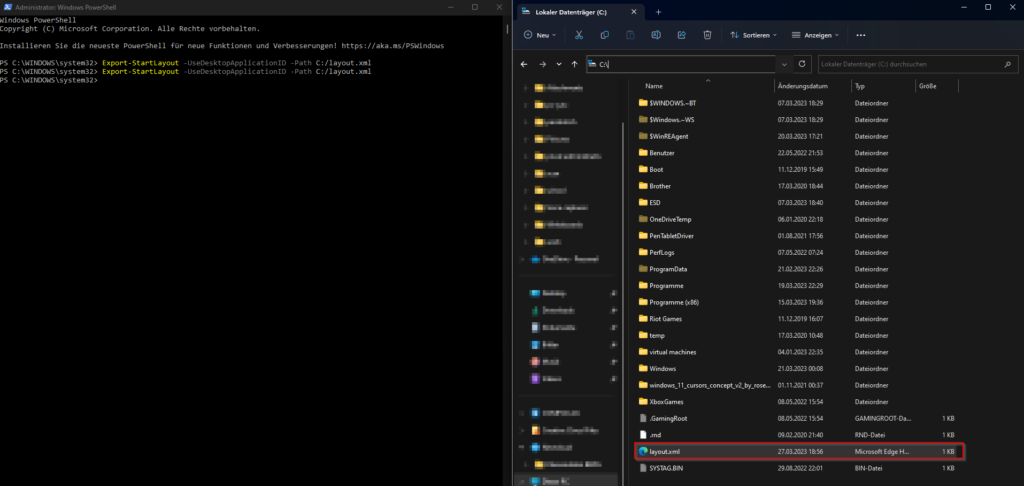
A file layout.xml is created at the path you specified (e.g. C:\layout.xml).
Open the XML in a text editor (e.g. Notepad). The file contains a LayoutModificationTemplate with StartLayoutCollection for the Start menu. By default it does not include the taskbar. To pin apps to the taskbar, add a CustomTaskbarLayoutCollection block before the closing </LayoutModificationTemplate> tag.
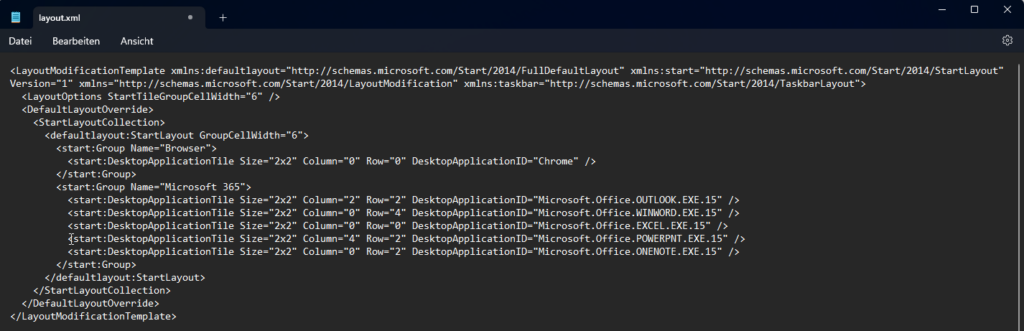
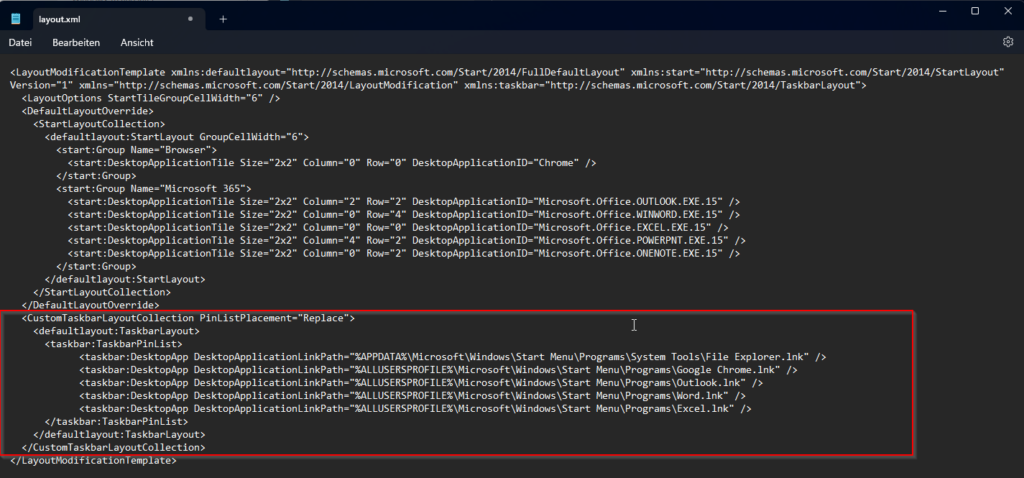
Example taskbar block (adjust the DesktopApplicationLinkPath values to match your shortcuts):
<CustomTaskbarLayoutCollection PinListPlacement="Replace">
<defaultlayout:TaskbarLayout>
<taskbar:TaskbarPinList>
<taskbar:DesktopApp DesktopApplicationLinkPath="%APPDATA%\Microsoft\Windows\Start Menu\Programs\System Tools\File Explorer.lnk" />
<taskbar:DesktopApp DesktopApplicationLinkPath="%ALLUSERSPROFILE%\Microsoft\Windows\Start Menu\Programs\Google Chrome.lnk" />
<taskbar:DesktopApp DesktopApplicationLinkPath="%ALLUSERSPROFILE%\Microsoft\Windows\Start Menu\Programs\Outlook.lnk" />
</taskbar:TaskbarPinList>
</defaultlayout:TaskbarLayout>
</CustomTaskbarLayoutCollection>
Use PinListPlacement="Replace" to replace the default taskbar pins. Paths are typically under %APPDATA%\Microsoft\Windows\Start Menu\Programs or %ALLUSERSPROFILE%\Microsoft\Windows\Start Menu\Programs. Save the XML when done.
Step 2: Deploy the Layout in Intune
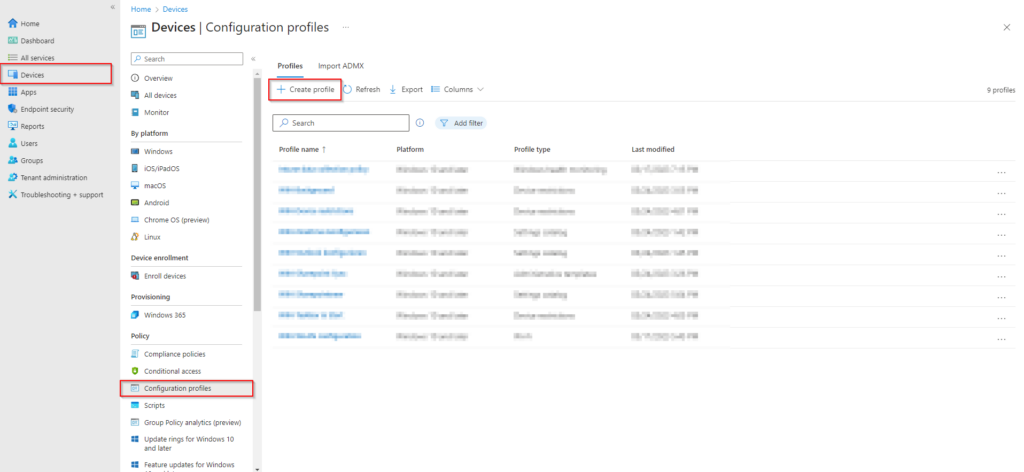
In the Microsoft Intune admin center, go to Devices → Configuration profiles → Create → New policy.
Set the platform to Windows 11 and later (Start/taskbar layout for Windows 11 is configured via this profile type).

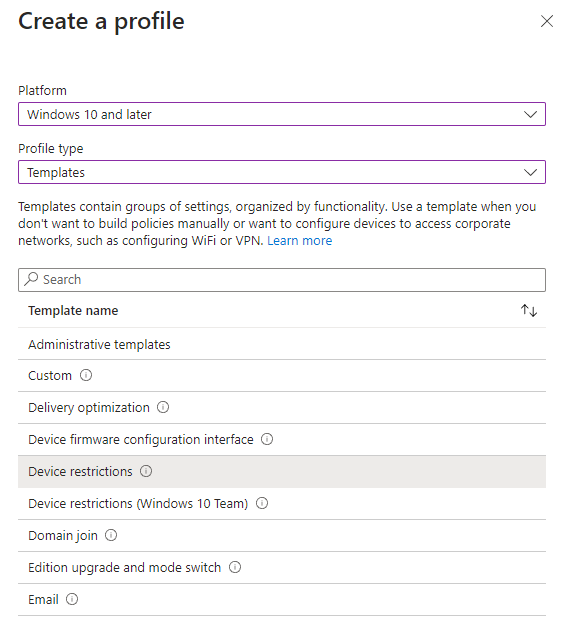
Under Profile type, choose Templates, then select Device restrictions. Click Create.
On Basics, give the profile a name (e.g. WIN-Start and Taskbar), then click Next.
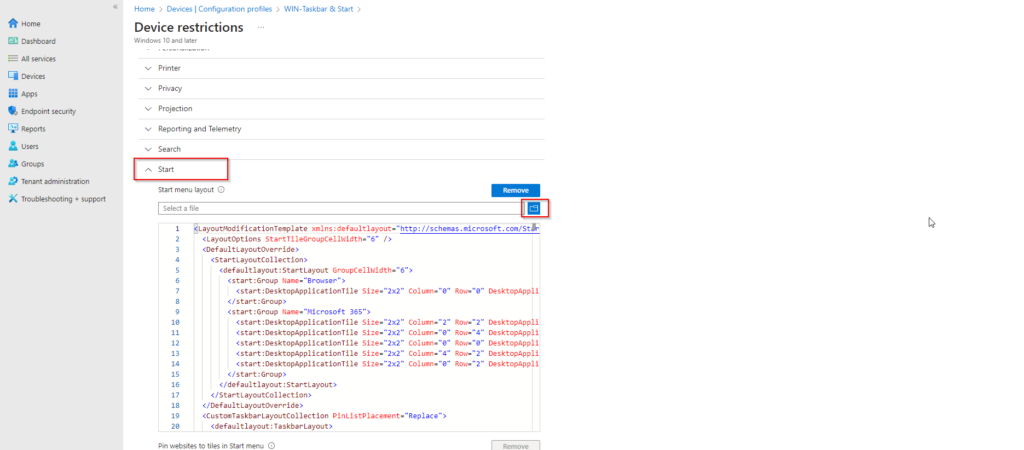
On Configuration settings, find the Start category. Use the control that lets you upload or paste the Start layout XML (e.g. Start layout or Import), and upload or paste your layout.xml content. You can review the XML in the portal; editing is often limited. Click Next.
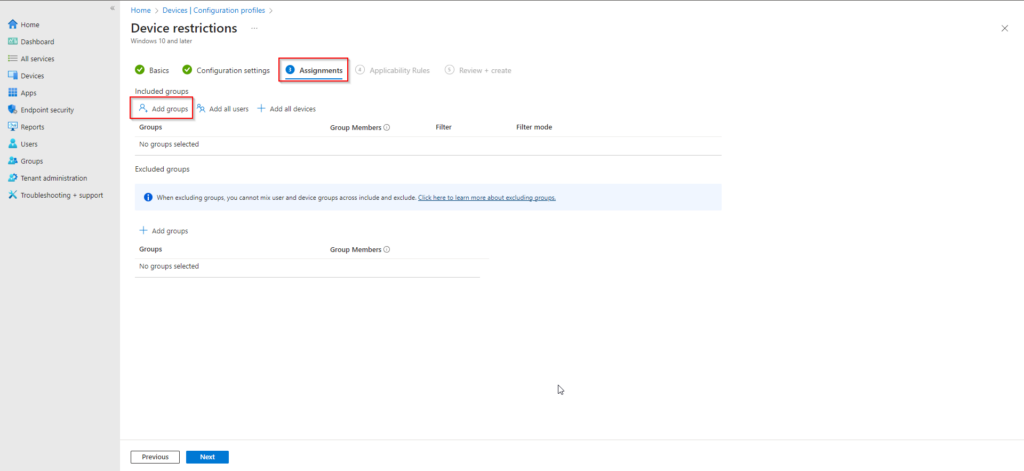
On Assignments, add the groups that should receive this layout (or All Users / All Devices). Click Next.
On Applicability rules, add rules if you only want the profile on certain OS versions. Otherwise click Next. On Review + create, review the summary and click Create.
Intune will push the profile to assigned devices. The new Start and taskbar layout applies after the device receives the policy; users may need to sign out and back in or restart for the layout to appear.
Conclusion
You can deploy a consistent Windows 11 Start menu and taskbar by creating an XML layout (exported with Export-StartLayout or built manually), adding a CustomTaskbarLayoutCollection for taskbar pins, then deploying it via a Windows 11 Device restrictions configuration profile in Intune. Assign the profile to the right users or devices and allow time for policy sync and, if needed, a sign-out or restart.





