Intune does not have a built-in way to deploy shortcuts to the public desktop (C:\Users\Public\Desktop). You can still do it by packaging a PowerShell install script (and optional icon) as a Win32 app: the script creates the shortcut on the public desktop, and Intune deploys and detects it like any other app. This guide walks through preparing the shortcut content, building the Win32 package, and adding it in Intune.
What You’ll Do
- Create a folder with an install script (and optionally an icon), then an uninstall script that removes the shortcut.
- Package that folder with the Microsoft Win32 Content Prep Tool so you have an
.intunewinfile. - Add the package in Intune as a Win32 app with install and uninstall commands that run the scripts, set detection to the shortcut file on the public desktop, and assign the app to users or devices.
Use the same shortcut filename (e.g. MicrosoftTeams.lnk) in the install script, uninstall script, and detection rule.
Step 1: Prepare the Shortcut for Deployment
Create two folders: one for the source content (e.g. C:\DeployShortcut) and one for the packaged output (e.g. C:\Output).
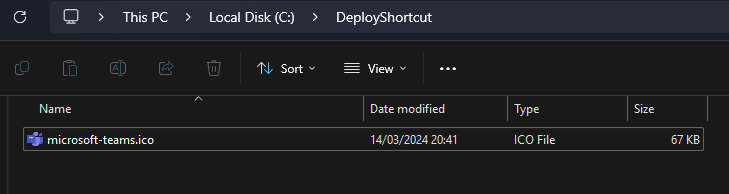
Optionally add an icon file (e.g. microsoft-teams.ico) to the source folder so the shortcut uses a custom icon. You can use a site like icon-icons.com or convert an image to .ico; place the .ico file in C:\DeployShortcut.
Create an install script (e.g. Shortcut-Install.ps1) that:
- Creates
C:\DeployShortcutif needed and copies the icon there (if you use one). - Uses
WScript.Shellto create a shortcut inC:\Users\Public\Desktopwith the desired TargetPath (e.g. Chrome), Arguments (e.g. a URL), IconLocation, and Description.
Example (adjust paths, icon name, shortcut name, target, and description to match your shortcut):
New-Item -Path "C:\DeployShortcut" -ItemType Directory -Force
Copy-Item ".\microsoft-teams.ico" -Destination "C:\DeployShortcut\microsoft-teams.ico"
$Shell = New-Object -ComObject WScript.Shell
$ShortCut = $Shell.CreateShortcut("C:\Users\Public\Desktop\MicrosoftTeams.lnk")
$ShortCut.TargetPath = "C:\Program Files\Google\Chrome\Application\chrome.exe"
$ShortCut.Arguments = "https://teams.microsoft.com/"
$ShortCut.IconLocation = "C:\DeployShortcut\microsoft-teams.ico"
$ShortCut.Description = "Shortcut to Microsoft Teams Web"
$ShortCut.Save()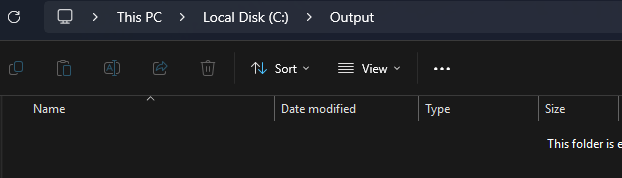
Create an uninstall script (e.g. Shortcut-Uninstall.ps1) that removes the shortcut from the public desktop. Use the same shortcut name as in the install script:
Remove-Item -Path "C:\Users\Public\Desktop\MicrosoftTeams.lnk" -Force -ErrorAction SilentlyContinue
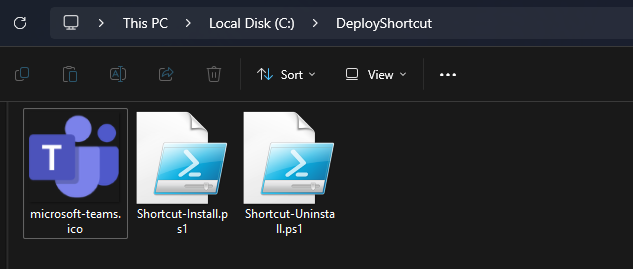
Save both scripts (and the icon) in C:\DeployShortcut. The folder should contain the install script, the uninstall script, and the icon file if you use one.
Step 2: Create the Win32 Package
Download the Microsoft Win32 Content Prep Tool (IntuneWinAppUtil) and run it with administrator rights.
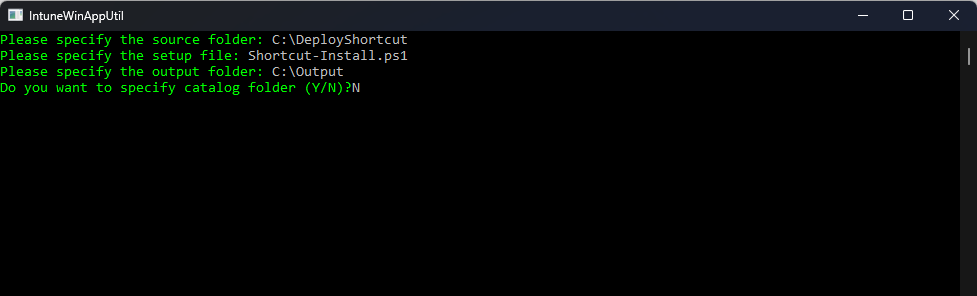
When prompted, set:
- Source folder:
C:\DeployShortcut - Setup file:
Shortcut-Install.ps1 - Output folder:
C:\Output - Catalog folder: N
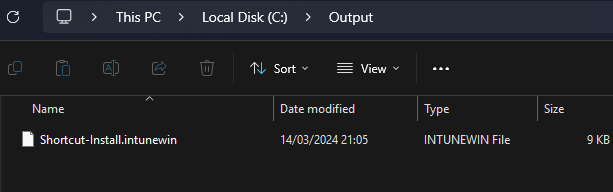
The tool creates an .intunewin file (e.g. Shortcut-Install.intunewin) in the output folder. Keep this file for the next step.
Step 3: Add and Deploy the Win32 App in Intune
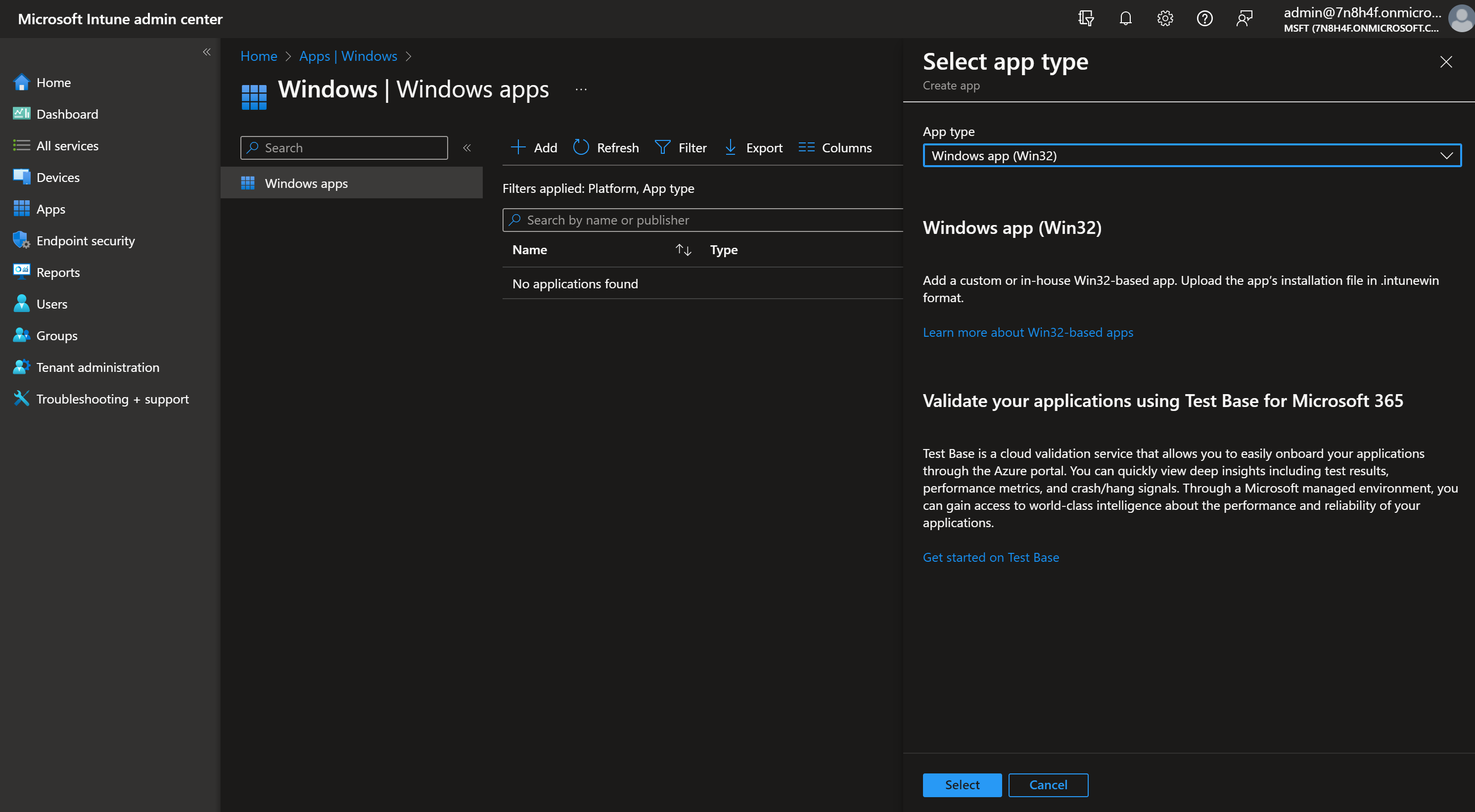
In the Microsoft Intune admin center, go to Apps → Windows → Add. Choose Windows app (win32) and click Select.
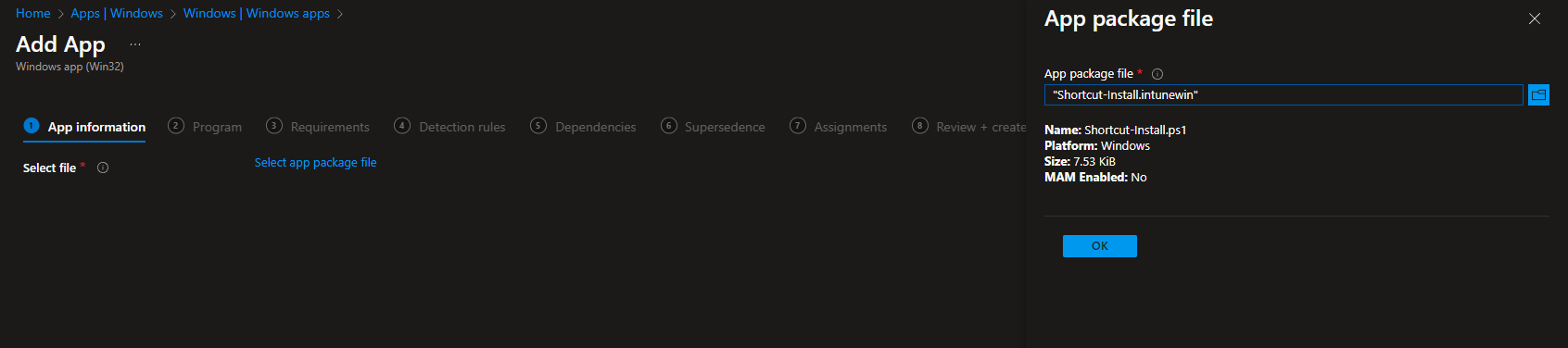
Under App package file, click Select app package file and upload the .intunewin file from C:\Output. Click OK, then Next.
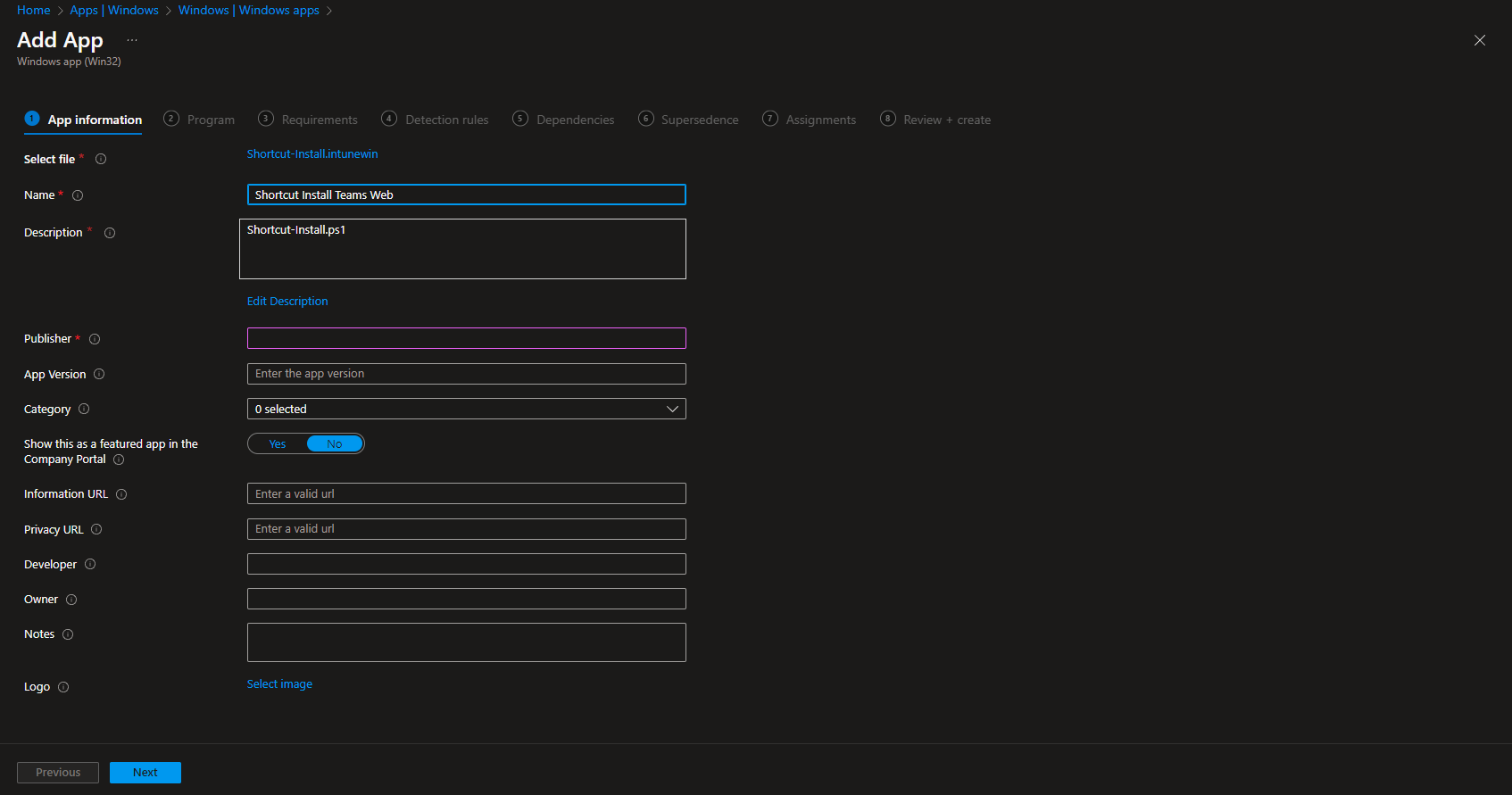
On App information, set name, description, and Publisher. Click Next.
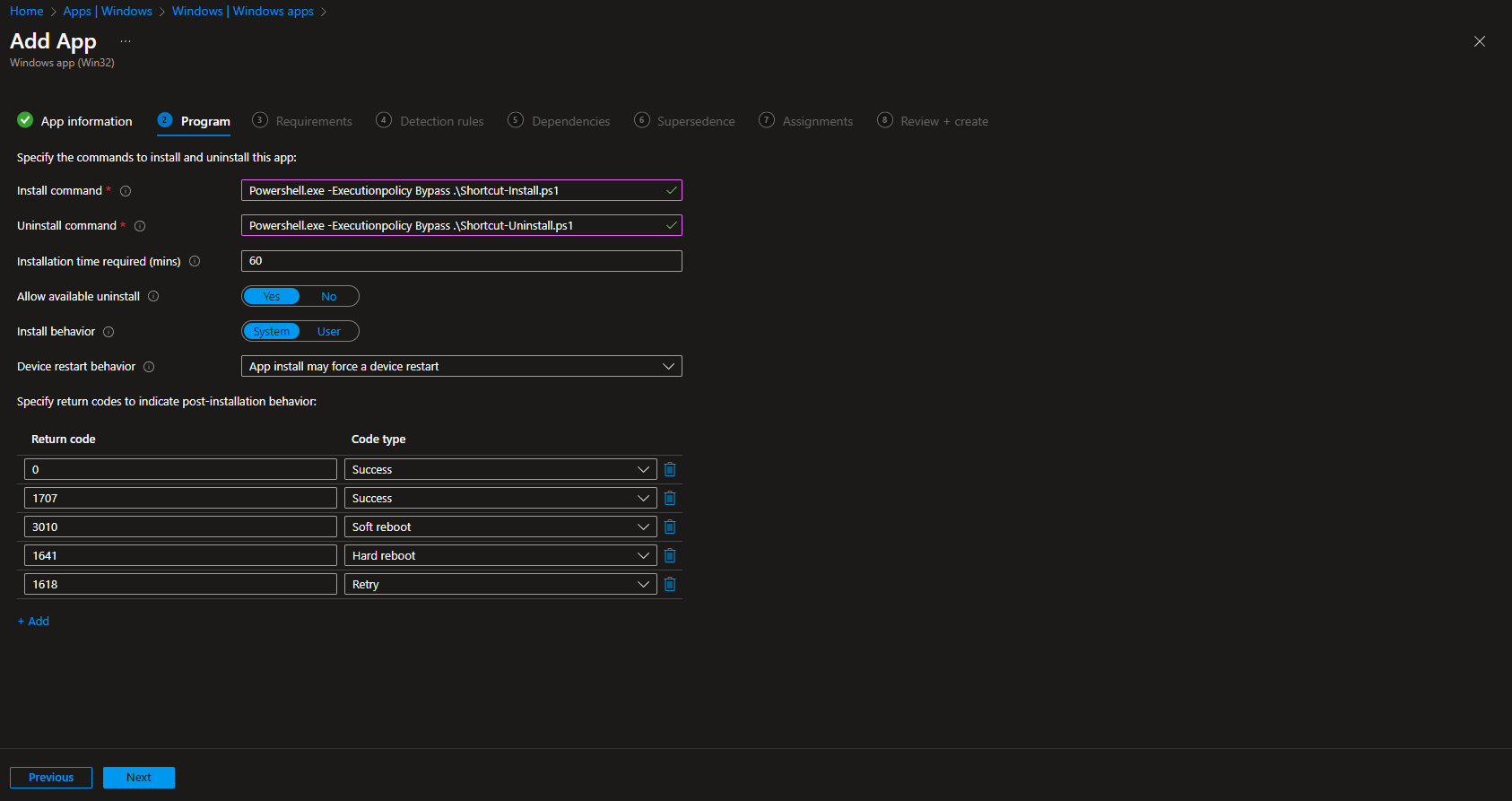
On Program, set:
- Install command:
powershell.exe -ExecutionPolicy Bypass -File ".\Shortcut-Install.ps1" - Uninstall command:
powershell.exe -ExecutionPolicy Bypass -File ".\Shortcut-Uninstall.ps1" - Install behavior: System
Click Next. On Requirements, set minimum OS (e.g. Windows 10 1607) and architecture (32-bit, 64-bit, or both). Click Next.
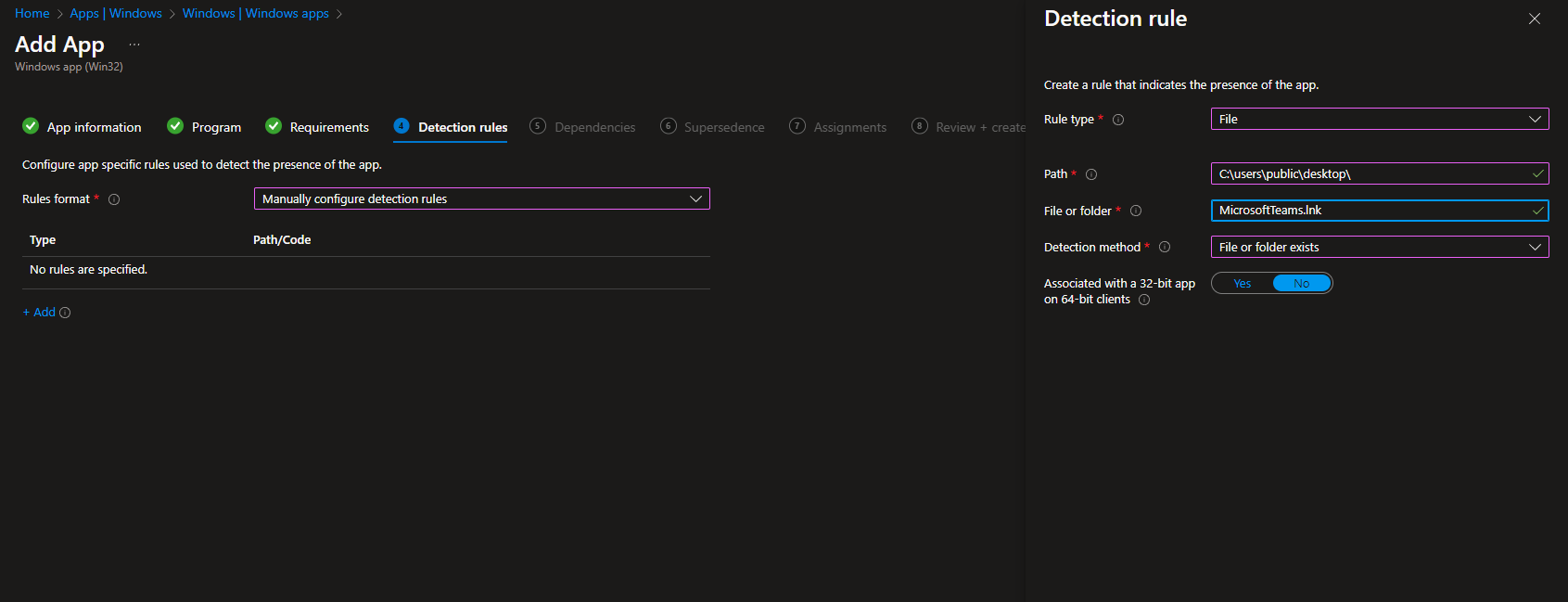
On Detection rules, add a rule: Rule type File, Path C:\Users\Public\Desktop, File or folder your shortcut name (e.g. MicrosoftTeams.lnk), Detection method File or folder exists. Click OK then Next. Configure Dependencies and Supersedence if needed, then Next.
On Assignments, assign the app to the groups (or All Users/Devices) that should get the shortcut. Click Next, then Review + create → Create.
Once the app is deployed, the install script runs on targeted devices and creates the shortcut on the public desktop. Detection ensures Intune knows the shortcut is present; uninstall removes it if you unassign the app.
Wrap-up
You can deploy shortcuts to the public desktop with Intune by (1) preparing an install script (and optionally an icon) plus an uninstall script in a folder, (2) packaging that folder with the Win32 Content Prep Tool using the install script as the setup file, and (3) adding the package in Intune as a Win32 app with the correct install and uninstall commands and a file-based detection rule for the shortcut. Use the same shortcut name in the scripts and detection rule so install, detection, and uninstall stay in sync.





