OneDrive can sync SharePoint document libraries to Windows devices. Microsoft Intune can push a list of team site libraries to sync automatically using a Settings catalog profile (OneDrive: Configure team site libraries to sync automatically). By default, that sync can take several hours to appear for the user. You can add an Intune remediation script that sets a registry value so OneDrive picks up the configuration sooner. Often within about 1–2 hours instead of up to 8.
This guide walks through getting the Library ID from each SharePoint site, creating a Settings catalog profile that configures the libraries to sync, then creating a remediation script (detection + remediation) that sets the OneDrive auto-mount registry value so the sync happens faster.
What You’ll Do
- Get the Library ID for each SharePoint document library you want to sync (from the library’s Sync dialog).
- Create a Settings catalog configuration profile that enables Configure team site libraries to sync automatically (User) and adds each library (name + Library ID).
- Optionally create a remediation script that sets the OneDrive
TimerAutoMountregistry value so the sync is applied sooner (e.g. 1–2 hours instead of up to 8).
Step 1: Get the Library ID from SharePoint
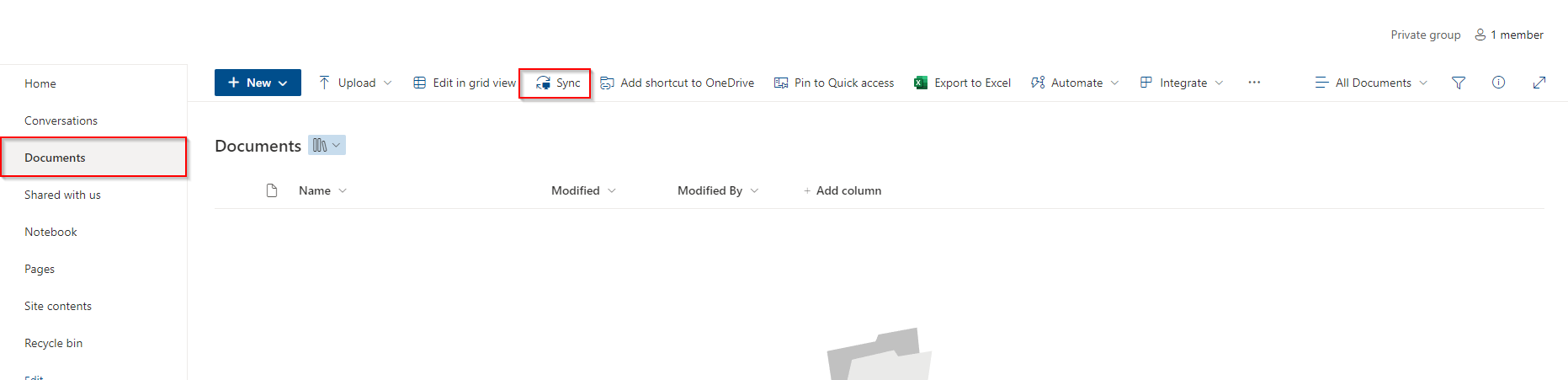
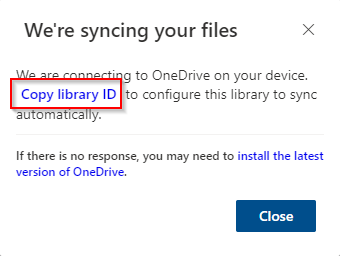
For each SharePoint site library you want to deploy, open the document library in the browser. Click Sync (or open the Sync dialog). In the dialog that appears, use the option to Copy library ID (or copy the library ID from the sync URL/prompt). Save each Library ID; you’ll add them in the configuration profile with a friendly name (e.g. “Project Alpha”, “HR Documents”).
Step 2: Create the Configuration Profile
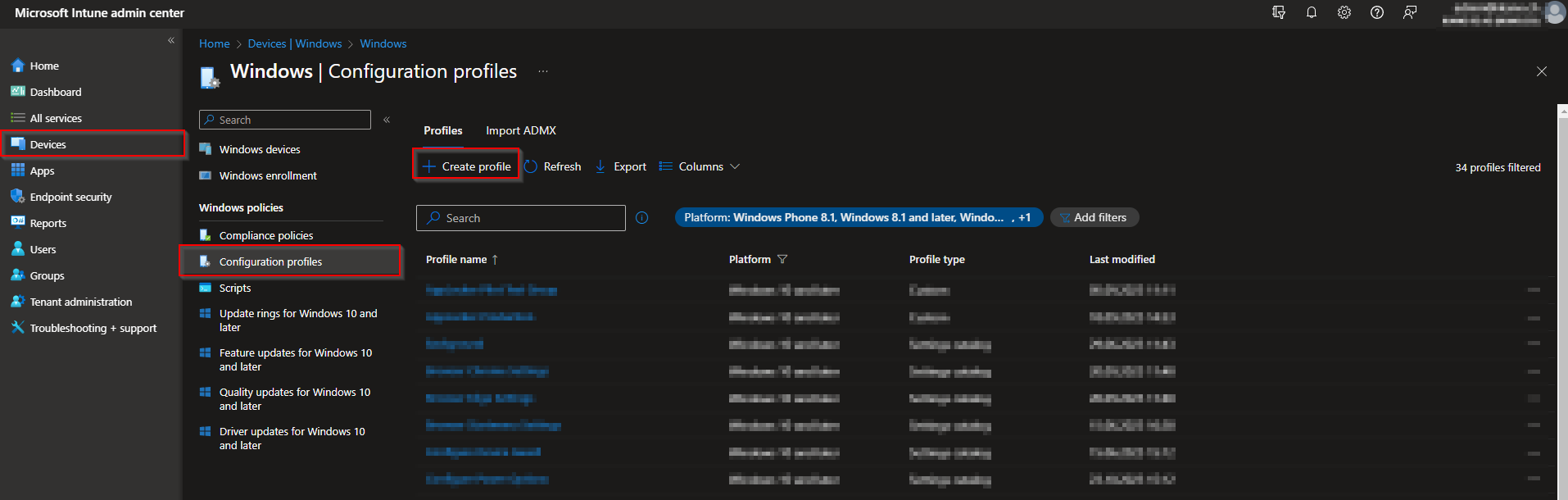
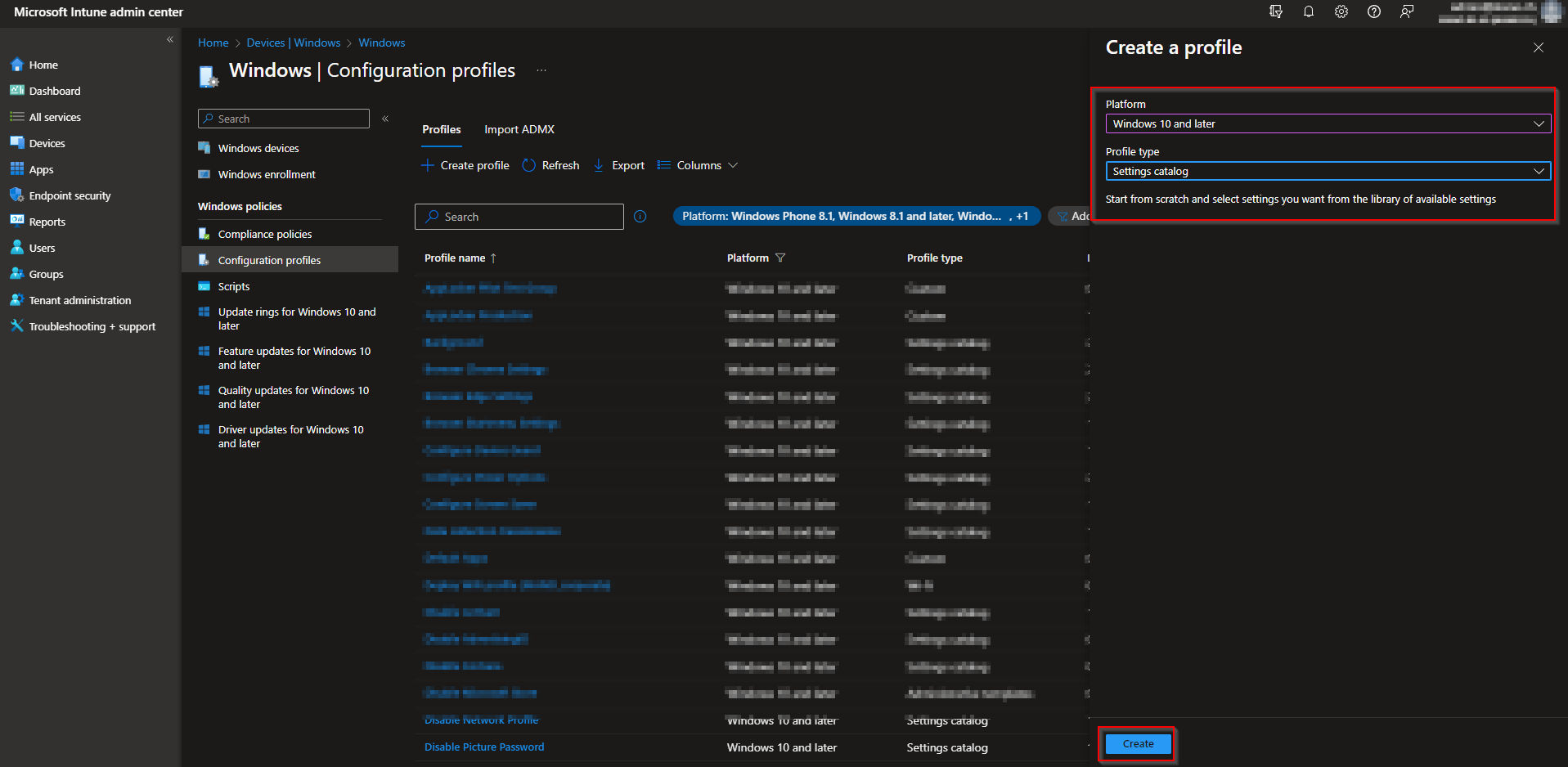
In the Microsoft Intune admin center, go to Devices → Windows → Configuration profiles. Click Create → New policy. Choose Windows 10 and later as the platform and Settings catalog as the profile type. Click Create.
On Basics, give the profile a name (e.g. WIN-OneDrive SharePoint Libraries) and optionally a description. Click Next.
On Configuration settings, click Add settings. Search for libraries or OneDrive. Under OneDrive, select Configure team site libraries to sync automatically (User). Enable the setting. In the list that appears, add one row per library: Name = a friendly label (e.g. the site or library name), Value = the Library ID you copied from SharePoint. Add as many rows as you have libraries. Click Next when done.

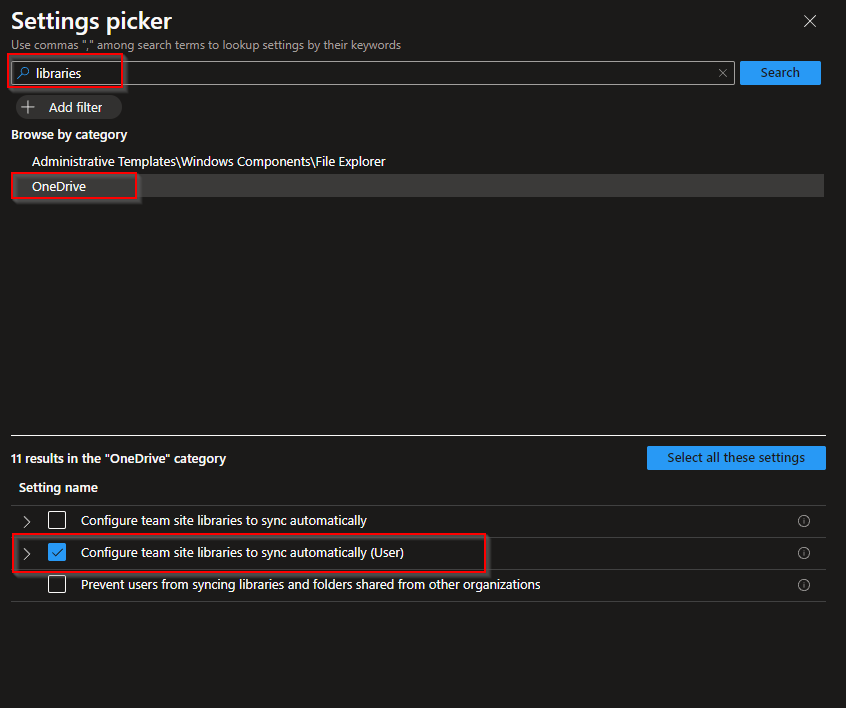

Add scope tags if needed, then click Next. On Assignments, add the groups that should receive this profile (e.g. All Users or a pilot group). Click Next, review the summary, and click Create.


After the profile applies, OneDrive will sync the configured libraries. By default this can take up to several hours (e.g. up to 8) before the libraries appear for the user. The next step uses a remediation script to speed that up.
Step 3: Create a Remediation Script to Speed Up Sync
OneDrive uses a timer to check for new sync targets. Setting the registry value TimerAutoMount (QWORD = 1) under HKCU:\SOFTWARE\Microsoft\OneDrive\Accounts\Business1 (path may vary by tenant; Business1 is typical for the first work account) can cause OneDrive to apply the library list sooner. Create two PowerShell scripts: a detection script that exits 0 if the value is already 1, and a remediation script that sets the value to 1. Deploy them as an Intune remediation.
Detection script (e.g. DetectOneDriveAutoMountSetting.ps1): check that TimerAutoMount is 1; exit 0 if compliant, 1 if not.
$Path = "HKCU:\SOFTWARE\Microsoft\OneDrive\Accounts\Business1"
$Name = "TimerAutoMount"
$Value = 1

Try {
    $Current = Get-ItemProperty -Path $Path -Name $Name -ErrorAction Stop | Select-Object -ExpandProperty $Name
    If ($Current -eq $Value) { Write-Output "Compliant"; Exit 0 }
    Write-Warning "Not Compliant"; Exit 1
} Catch {
    Write-Warning "Not Compliant"; Exit 1
}
Remediation script (e.g. RemediateOneDriveAutoMountSetting.ps1): set the value to 1.
$Path = "HKCU:\SOFTWARE\Microsoft\OneDrive\Accounts\Business1"
$Name = "TimerAutoMount"
$Type = "QWORD"
$Value = 1
Set-ItemProperty -Path $Path -Name $Name -Type $Type -Value $Value -Force -ErrorAction SilentlyContinue
In Intune, go to Devices → Windows → Scripts → Remediations → Create. On Basics, enter a name (e.g. OneDrive Auto-Mount Timer) and optional description. Click Next.

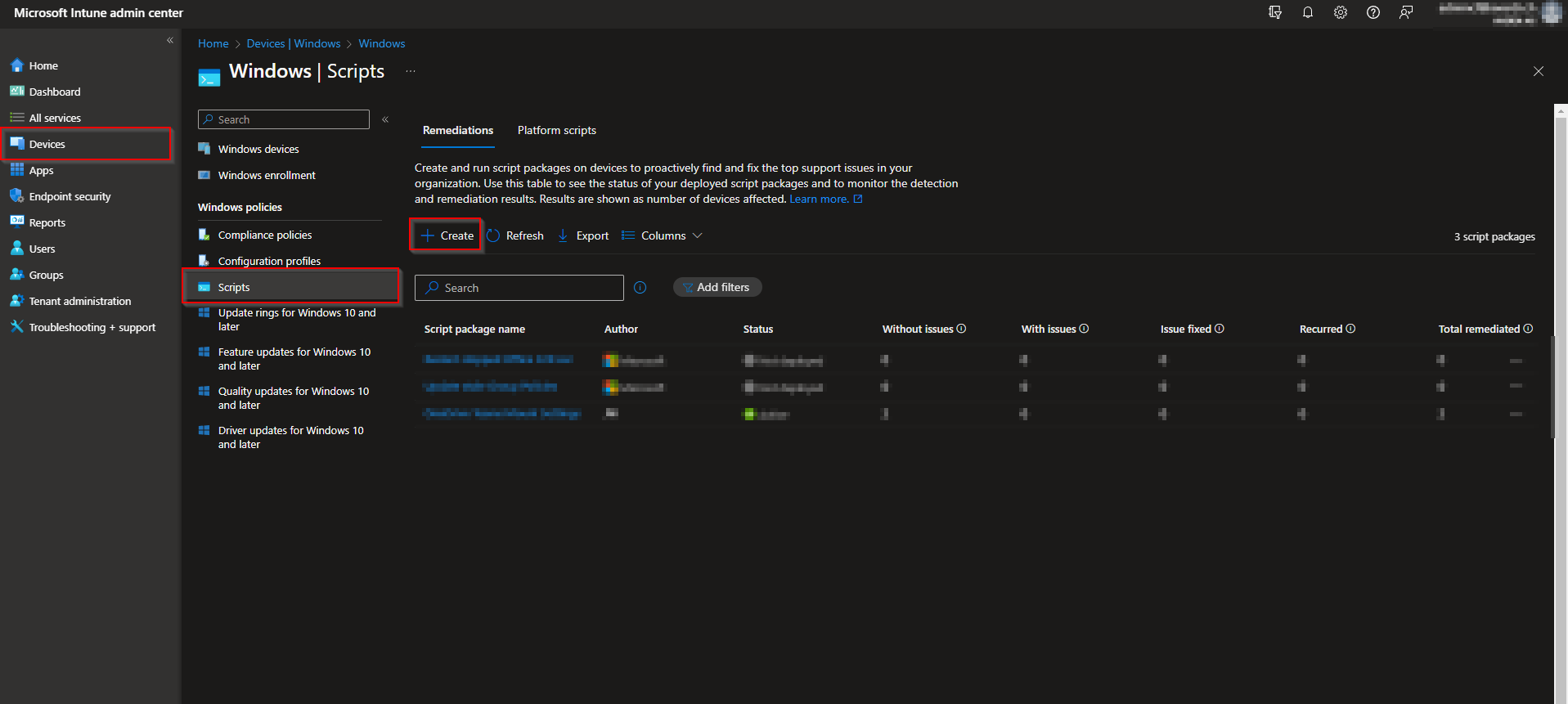
On Settings, upload the Detection script file and the Remediation script file. Set Run this script using the logged-on credentials to Yes (so HKCU applies to the signed-in user). Set Enforce script signature check to No and Run script in 64-bit PowerShell to Yes. Click Next.

Add scope tags if needed, then on Assignments add the same users or groups that received the configuration profile. Click Next, review, and click Create.


When the remediation runs, it sets the registry value so OneDrive re-evaluates the sync list sooner. Libraries often appear within about 1–2 hours instead of up to 8. The exact path Business1 can differ if the user has multiple work accounts; adjust the path in both scripts if your environment uses a different account key.
Wrap-up
You’ve deployed SharePoint sites with Intune by (1) collecting the Library ID for each library from the SharePoint Sync dialog, (2) creating a Settings catalog profile that enables “Configure team site libraries to sync automatically (User)” and lists each library by name and Library ID, and (3) optionally adding a remediation script that sets the OneDrive TimerAutoMount registry value so the sync is applied in roughly 1–2 hours instead of up to 8. Assign both the profile and the remediation to the same users or groups for best results.





