Microsoft Intune can run PowerShell scripts on enrolled Windows 10 and Windows 11 devices. You upload a .ps1 script, choose whether it runs as the signed-in user or as system, and assign it to users or devices. Scripts run once when the policy is received and are useful for configuration, cleanup, or one-off automation. This guide walks through adding a script and configuring run options.
What You’ll Do
You will:
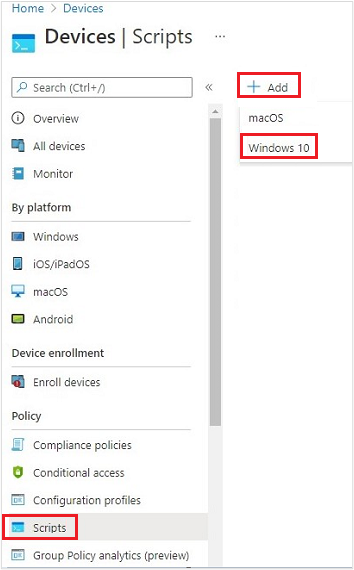
- Add a new script under Devices → Scripts → Add → Windows 10.
- Upload your PowerShell script and set run options (user vs. system context, signature check, 32-bit vs. 64-bit host).
- Assign the script to the users or devices that should run it.
Have your .ps1 file ready before you start. If a script fails on a device, the result typically appears in the Intune portal within about 30 minutes.
Step 1: Add a Windows Script
In the Microsoft Intune admin center, go to Devices → Scripts. Click Add → Windows 10. The Add script wizard opens.
Step 2: Basics
On the Basics tab, enter a Name (e.g. “Configure default printer”) and optionally a Description. Click Next.
Step 3: Script Settings
On the Script settings tab:
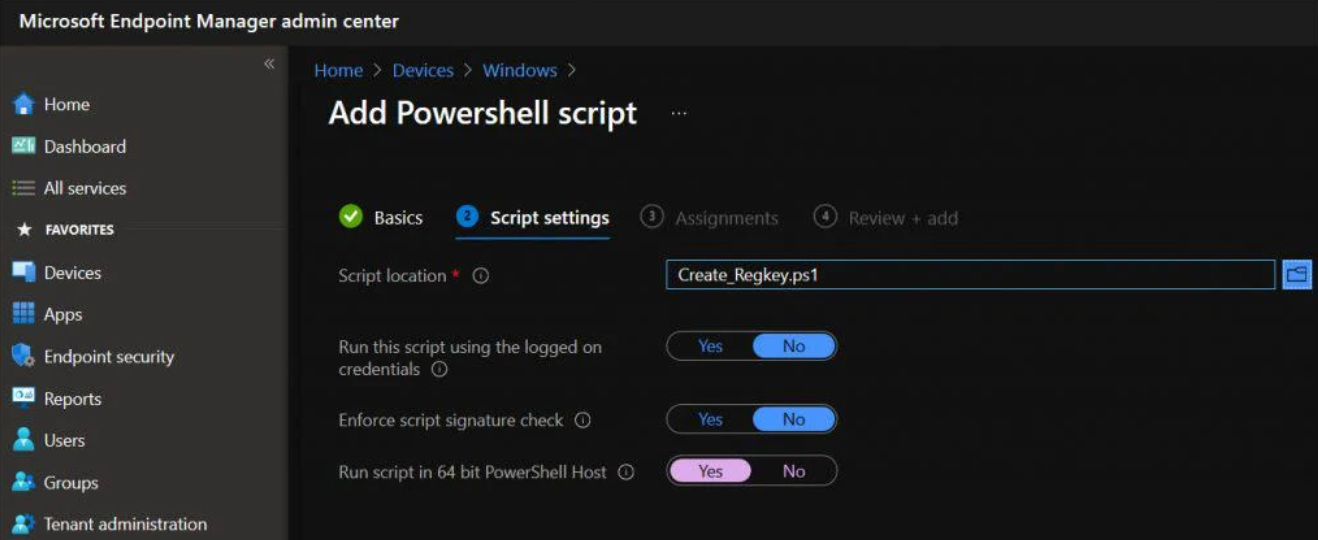
- Script location . Click to upload your
.ps1file. The script is stored in Intune and delivered to devices. - Run this script using the logged on credentials . Yes (default) runs the script with the signed-in user’s context; No runs it in the system context. Use system when the script must access machine-level resources or run without a user logged on.
- Enforce script signature check . Yes (default) requires the script to be signed by a trusted publisher; No allows unsigned scripts. Set to No only if you trust the script and do not require signing.
- Run script in 64-bit PowerShell host . Yes runs the script in 64-bit PowerShell on 64-bit devices; No (default) runs it in 32-bit PowerShell. Choose based on what your script needs (e.g. 64-bit paths or modules).
Click Next when done.
Step 4: Scope Tags (Optional)
On the Scope tags tab, add scope tags if your tenant uses them to control who sees this script. Click Next.
Step 5: Assignments
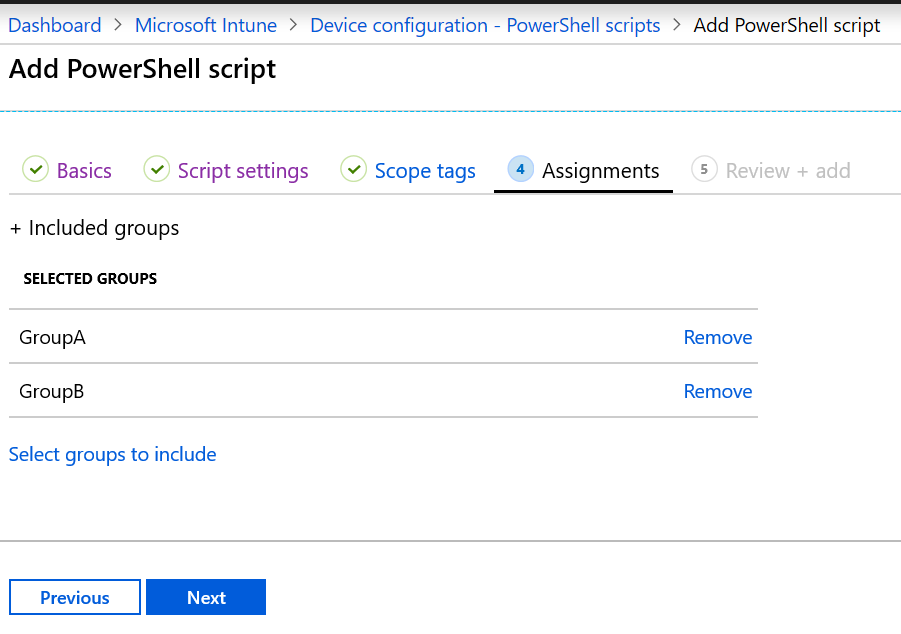
On the Assignments tab, add the groups (or All Users / All Devices) that should run this script. Click Next.
Step 6: Review + Add
On Review + add, review the name, script settings, scope, and assignments. Click Add to create the script. Intune will deliver it to assigned devices; the script runs once when the policy is received. Check the script’s status in the Intune portal; failures usually show up within about 30 minutes.
Wrap-up
You can deploy PowerShell scripts with Intune by adding a Windows 10 script under Devices → Scripts, uploading your .ps1 file, and configuring run options (user vs. system, signature check, 32-bit vs. 64-bit host). Assign the script to the right users or devices so it runs on target machines. Use system context and 64-bit host when your script requires them, and keep signature enforcement in mind for security.





