HP Support Assistant helps users check drivers, run diagnostics, and get support on HP devices. You can deploy it to managed Windows machines using Microsoft Intune by packaging the installer as a Win32 app (`.intunewin`), then adding it in Intune with install/uninstall commands, requirements, and detection rules. This guide walks through downloading the installer, building the Win32 package with the Microsoft Win32 Content Prep Tool, and creating and assigning the app in Intune.
Why Deploy HP Support Assistant via Intune?
Deploying it centrally gives you:
- Consistency . Same version and configuration across all HP devices.
- Visibility . Install status and compliance in the Intune console.
- Control . Assign to device or user groups and uninstall when needed.
Overview: Four Steps
You will (1) download the HP Support Assistant installer from HP’s site, (2) extract the contents so you have the setup and uninstall executables, (3) use the Microsoft Win32 Content Prep Tool to create an .intunewin package, and (4) add the app in Intune as a Windows app (Win32), set install/uninstall commands, requirements, and detection rules, then assign it.
Step 1: Download HP Support Assistant
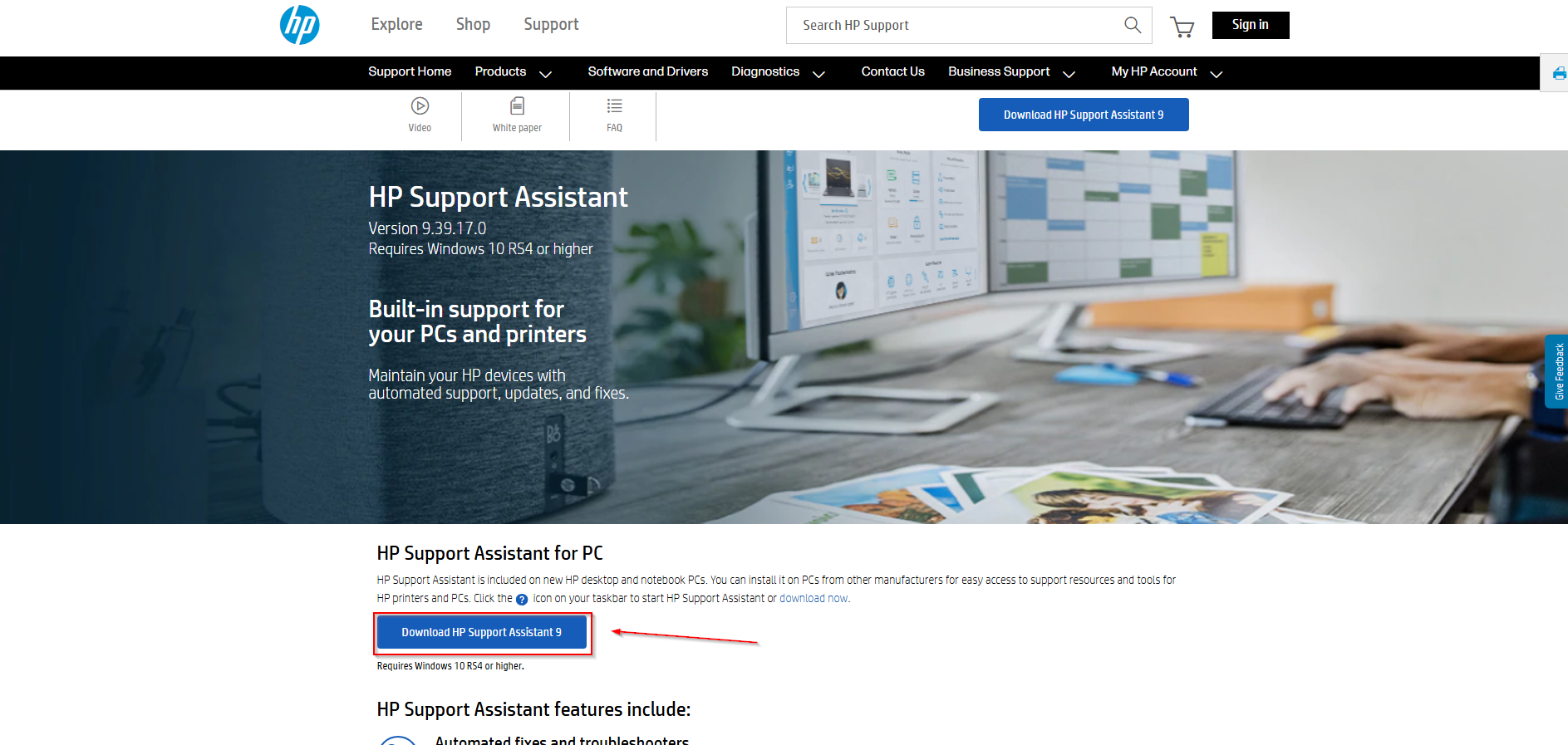
Get the latest installer from HP. Go to HP Support Assistant on the HP support site and click Download HP Support Assistant. Save the file (typically an executable) to a folder you can use for packaging.
Step 2: Extract the Installer Contents
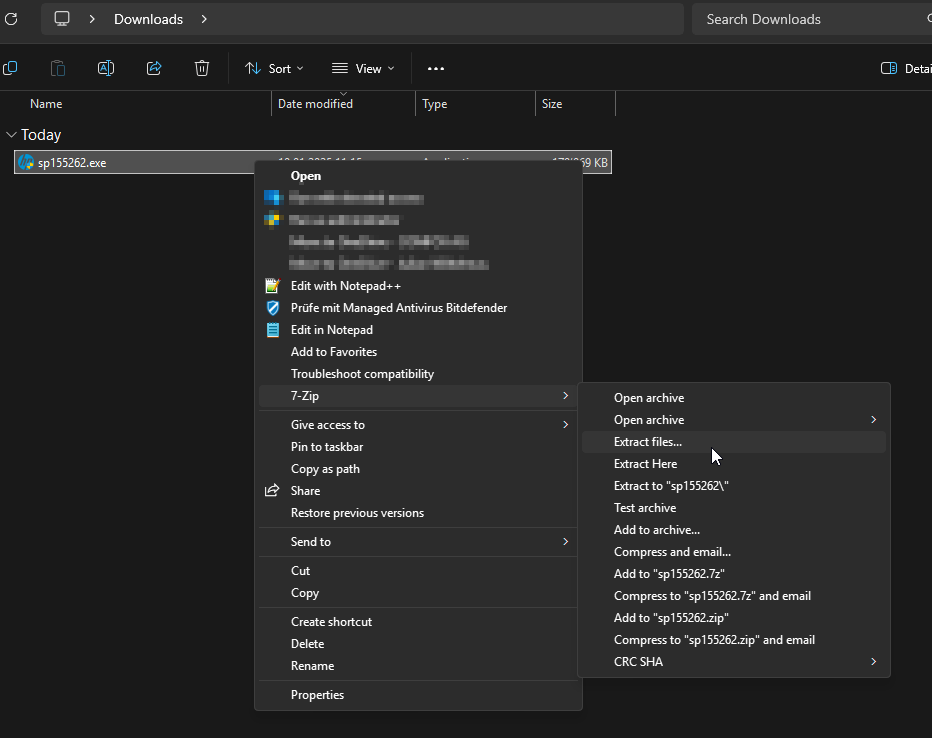
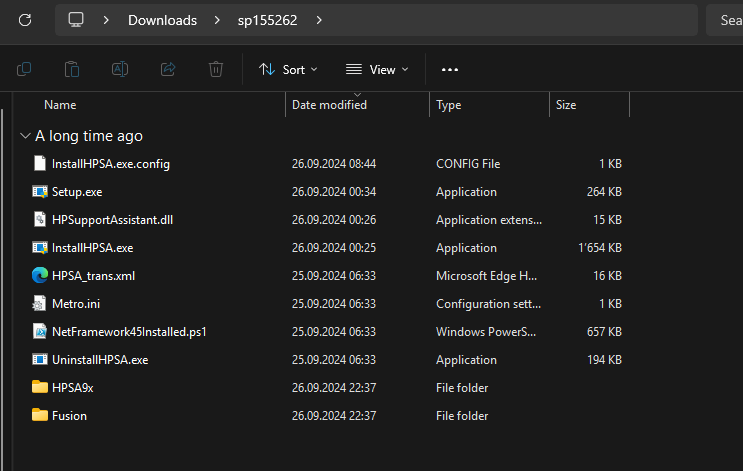
Do not run the downloaded executable. Extract it so you have the setup and uninstall files for the Win32 package. Use 7-Zip or another tool that can open the installer (e.g. right-click → 7-Zip → Extract). Extract to a folder (e.g. C:\DeployHPSupportAssistant). You should see InstallHPSA.exe and UninstallHPSA.exe (or similar) among the extracted files.
Step 3: Create the Win32 Package (.intunewin)
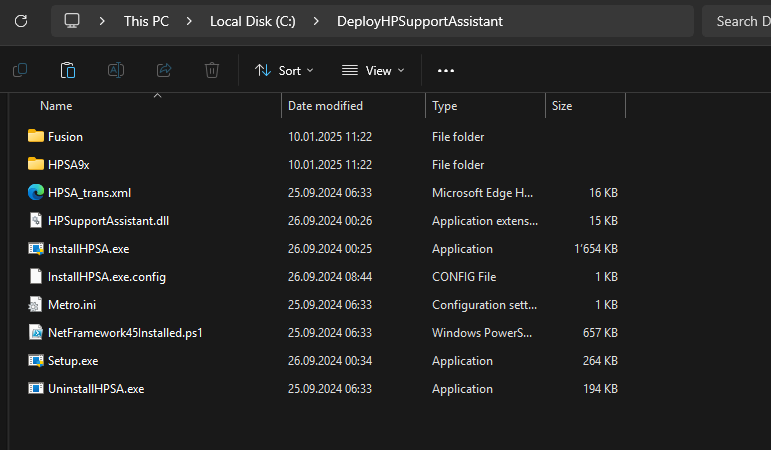
Copy the extracted files into a single folder (e.g. C:\DeployHPSupportAssistant). Create an output folder (e.g. C:\Output) for the .intunewin file.
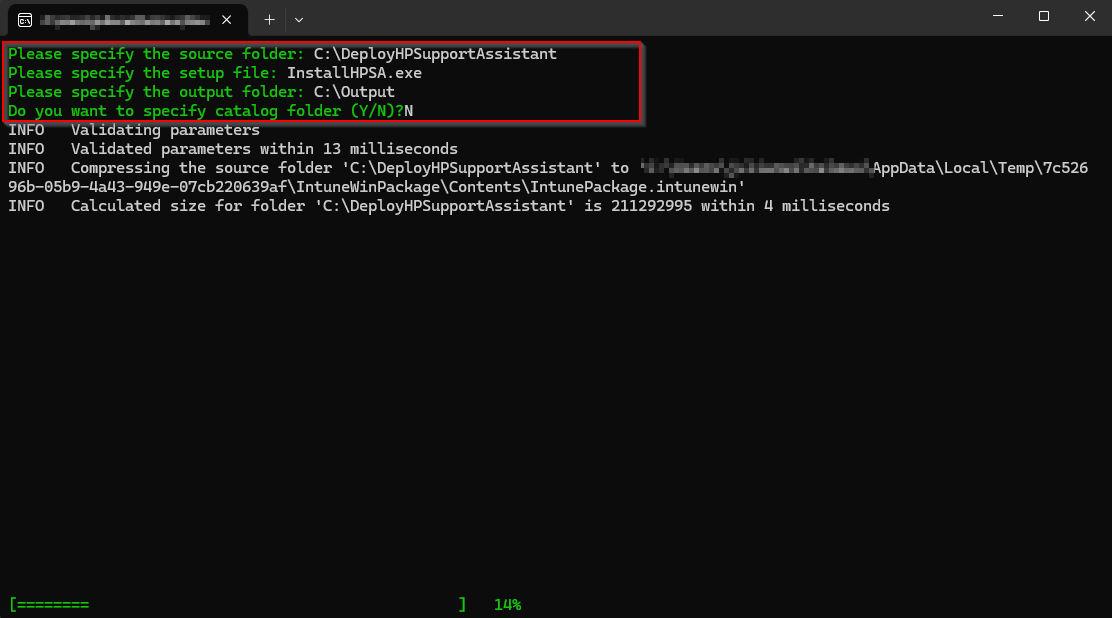
Download and install the Microsoft Win32 Content Prep Tool from Microsoft (search for “Intune Win32 Content Prep Tool” or use the official download). Open the tool and set:
- Source folder . E.g.
C:\DeployHPSupportAssistant - Setup file .
InstallHPSA.exe - Output folder . E.g.
C:\Output - Catalog folder . No (unless you use a catalog).
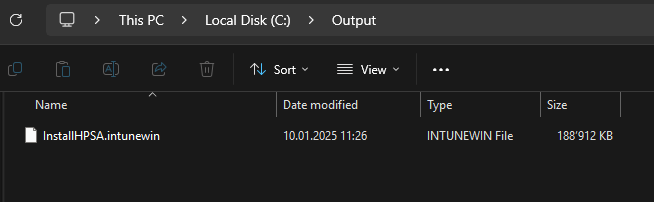
Run the tool to generate the .intunewin file in the output folder.
Step 4: Add and Deploy the App in Intune
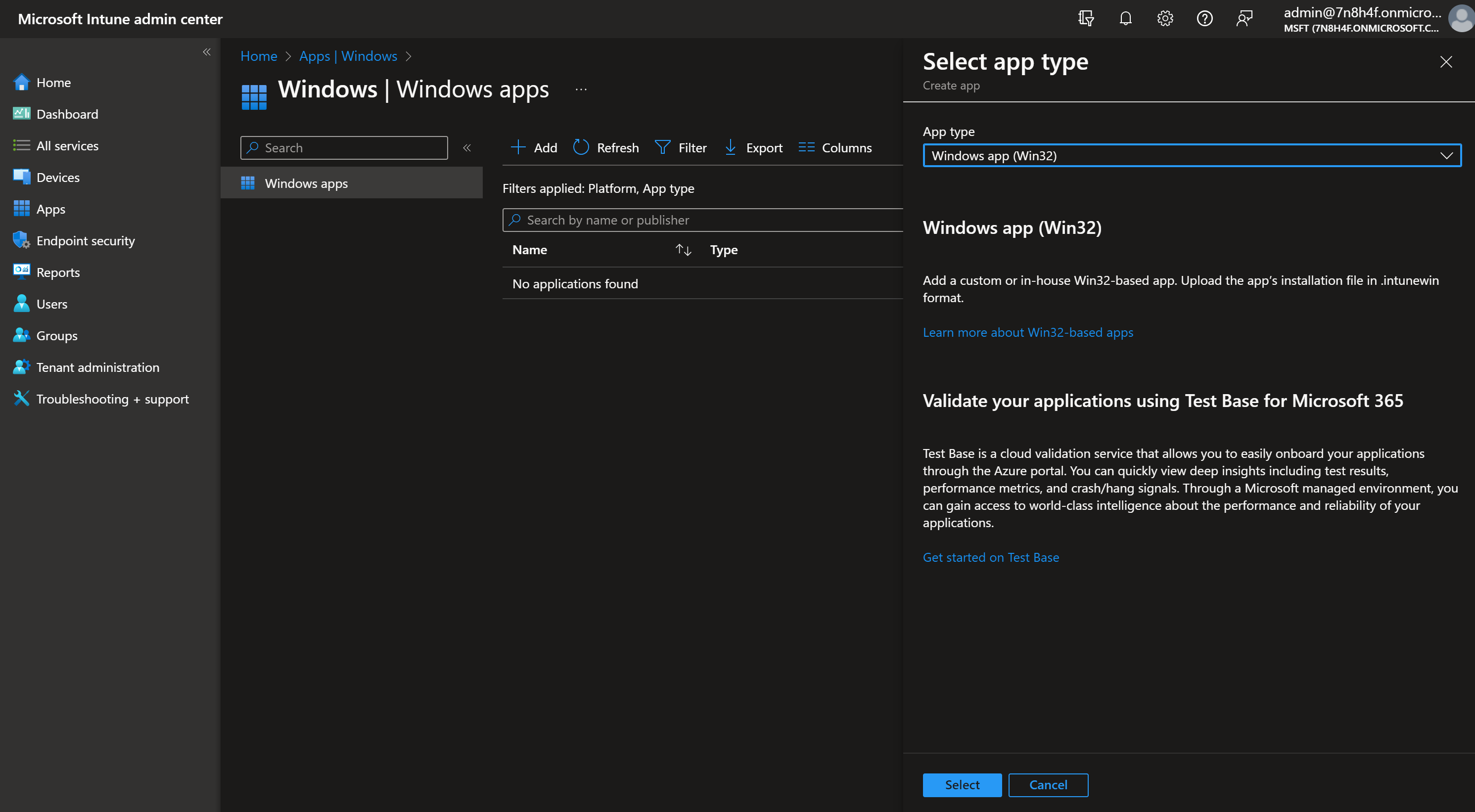
In the Microsoft Intune admin center, go to Apps → Windows → Add. Choose App type Windows app (Win32). Click Select.
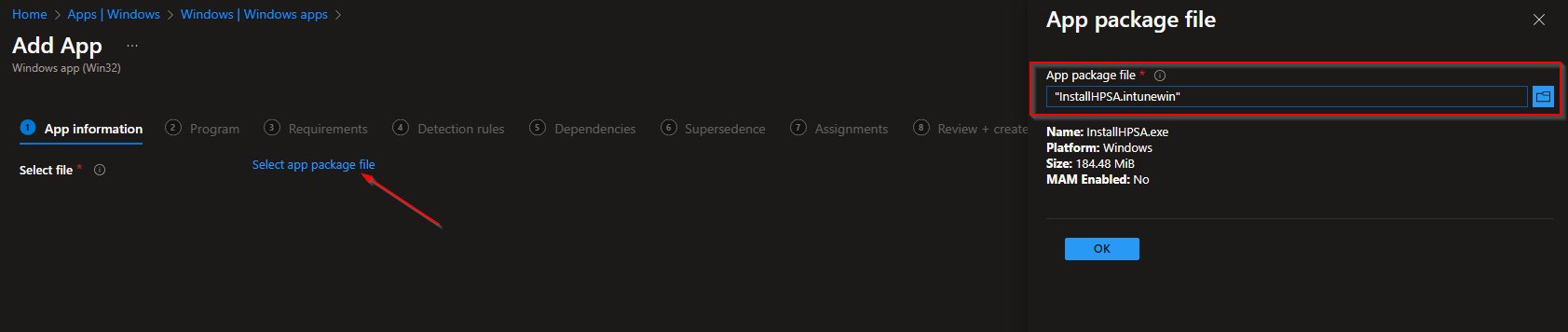
On App package file, click Select app package file and upload the .intunewin file from your output folder. Click OK.
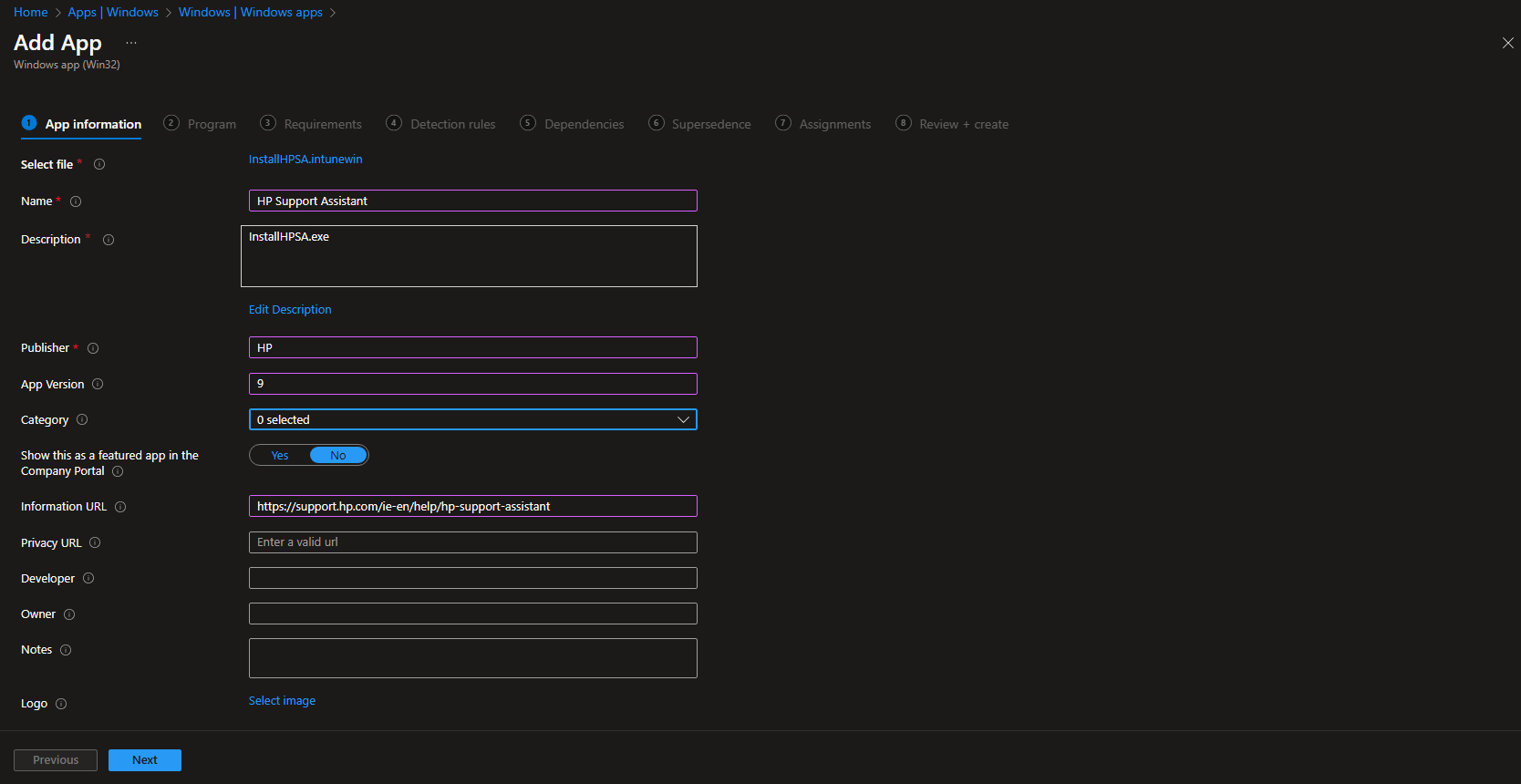
On App information, set Name, Publisher (e.g. HP), and optionally Description and other fields. Click Next.
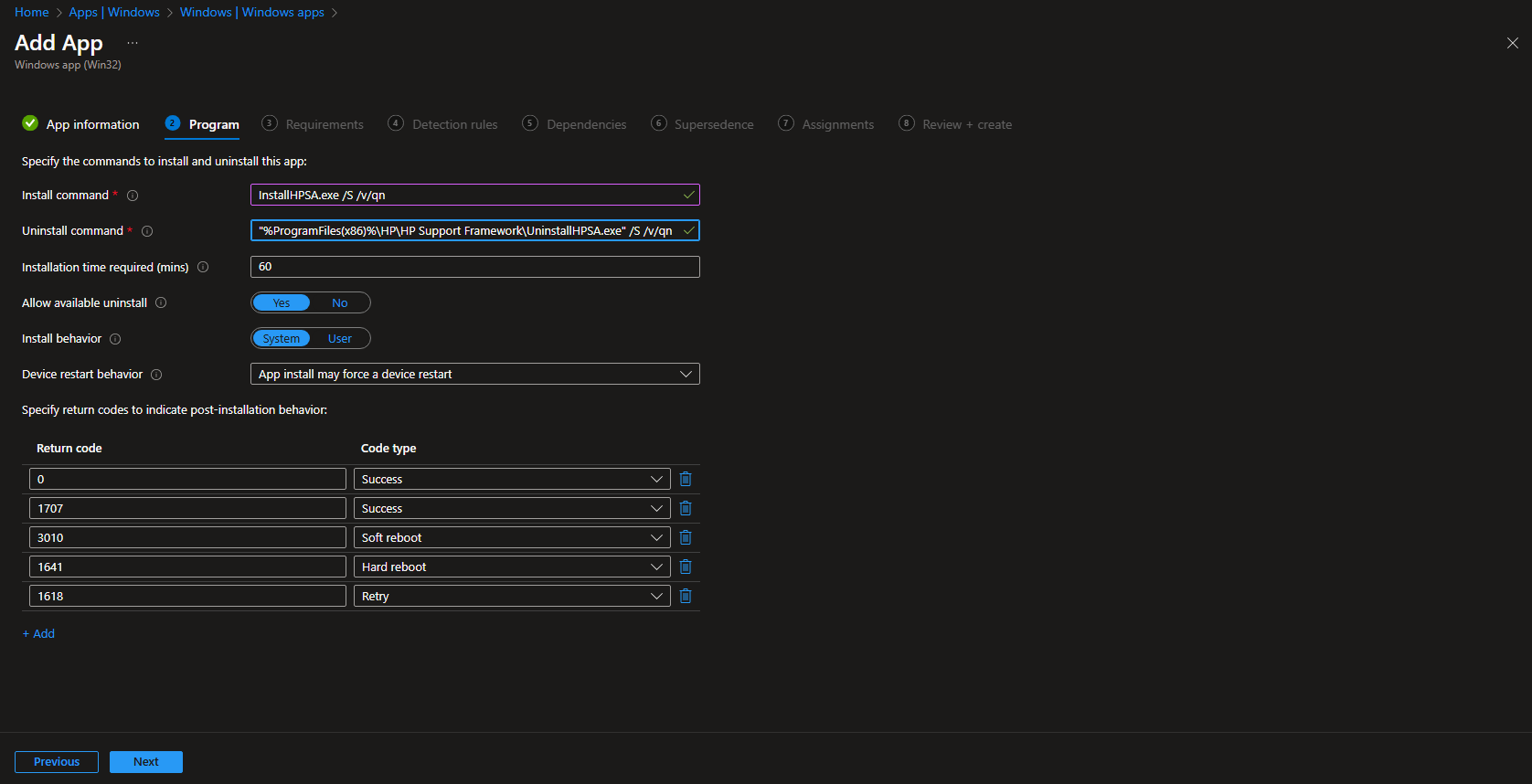
On Program, set:
- Install command .
InstallHPSA.exe /S /v/qn(or the silent switches your version supports). - Uninstall command .
UninstallHPSA.exe /S /v/qn(or equivalent). - Install behavior . System (so it installs in device context).
- Allow available uninstall . Yes if you want users to uninstall from Company Portal.
Click Next.
On Requirements, set Operating system architecture to 32-bit and 64-bit (or 64-bit only if appropriate) and Minimum operating system to Windows 10 1607 (or your minimum). Click Next.
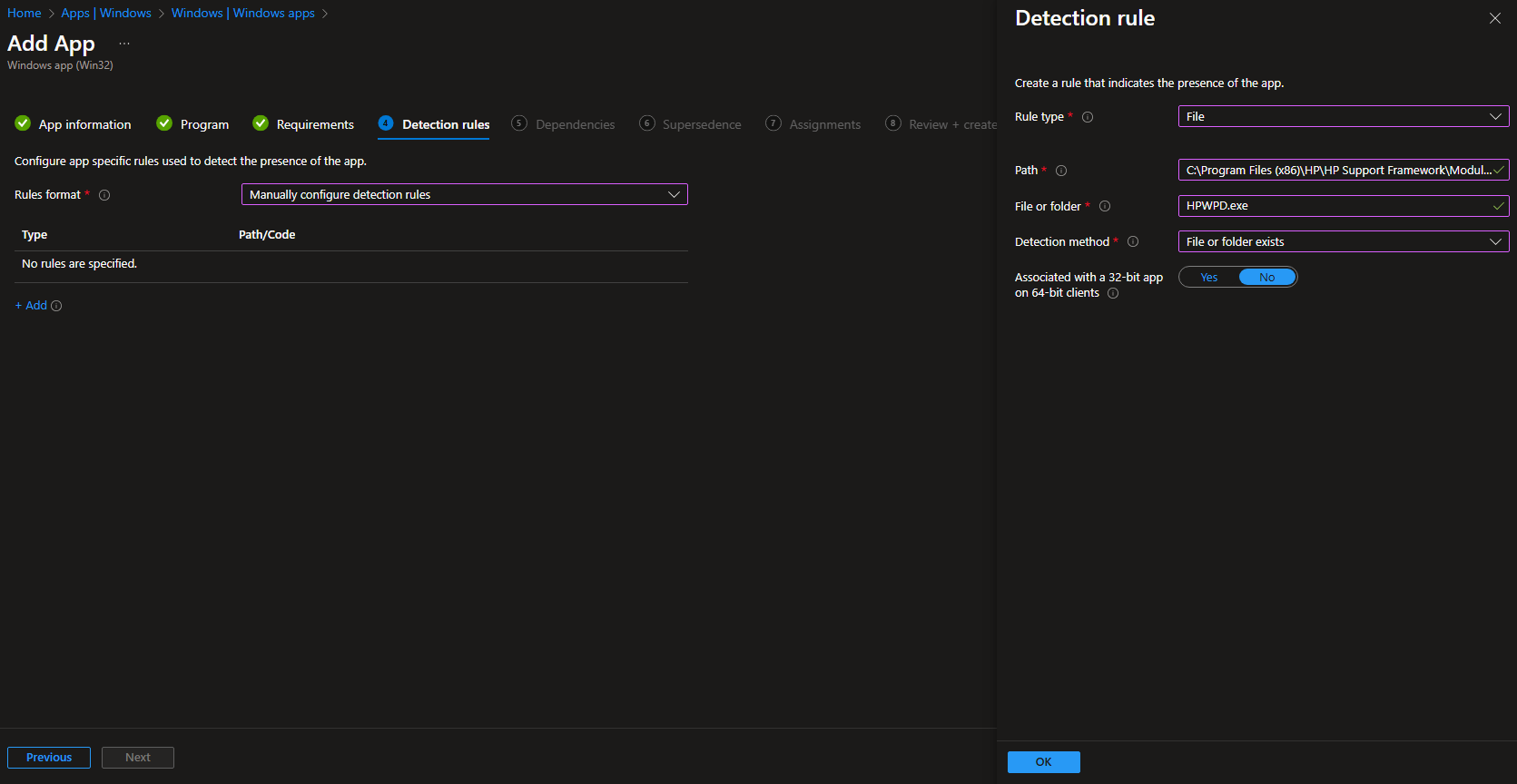
On Detection rules, choose Manually configure detection rules, click Add, and add a rule:
- Rule type . File
- Path .
C:\Program Files (x86)\HP\HP Support Framework\Modules - File or folder .
HPWPD.exe - Detection method . File or folder exists
- Associated with a 32-bit app on 64-bit clients . No
Click OK and Next. Set dependencies and supersedence if needed, then click Next.
On Assignments, add the groups (users or devices) that should receive the app. Click Next, then Review + create, and Create.
After the app syncs, Intune will install HP Support Assistant on targeted devices according to your assignment. You can monitor install status under Apps → Windows and in device app reports.
Wrap-up
You can deploy HP Support Assistant with Microsoft Intune by downloading the installer from HP, extracting it to get InstallHPSA.exe and UninstallHPSA.exe, using the Microsoft Win32 Content Prep Tool to create an .intunewin package, then adding the app in Intune as a Windows app (Win32) with silent install/uninstall commands, requirements, and a file-based detection rule (e.g. HPWPD.exe under HP Support Framework). Assign the app to the right user or device groups to roll it out across your HP fleet.





