Deploying a consistent set of bookmarks in Google Chrome helps users reach key sites. SharePoint, help desk, password reset, MFA setup, or internal tools. Without hunting for links. Microsoft Intune can push these bookmarks to managed Windows devices using the Managed Bookmarks setting in a Settings catalog profile. You define the list once in a JSON format, paste it into the profile, assign the profile to users or devices, and Chrome applies the bookmarks automatically. This guide walks through building the JSON and creating the Intune profile.
Why Deploy Bookmarks via Intune?
Centralizing bookmarks gives you:
- Consistency . Same important links (e.g. company portal, SharePoint, password reset) on every device.
- Onboarding . New users get standard bookmarks without manual setup or documentation.
- Control . You can add or remove links by updating the policy instead of training users.
What You’ll Do
You will (1) define your bookmarks in a JSON list (flat links and optional folders), and (2) create a Settings catalog configuration profile for Windows 10 and later, enable Managed Bookmarks under Google → Google Chrome, paste the JSON into the setting, then assign the profile to the right users or devices.
Step 1: Build the Bookmark List (JSON)
Chrome’s managed bookmarks use a JSON array. Each entry can be:
- A top-level folder name:
{ "toplevel_name": "Folder Name" } - A single link:
{ "url": "https://example.com", "name": "Display Name" } - A folder with nested links:
{ "name": "Folder Name", "children": [ { "url": "...", "name": "..." }, ... ] }
Have the URLs and display names you want to deploy ready. You can use a text editor and then paste the result into Intune. For full syntax and options, see Google’s documentation.
Example: a mix of top-level entries, single links, and one folder (Microsoft 365) with several links:
[
  { "toplevel_name": "Top Folder Name" },
  { "url": "https://google.com", "name": "Google" },
  { "url": "https://facebook.com", "name": "Facebook" },
  { "url": "https://example.com", "name": "The best Blog Site" },
  {
    "name": "Microsoft 365",
    "children": [
      { "url": "https://portal.office.com", "name": "Office 365" },
      { "url": "https://passwordreset.microsoftonline.com/", "name": "Password Reset Portal" },
      { "url": "https://aka.ms/mfasetup", "name": "MFA Setup" },
      { "url": "https://myorganization.sharepoint.com", "name": "SharePoint" },
      { "url": "https://portal.manage.microsoft.com/", "name": "Endpoint Manager Portal" }
    ]
  }
]
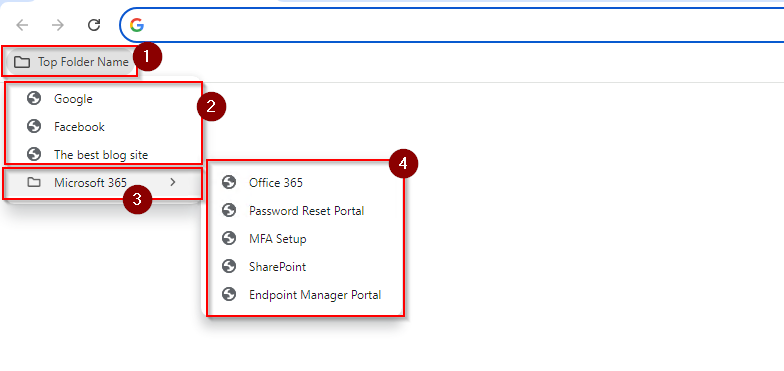
Edit the URLs, names, and folder structure to match what you want. The following image shows how the JSON maps to the bookmarks bar in Chrome.
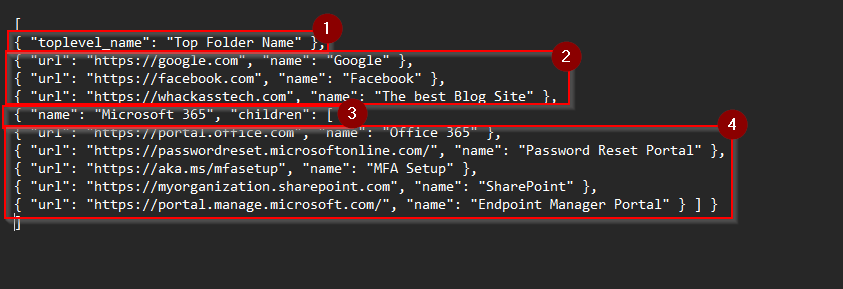
When the list is ready, copy the entire JSON (valid JSON, no trailing commas). You will paste it into the Intune profile in the next step.
Step 2: Create the Configuration Profile in Intune
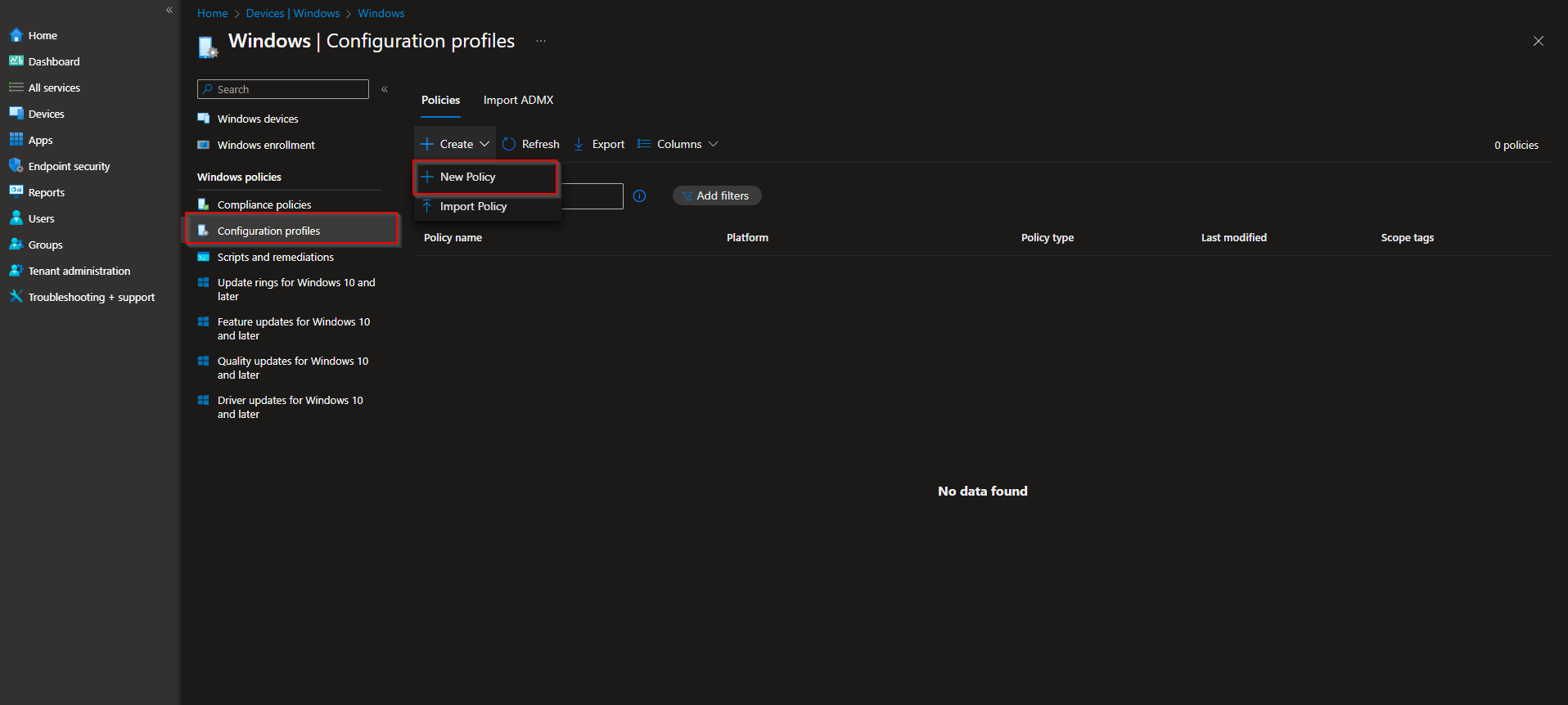
In the Microsoft Intune admin center, go to Devices → Windows → Configuration profiles. Click Create → New policy. Set Platform to Windows 10 and later and Profile type to Settings catalog. Click Create.
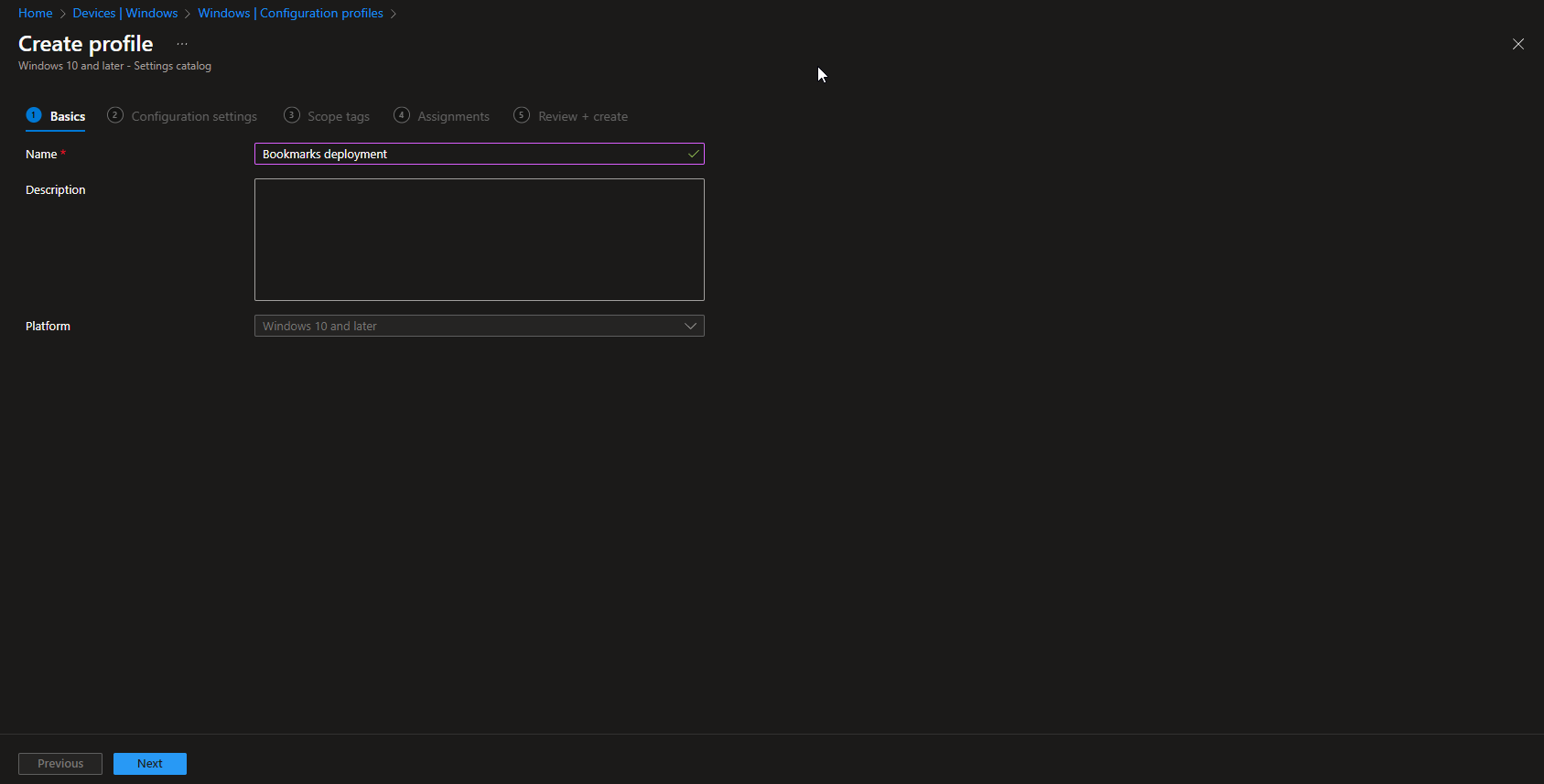
On Basics, enter a Name (e.g. “Chrome – Managed Bookmarks”) and optionally a Description. Click Next.
On Configuration settings, click Add settings. Search for Bookmarks, open Google → Google Chrome, and select Managed Bookmarks. Enable the setting, then paste your JSON bookmark list into the Managed bookmarks text box. Click Next.
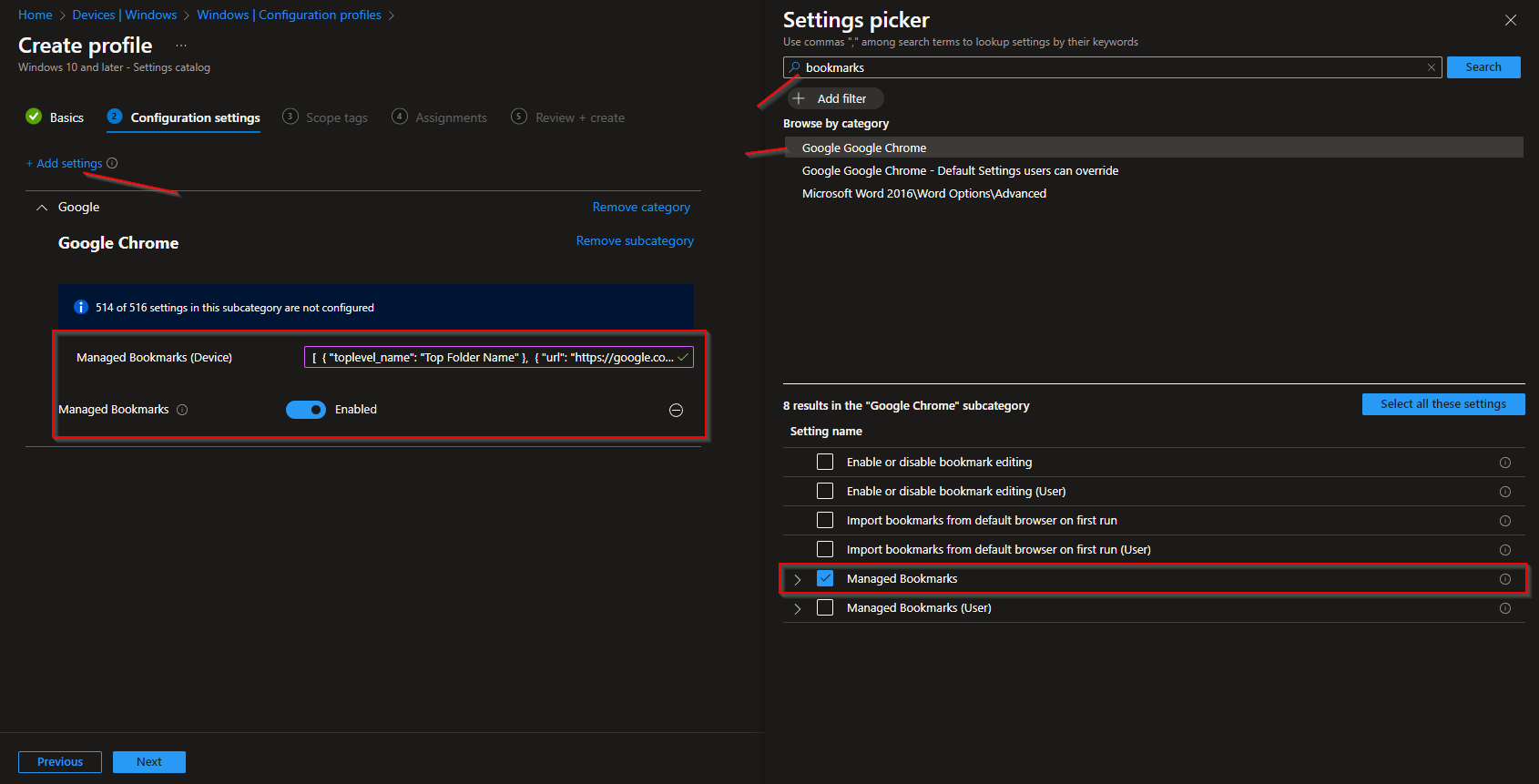
Set scope tags if needed, then on Assignments add the groups (or All Users / All Devices) that should receive the bookmarks. Click Next, then Review + create, and Create.
After the profile syncs to targeted devices, Chrome will show the managed bookmarks in the bookmarks bar (or in the Managed bookmarks folder, depending on Chrome version and policy). Users see the links you defined; they cannot remove managed bookmarks, but they can add personal ones.
Wrap-up
You can deploy Google Chrome bookmarks with Microsoft Intune by defining the list in JSON (using toplevel_name, url/name, and name/children for folders), then creating a Settings catalog profile for Windows 10 and later, enabling Managed Bookmarks under Google → Google Chrome, pasting the JSON into the setting, and assigning the profile to users or devices. Use this for SharePoint, portals, password reset, MFA setup, or any other links you want everyone to have by default.





