Microsoft Intune can deploy a WiFi (WLAN) profile to enrolled Windows devices so users get your corporate network (SSID) configured automatically. You create a single configuration profile with the Wi-Fi template, enter the SSID, security type, and (for basic/personal) the pre-shared key, then assign the profile to users or devices. This guide walks through creating and assigning a basic WiFi profile.
What You’ll Do
You will:
- Create a configuration profile for Windows 10 and later using the Wi-Fi template.
- Set the Wi-Fi type (Basic for personal/pre-shared key, or Enterprise for 802.1X), SSID, connection name, connect options, and security (e.g. WPA2-Personal and pre-shared key for Basic).
- Assign the profile to the users or devices that should receive the WiFi configuration.
Have the network name (SSID) and password (or enterprise credentials) ready before you start.
Step 1: Create a Wi-Fi Configuration Profile
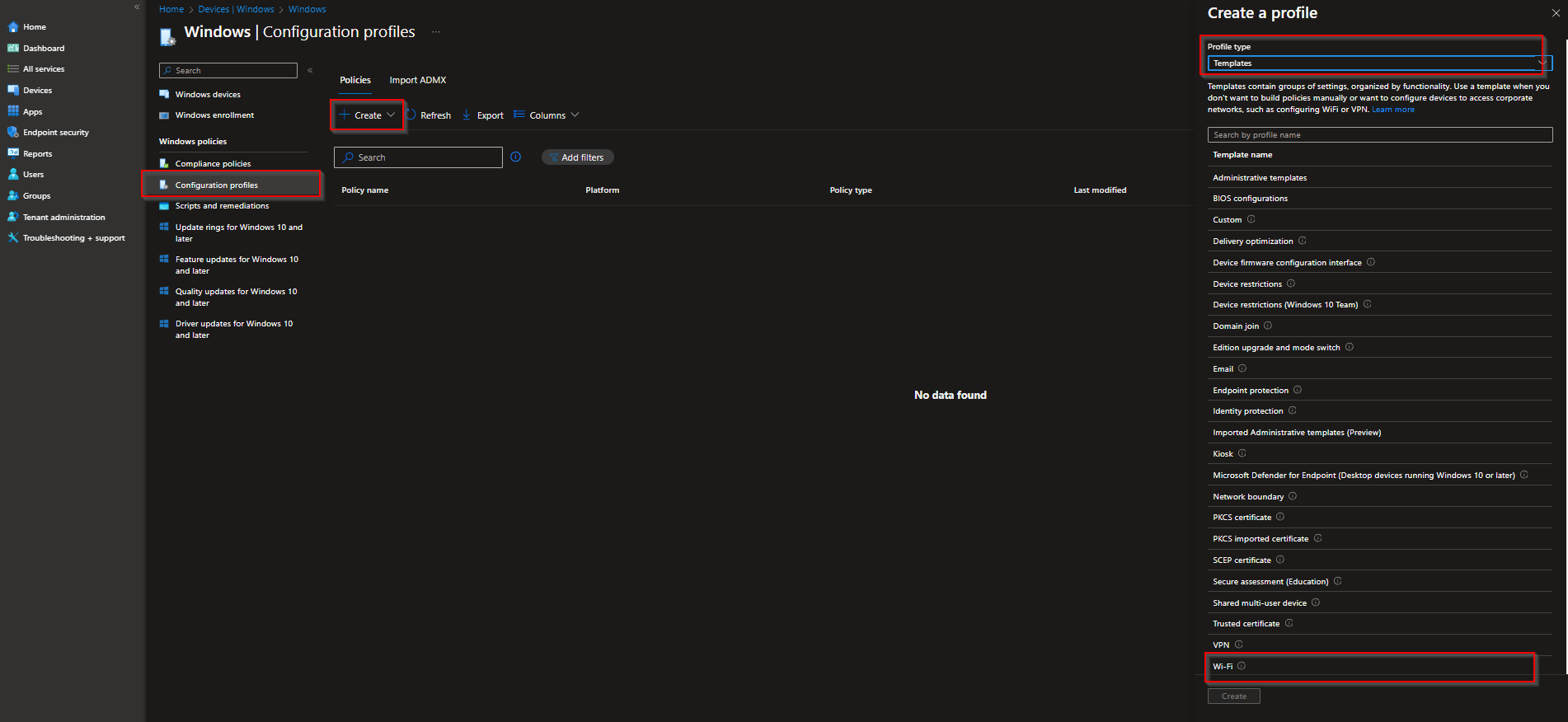
In the Microsoft Intune admin center, go to Devices → Windows → Configuration profiles. Click Create → Create profile.
Set Platform to Windows 10 and later, Profile type to Templates, and Template name to Wi-Fi. Click Create.
Step 2: Name the Profile
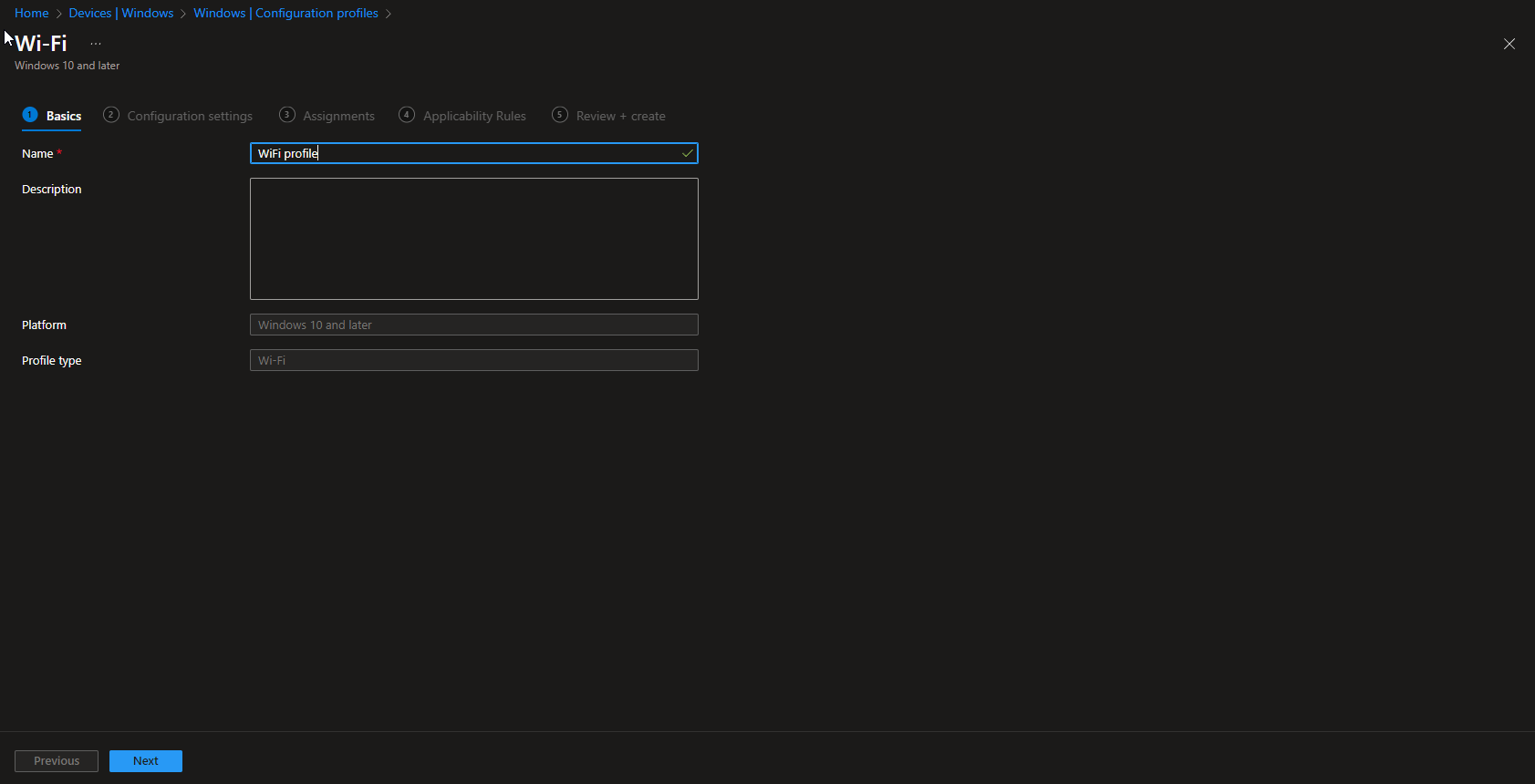
On the Basics tab, enter a Name (e.g. “Corporate WiFi”) and optionally a Description. Click Next.
Step 3: Configure Wi-Fi Settings
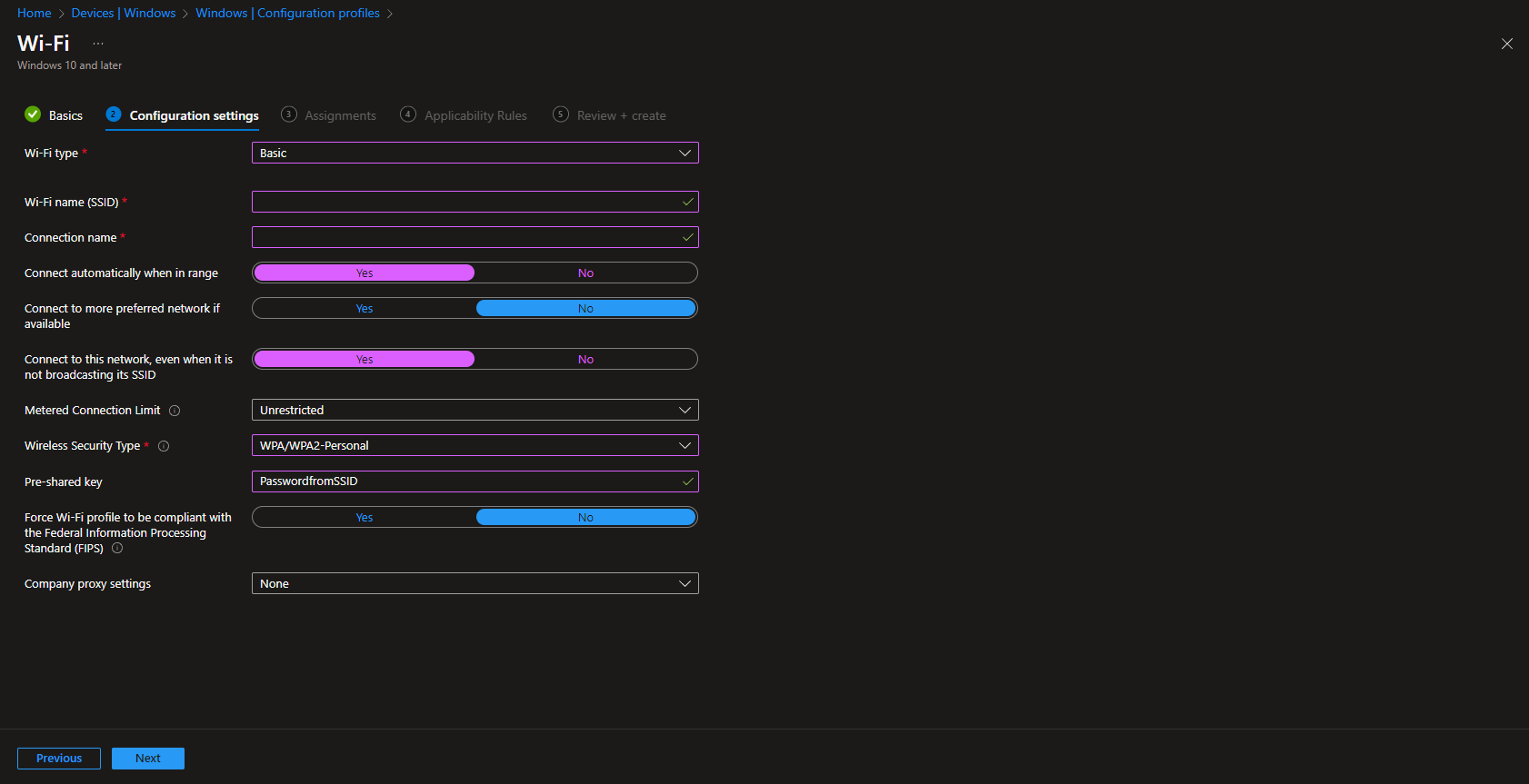
On the Wi-Fi configuration tab, set the following. Use Basic for a network that uses a pre-shared key (WPA2-Personal); use Enterprise for 802.1X (e.g. WPA2-Enterprise with certificates or credentials).
- Wi-Fi type . Basic or Enterprise.
- Wi-Fi name (SSID) . The network name users see.
- Connection name . A friendly name for the connection (e.g. “Corporate WiFi”).
- Connect automatically when in range . Yes so devices connect without user action.
- Connect to more preferred network if available . No if you want devices to stay on this network when in range; Yes if you allow switching to other saved networks.
- Connect to this network even when it is not broadcasting its SSID . Yes if the network is hidden.
- Metered connection limit . Unrestricted (or limit if you want to treat it as metered).
- Wireless security type . E.g. WPA2-Personal for Basic.
- Pre-shared key . The WiFi password (for Basic).
- Company proxy settings . None unless you use a proxy for this network.
Click Next.
Step 4: Assignments and Create
On Assignments, add the groups (or All Users / All Devices) that should receive the WiFi profile. Set Applicability rules if your tenant uses them. On Review + create, review the profile and click Create.
Once the profile syncs to targeted devices, the WiFi network will appear in the list of known networks and devices will connect when in range according to your settings.
Wrap-up
You can deploy a WiFi profile with Intune by creating a configuration profile with the Wi-Fi template for Windows 10 and later, entering the SSID, security type, and (for Basic) pre-shared key, and assigning the profile to the right users or devices. Use Basic for pre-shared key networks and Enterprise for 802.1X; set connect options (automatic, preferred network, hidden SSID) and proxy as needed.





