Microsoft Teams can get stuck on “Microsoft Teams loading…” or in a boot loop with no error message. Often the cause is corrupted or stale cache under %AppData%\Microsoft\Teams. Clearing that cache (for the current user or for all users) usually fixes the issue. You can do it manually with a one-liner, or deploy a PowerShell script via Microsoft Intune so it runs once on targeted devices. For example at the next reboot. And then removes itself. This guide explains what gets deleted, optional manual commands, and how to add the script as an Intune PowerShell script so it runs in system context and clears cache for all user profiles.
Why Clear Teams Cache
Teams stores local cache (application cache, blob storage, databases, GPU cache, IndexedDB, Local Storage, tmp) in each user’s AppData\Roaming\Microsoft\Teams folder. When that data is corrupted or out of sync, Teams may hang on the loading screen or restart repeatedly. Deleting those cache folders forces Teams to rebuild them on next launch. Doing it for all users on a device (e.g. via a script running as SYSTEM) ensures every profile gets a clean cache without each user having to run a command.

What Gets Deleted
The script removes the following subfolders under each user’s AppData\Roaming\Microsoft\Teams (or the equivalent path): application cache, blob storage, databases, GPUcache, IndexedDB, Local Storage, and tmp. These hold cached app data, local DBs, and temp files. Teams will recreate them when it starts again. Ensure Teams is not running when you clear cache (the script or a scheduled task can run at startup before users sign in, or you can stop Teams in the script for the current user).
Manual One-Liners (Optional)
For a single device you can clear cache manually. Close Teams first. For the current user (run in that user’s context):
Stop-Process -Name Teams -ErrorAction SilentlyContinue
Get-ChildItem "$env:USERPROFILE\AppData\Roaming\Microsoft\Teams" -Directory -ErrorAction SilentlyContinue |
  Where-Object { $_.Name -in 'Cache','application cache','blob storage','databases','GPUcache','IndexedDB','Local Storage','tmp' } |
  ForEach-Object { Remove-Item $_.FullName -Recurse -Force -ErrorAction SilentlyContinue }
For all users on the device (run as administrator):
Get-ChildItem "C:\Users\*\AppData\Roaming\Microsoft\Teams\*" -Directory -ErrorAction SilentlyContinue |
  Where-Object { $_.Name -in 'application cache','blob storage','databases','GPUcache','IndexedDB','Local Storage','tmp' } |
  ForEach-Object { Remove-Item $_.FullName -Recurse -Force -ErrorAction SilentlyContinue }
Deploy a One-Time Cache Clear via Intune
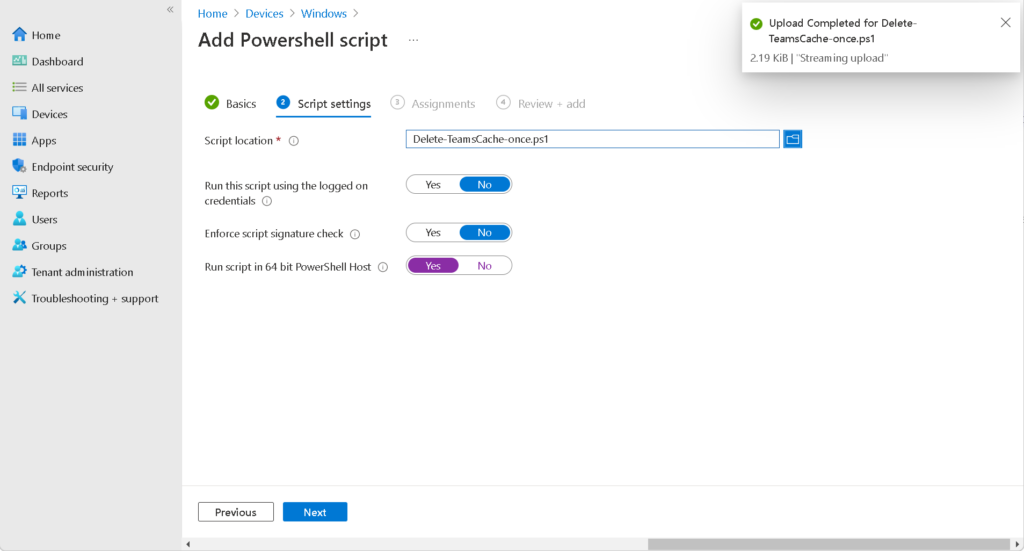
To clear Teams cache once on many devices, use an Intune PowerShell script. The script can: (1) copy itself to a local folder (e.g. ProgramFiles\MEM), (2) create a scheduled task that runs at system startup as SYSTEM and launches the script again, then exit. When the device restarts (or when the task runs), the script runs as SYSTEM: it deletes the Teams cache folders under C:\Users\*\AppData\Roaming\Microsoft\Teams, removes the scheduled task, and deletes itself. That way the cleanup runs once per device and does not leave scripts or tasks behind. Run the script in 64-bit PowerShell and not with the logged-on user’s credentials so it runs as SYSTEM and can access all user profiles.
Add the Script in Intune
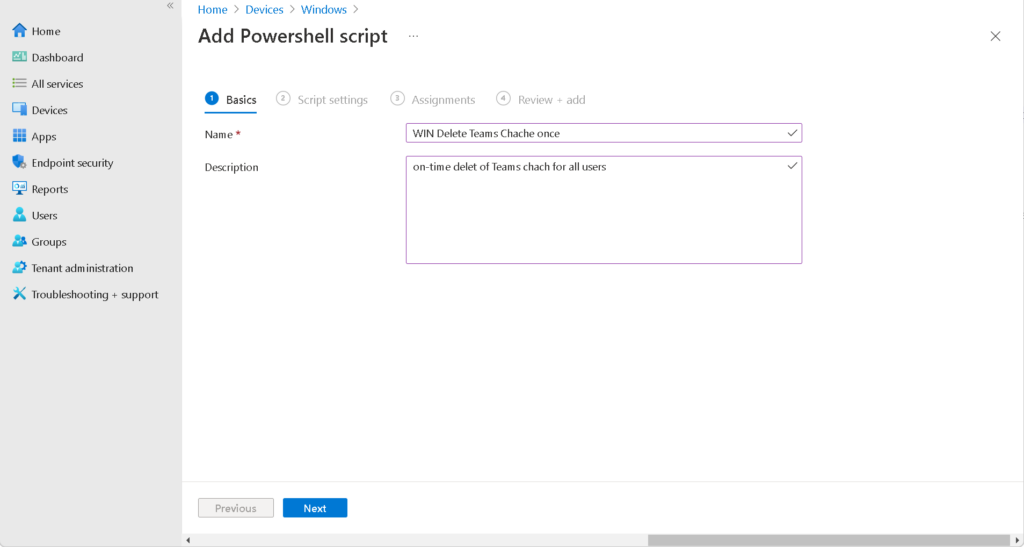
In the Microsoft Intune admin center, go to Devices → Windows → PowerShell scripts. Click Add. On Basics, give the script a name (e.g. “Clear Microsoft Teams cache once”) and optionally a description. On Script settings, upload your .ps1 file. Set Run this script using the logged on credentials to No so it runs as SYSTEM. Set Run script in 64 bit PowerShell Host to Yes. Leave Enforce script signature check off unless you sign scripts. Click Next, add Assignments (user or device groups that should get the cache clear), then Review + add and Add. After the script runs, devices will clear Teams cache at the next reboot (or when the scheduled task runs); the script and task then remove themselves. Check script results under the script in Intune. For more on Intune PowerShell scripts, see Use PowerShell scripts in Intune on Microsoft Learn.
Summary
To delete Microsoft Teams cache with Microsoft Intune: use a PowerShell script that clears the Teams cache folders (application cache, blob storage, databases, GPUcache, IndexedDB, Local Storage, tmp) under each user’s AppData\Roaming\Microsoft\Teams. To run once per device and for all users, have the script save itself, create a scheduled task that runs at startup as SYSTEM, then on the next run (via the task) clear cache for all user profiles, remove the task, and delete itself. Add the script under Devices → Windows → PowerShell scripts → Add, run it with system context and 64-bit PowerShell, and assign it to the desired groups. For single-device fixes, you can use the manual one-liners above after closing Teams.





